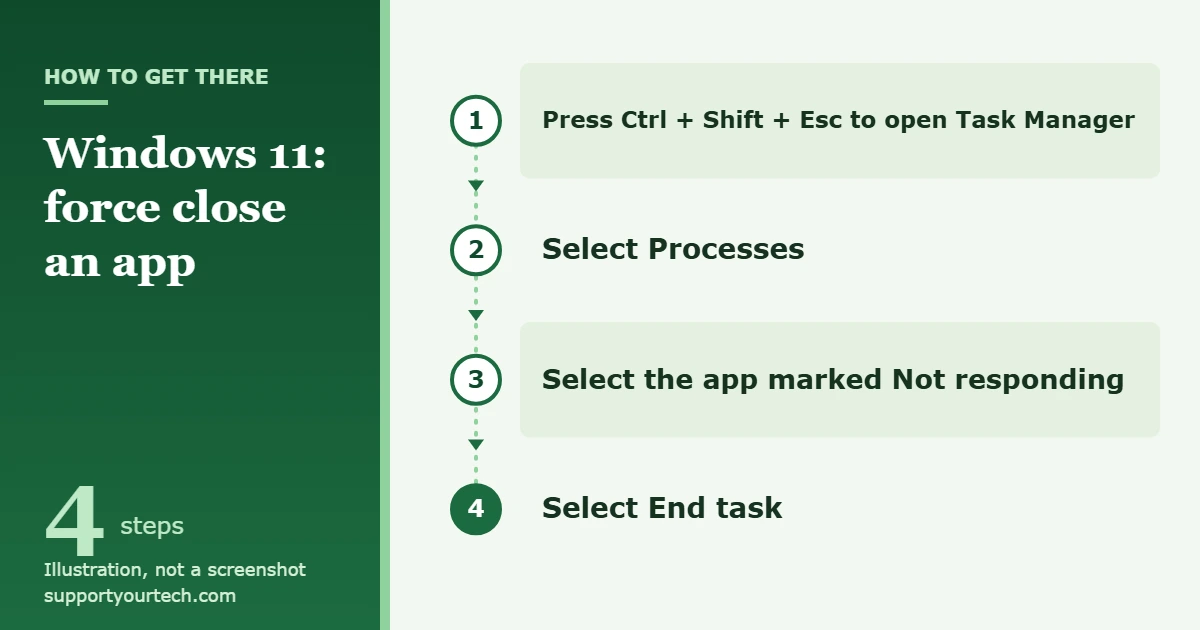
To force close an app on Windows 11, press Ctrl + Shift + Esc to open Task Manager, select the frozen app on the Processes page, and select End task. The app closes right away, and anything you had not saved in it is lost.
Applies to: Windows 11 (Home and Pro, versions 23H2, 24H2 and 25H2). Checked against Microsoft Support and Microsoft Learn on October 6, 2026.
Before you force close an app
Force closing ends the app’s process without giving the app a chance to save. Before you do it, check three things.
- Is the app really frozen? An app that is exporting a video, installing an update, or opening a very large file can look stuck for a minute or two. If the disk light is busy or a progress bar is still moving, wait a little longer.
- Is a hidden window waiting for you? Press Alt + Tab to switch between open windows. A save prompt or an error message behind the main window can make an app ignore your clicks until you answer it.
- Can you close it normally? Click the app’s window and press Alt + F4. Microsoft lists this shortcut as “Close the active window.” It asks the app to close in the usual way, so the app can still offer to save your work. If nothing happens after several seconds, move on to Task Manager.
Be careful with Alt + F4 when no window is selected. From the desktop, it opens the Windows shutdown prompt instead. Select Cancel if you see it.
Force close an app with Task Manager
Task Manager is the Windows tool that lists every running app and background process. It is the most reliable way to close a frozen app, and you do not need an administrator account to close apps that you started yourself.
- Press Ctrl + Shift + Esc on your keyboard. Task Manager opens on top of your other windows. If the keyboard shortcut does not work, right-click the Start button and select Task Manager.
- Select Processes in the left sidebar if it is not already selected. You will see a list split into Apps and Background processes.
- Find the frozen app under Apps. A frozen app often shows Not responding in the Status column.
- Click the app’s name once to select it. The row is highlighted.
- Select End task at the top of the Task Manager window. You can also right-click the app and select End task. The app’s window closes and its row disappears from the list within a few seconds.
- Close Task Manager, then open the app again from the Start menu if you still need it.
If you would like more ways to get into this tool, including from the Run box and the search bar, see our guide on how to open Task Manager in Windows 11.
When the mouse will not move
You can do all of this from the keyboard. Press Ctrl + Shift + Esc, press Tab until a row in the process list is highlighted, use the arrow keys to reach the frozen app, and press Delete to end it. Check that the right row is highlighted first, because ordinary apps close without a confirmation prompt.
Use Ctrl + Alt + Delete when the screen is stuck
If a full-screen game or app has taken over the screen and Task Manager will not appear on top of it, use the Windows security screen. It runs separately from your apps, so it usually still responds.
- Press Ctrl + Alt + Delete. The screen changes to a short menu. Microsoft describes it as the place where you can lock the desktop, switch user, sign out, change a password, or open Task Manager.
- Select Task Manager.
- Select the frozen app and select End task.
If you still cannot see Task Manager because the frozen app covers it, press Windows key + Tab to open Task View. Select New desktop at the bottom of the screen, then open Task Manager on that empty desktop with Ctrl + Shift + Esc. The frozen app still appears in the list, because Task Manager shows apps from all of your desktops.
Turn on End task for the taskbar
Windows 11 can add an End task command to the menu that appears when you right-click an app’s taskbar button. It is off by default. Once it is on, you can force close an app without opening Task Manager at all. This option arrived with Windows 11 version 23H2, so install the latest Windows updates if you do not see it.
Windows 11 version 25H2
- Press Windows key + I to open Settings.
- Select System in the left sidebar.
- Select Advanced. Microsoft states that in version 25H2 and later, the former For developers settings appear on this page.
- Turn on End Task. Its description reads “Enable end task in taskbar by right click.”
Windows 11 versions 23H2 and 24H2
- Press Windows key + I to open Settings.
- Select System.
- Select For developers.
- Turn on End Task.
Some updated 24H2 PCs already show Advanced in place of For developers. The switch is the same on both pages. You do not need to turn on Developer Mode, which is a separate switch on the same page.
To use it, right-click the frozen app’s button on the taskbar and select End task. This is different from Close window in the same menu. Close window sends the normal close request, the same as the X button, and a frozen app usually ignores it. End task stops the app’s process.
Force close an app with Command Prompt
The taskkill command ends a process by name or by number. It helps when Task Manager itself is slow, or when an app has many windows and you want all of them gone at once.
- Select Start, type cmd, and select Command Prompt. A black command window opens. A standard window is enough for apps you started. Select Run as administrator instead if the app was started as an administrator or by another account.
- Type tasklist and press Enter. Windows prints every running process. The Image Name column shows the file name, such as notepad.exe, and the PID column shows its process ID number.
- Type taskkill /im notepad.exe /f, replacing notepad.exe with the image name of your app, and press Enter.
- Look for a line that starts with SUCCESS. It confirms that the process was terminated.
Here is what each part of the command means, based on Microsoft’s taskkill command reference.
| Part | What it does |
|---|---|
| /im name.exe | Chooses the process by its image name. Every running copy with that name is ended. |
| /pid 1234 | Chooses one process by its process ID. Use it when you want to close only one copy of an app. |
| /f | Forcefully ends the process. Without it, taskkill only asks the app to close. |
| /t | Also ends any child processes that the app started, such as helper or updater processes. |
| /fi “status eq not responding” | Applies a filter so that only processes Windows has marked as not responding are selected. |
For example, taskkill /pid 1234 /t /f force closes process 1234 and everything it launched.
Close every frozen app with one command
To close all apps that are not responding, without naming them, type taskkill /f /fi “status eq not responding” and press Enter. If nothing is frozen, the command reports that no tasks match the criteria and closes nothing.
You can save this command as a desktop shortcut so it is ready the next time something hangs.
- Right-click an empty part of the desktop and select New, then Shortcut.
- In the location box, type taskkill /f /fi “status eq not responding” and select Next.
- Type a name, such as Close frozen apps, and select Finish.
Double-click the shortcut whenever an app freezes. A command window flashes briefly and the frozen apps close.
Force close an app with PowerShell
PowerShell, which opens inside the Terminal app on Windows 11, has its own command for this.
- Right-click the Start button and select Terminal. Choose Terminal (Admin) only if the app belongs to another account.
- Type Get-Process and press Enter to list running processes. Note the name in the ProcessName column. PowerShell names do not include .exe.
- Type Stop-Process -Name “notepad”, using your app’s process name, and press Enter. PowerShell shows nothing when the command succeeds, and the app’s window closes.
Microsoft’s Stop-Process documentation says the command stops all running copies with that name. To stop a single copy, use Stop-Process -Id followed by the number in the Id column. Adding -Force skips the confirmation prompt that appears for processes owned by another user. It is not needed for your own apps.
End a Microsoft Store app from Settings
Apps installed from the Microsoft Store, such as Photos or Calculator, can also be stopped from the Settings app. This is handy when an app has no visible window but keeps running.
- Select Start, then Settings, then Apps, then Installed apps.
- Find the app and select the More button (three dots) on the right side of its row.
- Select Advanced options. Microsoft notes that some apps do not have this option. Traditional desktop programs usually do not, so use Task Manager for those.
- Scroll down and select Terminate. The app and its related processes stop.
The same page has Repair and Reset buttons, which are useful if the app freezes again. More on those below.
Which method should you use?
| Situation | Best method |
|---|---|
| One app is frozen and the rest of Windows works | Task Manager, then End task |
| A full-screen app or game hides everything | Ctrl + Alt + Delete, then Task Manager |
| Apps freeze often and you want a faster route | End task on the taskbar |
| Several apps are frozen at once | taskkill with the not responding filter |
| A Store app keeps running with no window | Settings, then Terminate |
| Nothing on the screen responds | Restart the PC |
Confirm the app closed and recover your work
Open Task Manager and look at the Processes list. If the app is gone from both Apps and Background processes, it has fully closed. Some apps leave a helper process behind. If the app refuses to reopen, look for a leftover entry with the same name under Background processes and end that as well.
Force closing cannot be undone, but your work may not be gone. Many apps save a recovery copy in the background. Open the app again and look for a recovery prompt or a list of recovered files before you start a new document. Web browsers normally offer to restore your tabs.
Troubleshooting
End task does nothing
Wait about ten seconds, then try again. If the app is still listed, select Details in the Task Manager sidebar, right-click the app’s .exe entry, and select End process tree. This ends the process and everything it started. The command-line version is taskkill /im name.exe /t /f.
You see “Access is denied”
The process was started with administrator rights or by another account. Open Command Prompt or Terminal with Run as administrator and run the command again. If the process is a Windows system component or part of your security software, Windows may block you on purpose. Leave it running and restart the PC instead.
Task Manager will not open or says it is disabled
On a work or school PC, the organization can turn off Task Manager, and you will see a message that it has been disabled by your administrator. The taskbar End task switch can be unavailable for the same reason. Ask your IT department, or sign out and back in, which closes all of your apps. If Task Manager itself is frozen on a personal PC, use the taskkill command or restart.
The End Task switch is missing in Settings
Your PC is probably running a Windows 11 version older than 23H2. Go to Settings, then Windows Update, and install the available updates. Also check both System > Advanced and System > For developers, because the page name depends on your version.
The taskbar or desktop is frozen, not an app
Open Task Manager with Ctrl + Shift + Esc, find Windows Explorer in the Processes list, right-click it, and select Restart. The taskbar disappears for a moment and comes back. Your open apps stay open.
Nothing responds at all
If the keyboard and mouse do nothing, and Ctrl + Alt + Delete does not bring up the security screen, hold down the power button for about 10 seconds until the PC turns off. Then turn it on again. All unsaved work in every app is lost, so treat this as a last resort. When Windows is working again, our guide on how to restart Windows 11 covers the normal ways to restart.
The same app keeps freezing
An app that freezes again and again has a problem that force closing will not fix. Work through these steps in order.
- Restart the PC to clear memory and stuck background processes.
- Update the app, then install Windows updates from Settings > Windows Update.
- Open Task Manager while the app is running and check the Memory and CPU columns. If either is close to 100 percent, close other apps before using the one that freezes.
- Turn off add-ins, extensions, or plug-ins inside the app. They are a common cause of freezes in browsers and office apps.
- Go to Settings > Apps > Installed apps, select More next to the app, select Advanced options, and select Repair. If that does not help, select Reset. Microsoft explains these options in Repair apps and programs in Windows. Reset deletes the app’s data.
- If nothing else works, uninstall the program in Windows 11 and install a fresh copy.
If many different apps freeze, the cause is more likely to be low memory, a nearly full drive, an outdated driver, or malware. Run a scan with Windows Security and check your free storage space. If several apps are frozen at the same time, see how to end all tasks in Task Manager on Windows 11 for safe ways to close many of them at once.
Frequently asked questions
What is the keyboard shortcut to force close an app on Windows 11?
There is no single shortcut that force closes an app. Alt + F4 closes the active window normally. To force close, press Ctrl + Shift + Esc to open Task Manager, select the app, and select End task.
Is it safe to force close an app?
Yes, for ordinary apps. The only cost is unsaved work in that app. Avoid ending entries that you do not recognize under Windows processes, because stopping a system process can sign you out or restart the PC.
Will I lose my work if I force close?
You lose anything that was not saved, unless the app kept its own recovery copy. Reopen the app and check for a recovery prompt.
What is the difference between End task and Close window?
Close window asks the app to close, and the app can respond with a save prompt. End task stops the app’s process without waiting for a reply.
Can I force close several apps at once?
Yes. Run taskkill /f /fi “status eq not responding” in Command Prompt to close every app marked as not responding. To close specific apps, add more than one /im or /pid entry to the same taskkill command.
Does force closing apps make my PC faster?
Only for a short time, and only if the app was using a lot of memory or processor time. Apps that are set to start with Windows return after the next restart. Use the Startup apps page in Task Manager to stop them from starting automatically.
Why do apps stop responding?
Common causes are a shortage of memory, a busy or full drive, a bug in the app, a faulty add-in, an outdated driver, or a lost connection to a network file the app is waiting for.
Next step: turn on End Task in Settings > System now, so that the next time an app freezes you can close it with a right-click on the taskbar.

Matt Jacobs has been working as an IT consultant for small businesses since receiving his Master’s degree in 2003. While he still does some consulting work, his primary focus now is on creating technology support content for SupportYourTech.com.
His work can be found on many websites and focuses on topics such as Microsoft Office, Apple devices, Android devices, Photoshop, and more.