To force close an app in Windows 10, press Ctrl + Shift + Esc to open Task Manager, select the app on the Processes tab, and select End task. If the app is only slow, try Alt + F4 first. For an app that won’t close either way, the taskkill command in Command Prompt ends it.
Applies to: Windows 10. Checked against Microsoft Support and Microsoft Learn on September 26, 2026.
Force closing an app throws away anything you haven’t saved in it. If the app shows Not responding, wait a minute first, since it sometimes recovers.
Force close an app with Task Manager
- Press Ctrl + Shift + Esc to open Task Manager. You can also press Ctrl + Alt + Delete and select Task Manager.
- If you see a small window, select More details.
- On the Processes tab, under Apps, select the app that’s frozen.
- Select End task.
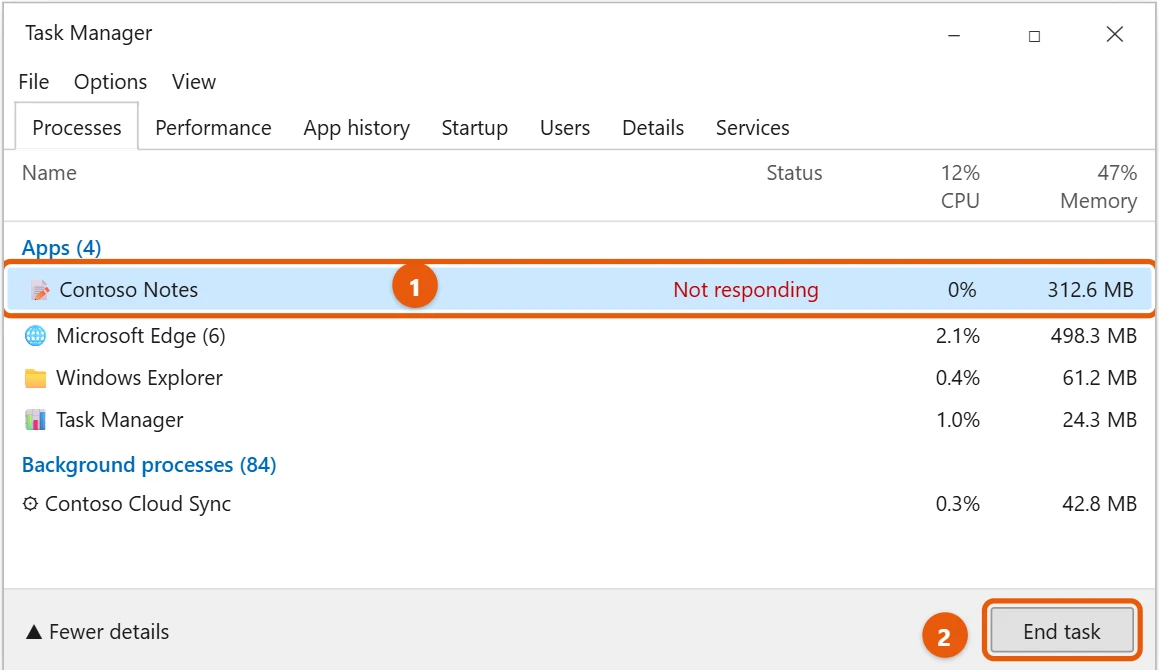
The app closes within a few seconds. For more ways to open Task Manager, see how to open Task Manager in Windows 10.
Close the app with Alt + F4
Select the app’s window and press Alt + F4. This closes the active window the same way the X button does, so the app may ask you to save first. If no window is selected, Alt + F4 opens the Shut Down Windows box instead, so select Cancel if you see it.
Force close an app with the taskkill command
Use this when Task Manager won’t open or End task doesn’t work.
- Select Start, type
cmd, and select Command Prompt. - Type
tasklistand press Enter to find the app’s file name, such asnotepad.exe. - Type
taskkill /im notepad.exe /f, using the app’s file name, and press Enter.
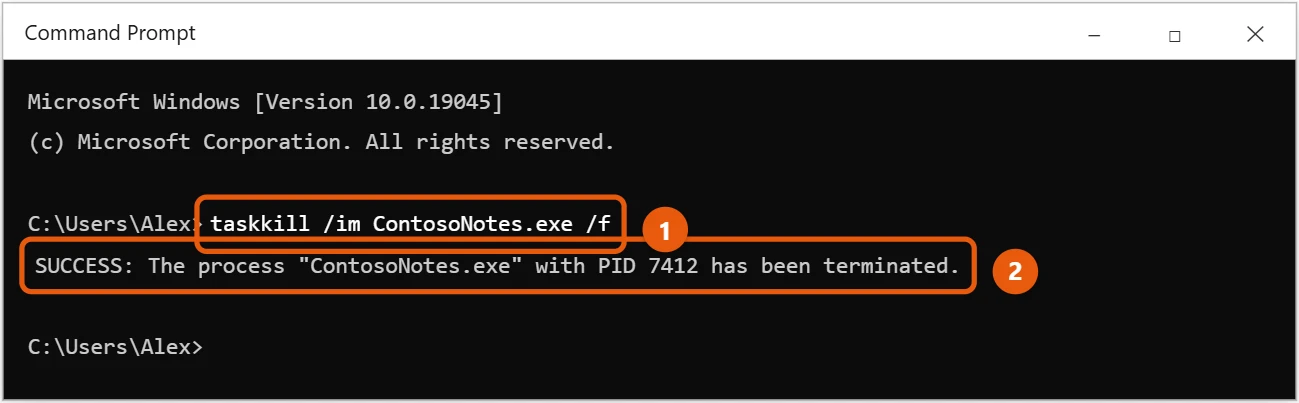
The /f switch forces the app to close. Adding /t also closes any processes the app started. If you see Access is denied, open Command Prompt as an administrator and run the command again.
Close all open apps and windows
- To close every window of one app, right-click its taskbar button and select Close all windows.
- To close everything at once, restart the PC. Windows closes all apps first and asks about unsaved work.
- Windows logo key + D only hides your windows to show the desktop. It doesn’t close anything.
Frequently asked questions
Why does an app stop responding?
Common causes are a slow task the app is still working on, not enough free memory, or a bug. If the same app freezes often, update it or reinstall it. See how to free up RAM in Windows 10.
What if the whole PC is frozen?
If the mouse and Ctrl + Alt + Delete don’t work, hold the power button for about 10 seconds to turn the PC off, then turn it back on. Only do this as a last resort, since unsaved work is lost. If only the taskbar or desktop is stuck, restarting Windows Explorer is a gentler fix to try first.
How do I stop apps from running in the background?
See how to close apps running in the background on Windows 10.
If an app keeps freezing or won’t open again, see how to fix apps not opening in Windows 10.
Microsoft’s references are Keyboard shortcuts in Windows and taskkill. More help is on our Windows Help & Guides page.

Matt Jacobs has been working as an IT consultant for small businesses since receiving his Master’s degree in 2003. While he still does some consulting work, his primary focus now is on creating technology support content for SupportYourTech.com.
His work can be found on many websites and focuses on topics such as Microsoft Office, Apple devices, Android devices, Photoshop, and more.