To stop apps from running in the background on Windows 10, select Start > Settings > Privacy > Background apps. Turn off Let apps run in the background to stop all of them, or leave it on and turn off individual apps. Desktop apps don’t use this setting, so close them from the notification area on the taskbar or from Task Manager.
Applies to: Windows 10. Windows 10 reached end of support on October 14, 2025, and only PCs enrolled in Extended Security Updates still get security fixes, through October 12, 2027.
Background apps can still send notifications and stay up to date when you’re not using them. Turning them off can save battery and data, but apps you turn off won’t update until you open them.
Turn off background apps in Settings
- Select Start > Settings > Privacy.
- Scroll down the left side and select Background apps.
- To stop most apps, turn off Let apps run in the background.
- To choose app by app, leave it on and turn off each app under Choose which apps can run in the background.
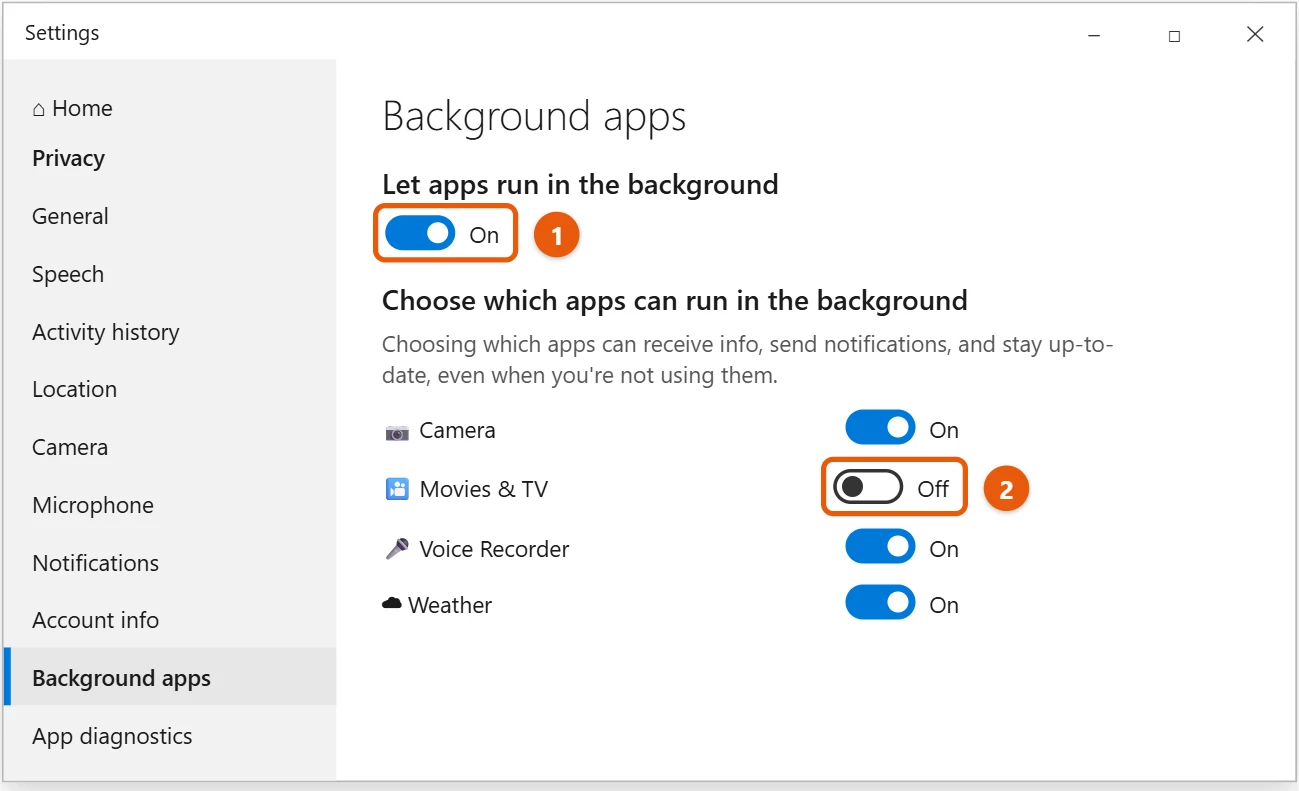
This list only shows apps from the Microsoft Store. Desktop apps don’t appear in it and aren’t affected by the switch.
Close desktop apps in the notification area
Many desktop apps, such as cloud sync tools, chat apps, and game launchers, keep running after you close their window. They show an icon near the clock.
- Select the Show hidden icons arrow (^) on the taskbar.
- Right-click the app’s icon and select Exit, Quit, or Close.
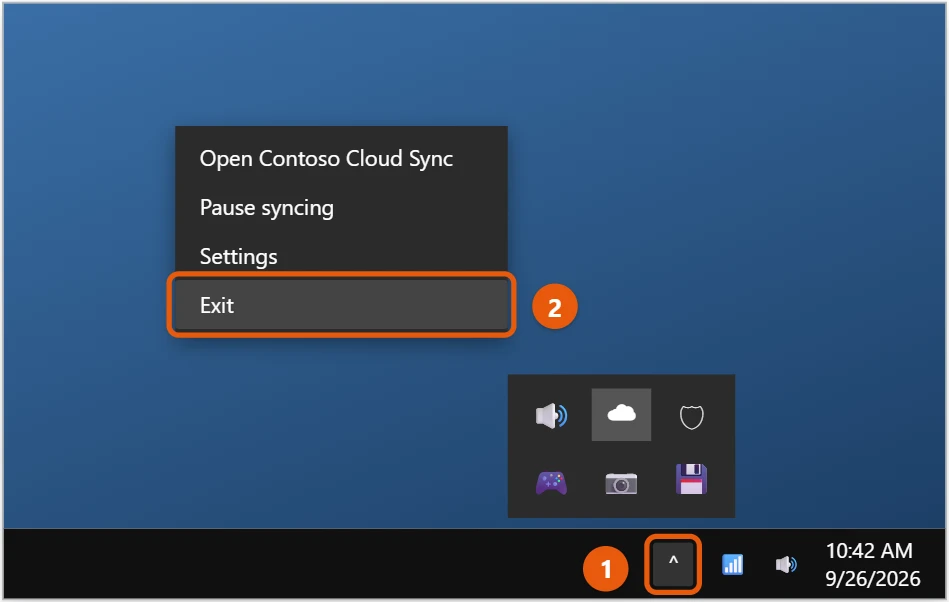
To stop the app from running in the background next time, look in its own settings for an option like Run in background or Start with Windows and turn it off.
Close background processes in Task Manager
- Press Ctrl + Shift + Esc to open Task Manager, then select More details if needed.
- On the Processes tab, look under Background processes.
- Select an app you recognize and select End task.
Only end processes for apps you installed. Ending processes listed under Windows processes, or ones you don’t recognize, can make Windows unstable until you restart. An app that is frozen, not just running, may need you to force close the app in Windows 10.
Stop apps from starting with Windows
Apps that start when you sign in are a common reason for a busy background. In Task Manager, select the Startup tab, select the app, and select Disable. Other methods are in disabling startup programs in Windows 10.
If background apps keep running
- The Background apps page is grayed out. Your work or school may control it. Ask your IT team.
- An app isn’t in the Background apps list. That page only covers Microsoft Store apps. Close desktop apps from their icon near the clock, or turn them off in Task Manager on the Startup tab.
- Battery saver changes things. When it’s on, Windows limits background activity on its own, so apps may behave differently on battery power.
Frequently asked questions
Is it safe to turn off all background apps?
Yes. Windows keeps working, but apps like Mail, Calendar, and Weather won’t refresh or send notifications until you open them.
Will closing background apps speed up my PC?
It can help if memory or battery is low. Other fixes are in speeding up your Windows 10 computer.
Why does an app come back after I close it?
It’s set to start with Windows or to run in the background. Turn that off in the app’s settings or on the Startup tab in Task Manager. On a Windows 11 PC, change startup programs in Windows 11 instead.
How do I see which apps are running in the background?
Open Task Manager with Ctrl + Shift + Esc and look under Background processes on the Processes tab. Sort by Memory or CPU to see which ones use the most.
Related: check CPU usage in Windows 10 to find the apps working your processor hardest, or set a program to high priority to give the one you’re using more of it.
Microsoft’s guide is Windows background apps and your privacy.

Matt Jacobs has been working as an IT consultant for small businesses since receiving his Master’s degree in 2003. While he still does some consulting work, his primary focus now is on creating technology support content for SupportYourTech.com.
His work can be found on many websites and focuses on topics such as Microsoft Office, Apple devices, Android devices, Photoshop, and more.