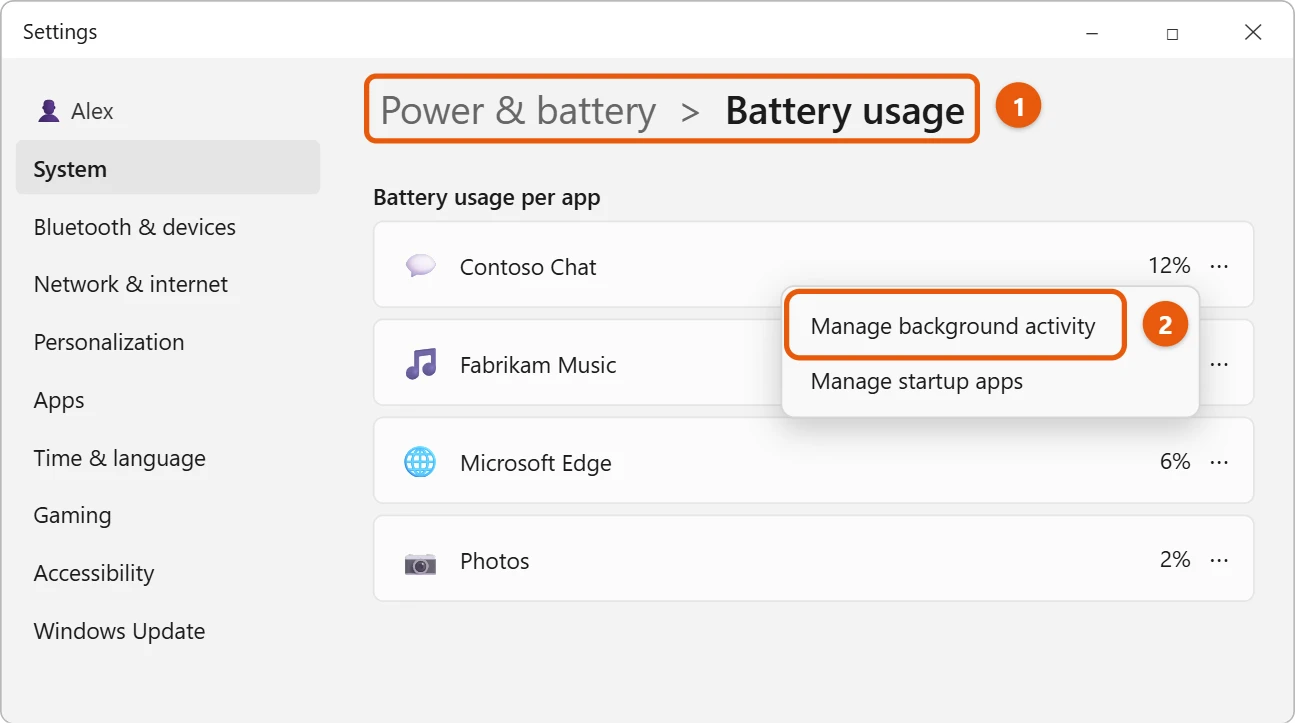
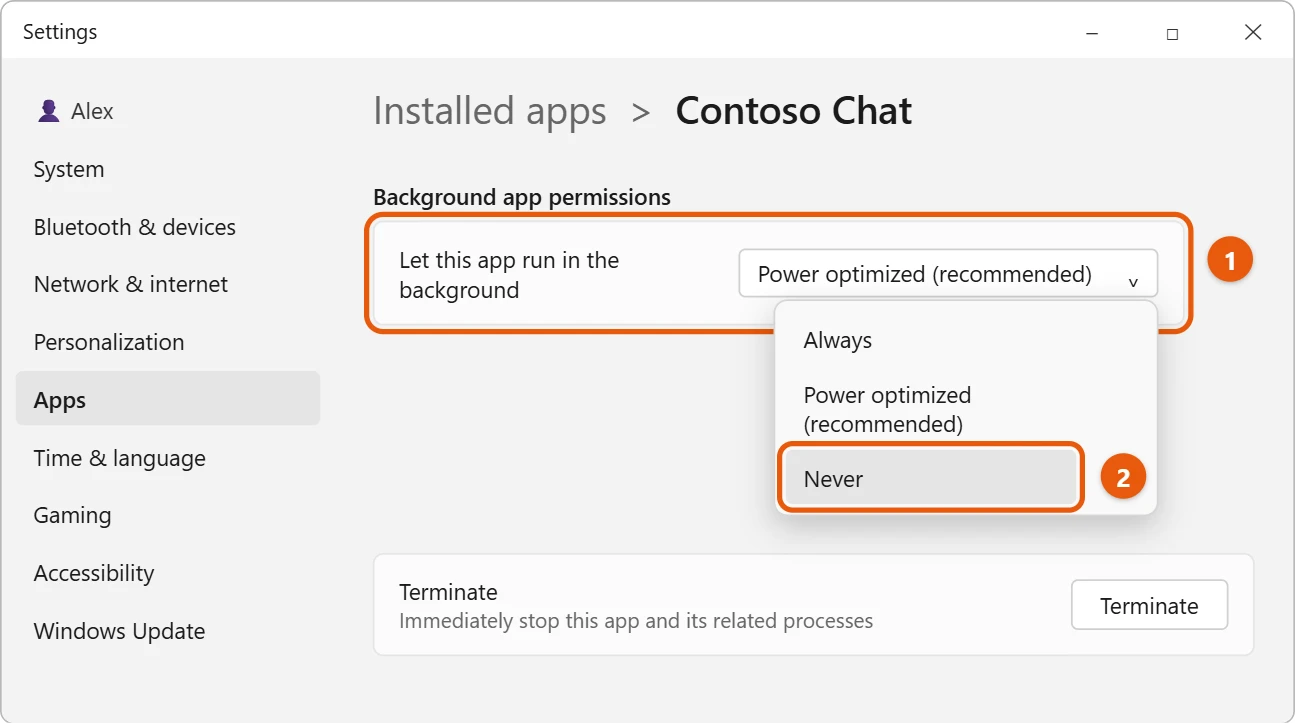
Select Start > Settings > System > Power & battery > Battery usage. Next to an app, select More options (…) > Manage background activity, then set Let this app run in the background to Never.
Applies to: Windows 11. Checked against Microsoft Support on September 29, 2026.
Why turn off background apps?
Some apps keep running when you’re not using them, so they can send notifications and stay up to date. That can use battery and data. Turning it off saves power, but the app won’t send notifications until you open it.
Turn off background activity for an app
- Select Start > Settings > System > Power & battery > Battery usage.
- Find the app under Battery usage per app. Select More options (…), then select Manage background activity.
- Set Let this app run in the background to Never.
Only apps that allow it have the Manage background activity option.
What the options mean
- Always: the app can run in the background all the time. It may use more power.
- Power optimized (recommended): Windows decides when the app can run, to save power while still getting notifications.
- Never: the app doesn’t run in the background, so you won’t get its notifications or updates until you open it.
Microsoft notes that at least one app needs to be set to Always if you want your device to stay connected and get app updates.
Another way: from Installed apps
- Select Start > Settings > Apps > Installed apps.
- Select More options (…) next to the app, then Advanced options.
- Under Background app permissions, choose Never.
Frequently asked questions
Will this stop apps that open when Windows starts?
No. Those are startup apps, which is a different setting in Settings > Apps > Startup.
How do I see what’s running right now?
Open Task Manager. See how to open Task Manager in Windows 11.
Is my battery wearing out?
See how to check battery health in Windows 11.
For more ways to speed up your PC, see how to make your PC faster in Windows 11.
To stop pop-ups from apps, see how to turn off notifications in Windows 11.
Background apps also use memory. To free more of it, see how to clear memory (RAM) on Windows 11.
OneDrive is one of the apps that runs in the background from startup. To pause it or stop it starting, see how to turn off OneDrive in Windows 11.
Microsoft’s reference is Manage background activity for apps in Windows. More help is on our Windows Help & Guides page.

Matt Jacobs has been working as an IT consultant for small businesses since receiving his Master’s degree in 2003. While he still does some consulting work, his primary focus now is on creating technology support content for SupportYourTech.com.
His work can be found on many websites and focuses on topics such as Microsoft Office, Apple devices, Android devices, Photoshop, and more.