Select Start > Settings > System > Notifications. Turn off Notifications to stop them all, or turn off just the apps you don’t want to hear from. To silence them for a while, turn on Do not disturb.
Applies to: Windows 11. Checked against Microsoft Support on September 29, 2026.
Turn off notifications for all apps or one app
- Select Start > Settings > System > Notifications.
- Turn off Notifications to stop all of them.
- Or leave it on and, under Notifications from apps and other senders, turn off the apps you don’t want.

Select an app’s name for more choices, such as turning off banners or sounds but still seeing notifications in the notification center.
Silence notifications with Do not disturb
- On the same page, turn on Do not disturb. Notifications go straight to the notification center without popping up.
- To do this on a schedule, expand Turn on do not disturb automatically and pick times or situations, such as when playing a game.
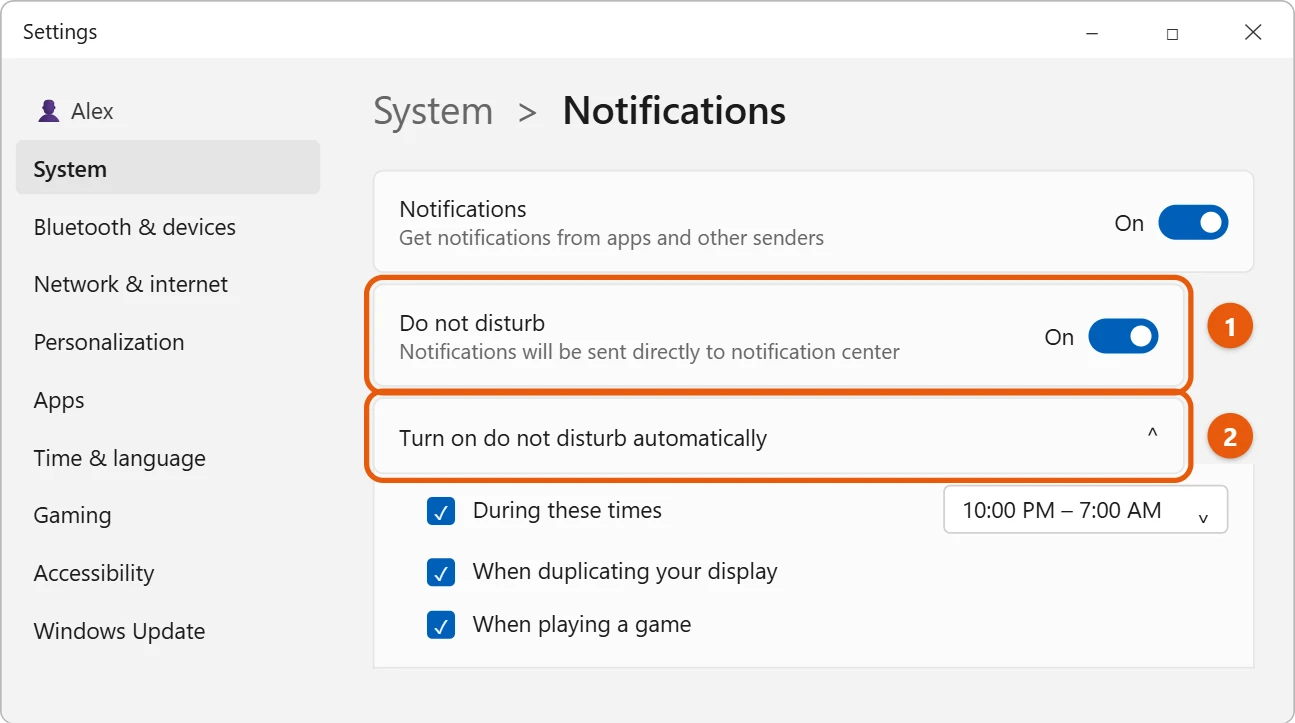
You can also turn it on quickly: select the clock or the bell on the taskbar, then select the bell icon.
Turn off notifications from one message
When a notification appears, or in the notification center (Windows logo key + N), select More (…) on it, then select Turn off all notifications for that app.
Turn off website notifications in your browser
Websites can send notifications through your browser. In Microsoft Edge, go to Settings > Cookies and site permissions > Notifications and block or remove the sites you don’t want. Other browsers have a similar setting.
Frequently asked questions
Will I miss anything?
Notifications you don’t see still wait in the notification center unless you turned an app off completely.
Can I stop apps from running in the background too?
Yes. See how to turn off background apps in Windows 11. On Windows 10, see how to turn off notifications in Windows 10.
Microsoft’s reference is Notifications and Do Not Disturb in Windows. More help is on our Windows Help & Guides page.

Matt Jacobs has been working as an IT consultant for small businesses since receiving his Master’s degree in 2003. While he still does some consulting work, his primary focus now is on creating technology support content for SupportYourTech.com.
His work can be found on many websites and focuses on topics such as Microsoft Office, Apple devices, Android devices, Photoshop, and more.