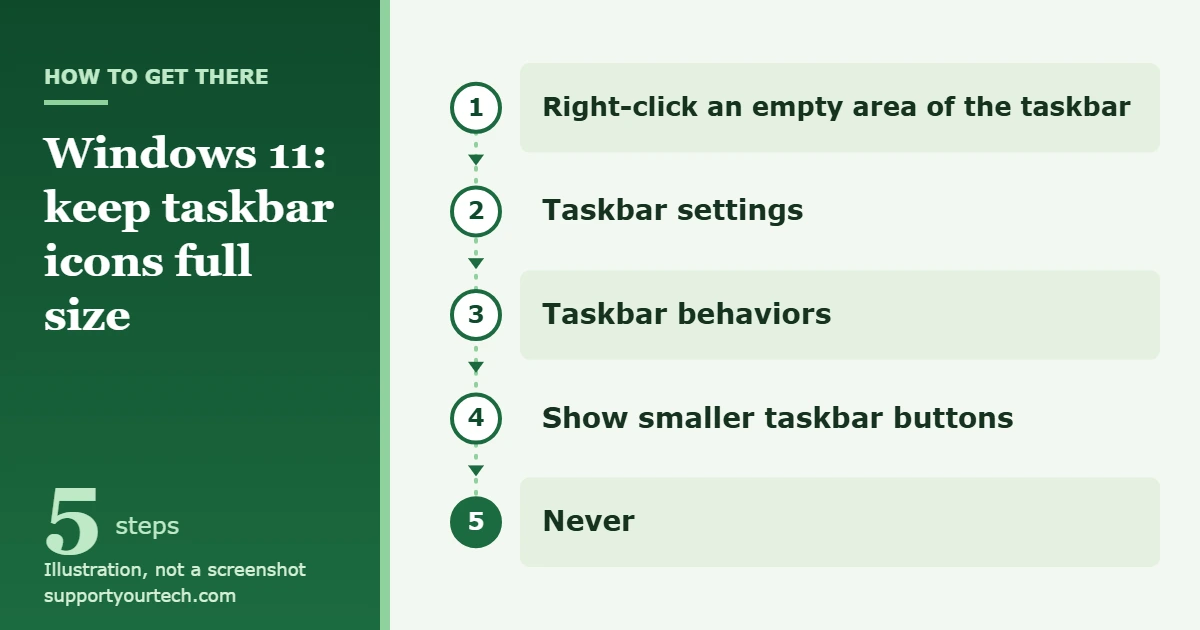
To make taskbar icons bigger in Windows 11, first make sure Windows isn’t shrinking them: right-click an empty area of the taskbar, select Taskbar settings, expand Taskbar behaviors, and set Show smaller taskbar buttons to Never. To go larger than the standard size, raise Scale in Settings > System > Display.
Applies to: Windows 11 (version 24H2 and later for the taskbar button setting). Checked against Microsoft Support on October 7, 2026.
What Windows 11 can and can’t do with taskbar icon size
Windows 11 has no setting that makes only the taskbar icons larger than their standard size. Microsoft documents three controls that affect how big they look, and it helps to know which one matches your problem before you change anything.
| Your situation | Setting to change | What else it affects |
|---|---|---|
| Icons became smaller on their own, or shrink when many apps are open | Show smaller taskbar buttons | Nothing else |
| The whole taskbar, including its icons, is thinner than it used to be | Taskbar size | Taskbar height |
| Icons are at standard size but still too small for you | Scale | Text, apps and images everywhere on that display |
Stop Windows from shrinking taskbar icons
Since version 24H2, the Windows 11 taskbar can reduce the size of its icons to fit more apps. By default it does this only when the taskbar is full, which is why icons can look normal in the morning and small after you’ve opened a dozen windows. Setting the option to Never keeps them at their original size all the time.
- Right-click an empty area of the taskbar and select Taskbar settings. The Settings app opens on the taskbar page.
- Select Taskbar behaviors to expand that section if it isn’t already open. A list of taskbar options appears.
- Find Show smaller taskbar buttons and open the menu next to it. You’ll see three choices: Always, Never, and one that reduces icon size only when the taskbar is full.
- Select Never. Icons that had been reduced go back to their original size.
With Never selected, a crowded taskbar can no longer make room by shrinking its icons, so expect it to fill up sooner when you have many apps open.
Check that the taskbar isn’t set to Small
Microsoft’s August and September 2026 updates for Windows 11 versions 24H2, 25H2 and 26H1 add a separate Taskbar size setting. When it is set to Small, both the icons and the taskbar height become smaller. If someone else uses your PC, or you tried the option and forgot about it, this may be the reason your icons look tiny.
- Open Settings and go to Personalization > Taskbar.
- Look in the Taskbar behaviors section for Taskbar size.
- If it is set to Small, choose the other option. The taskbar and its icons return to their standard height and size.
This setting only switches between the smaller and the standard taskbar; Microsoft doesn’t describe a larger-than-standard choice. Our guide to changing the taskbar size in Windows 11 covers it in more detail.
Make taskbar icons larger than standard with display scaling
Scale is the supported way to push taskbar icons beyond their normal size. It enlarges everything on the display together, so the taskbar, its icons, app windows and text all grow by the same amount.
- Select Start > Settings > System > Display.
- If you have more than one monitor, choose the display you want to change at the top of the page.
- Scroll to the Scale & layout section.
- Select Scale, then pick a higher percentage than the current one, for example 125% instead of 100%. The screen redraws and the taskbar icons get bigger.
Microsoft says it’s typically best to use the option marked (Recommended), so move up one step at a time and stop at the first size that is comfortable. A higher scale leaves less room on screen for windows and documents.
Leave Display resolution on its (Recommended) value. Lowering the resolution also makes things look bigger, but Microsoft notes that text may not look as sharp and the picture might not fill the screen properly.
Other ways to make the taskbar easier to see
If the icons are fine but the small print around them is hard to read, larger icons may not be what you need.
- Larger text only: select Start > Settings > Accessibility > Text size and adjust the slider next to Text size. This makes text bigger without enlarging images and apps.
- Temporary zoom: press the Windows key + Plus (+) to turn on Magnifier and zoom in, the Windows key + Minus (-) to zoom out, and the Windows key + Esc to turn it off. This is useful when you only occasionally need a closer look at a small icon.
The icons on the desktop are controlled separately; see how to change desktop icon size in Windows 11 for those.
How to confirm the change or undo it
Each of these settings takes effect on the taskbar itself, so look at the pinned icons before and after you change it. To undo a change, go back to the same setting and pick the previous value:
- Show smaller taskbar buttons: the default is to reduce icon size only when the taskbar is full.
- Scale: choose the percentage marked (Recommended).
- Text size: move the slider back to where it was.
Troubleshooting
Show smaller taskbar buttons or Taskbar size is missing
Both settings arrived through Windows 11 updates that Microsoft releases gradually, so they don’t reach every PC on the same day. Show smaller taskbar buttons was introduced for version 24H2, and Taskbar size came with the August and September 2026 updates. Install the latest updates from Windows Update and check again later. In the meantime, Scale works on every Windows 11 PC.
The icons still shrink after you choose Never
Confirm that the setting still shows Never, then check Taskbar size. If that is set to Small, the whole taskbar stays compact no matter what the button setting says.
Everything changed size unexpectedly
If icons across the whole screen suddenly look larger or smaller, look at Scale and Display resolution in Settings > System > Display and return both to (Recommended). Microsoft says unexpected changes in screen resolution can mean the graphics driver needs to be updated.
An older guide tells you to edit the Registry
Tutorials written for early Windows 11 releases suggest adding a Registry value to get a large taskbar. Microsoft’s taskbar documentation doesn’t list that method, and it offers no large option in Settings, so we don’t recommend it. Use Scale instead.
Frequently asked questions
Can I make only the taskbar icons bigger in Windows 11?
Not beyond the standard size. You can stop Windows from shrinking them with Show smaller taskbar buttons set to Never, but going larger means raising Scale, which enlarges everything on that display.
Why did my taskbar icons suddenly get smaller?
The most likely cause is the default behavior that reduces icon size when the taskbar is full. Closing some apps frees up room on the taskbar, and choosing Never prevents it from happening again.
Does changing Scale affect my other monitor?
Scale is set for one display at a time. Choose the display you want to change at the top of the Display page before you select a new percentage.
Will a bigger scale make my screen blurry?
Microsoft’s warning about text looking less sharp applies to lowering the display resolution. That is why Scale, with the resolution left at (Recommended), is the better way to enlarge taskbar icons.
Is there an official list of taskbar options?
Yes. Microsoft’s Customize the taskbar in Windows page describes the taskbar settings, and Change your screen resolution and layout in Windows covers Scale.
Start with Show smaller taskbar buttons, since it changes nothing else on your PC, and move to Scale only if the standard icon size is still too small.

Matt Jacobs has been working as an IT consultant for small businesses since receiving his Master’s degree in 2003. While he still does some consulting work, his primary focus now is on creating technology support content for SupportYourTech.com.
His work can be found on many websites and focuses on topics such as Microsoft Office, Apple devices, Android devices, Photoshop, and more.