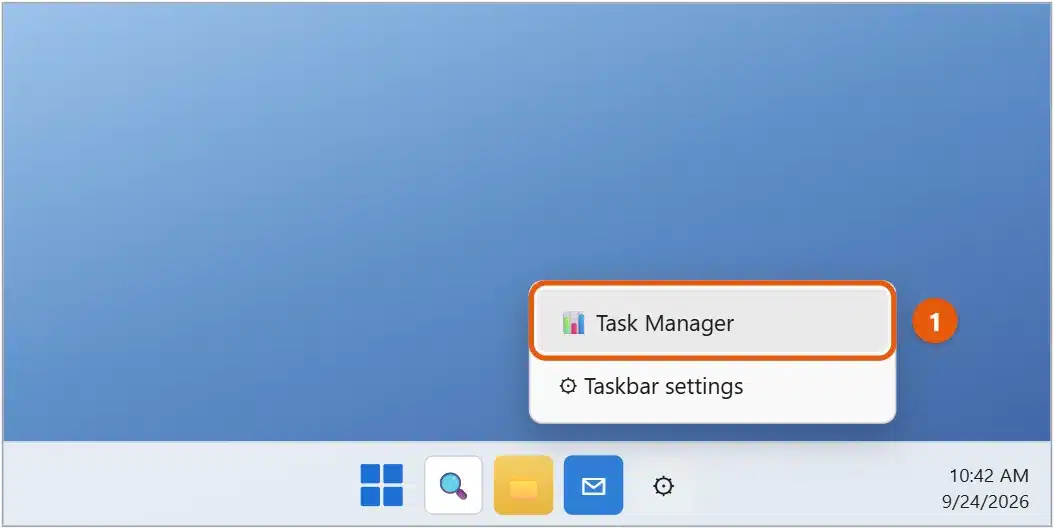
The fastest way to open Task Manager in Windows 11 is to press Ctrl + Shift + Esc. It opens straight away, even when an app has frozen. You can also right-click an empty spot on the taskbar and select Task Manager, or right-click Start and choose Task Manager.
Applies to: Windows 11. Checked against Microsoft Support on September 24, 2026.
Seven ways to open Task Manager
- Keyboard shortcut: press Ctrl + Shift + Esc.
- Taskbar: right-click an empty area of the taskbar and select Task Manager. This option was added in a 2022 update, so very early versions of Windows 11 don’t have it.
- Start button: right-click Start (or press Windows + X) and select Task Manager.
- Security screen: press Ctrl + Alt + Delete and select Task Manager. This works when the screen or taskbar isn’t responding.
- Search: select Start, type
task manager, and press Enter. - Run box: press Windows + R, type
taskmgr, and press Enter. - Terminal or Command Prompt: type
taskmgrand press Enter.
To keep it handy, open Task Manager, right-click its icon on the taskbar, and select Pin to taskbar.
Close a frozen app
- Open Task Manager and select Processes in the left pane.
- Select the app that isn’t responding. It often shows Not responding in the Status column.
- Select End task at the top of the window. If the app stays open, try the other ways to force close an app on Windows 11.
Anything you haven’t saved in that app will be lost. Don’t end processes listed under Windows processes, because Windows needs them to run.
Other things you can do in Task Manager
- Performance: see how busy your CPU, memory, disk, and network are. If Antimalware Service Executable is the busy process, see how to disable Antimalware Service Executable in Windows 11.
- Startup apps: select an app and choose Disable to stop it opening when you sign in. See how to stop apps from opening on startup in Windows 11.
- Run new task: start a program by name. This helps when File Explorer or the taskbar has stopped responding.
- Restart File Explorer: if the taskbar or desktop freezes, right-click Windows Explorer under Processes and select Restart.
- Efficiency mode: right-click an app and select Efficiency mode to lower its priority so other apps run more smoothly.
Find a process quickly
Task Manager in Windows 11 has a search box at the top. Type part of an app’s name, publisher, or process ID to filter the list. If you don’t recognize a process, right-click it and choose Search online to look it up, or Open file location to see where its program file lives. A file in an odd folder, such as a random name in your Downloads folder, is worth a malware scan.
Keep Task Manager on top
When an app freezes in full screen, Task Manager can open behind it. To stop that, open Task Manager, select Settings (the gear at the bottom left), and turn on Always on top under Window management. The next time you press Ctrl + Shift + Esc, it stays in front of every other window.
Read the Performance tab
The Performance page shows live graphs for your CPU, memory, disks, network, and graphics card. Select each one on the left for details:
- CPU: constant use near 100 percent with nothing open often means a background process or update is busy.
- Memory: the In use figure and how much is Available.
- Disk: 100 percent active time makes everything feel slow, especially on hard drives.
- GPU: graphics use and the card’s dedicated memory.
Select the three dots and then Resource Monitor for a more detailed view.
If Task Manager won’t open
- Try another method: if the shortcut does nothing, use Ctrl + Alt + Delete, which works even when the desktop is stuck.
- It’s disabled on this PC: you may see Task Manager has been disabled by your administrator. On a work or school PC, that’s your organization’s choice. Ask your IT support team.
- Nothing responds at all: hold down the power button for about 10 seconds to turn the PC off, then turn it back on. Unsaved work will be lost.
- It stays blocked on your own PC: some malware disables Task Manager. Run a full scan in Windows Security > Virus & threat protection > Scan options > Full scan.
Frequently asked questions
Is Ctrl + Alt + Delete the same as Task Manager?
No. Ctrl + Alt + Delete opens a security screen where you can lock the PC, switch users, sign out, change your password, or open Task Manager. Ctrl + Shift + Esc skips that screen and opens Task Manager directly.
How do I end several tasks at once?
Task Manager ends one app at a time. See how to end all tasks in Task Manager in Windows 11 for safer ways to close many apps.
Is it safe to end any task?
Ending an app is safe, though you lose unsaved work in it. Be careful with entries in the Windows processes group. Ending some of them, such as Windows Logon Application or Client Server Runtime Process, can log you out or restart the PC. If you’re not sure what a process is, search for it first.
Why does Task Manager open in a small window?
You’re in the compact view. Select More details at the bottom to see the full Task Manager.
For other ways to fix a problem, see how to get help in Windows 11.
To group your open apps into separate workspaces, see how to switch desktops in Windows 11.
To run commands, see how to open Command Prompt in Windows 11.
To stop an app from running in the background for good, see how to turn off background apps in Windows 11.
To keep Task Manager or another window in front of your other apps, see how to pin a window on top in Windows 11.
If an app gets stuck while updating, ending it in Task Manager often helps. For an example, see how to update Discord on Windows 11.
Microsoft lists these and other shortcuts in Keyboard shortcuts in Windows. To open Settings just as quickly, see how to open Settings in Windows 11. More help is on our Windows 11 Help & Guides page.
Related: How to turn off Efficiency mode in Windows 11.
Related: learn Windows 11.
Related: reopen a closed window in Windows 11.
Related: cascade windows in Windows 11.
Related: how to freeze your screen on Windows 11.
Related: stop Discord from opening on startup.
Related: how to get to administrative tools in Windows 11.

Matt Jacobs has been working as an IT consultant for small businesses since receiving his Master’s degree in 2003. While he still does some consulting work, his primary focus now is on creating technology support content for SupportYourTech.com.
His work can be found on many websites and focuses on topics such as Microsoft Office, Apple devices, Android devices, Photoshop, and more.