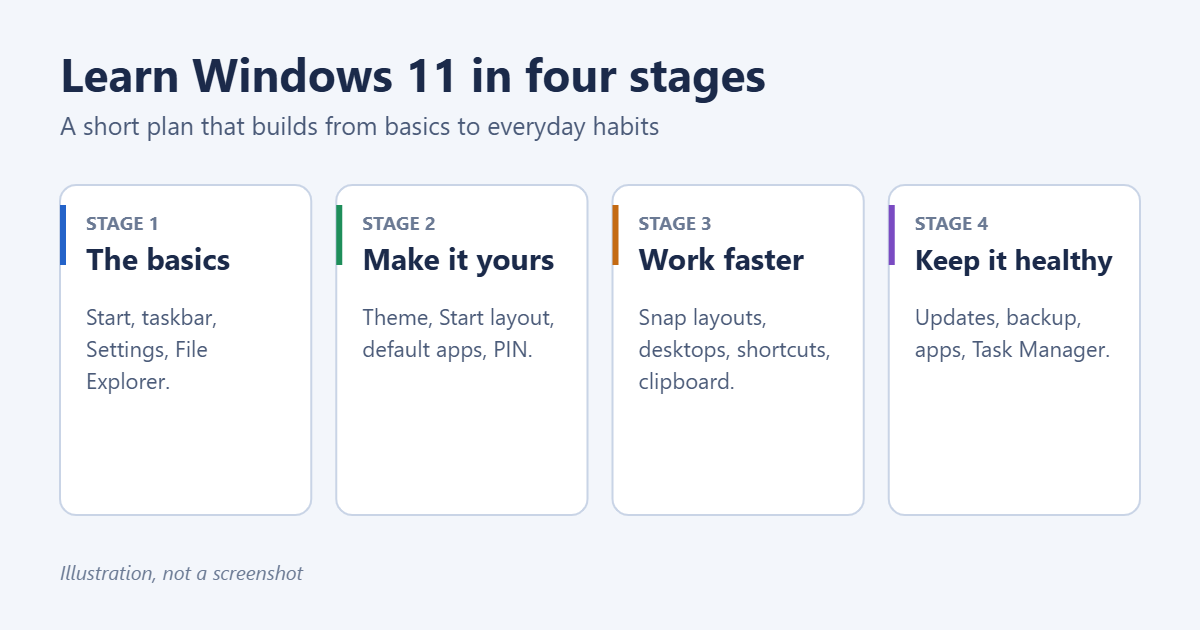
The fastest way to learn Windows 11 is to work through it in stages: the basic layout first, then personalizing it, then the shortcuts that save time, and finally the upkeep that keeps it running well. Spend 15 to 20 minutes on each stage and try every step on your own PC as you go. You’ll be comfortable within a week, even if you’re coming from Windows 10 or a Mac.
Stage 1: Learn the layout
Start menu and taskbar
The taskbar icons are centered by default. Click the Start button (the Windows logo) to open the Start menu. The top section holds pinned apps, and All (or All apps) shows everything installed. Type right after opening Start to search apps, files and settings.
To pin an app, right-click it and choose Pin to Start or Pin to taskbar. If you prefer the icons on the left, go to Settings > Personalization > Taskbar > Taskbar behaviors > Taskbar alignment. More options are in how to change the taskbar size and how to make the Start menu like Windows 10.
Settings
Press Windows key + I to open Settings. The categories on the left (System, Bluetooth & devices, Network & internet, Personalization, Apps, Accounts and more) hold nearly every option. Use the search box at the top-left when you don’t know where something lives.
File Explorer
Press Windows key + E. Home shows recent and favorite files. The left pane lists Desktop, Documents, Downloads, OneDrive and your drives. Tabs work like a web browser: press Ctrl + T for a new one. Right-click shows a short menu. Choose Show more options for the full one (see how to open the full right-click menu).
Quick Settings and notifications
Click the Wi-Fi, sound and battery icons at the bottom-right (or press Windows key + A) for Wi-Fi, Bluetooth, volume, brightness and Focus. Click the date and time (or Windows key + N) for notifications and the calendar.
Stage 2: Make it yours
- Theme: Settings > Personalization > Colors to switch between light and dark (how to turn on dark mode).
- Wallpaper and lock screen: Settings > Personalization > Background and Lock screen (how to change the lock screen wallpaper).
- Sign-in: set a PIN or Windows Hello face or fingerprint sign-in under Settings > Accounts > Sign-in options (how to set a PIN).
- Default apps: choose your browser, mail and photo apps under Settings > Apps > Default apps (how to change the default browser).
- Copilot and suggestions: decide which AI and suggestion features you want. See how to turn off Copilot if you’d rather not use it.
Stage 3: Work faster
Snap layouts
Hover over the maximize button of any window, or press Windows key + Z, and pick a layout to arrange two to four windows side by side. Drag a window to the top of the screen for the same layouts. Windows remembers the group, so you can restore it from the taskbar later.
Virtual desktops
Press Windows key + Tab for Task View, then click New desktop. Use separate desktops for work and personal apps. Switch with Ctrl + Windows key + Left or Right Arrow.
Shortcuts worth learning first
| Shortcut | What it does |
|---|---|
| Windows key | Open Start and search |
| Windows key + D | Show or hide the desktop |
| Windows key + Shift + S | Screenshot with Snipping Tool |
| Windows key + V | Clipboard history |
| Windows key + L | Lock the PC |
| Windows key + . | Emoji and symbols |
| Alt + Tab | Switch between open windows |
| Ctrl + Shift + Esc | Task Manager |
Start with three or four and add more once they’re habit. For details see how to take a screenshot, where screenshots are saved and how to use the clipboard.
Stage 4: Keep it healthy
- Updates: Settings > Windows Update. Install updates when prompted and restart regularly (how to update Windows 11).
- Backup: open the Windows Backup app to back up folders, settings and apps to OneDrive, and keep a copy of important files on an external drive too.
- Security: the Windows Security app shows antivirus, firewall and device protection status. A green check on each section means you’re covered.
- Apps: remove programs you don’t use under Settings > Apps > Installed apps (how to uninstall a program).
- Performance: when something freezes, open Task Manager with Ctrl + Shift + Esc (how to open Task Manager).
Built-in help
- Tips app: short guides and videos for Windows features. Search for “Tips” in Start.
- Get Help app: type a question and it suggests fixes and troubleshooters.
- Microsoft Support: Microsoft’s Windows help pages cover every feature in detail.
Coming from Windows 10?
Most things work the same. The biggest changes are the centered taskbar, the simpler Start menu without live tiles, the shorter right-click menu, the redesigned Settings app and the tabs in File Explorer. The Control Panel is still there. Search for it in Start when you need an older setting.
Frequently asked questions
How long does it take to learn Windows 11?
Most people are comfortable with the basics in an hour or two. Give yourself a week of normal use to pick up the shortcuts and settings you’ll use daily.
Do I need a course?
Not for everyday use. Free resources like the Tips app, Microsoft Support and step-by-step guides are enough. Courses help if you need certification or advanced IT skills.
Can I practice without changing my PC?
Yes. Almost every setting can be changed back the same way, and personalization changes are harmless. Create a restore point first if you plan to change system settings.
Summary
- Learn the Start menu, taskbar, Settings and File Explorer.
- Personalize the theme, sign-in and default apps.
- Practice Snap layouts, virtual desktops and a few shortcuts.
- Keep it updated, backed up and secure.

Matt Jacobs has been working as an IT consultant for small businesses since receiving his Master’s degree in 2003. While he still does some consulting work, his primary focus now is on creating technology support content for SupportYourTech.com.
His work can be found on many websites and focuses on topics such as Microsoft Office, Apple devices, Android devices, Photoshop, and more.