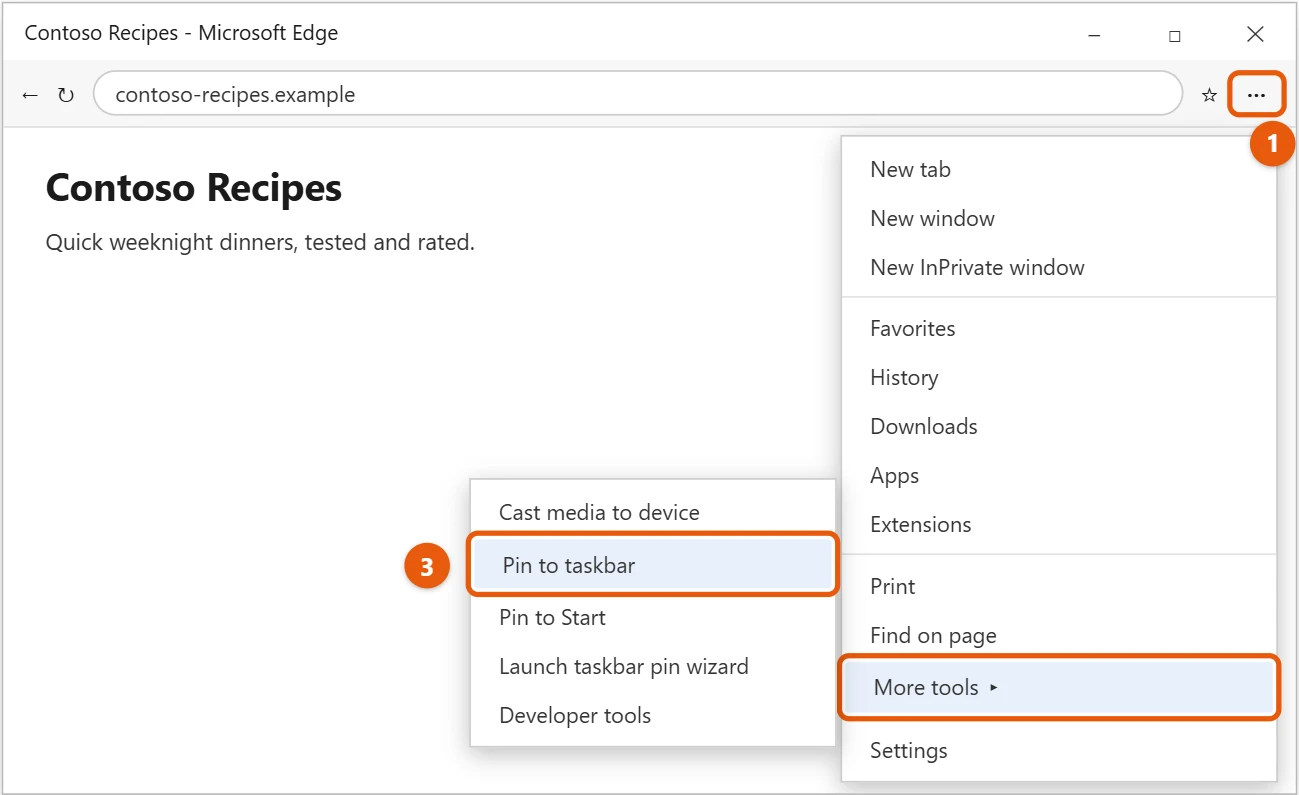
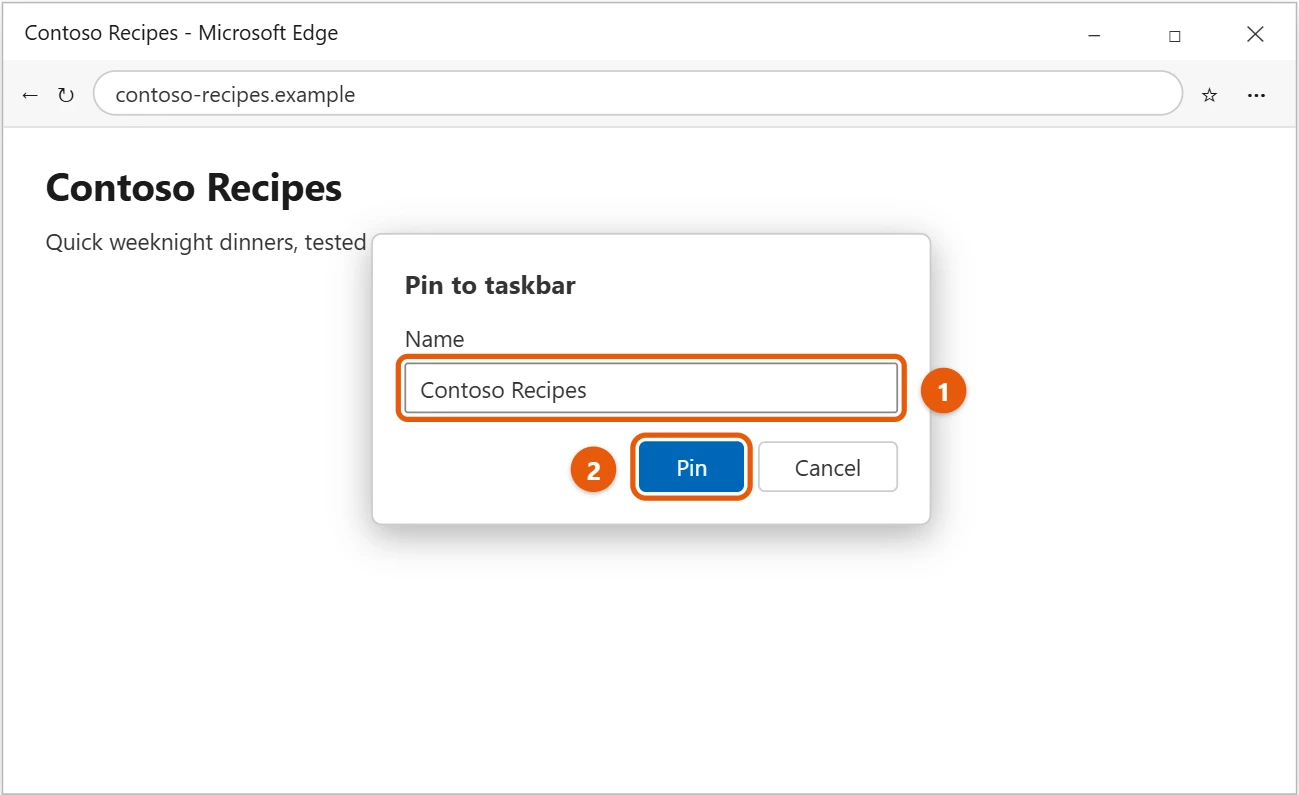
To pin a website to the taskbar in Windows 10, open the site in Microsoft Edge, select Settings and more (…) > More tools > Pin to taskbar, and select Pin. The site gets its own taskbar button that opens it in Edge. This works for any site, including your email, a news site, or a web app you use every day.
Applies to: Windows 10 with Microsoft Edge. Checked against Microsoft Support on September 26, 2026.
Pin a website with Microsoft Edge
- Open Microsoft Edge and go to the website you want to pin.
- Select Settings and more (…) in the top-right corner.
- Select More tools > Pin to taskbar.
- Change the name if you want, then select Pin.
The site’s icon now appears on the taskbar. Drag it left or right to change its place.
Open the site in its own window
Installing a site as an app opens it in a window without tabs or an address bar, like a regular app.
- In Edge, go to the site and select Settings and more (…) > Apps > Install this site as an app.
- Select Install.
- To pin it, go to
edge://apps, select Details on the app’s card, and select Pin to taskbar.
Pin a site with another browser
Most browsers have a similar option in their menu, often under More tools or Save and share. If yours doesn’t, create a desktop shortcut to the site, right-click the shortcut, and select Pin to taskbar. If that option is missing, pin the browser itself, then right-click its taskbar button and pin the site in the jump list so it stays one click away.
Unpin a website
Right-click the site’s button on the taskbar and select Unpin from taskbar. For an installed app, you can also uninstall it at edge://apps > Details > Uninstall.
Pin a site in Google Chrome
- Open the website in Chrome.
- Select the three-dot menu, then Cast, save, and share > Create shortcut (on older versions, More tools > Create shortcut).
- Type a name, check Open as window if you want it to look like an app, and select Create.
- The shortcut appears on the desktop and in the Start menu. Right-click it and select Pin to taskbar.
If the pinned site doesn’t work as expected
- The icon is blank or generic. The site didn’t supply an icon Windows could use. Unpin it, install the site as an app instead, and pin that. Installed apps usually get a proper icon.
- It opens a new tab instead of its own window. You pinned a shortcut rather than an installed app. Install it as an app with the steps above for a separate window.
- It opens in the wrong browser. Pinned sites open in the browser you used to pin them. Unpin it and pin it again from your preferred browser.
- It asks you to sign in every time. Make sure the browser isn’t set to clear cookies when it closes, and that you’re signed in to the same browser profile you pinned from.
Frequently asked questions
Which browser opens a pinned site?
A site pinned from Edge always opens in Edge, even if another browser is your default. To change the default browser, see how to change the default browser in Windows 10.
Can I pin a site to the Start menu instead?
Yes. In Edge, select Settings and more > More tools > Pin to Start.
Why is Pin to taskbar grayed out?
Some pages, like Edge’s own settings pages, can’t be pinned. Go to the website itself and try again.
How many sites can I pin?
As many as fit on your taskbar. Once it fills up, Windows adds small arrows so you can scroll through the extra buttons.
To put a website on the desktop instead, see how to create a desktop shortcut in Windows 10.
On Windows 11, see how to pin a website to the taskbar in Windows 11.
On Windows 11, see how to pin Google to the taskbar in Windows 11. The same steps work for any website.
Microsoft’s guide is Install, manage, or uninstall apps in Microsoft Edge. More help is on our Windows Help & Guides page.

Matt Jacobs has been working as an IT consultant for small businesses since receiving his Master’s degree in 2003. While he still does some consulting work, his primary focus now is on creating technology support content for SupportYourTech.com.
His work can be found on many websites and focuses on topics such as Microsoft Office, Apple devices, Android devices, Photoshop, and more.