To make Windows 11 look like Windows 10, right-click the taskbar and select Taskbar settings. Under Taskbar behaviors, set Taskbar alignment to left, and under Taskbar items, set Search to Search box. Then go to Settings > Personalization > Colors and pick a mode and accent color, add This PC and Recycle Bin to the desktop from Personalization > Themes > Desktop icon settings, and set File Explorer to open to This PC. These built-in settings get you close to the Windows 10 layout. They do not bring back the Windows 10 Start menu itself.
Applies to: Windows 11 (current versions, including 24H2, 25H2 and 26H1; some options are still rolling out). Checked against Microsoft Support on October 7, 2026.
What you can and cannot change
Windows 11 changed the parts of the screen you see most: the taskbar icons moved to the center, the Start menu was redesigned, the right-click menu was shortened, and File Explorer got a new command bar. Microsoft lets you undo several of those changes in Settings, and you can adjust the rest so they feel more familiar. The table below shows what each Windows 10 habit maps to in Windows 11.
| What you miss from Windows 10 | Closest built-in Windows 11 setting | How close it gets |
|---|---|---|
| Start button and app icons on the left | Taskbar settings > Taskbar behaviors > Taskbar alignment | Same position as Windows 10 |
| Search box next to Start | Taskbar items > Search > Search box | Full search box on the taskbar |
| A slimmer taskbar | Taskbar behaviors > Taskbar size > Small (newer updates) | Smaller icons and a shorter bar |
| Simple Start menu with your apps | Personalization > Start section toggles, All view in List | Similar idea, different design; no Live Tiles |
| Full right-click menu | Show more options at the bottom of the menu | One extra click each time |
| File Explorer opening to This PC | See more > Options > Open File Explorer to > This PC | Same starting view |
| Tighter File Explorer spacing | View > Compact view | Closer to the older density |
| Dark taskbar with a colored accent | Personalization > Colors | Same idea |
| This PC and Recycle Bin on the desktop | Personalization > Themes > Desktop icon settings | Same icons |
What built-in settings cannot do is swap the Windows 11 Start menu for the Windows 10 one, bring back Live Tiles, make the full right-click menu the default, or restore the Windows 10 File Explorer ribbon. This guide covers only settings Microsoft documents. It leaves out registry edits and third-party shell programs, because Microsoft does not support them for this and a Windows update can undo them or cause problems. For the closest built-in Start setup, see our guide to making the Windows 11 Start menu more like Windows 10.
Before you start
- Install the latest updates. Microsoft added options such as Taskbar size, Taskbar position and Start menu size in 2026 updates and is releasing them gradually, so two PCs on the same version can show different lists. If an option in this guide is missing, run Windows Update and check again later.
- Work or school PCs. If your organization manages the PC, some personalization settings may be locked. You can still change the ones that are available.
- No restart needed. The taskbar, colors and Start settings change as soon as you pick an option, so you can try each one and switch it back if you do not like it.
- Nothing is deleted. These steps only change how Windows looks. Your files and apps are not affected.
Make Windows 11 look like Windows 10
Do these steps in order. The first three handle the taskbar, which makes the biggest difference. The rest cover colors, the desktop and File Explorer.
- Open Taskbar settings. Right-click an empty area of the taskbar (not an app icon) and select Taskbar settings. The Personalization > Taskbar page opens in Settings.
- Move Start and your apps to the left. Expand Taskbar behaviors and change Taskbar alignment from center to left. The Start button and pinned apps jump to the left corner right away, where they were in Windows 10.
- Bring back the search box. Under Taskbar items, open the Search menu and choose Search box. You now get a typing box next to Start instead of a small icon. While you are here, turn Widgets off if you do not use it, and leave Task view on or off to suit you.
- Simplify the Start menu. Go to Settings > Personalization > Start. Use the switches on that page to hide what you do not use, such as recommended files, and, on updated PCs, use the section toggles for Pinned, Recommended (now called Recent on newer builds) and All. Showing All gives you a full app list, the closest thing to the Windows 10 menu.
- Choose dark colors and an accent. Go to Settings > Personalization > Colors. Under Choose your mode, select Dark (or Custom). Set Accent color to Manual and pick a color, then turn on Show accent color on Start and taskbar and Show accent color on title bars and window borders if you want the colored look.
- Put This PC and Recycle Bin on the desktop. Go to Settings > Personalization > Themes and select Desktop icon settings. Check This PC, Recycle Bin and any other icons you want, then select OK. The icons appear on the desktop.
- Make File Explorer open to This PC. Open File Explorer (press the Windows logo key + E), select See more (the three dots on the command bar), then Options. Next to Open File Explorer to, select This PC, then select Apply. File Explorer now opens on your drives and folders instead of Home.
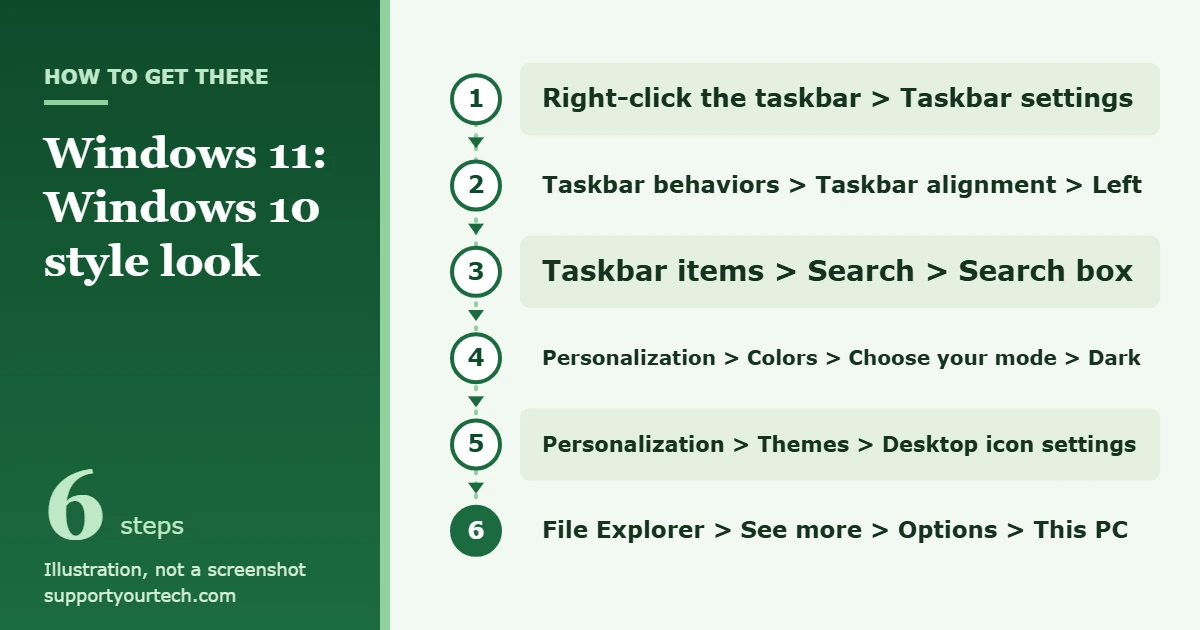
After these seven steps, the Start button sits in the left corner with a search box beside it, the desktop has the familiar icons, and File Explorer opens where it used to. The sections below explain each area in more detail and cover the extra options.
Fine-tune the taskbar
The taskbar has more Windows 10 style options than any other part of Windows 11. Our guide to making the Windows 11 taskbar look like Windows 10 walks through all of them, including showing a separate labeled button for each open window. The most useful extras are:
- Taskbar size. On PCs that have the 2026 update, Taskbar behaviors includes Taskbar size. Setting it to Small shrinks the icons and the height of the bar while keeping Start, Search and the system tray.
- Taskbar position. The same updates add Taskbar position, so you can put the taskbar at the bottom, top, left or right of the screen, as Windows 10 allowed. Microsoft notes that the search box and the small taskbar currently work only at the top or bottom.
- Pin your everyday apps. Right-click an open app’s taskbar icon and select Pin to taskbar, or right-click a pinned icon and select Unpin from taskbar. Drag icons to put them in the order you are used to.
- Show desktop corner. Under Taskbar behaviors, Select the far corner of the taskbar to show the desktop keeps the Windows 10 habit of clicking the far right corner to minimize everything.
The Windows 11 Start menu cannot be turned back into the Windows 10 menu with Live Tiles, but you can make it simpler and more list-based. Open Settings > Personalization > Start, or select Start, right-click the bottom of the menu and select Start settings.
- Use the All list. The All section shows your installed apps in Category, Grid or List view. Choose List for the alphabetical list Windows 10 users are used to. Start remembers the view you picked.
- Hide sections you do not use. On updated PCs, the Start settings page has toggles to show or hide the Pinned, Recommended and All sections. Microsoft has renamed Recommended to Recent in newer builds, so look for either name. If you turn off all the providers that feed recommendations, that section collapses.
- Change the menu size. Where available, Start menu size lets you choose a small or large Start menu instead of Automatic (default).
- Group pinned apps. Drag one pinned app onto another to create a folder, then rename it. This gives you something like the tile groups from Windows 10. To pin a new app, right-click it in search or in the app list and select Pin to Start.
- Add folder shortcuts. In Start settings, select Folders and turn on the folder shortcuts you want. They appear next to the Power button, similar to the left column of the Windows 10 Start menu.
Windows 11 shows a shorter right-click menu first. To see the rest of the commands, right-click a file or folder and select Show more options at the bottom of the menu. The longer, Windows 10 style menu opens. There is no setting in Windows 11 that makes this longer menu the default. Our guide to opening the full right-click menu in Windows 11 covers the keyboard and mouse options in more detail.
Make File Explorer feel like Windows 10
Windows 11 File Explorer uses a command bar at the top instead of the Windows 10 ribbon and its tabs. You cannot switch the ribbon back with a setting, but these options restore the parts most people miss:
- Start in This PC. Select See more > Options, set Open File Explorer to to This PC, and select Apply. Microsoft recommends Home, but This PC matches the Windows 10 starting view of drives and devices.
- Reduce spacing. Select View > Compact view to tighten the space between files, which looks closer to the older layout.
- Show the navigation pane. If the folder tree on the left is missing, select View > Show, then select Navigation Pane.
- Show file extensions and hidden items. Select View > Show, then File name extensions or Hidden items, the same choices that were on the Windows 10 View tab.
- Pick a layout. The View menu also switches between icons, list, details and other layouts, just as the ribbon did.
For more on the differences, see our guide to getting the Windows 10 File Explorer look in Windows 11.
Set colors, a theme and a wallpaper
Much of the Windows 10 feel comes from its colors and its background. All three are in Settings > Personalization.
Colors
On the Colors page, Choose your mode offers Light, Dark or Custom. Set Accent color to Manual to choose your own color under Windows colors, or select View colors for more options. On the same page you can also turn transparency effects off if you prefer solid panels. For step-by-step help with modes, see our guide to turning on dark mode in Windows 11.
Theme
A theme bundles a background, window colors, sounds and the mouse cursor. Go to Settings > Personalization > Themes to apply one of the included themes or select Browse themes to get more from the Microsoft Store. After you set your background, colors, sounds and cursor the way you like them, select Save and give the theme a name so you can reapply the whole look later in one click.
Wallpaper
Go to Settings > Personalization > Background. Under Personalize your background, choose Picture, then select Browse to use your own image. Use the fit menu to pick Fill, Fit, Stretch, Tile, Center or Span. You can also right-click an image file in File Explorer and select Set as desktop background. Use only pictures you own or have permission to use. Our guide to changing the desktop background in Windows 11 covers slideshows and multiple monitors.
Check that it worked or undo a change
You will see most changes right away. The Start button should sit at the far left of the taskbar with a search box beside it, This PC and Recycle Bin should be on the desktop, and pressing the Windows logo key + E should open File Explorer to your drives.
To undo anything, go back to the same page and pick the original option:
- Taskbar: set Taskbar alignment back to center and Search back to your previous choice.
- Colors: choose Light under Choose your mode and set Accent color to Automatic to let Windows pick a color from your background.
- Desktop icons: clear the boxes in Desktop icon settings and select OK.
- File Explorer: set Open File Explorer to back to Home.
Troubleshooting
A setting in this guide is missing
Taskbar size, Taskbar position and Start menu size arrived in 2026 updates and Microsoft is turning them on in stages. Install the latest updates and check again later. On PCs without these updates, Microsoft’s taskbar help page notes that the taskbar stays at the bottom of the screen.
There is no Chat switch under Taskbar items
Older guides tell you to turn off Chat on the taskbar. Current Windows 11 does not have that switch. Microsoft’s taskbar help lists Widgets, Search and Task view under Taskbar items. If a chat or messaging app is pinned, right-click its icon and select Unpin from taskbar.
Show accent color on Start and taskbar is greyed out
This option works only when Choose your mode is set to Dark or Custom. In Light mode, Windows does not color the Start menu or taskbar.
The search box disappeared after moving the taskbar
Microsoft says the search box and the small taskbar are currently supported only when the taskbar is at the top or bottom. Move the taskbar back to the bottom or top under Taskbar position to get the box back.
Settings are greyed out or say they are managed by your organization
Work and school PCs can have personalization settings controlled by IT. Ask your IT department if you need a locked option changed.
The full right-click menu does not show an app’s command
Windows 11 shows a shorter menu first. If a command you expect is not there, select Show more options to see the rest of the menu.
Why this guide skips registry tweaks and third-party tools
Many guides suggest registry edits to restore the classic right-click menu or a Windows 10 Start menu, or programs that replace the Start menu, taskbar and File Explorer. Microsoft does not document these as supported ways to change Windows 11, and a feature update can undo them or break them. A mistake in the registry can also cause problems that are hard to reverse. The built-in settings above are safe to try and easy to undo.
Frequently asked questions
Can I get the Windows 10 Start menu back in Windows 11?
Not with built-in settings. You can move Start to the left, use the All list in List view, hide sections, and group pins into folders, but the menu is still the Windows 11 design without Live Tiles.
Can I go back to Windows 10 instead?
Only for a short time after upgrading. In most cases you have 10 days: go to Settings > System > Recovery and select Go back if it is available. Microsoft says this keeps your personal files but removes apps and drivers installed after the upgrade and any settings changes you made. After that window, the option disappears.
Can I get the File Explorer ribbon back?
No built-in setting restores it. The Windows 11 command bar and View menu offer the same main choices, such as layouts, hidden items and file extensions.
Will Windows updates undo these changes?
These are ordinary Settings options rather than workarounds. Updates can add or rename options, as happened when Recommended became Recent in Start settings, so check the same pages if something looks different after an update.
Do these changes slow down my PC?
Moving the taskbar, changing colors and adding desktop icons only change how Windows is arranged. Turning off transparency effects on the Colors page makes panels solid instead of see-through.
Where can I read Microsoft’s instructions?
See Microsoft’s Customize the Taskbar in Windows, Customize the Windows Start menu, Personalize your colors in Windows, Customize the desktop icons in Windows, File Explorer in Windows and the KB5120998 release notes for the newer taskbar and Start options.
Start with the taskbar alignment and search box, then save your finished look as a theme so you can reapply it in one step.
Related: how to set a live wallpaper in Windows 11.
Related: How to Make Windows 11 File Explorer Look Like Windows 10.
Related: how to make Windows 11 look like Windows 7.
Related: how to make Windows 10 look like Windows 11.

Matt Jacobs has been working as an IT consultant for small businesses since receiving his Master’s degree in 2003. While he still does some consulting work, his primary focus now is on creating technology support content for SupportYourTech.com.
His work can be found on many websites and focuses on topics such as Microsoft Office, Apple devices, Android devices, Photoshop, and more.