To clear recent files in Windows 11, open File Explorer, select See more (…) > Options, and on the General tab select Clear under Privacy. That empties the Recent list without deleting any of your files. To remove a single entry, right-click it under Recent and select Remove from Recent. To stop Windows from building the list again, turn off the recent files switch in Settings > Personalization > Start.
Applies to: Windows 11. Checked against Microsoft Support on October 7, 2026.
What the Recent list is, and which method to use
When File Explorer opens, it shows the Home page, which Microsoft describes as having sections such as Recommended, Favorites, and Recent. Recent is a list of files you opened lately. Windows uses the same kind of record for Jump Lists (the menu that appears when you right-click an app on the taskbar) and for the recently opened files in the Start menu.
Clearing the list only removes the entries. The files themselves stay in their folders, and Windows starts adding new entries the next time you open a file. Pick the method that matches what you want:
| What you want | What to use | Where it is |
|---|---|---|
| Empty the whole list once | Clear | File Explorer > See more > Options |
| Remove one entry | Remove from Recent | Right-click the file on the Home page |
| Hide recent files in File Explorer only | Show recently used files check box | File Explorer > See more > Options |
| Stop recent files in Start, File Explorer, and Jump Lists | The recent files switch | Settings > Personalization > Start |
Clear all recent files in File Explorer
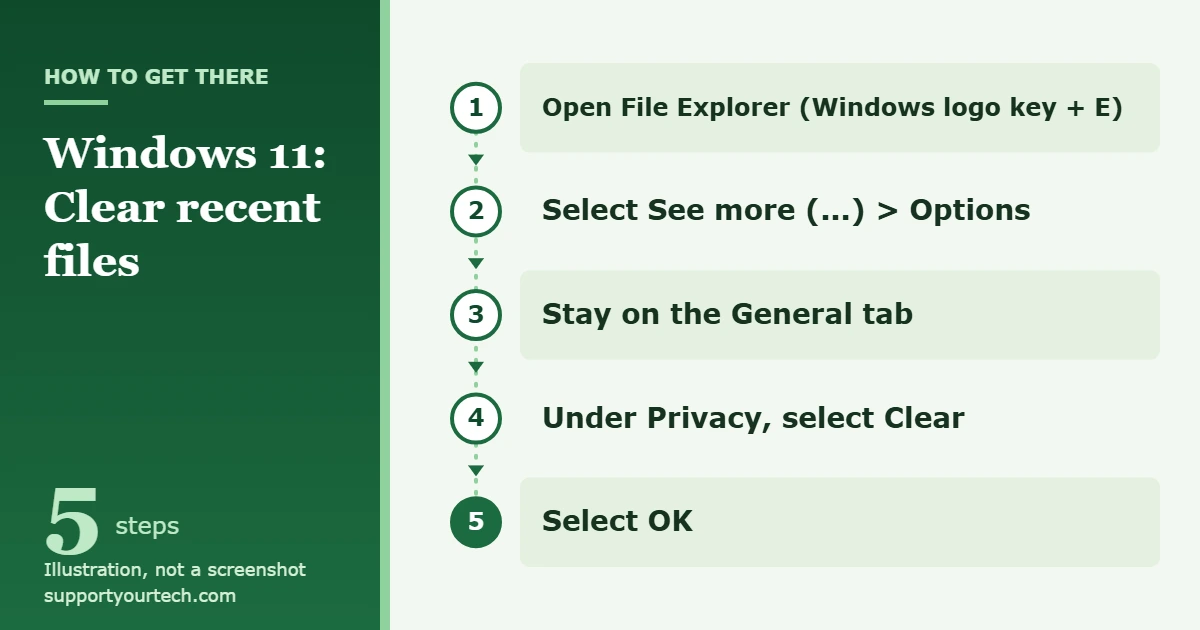
- Open File Explorer. Select the folder icon on the taskbar or press Windows logo key + E. It opens on the Home page, where the Recent list is.
- Select See more (the three dots) on the toolbar, then select Options. The Folder Options window opens.
- Stay on the General tab and find the Privacy section near the bottom.
- Select Clear, the button next to Clear File Explorer history. This removes all recent items from the list.
- Select OK to close the window. Back on the Home page, the Recent section no longer shows the files you opened earlier.
Remove one file from Recent
Use this when most of the list is useful and you only want one or two entries gone.
- Open File Explorer and select Home.
- Under Recent, right-click the file you want to hide.
- Select Remove from Recent. The entry disappears from the list.
On older Windows 11 builds, where this area is still called Quick access, the command is Remove from Quick access instead. Either way, the original file is not deleted. Only the entry in the list goes away.
Hide recent files in File Explorer only
This keeps the Recent list out of File Explorer but leaves Start and Jump Lists alone.
- In File Explorer, select See more > Options.
- On the General tab, under Privacy, clear the Show recently used files check box. Clear Show frequently used folders too if you don’t want Windows adding folders on its own.
- Select Apply, then OK.
Microsoft notes that the Recommended section on the Home page can also be turned off in Folder Options. When it is off, the folders you pinned to Quick access are shown in its place.
If you would rather not land on the Home page at all, the same window has an Open File Explorer to list at the top. Choose This PC and select Apply, and File Explorer opens to your drives and folders instead.
Stop Windows from showing recent files anywhere
One switch in Settings controls recent files in three places at once: the Start menu, File Explorer, and Jump Lists.
- Select Start > Settings > Personalization > Start.
- Turn off Show recommended files in Start, recent files in File Explorer, and items in Jump Lists. On older Windows 11 builds the same switch is named Show recently opened items in Start, Jump Lists, and File Explorer.
- Check the result. Open File Explorer and look at the Home page, then right-click an app on the taskbar. Recent files should no longer be listed in either place.
This switch is also the one that removes recently opened files from the Recommended area of Start. If cleaning up Start is your main goal, see how to remove Recommended from the Start menu in Windows 11 for the other switches on that page.
Delete the shortcuts in the Recent Items folder
Windows also keeps a folder of shortcuts to recently used files. Microsoft’s developer documentation lists it as Recent Items, at %APPDATA%\Microsoft\Windows\Recent. The Clear button is the simpler route, but you can open the folder if you want to see what is stored or remove specific shortcuts by hand.
- Open File Explorer and select the address bar.
- Type %APPDATA%\Microsoft\Windows\Recent and press Enter.
- Select the shortcuts you want to remove and delete them.
Everything in this folder is a shortcut, so deleting one does not touch the file it points to. Be careful not to move up a level and delete other folders. For more on what else lives there, see how to find the AppData folder in Windows 11.
Confirm it worked, and how to turn recent files back on
Open File Explorer and select Home. After you select Clear, the Recent section should be empty until you open another file. If you turned off the switch in Settings, right-click an app on the taskbar as a second check.
Microsoft does not document a way to bring back a list after you clear it, so treat clearing as permanent. That only affects the list. Your files are where they were, and the list fills up again as you open them.
To turn recent files back on, do it in this order:
- Go to Settings > Personalization > Start and turn the recent files switch back on.
- In File Explorer, select See more > Options and check Show recently used files under Privacy.
- Select Apply, then OK.
Troubleshooting
The Show recently used files check box unchecks itself
The check box in Folder Options depends on the switch in Settings. If the switch in Settings > Personalization > Start is off, the check box clears itself again when you select Apply or OK. Turn the switch on first, then go back to Folder Options and check the box.
The switch in Settings is greyed out
On a work or school PC, your organization can manage this with a policy. Microsoft’s documentation says that the policy Do not keep history of recently opened documents stops Windows from creating shortcuts to opened documents and disables the matching switch in Settings. You can’t change it yourself in that case. Ask your IT team if you need recent files.
You want the list cleared automatically
For automatic clearing, organizations can use the Group Policy setting Clear history of recently opened documents on exit, found under User Configuration > Administrative Templates > Start Menu and Taskbar. Microsoft describes it as deleting the shortcuts to recently used files when the user signs out. On your own PC, turning off the recent files switch in Settings has a similar effect, because nothing is listed in the first place.
Cloud files still show up
When you are signed in with a Microsoft account or a work or school account, File Explorer can request information about your cloud files and show it in Recent, Recommended, and Favorites. If files you opened on another device still appear after clearing, that account activity is the likely source. Turning off the recent files switch in Settings and clearing Show recently used files hides the section. On managed PCs, an administrator can turn the cloud content off with the policy Turn off account-based insights, recent, favorite, and recommended files in File Explorer.
You don’t see Home or Recent
If File Explorer opens to This PC, select Home in the left pane. If Home is there but has no Recent section, recent files are already turned off, either by the check box in Folder Options or by the switch in Settings. On older builds, look for Quick access instead of Home.
Pinned folders are still listed
Folders you pinned are a separate list that you manage yourself. To remove one, right-click it and select Unpin from Quick access.
Frequently asked questions
Does clearing recent files delete the files?
No. It removes the entries from the list. The files stay in their original folders and open normally.
Will clearing recent files free up disk space?
Not in any way you would notice. The list is made of entries and shortcuts that point to your files, not copies of them.
Why do recent files come back after I clear them?
The Clear button empties the list once. Windows keeps adding files as you open them unless you turn off the switch in Settings > Personalization > Start.
Does this clear the recent lists inside my apps?
Not necessarily. Some apps keep their own list of recent documents inside the app, and you clear it from that app’s own settings. For browser, search, and other kinds of history, see how to clear history on Windows 11.
Is it the same in Windows 10?
The idea is the same, but the menus are in different places. See how to clear recent files in Windows 10.
Next step: if you share this PC, clear the list now and then turn off the switch in Settings so it stays empty. Microsoft’s references are File Explorer in Windows, Customize the Taskbar in Windows for Jump Lists, and the Start policy settings for the policies mentioned above.

Matt Jacobs has been working as an IT consultant for small businesses since receiving his Master’s degree in 2003. While he still does some consulting work, his primary focus now is on creating technology support content for SupportYourTech.com.
His work can be found on many websites and focuses on topics such as Microsoft Office, Apple devices, Android devices, Photoshop, and more.