To show hidden folders in Windows 11, open File Explorer, select View > Show, and select Hidden items. Hidden folders and files appear right away, with slightly faded icons so you can tell them apart. To hide them again, select Hidden items a second time.
Applies to: Windows 11. No downloads or administrator rights needed for the main steps. Checked against Microsoft Support on September 29, 2026.
Windows hides some folders and files so they don’t clutter your view or get changed by accident. The most common one people look for is AppData, in your user folder, where apps keep settings and temporary files. Others include ProgramData on the C: drive, and folders that apps or other people have marked as hidden.
You usually need to see a hidden folder when an app’s help page asks you to open a settings file, clear a cache or copy a save file, or when a folder you created yourself seems to have disappeared. In each case, the folder is still there. File Explorer just isn’t showing it.
Showing hidden items doesn’t change the folders themselves. It only changes what File Explorer displays, and you can turn it off again at any time.
This is the quickest way, and it’s the method Microsoft describes.
- Open File Explorer. Select its icon on the taskbar, or press Windows logo key + E.
- In the command bar at the top, select View.
- Point to Show, then select Hidden items. A check mark appears next to it.
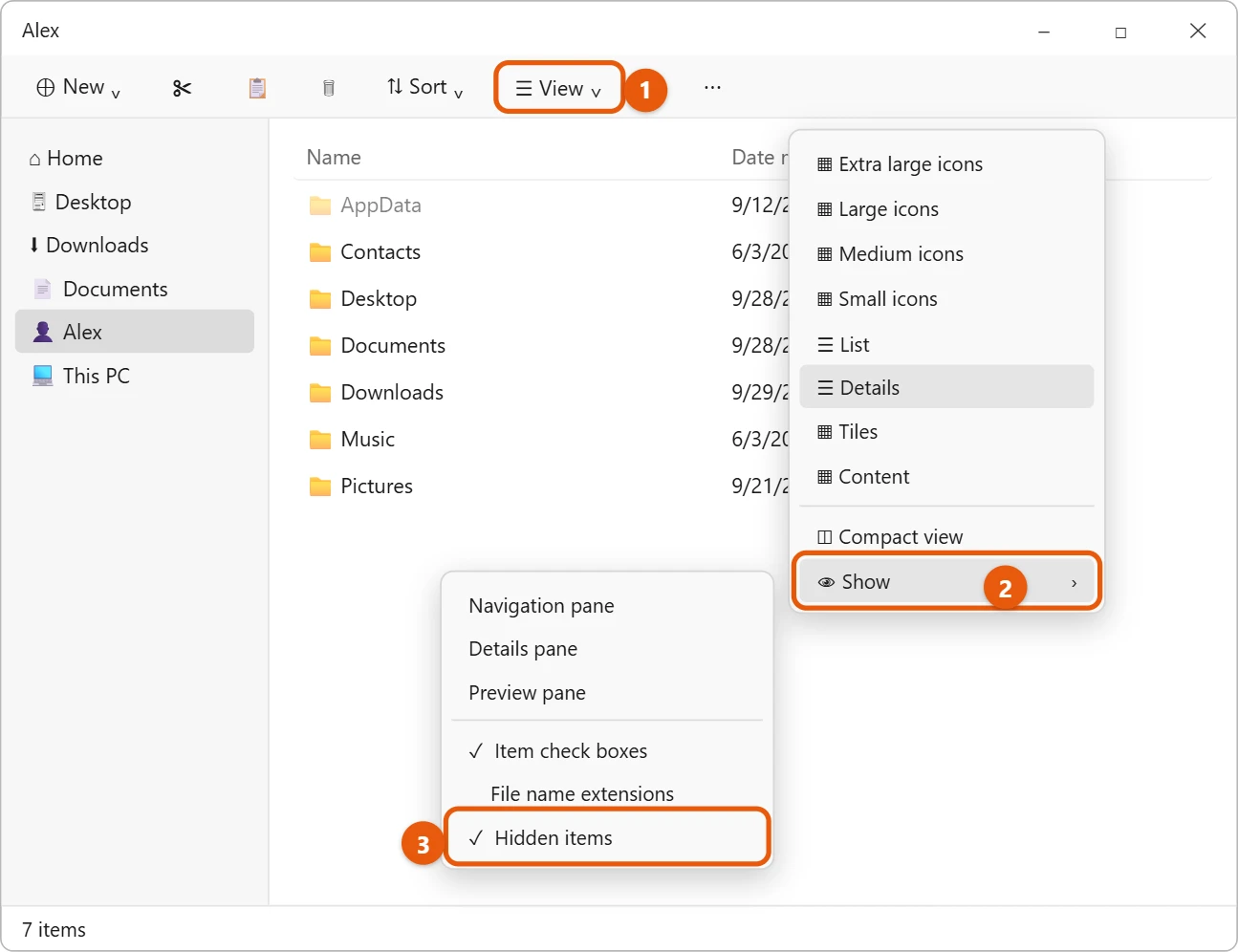
The setting applies to every folder you open in File Explorer, not just the one you’re in. It stays on after you restart. It is also one of the settings that help make Windows 11 File Explorer work like the Windows 10 version.
Method 2: Use Folder Options
Folder Options has the same setting, plus a few related ones. It’s useful if you want to change several view settings at once.
- Open File Explorer.
- Select See more (the three dots, …) in the command bar, then select Options.
- In the Folder Options window, select the View tab.
- Under Hidden files and folders, select Show hidden files, folders, and drives.
- Select Apply, then OK.

Leave Hide protected operating system files (Recommended) checked. It keeps important Windows files, such as desktop.ini and pagefile.sys, out of sight. As a moderator explains on Microsoft Q&A, AppData is hidden but isn’t a protected system folder, so it still shows up with this box checked.
If you only need AppData, you don’t have to change any settings:
- Press Windows logo key + R to open Run.
- Type %appdata% and press Enter.
File Explorer opens the AppData\Roaming folder. Select AppData in the address bar to see the Local and LocalLow folders too. You can also type %localappdata% to go straight to AppData\Local. For more ways, see how to find the AppData folder in Windows 11.
Unhide one folder for good
Showing hidden items makes every hidden folder visible. If you want one particular folder to stay visible even when hidden items are turned off, remove its hidden setting:
- Turn on Hidden items using Method 1 so you can see the folder.
- Right-click the folder and select Properties, or select it and press Alt + Enter.
- On the General tab, under Attributes, clear the Hidden check box.
- Select Apply.
- If Windows asks, choose Apply changes to this folder, subfolders and files so everything inside is unhidden too, then select OK.
- Select OK to close the Properties window.

The folder’s icon is no longer faded, and it stays visible after you turn Hidden items off again. To hide a folder instead, follow the same steps and check Hidden. For more on that, see how to make an invisible folder in Windows 11.
If you work in a command window, you can list hidden items without changing any settings. These commands only show what’s there. They don’t unhide anything.
- Command Prompt: go to the folder, then type dir /a:h to list hidden files and folders, or dir /a:hd to list only hidden folders. Some guides leave out the slash, but the command needs it.
- PowerShell: type Get-ChildItem -Force (or the short form dir -Force) to list everything, including hidden items.
You don’t need to run either one as an administrator to look inside your own folders.
If you still can’t see a folder
- It’s a protected system file. Items like desktop.ini (the file that stores settings such as a custom folder icon) and System Volume Information stay hidden while Hide protected operating system files is checked. You rarely need to see these, and changing them can cause problems.
- You’re looking in the wrong place. AppData is inside your user folder: C:\Users\(your name)\AppData. It isn’t in Documents or on the desktop.
- The folder was moved or deleted. Use the search box in the top-right corner of File Explorer to look for its name.
- Files on a USB drive seem to have vanished. Turn on Hidden items first. If they’re still missing, scan the drive with Windows Security before opening anything on it, because some malware hides files and replaces them with shortcuts.
- The Hidden items option does nothing. Close all File Explorer windows and open it again, or restart the PC.
When you’re done, go back to View > Show and select Hidden items to clear the check mark. Hidden folders disappear from view again, except any you unhid with Properties.
Frequently asked questions
Is it safe to show hidden folders?
Yes. Showing them only changes what you see. Just be careful about deleting or editing anything in AppData or ProgramData, because apps rely on those files.
Why are some folders faded?
A faded icon means the folder or file is hidden. You can see it only because Hidden items is turned on.
Does hiding a folder protect it?
No. Anyone using the PC can turn on Hidden items and see it. Hiding is for tidiness, not security.
I found “Properties” but not “Options.” Where is it?
Options is in File Explorer’s See more (…) menu, not in the right-click menu. Properties is for a single file or folder, and Options is for how File Explorer displays everything.
How do I show file extensions too?
Select View > Show > File name extensions in File Explorer. See how to show file extensions in Windows 11.
Next steps
Using Windows 10? See how to hide and show hidden files and folders in Windows 10. Microsoft describes the View menu options in File Explorer in Windows.
Many games keep their files in the hidden AppData folder. For example, see where Minecraft saves worlds on Windows 11.

Matt Jacobs has been working as an IT consultant for small businesses since receiving his Master’s degree in 2003. While he still does some consulting work, his primary focus now is on creating technology support content for SupportYourTech.com.
His work can be found on many websites and focuses on topics such as Microsoft Office, Apple devices, Android devices, Photoshop, and more.