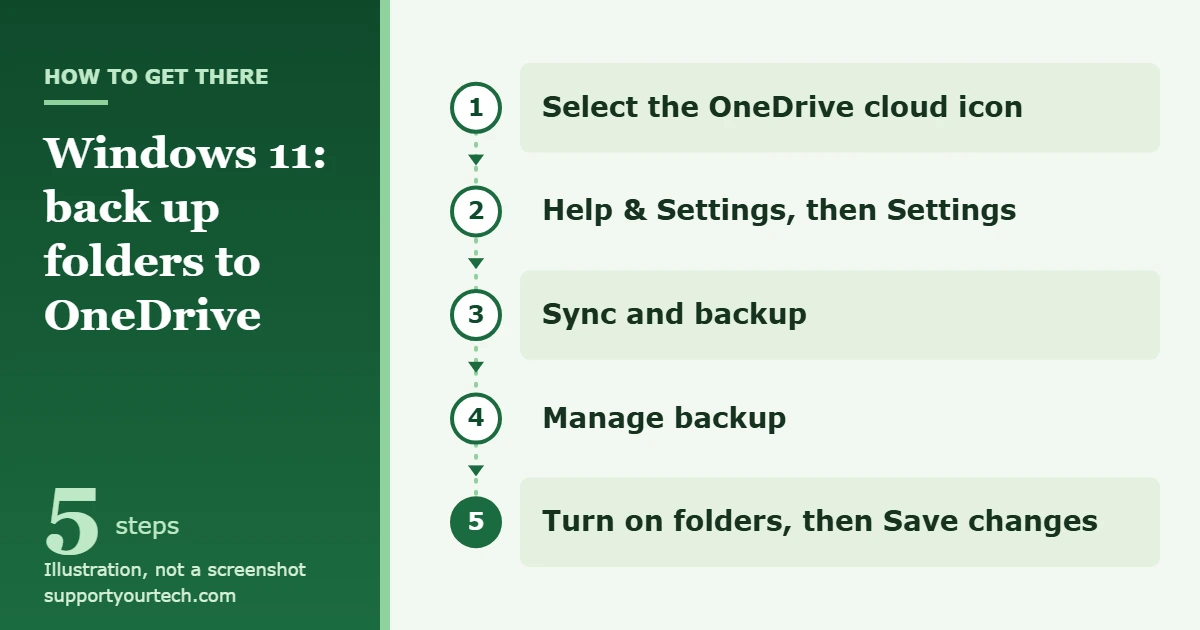
To back up to OneDrive in Windows 11, select the OneDrive cloud icon in the notification area, open Settings, go to the Sync and backup tab, select Manage backup, turn on each folder that says Not backed up, and select Save changes.
Applies to: Windows 11 with the OneDrive sync app. Checked against Microsoft Support on October 7, 2026.
What OneDrive folder backup does
Windows keeps most personal files in a handful of standard folders: Desktop, Documents, Pictures, Music and Videos. These folders are not automatically part of OneDrive. Folder backup connects the ones you choose to your OneDrive, so that everything in them is uploaded and kept in sync. Once syncing finishes, you can reach those files from another computer, a phone or a web browser by signing in with the same account.
Two points are worth knowing before you start:
- It is sync, not a snapshot. A change you make on the PC, including deleting a file, is carried over to the OneDrive copy. The OneDrive recycle bin gives you a window to get deleted files back (covered below), but for irreplaceable files a second, separate copy on an external drive is still a good idea.
- It covers personal folders only. Folder backup does not copy Windows itself or your installed programs. If you also want your settings and a list of your apps remembered, use the Windows Backup app described later in this article.
Before you start
- An account. You need a personal Microsoft account, or a work or school account. If OneDrive has never been set up on the PC, open OneDrive, enter your account when prompted and select Sign in. On the This is your OneDrive folder screen, select Next to accept the default folder location. If the OneDrive app is missing, Microsoft offers it on its OneDrive download page.
- Enough storage. A free Microsoft account comes with 5 GB of OneDrive storage, and more can be purchased. Check the size of your Desktop, Documents and Pictures folders first in File Explorer. If they add up to more than your available space, back up only the folders that matter most or move large items out before you begin.
- An internet connection. The first upload can take a long time when the folders are large, so leave the PC on and connected until it finishes.
Turn on OneDrive folder backup in Windows 11
- Select the OneDrive cloud icon in the notification area, at the right end of the taskbar. A small OneDrive panel opens. If you do not see the cloud, it may be among the hidden icons in the notification area.
- Select the OneDrive Help & Settings icon in that panel, and then select Settings. The OneDrive settings window opens.
- Go to the Sync and backup tab.
- Select Manage backup. A list of your standard folders appears, each with a switch and a status.
- Turn on the switch for every folder that says Not backed up and that you want protected.
- Select Save changes. OneDrive starts uploading the contents of the folders you chose.
You can keep working while the upload runs. Your Desktop, Documents and Pictures folders look and behave the same as before; the difference is that they now live inside your OneDrive folder. If you are not sure where that is, see how to find the OneDrive folder in Windows 11. Microsoft’s own instructions are in Back up your folders with OneDrive.
Other way: use the Windows Backup app
Windows 11 also has a Windows Backup app that sends the same folders to OneDrive and can additionally remember your installed apps and Windows settings. Microsoft says it is aimed at devices used with a personal Microsoft account, and the apps and settings options are not available for work or school accounts.
- Select Start, type backup, and select Windows Backup from the results.
- Expand Folders and turn on the folders you want sent to OneDrive: Desktop, Documents, Pictures, Videos and Music.
- Review the other sections, such as Installed apps and Personalization, and turn on what you want remembered.
- Select Back up.
The same options can be managed later in Settings > Accounts > Windows backup. For File History and other options that do not rely on the cloud, see how to back up files in Windows 11.
How to confirm the backup worked
Do not assume the backup is complete just because you switched it on. Check these three things:
- The OneDrive icon on the taskbar. Circular arrows over the cloud mean a sync is in progress. A pause symbol means files are not currently syncing. A red circle with a white cross means a file or folder cannot be synced.
- The status icons in File Explorer. A blue cloud next to a file means it is available online only. A solid green circle with a white check mark means you marked the file Always keep on this device. A red circle with a white cross on a file means it cannot be synced.
- The OneDrive website. Sign in to OneDrive in a web browser, or look on another device, and open a few files you care about. This is the only check that shows what is really stored in the cloud.
The online-only files are part of a feature called Files On-Demand. It lets you see every OneDrive file on the PC without downloading all of them, which saves disk space. Opening an online-only file downloads it, so those files need an internet connection the first time you open them.
Get back a deleted file
Because deletions sync, a file removed from a backed-up folder is also removed from OneDrive. It goes to the OneDrive recycle bin first:
- Sign in to the OneDrive website.
- In the navigation pane, select Recycle bin.
- Point to each file or folder you want, select the circle check box that appears, and then select Restore.
With a personal Microsoft account, items in the recycle bin are deleted automatically 30 days after they were put there. With a work or school account the period is 93 days unless the administrator has changed it. Microsoft documents this in Restore deleted files or folders in OneDrive.
Stop backing up a folder
Return to Settings > Sync and backup > Manage backup and turn off the switch for the folder. OneDrive then asks where the files should stay. You can keep the files only in OneDrive, which removes them from your computer, or keep them only on your PC, which removes them from OneDrive. Read the choice carefully before you confirm, because either way the files end up in one place instead of two.
If the folder contains online-only files, you may see the message “Some files couldn’t be moved. Download them first by changing their state to Always keep on this device.” In File Explorer, change the folder’s state to Always keep on this device, wait for the download to finish, and try again.
Troubleshooting
Manage backup is missing or the switches cannot be changed
On a work or school account, your IT administrator may have disabled folder backup. Microsoft also notes that important folders connected to a domain cannot be protected in a personal OneDrive account. In both cases the fix has to come from your organization, so contact your IT department. Error code 0x80070005 points to the same cause: a group policy that stops users from redirecting their profile folders.
The OneDrive cloud icon is gray with a line through it
That means you are not signed in, or OneDrive setup has not completed. Select the icon and finish signing in, then repeat the steps above. A yellow warning triangle on the icon means your account needs attention; select it to read the message. A red “no entry” style icon means the account is blocked.
A file will not upload
Microsoft lists these limits for backed-up folders:
- The whole file path, including the file name, must be shorter than 260 characters. Shorten long folder or file names.
- OneDrive cannot sync files larger than 250 GB. Move such files out of the folder.
- File names cannot start with a space or contain any of these characters: \ : / * ? < > ” |
A folder shows an error and will not turn on
- The folder is not selected for syncing. In OneDrive settings, select Choose Folders and make sure the folder is selected. If the error is on Pictures, make sure Pictures, Screenshots and Camera Roll are all selected.
- The folder contains another important folder. For example, Documents has been moved inside Desktop. The folder cannot be protected until the contained folder is moved out.
- OneNote notebooks. A message that OneNote notebooks cannot be moved appears because notebooks are stored in the cloud already.
OneDrive always shows “Processing changes” while Outlook is open
An Outlook .pst data file stored in a backed-up folder changes constantly while Outlook runs. Microsoft suggests removing the .pst data file from OneDrive.
Frequently asked questions
Does OneDrive back up my whole computer?
No. Folder backup covers the standard personal folders you switch on. It does not copy Windows or your programs. The Windows Backup app can remember your installed apps and settings for a personal Microsoft account, but it is not a full image of the drive either.
How much can I back up for free?
A free Microsoft account includes 5 GB of OneDrive storage. If your folders are larger than that, back up fewer folders or buy more storage from Microsoft.
Can I back up a folder that is not on the list?
Manage backup only offers the standard folders. Anything else is backed up by saving or moving it into your OneDrive folder in File Explorer, where it syncs like every other OneDrive file. If the OneDrive folder is missing from the left pane, here is how to add OneDrive back to File Explorer.
If I delete a file on my PC, is it deleted from OneDrive too?
Yes, the deletion syncs. You can restore the file from the OneDrive recycle bin for 30 days on a personal account.
Do my files still take up space on my PC?
Only the ones that have been downloaded. Online-only files, shown with a blue cloud, are stored in OneDrive and download when you open them.
How do I get my files on a new PC?
Sign in to OneDrive on the new PC with the same account. Your backed-up files appear in the OneDrive folder in File Explorer, and you can turn on folder backup there too so the new Desktop, Documents and Pictures folders stay in sync.
Next step: once the first upload has finished, sign in to OneDrive in a browser and open a few important files to make sure the cloud copy is really there.
Related: How to unsync two computers in Windows 11.

Matt Jacobs has been working as an IT consultant for small businesses since receiving his Master’s degree in 2003. While he still does some consulting work, his primary focus now is on creating technology support content for SupportYourTech.com.
His work can be found on many websites and focuses on topics such as Microsoft Office, Apple devices, Android devices, Photoshop, and more.