OneDrive is built into Windows 11. To use it, select the cloud icon in the taskbar (or open OneDrive from the Start menu) and sign in with your Microsoft account. A OneDrive folder then appears in File Explorer: anything you save there is copied to the cloud, kept in sync across your devices, and available at onedrive.com. You can also have OneDrive back up your Desktop, Documents and Pictures folders automatically.
Applies to: Windows 11 with a personal Microsoft account. Work and school accounts work the same way but may have settings managed by your organization. Last reviewed October 7, 2026.
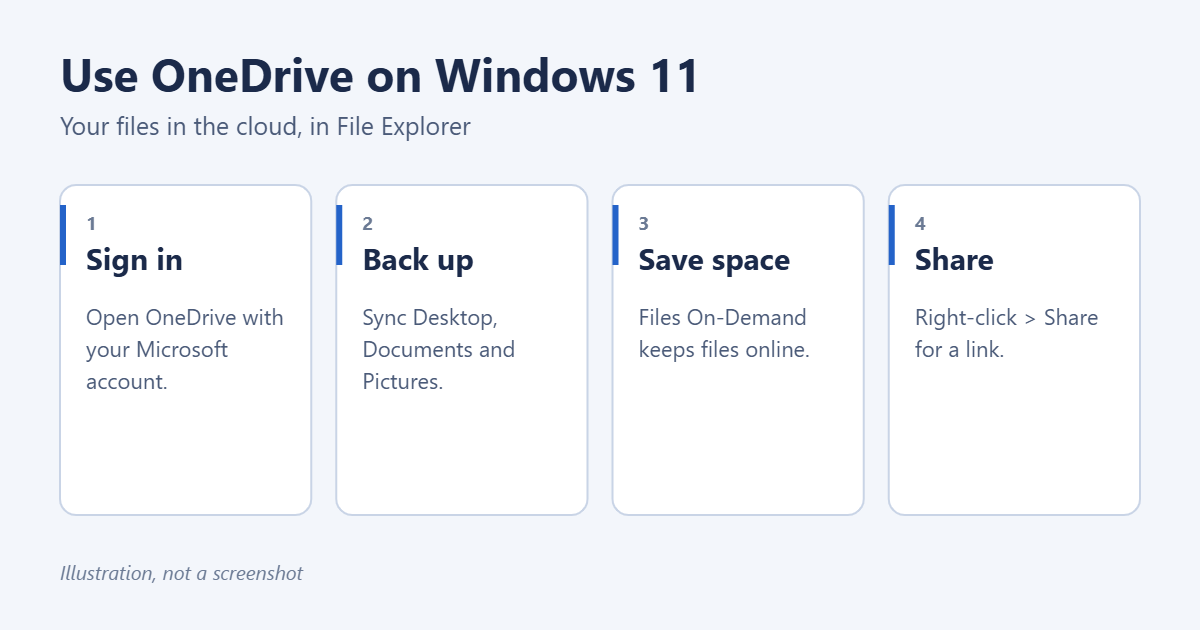
Step 1: Sign in to OneDrive
- Select the cloud icon in the taskbar’s notification area. If it’s not there, open Start, type OneDrive and open the app.
- Enter your Microsoft account email, select Sign in and enter your password.
- Confirm the location of your OneDrive folder, normally C:\Users\YourName\OneDrive, and select Next.
- Follow the remaining screens, which explain sharing and Files On-Demand.
If you signed in to Windows with a Microsoft account, OneDrive may already be set up. See how to sign in to OneDrive on Windows 11 if you have trouble.
Step 2: Save and open files
- In File Explorer: select OneDrive in the left pane. Drag files and folders into it, or save straight to it from any app. See how to find the OneDrive folder in Windows 11.
- In Office apps: Word, Excel and PowerPoint save to OneDrive by default when you’re signed in, with AutoSave on.
- On the web: go to onedrive.com on any computer to open, upload or download files.
- On your phone: install the OneDrive app to see the same files, and turn on Camera upload to back up photos.
Step 3: Understand the status icons
- Blue cloud: the file is online only and downloads when you open it.
- Green tick in a white circle: a copy is on your PC and can be opened offline.
- White tick in a green circle: you chose Always keep on this device.
- Two blue arrows: the file is syncing.
- Red cross: the file can’t sync. Select the cloud icon in the taskbar to see why.
Step 4: Back up your Desktop, Documents and Pictures
- Select the cloud icon in the taskbar, then the gear icon, and choose Settings.
- Select Sync and back up > Manage back up.
- Turn on the folders you want, such as Desktop, Documents and Pictures.
- Select Start backup or Save changes.
Those folders move inside OneDrive and sync automatically. If you’d rather save to your PC only, see how to stop Windows 11 saving to OneDrive by default.
Step 5: Save space with Files On-Demand
Files On-Demand keeps files in the cloud and only downloads them when you open them. It’s on by default.
- To free space, right-click a file or folder and choose Free up space. It stays visible but no longer takes up room on your PC.
- To keep something available offline, right-click it and choose Always keep on this device.
- Right-click a file or folder in your OneDrive folder and select Share (in Windows 11, the OneDrive Share option may be under Show more options).
- Enter names or email addresses, or select Copy link.
- Choose whether people can view or edit, then send.
Check your storage
The free plan includes 5 GB. Microsoft 365 Personal and Family include 1 TB per person. Select the cloud icon in the taskbar to see how much you’re using, or open Settings > Accounts to see storage for your Microsoft account. To add a work or second account, see how to add another OneDrive account on Windows 11.
Troubleshooting
Files aren’t syncing
Select the cloud icon in the taskbar. If it says Paused, select Resume syncing. Check that you’re online and not out of storage. File names with characters like “ or * also block syncing.
The OneDrive icon is missing
Open OneDrive from the Start menu to start it. To start it with Windows, open its settings and turn on Start OneDrive automatically when I sign in to Windows.
I deleted a file by mistake
Go to onedrive.com and open the Recycle bin. Deleted files from personal accounts stay there for 30 days.
Frequently asked questions
Is OneDrive a backup?
Partly. It keeps copies in the cloud and offers version history, but deleting a file deletes it everywhere. Keep a separate backup of important files.
Can I use OneDrive without a Microsoft account?
No. OneDrive needs a free Microsoft account or a work or school account.
Related: how to turn on AutoSave in Word.
Related: How to Add OneDrive to File Explorer in Windows 11.
Related: How to Back Up to OneDrive in Windows 11.

Matt Jacobs has been working as an IT consultant for small businesses since receiving his Master’s degree in 2003. While he still does some consulting work, his primary focus now is on creating technology support content for SupportYourTech.com.
His work can be found on many websites and focuses on topics such as Microsoft Office, Apple devices, Android devices, Photoshop, and more.