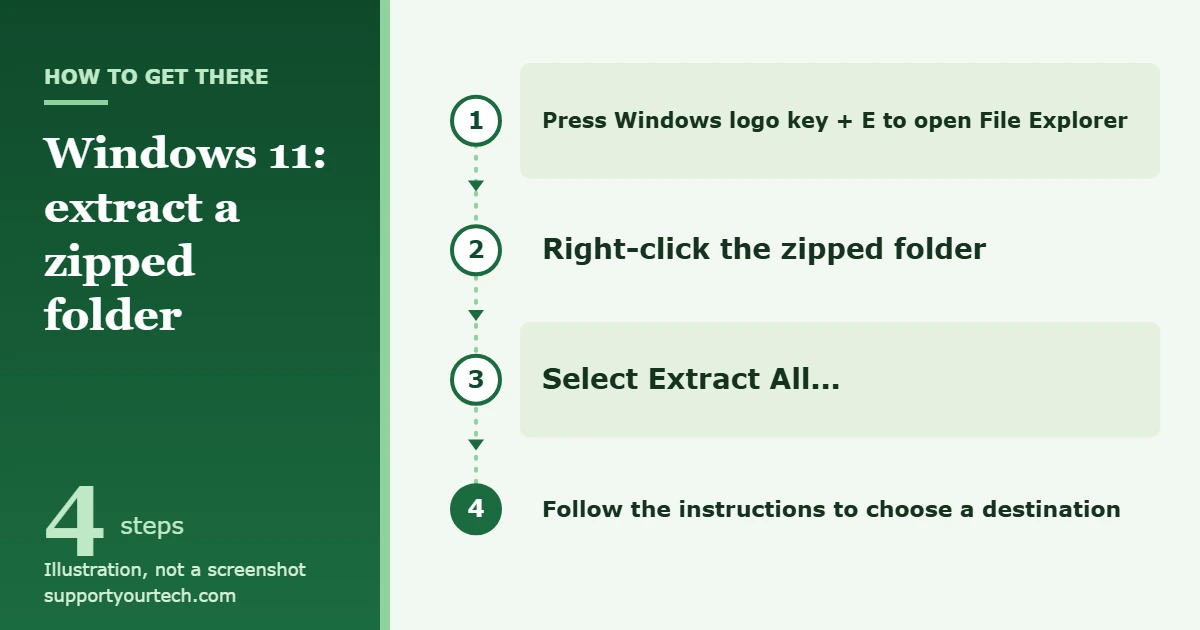
To extract files on Windows 11, open File Explorer, right-click the zipped folder, select Extract All…, and follow the instructions to choose where the files should go. Nothing needs to be installed for a normal ZIP file, and current versions of Windows 11 handle RAR, 7z and TAR archives the same way.
Applies to: Windows 11 (ZIP on every version; RAR, 7z and TAR on version 24H2 and later). Checked against Microsoft Support on October 6, 2026.
What extracting means, and what you need first
An archive, which Windows calls a compressed (zipped) folder, is a single file that holds other files and folders in a smaller package. Extracting, also called unzipping, copies those contents back out into an ordinary folder so that you can open, edit and run them normally. The archive itself stays where it was until you delete it.
Before you start, check three things:
- You know where the archive is. Files that come from a browser usually land in the Downloads folder. If you can’t find it, see how to find downloads on Windows 11.
- You have enough free space. The extracted files take up more room than the archive, sometimes much more. To see how much space is left, go to Start > Settings > System > Storage.
- You trust the source. An archive can contain programs and scripts as well as documents. If the file came from an email or a site you don’t know, scan it first using the steps in the safety section below.
Extract everything with Extract All
This is the method Microsoft documents for unzipping the whole contents of a zipped folder, and it is the right choice most of the time.
- Open File Explorer by selecting it on the taskbar or the Start menu, or by pressing the Windows logo key + E. A window opens that lists your folders.
- Go to the folder that holds the archive, for example Downloads. You should see the zipped folder in the file list.
- Right-click the zipped folder. On a touchscreen, press and hold it instead. A menu appears next to the file.
- Select Extract All…. An extraction window opens and shows the folder where the files will be placed.
- Keep the suggested destination or pick a different folder, then confirm to start. Windows copies the contents out of the archive into that folder.
- Open the destination folder and check that the files you expected are there.
Extract into a new, empty folder whenever you can. If you unpack an archive straight into a folder that is already full, its contents mix with everything else and are hard to pick out later.
Extract one file or folder without unpacking the rest
When you only need a single item from a large archive, you don’t have to extract all of it.
- In File Explorer, open the zipped folder. Its contents are listed like those of a normal folder.
- Find the file or folder you want.
- Drag that item out of the zipped folder to a new location, such as the desktop or another File Explorer window. Windows extracts a copy of just that item, and the archive keeps its original contents.
Avoid working on files while they are still inside the zipped folder. Programs and installers that depend on other files in the same archive often fail there, because the files around them have not been unpacked. Extract first, then open.
Extract RAR, 7z and TAR files
ZIP is not the only archive format you will meet. Microsoft’s support page states that Windows 11 version 24H2 supports ZIP, RAR, 7z and TAR archives, so on an up-to-date PC you can use the same right-click method for those files. Microsoft first announced this in August 2023 for Windows Insider builds, listing formats such as .tar, .tar.gz, .tgz, .tar.bz2, .tar.xz, .rar and .7z.
To check which version you have, right-click Start, choose Settings, select System, then About, and look under Windows specifications. If the version is older than 24H2, go to Start > Settings > Windows Update and install the available updates before you try again.
There is one important limit. Microsoft says Windows 11 version 24H2 does not support operations on encrypted archive files, which means archives protected with a password. For those you need a separate archive app. Our guide on using 7-Zip on Windows 11 walks through one option. Download any archive app only from its developer’s own website.
Extract a ZIP file with PowerShell
PowerShell, the command-line tool included with Windows, can unzip a file with one command. This is useful when you need to repeat the job or put it in a script. The command is Expand-Archive.
- Open PowerShell. A window with a text prompt appears.
- Type the command in this form, replacing the two paths with your own, then press Enter:
Expand-Archive -Path C:\Users\YourName\Downloads\Photos.zip -DestinationPath C:\Users\YourName\Documents\Photos - Wait for the prompt to return, then open the destination folder in File Explorer to confirm that the files are there.
A few documented details are worth knowing before you rely on it:
- If you leave out -DestinationPath, Expand-Archive creates a folder in the current location with the same name as the ZIP file. If the destination folder doesn’t exist, it is created.
- By default the command does not overwrite existing files. Add -Force if you want it to replace them.
- If the file name contains characters such as square brackets, use -LiteralPath instead of -Path and put the path in single quotation marks.
- Expand-Archive only works with ZIP archives, and Microsoft lists a maximum file size of 2GB. For RAR, 7z or TAR files, or a larger ZIP, use File Explorer instead.
The full parameter list is in Microsoft’s Expand-Archive reference.
Check a downloaded archive before you open what’s inside
Compressing a file does not make it safe. Treat an archive from an unknown sender the way you would treat any unknown program.
- In File Explorer, right-click the archive and select Show more options. The longer, classic menu opens.
- Select Scan with Microsoft Defender. Windows Security opens and runs the scan.
- Read the result on the Scan options page. If a threat is reported, don’t extract the archive.
Microsoft describes this in Scan an item with Windows Security. You can scan the extracted folder the same way afterward.
Windows also blocks some files that were downloaded from the internet by default. If you have checked the source and are sure the archive is safe, select it, press Alt + Enter to open its Properties dialog box, and use the Unblock button there before you extract. Leave the mark in place on anything you are not sure about, because it exists to protect the computer from untrusted files.
Confirm it worked, and how to undo it
A successful extraction leaves you with a normal folder that contains the same files and subfolders as the archive. Open a couple of them to make sure they load. If the names look the same but you can’t tell an archive from a folder, turn on file extensions: in File Explorer, select View > Show > File name extensions. The archive then shows an ending such as .zip, and the extracted folder shows none.
Extracting does not change the original archive, so there is nothing to reverse inside it. To undo an extraction, delete the extracted folder. To start over, delete that folder and run Extract All… again. Once you have confirmed that the extracted files open correctly, you can delete the archive to save space, or keep it as a backup.
Troubleshooting
Extract All isn’t in the menu
Extract All appears for archives that Windows recognizes. Turn on File name extensions as described above and check the ending of the file. A file that ends in .rar, .7z or .tar needs Windows 11 version 24H2 or later. A file that ends in something else, such as .exe or .iso, is not an archive to extract. For a disc image, see how to mount an ISO file in Windows 11.
Windows says the archive is invalid or the extraction fails partway
The most common cause is a download that didn’t finish or was damaged in transit. Delete the archive, download it again from the original source, and compare its size with the size shown on the download page if one is listed. Extracting a damaged archive with a different app will not bring back data that is missing.
The archive asks for a password, or Windows can’t open it
File Explorer does not work with encrypted archives. Get the password from the person who sent the file, then open the archive with an archive app that supports encryption. Type or paste the password exactly as it was given to you.
The path is too long
Windows has a traditional path limit, called MAX_PATH, of 260 characters for the full location of a file, including every folder name. An archive with deeply nested folders can go over it when extracted into a location that is already long. Extract to a short destination near the top of the drive, such as a folder named Extract on drive C, and move the files afterward if needed.
There isn’t enough space
Go to Start > Settings > System > Storage > Cleanup recommendations to remove temporary and unused files, or choose a destination on a drive with more room. Microsoft’s free up drive space page lists the other options.
You don’t have permission to extract there
System locations, such as the Windows and Program Files folders, are not meant for everyday files and can refuse the extraction or ask for administrator approval. Extract to a folder you own, such as Documents or the desktop. On a work or school PC, your organization can restrict where files are saved and which archive apps are allowed, so contact your IT administrator if a personal folder is blocked as well.
A program from the archive won’t run
Make sure you extracted the whole archive and are not starting the program from inside the zipped folder. If Windows shows a warning because the file came from another computer, go back to the safety section, confirm the source, and scan the folder before you decide whether to unblock it.
Frequently asked questions
Does Windows 11 need extra software to extract files?
No, not for ZIP files, and not for RAR, 7z or TAR files on version 24H2 or later. You only need a separate archive app for password-protected archives and for formats or features that Windows doesn’t support.
Is extracting the same as unzipping?
Yes. Microsoft uses both words for the same action: copying the contents of a compressed (zipped) folder out into a normal folder.
Can Windows 11 open RAR files without WinRAR?
Yes, on Windows 11 version 24H2 or later, as long as the RAR file is not encrypted. Right-click it and select Extract All…, the same as for a ZIP file.
Where do the extracted files go?
They go to the destination shown in the extraction window, which you can change before you confirm. With PowerShell’s Expand-Archive, the default is a new folder in the current location that has the same name as the ZIP file.
Will my encrypted files stay protected inside a ZIP?
No. Microsoft warns that if you add encrypted files to a zipped folder, they are unencrypted when they are unzipped, which could expose personal or sensitive information. Microsoft recommends that you avoid zipping encrypted files.
Can I add more files to an existing zipped folder?
Yes. Drag the files or folders onto the zipped folder and Windows adds them. To build a new archive, follow our guide on how to zip and unzip files in Windows 11.
Why didn’t zipping my photos make them much smaller?
Some file types, such as JPEG images, are already highly compressed, so putting them in a zipped folder saves little space. The archive is still useful for sending many files as one.
Next, extract your archive into its own folder and open one of the files to confirm it works. Microsoft’s Zip and unzip files page is the reference to check if these menus change in a later Windows update.

Matt Jacobs has been working as an IT consultant for small businesses since receiving his Master’s degree in 2003. While he still does some consulting work, his primary focus now is on creating technology support content for SupportYourTech.com.
His work can be found on many websites and focuses on topics such as Microsoft Office, Apple devices, Android devices, Photoshop, and more.