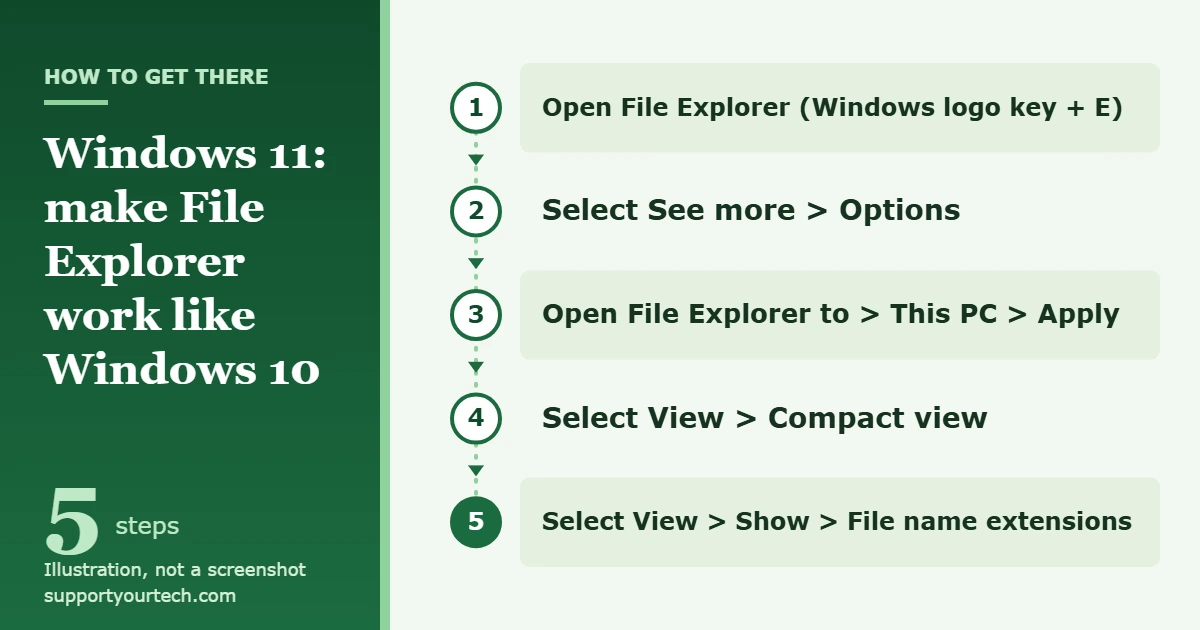
Windows 11 has no supported setting that swaps its File Explorer for the Windows 10 version. What you can do is make it behave much more like the old one: open File Explorer, select See more > Options > Open File Explorer to > This PC > Apply, then turn on View > Compact view.
Applies to: Windows 11 (version 22H2 and later). Checked against Microsoft Support on October 6, 2026.
What you can and can’t bring back
File Explorer is part of Windows itself, so Microsoft doesn’t offer the Windows 10 version as a download or an optional feature for Windows 11. The built-in settings below restore the parts most people miss: the This PC start page, tighter rows, visible file extensions, and the full right-click menu.
| What you miss from Windows 10 | Supported fix in Windows 11 |
|---|---|
| File Explorer opening to This PC | See more > Options > Open File Explorer to > This PC |
| More files on screen with less space between rows | View > Compact view |
| File extensions, hidden files and check boxes one click away | View > Show |
| The long right-click menu | Show more options, or Shift + right-click |
| Your favorite folders at the top of the left pane | Pin to Quick access |
| The ribbon with its tabs of buttons | No supported setting. The toolbar, the View menu and keyboard shortcuts cover the same commands. |
Make Windows 11 File Explorer work like Windows 10
These steps use only settings built into Windows 11. Nothing is installed and every change can be reversed.
- Open File Explorer. Select its folder icon on the taskbar or the Start menu, or press Windows logo key + E. In Windows 11 version 22H2 and later, it opens to Home.
- On the toolbar at the top of the window, select See more (the three dots), then select Options. A settings window opens.
- Next to Open File Explorer to, choose This PC, then select Apply. From now on, new File Explorer windows start on your drives and folders, as they could in Windows 10.
- Back in File Explorer, select View > Compact view. The space between files and folders shrinks, so each window shows more items.
- Select View > Show, then select File name extensions. File names now end with their type, such as .docx or .jpg.
- Optional: select View > Show again and select Hidden items to see hidden files and folders, or Item check boxes to get a check box next to each file and folder.
- Select View once more and pick the layout you used in Windows 10, such as details or a list.
We have separate walkthroughs for two of these settings: showing file extensions in Windows 11 and showing hidden folders and files in Windows 11.
Windows 11 shows a shorter right-click menu (also called the context menu) with the most common commands. The Windows 10 menu is still there, one step further in.
- Right-click a file or folder. On a touchscreen, press and hold it. The short menu opens.
- Select Show more options. The full menu opens, including commands added by other programs that don’t appear in the short menu.
To skip the short menu, hold Shift while you right-click. Microsoft’s shortcut list describes this as displaying the Show more options context menu.
Put your folders back in Quick access
Quick access is the list of pinned folders at the top of the left pane and on the Home page. Desktop, Documents, Downloads, Pictures, Music and Videos are pinned there by default.
- Go to a folder you use often.
- Right-click it (or press and hold) and select Pin to Quick access. The folder appears in the left pane of every File Explorer window.
- To remove a folder later, right-click it in the list and select Unpin from Quick access. This removes only the shortcut. The folder and its files stay where they are.
The Windows 10 ribbon is the one part with no built-in switch. These shortcuts from Microsoft’s list do the jobs of its most-used buttons.
| Shortcut | What it does |
|---|---|
| Ctrl + Shift + N | Create a new folder |
| F2 | Rename the selected item |
| Alt + Enter | Display properties for the selected item |
| Alt + P | Show or hide the preview pane |
| Alt + Shift + P | Show or hide the details pane |
| Ctrl + Shift + a number from 1 to 9 | Change the view style |
| Alt + Up arrow | Move up a level in the folder path |
| Ctrl + N | Open a new window |
| Ctrl + T | Open a new tab and switch to it |
| Ctrl + W | Close the active tab |
If you prefer a separate window for each folder, use Ctrl + N and ignore the tab shortcuts.
Should you use registry edits or replacement tools?
You’ll find registry edits and third-party programs online that promise the Windows 10 File Explorer or its ribbon. We don’t recommend them for everyday use, for three reasons:
- Microsoft doesn’t document or support them. None appears in Microsoft’s File Explorer help, so there’s no official fix if one goes wrong.
- They stop working. These tricks depend on leftover parts of Windows, and some have been reported to fail on certain Windows 11 versions. An update can remove them without notice.
- They change the look, not the program. You still run Windows 11’s File Explorer underneath, so the result isn’t the real Windows 10 version.
If you decide to edit the registry anyway, export a backup of the key first. Microsoft’s instructions are to open Registry Editor, select the key, then select File > Export and save the file.
Going back to Windows 10 just for its File Explorer isn’t a good trade either. Windows 10 reached the end of support on October 14, 2025, and Microsoft no longer provides it with technical support, software updates or security fixes.
Check that it worked, or undo it
Close every File Explorer window, then press Windows logo key + E. The new window should open to This PC, with tighter rows and extensions on file names.
To go back to the Windows 11 defaults:
- Select See more > Options, set Open File Explorer to back to Home (the default), and select Apply.
- Select View > Compact view again to clear its check mark.
- Select View > Show and select File name extensions, Hidden items or Item check boxes again to turn each one off.
Troubleshooting
I don’t see Options on the toolbar
Options sits inside See more, the three-dot button on the toolbar. It doesn’t have a button of its own.
File Explorer still opens to Home
Select Apply after choosing This PC. The change affects windows you open afterward, so close the ones already open and open a new one.
My screen doesn’t match these steps
Check your version. Right-click Start, select Settings > System > About, and look under Windows specifications. These steps are written for Windows 11 version 22H2 and later, where File Explorer opens to Home by default. If you’re on an older version, install the latest Windows updates.
A setting is greyed out or changes back
On a work or school PC, your organization can manage File Explorer settings. If an option is unavailable or resets after you sign in again, ask your IT administrator.
A program’s command is missing from the right-click menu
Commands added by other programs often appear only in the full menu. Select Show more options, or hold Shift while you right-click.
Frequently asked questions
Can I install the Windows 10 File Explorer on Windows 11?
No. Microsoft doesn’t offer it as a download, an optional feature or a setting. The supported route is to adjust Windows 11’s own File Explorer with the settings above.
Can I get the Windows 10 ribbon back?
Not with a supported setting. Windows 11 uses a single toolbar instead, with less-used commands under See more and display settings under View. The keyboard shortcuts in this article cover most of what the ribbon buttons did.
How do I make File Explorer open to This PC?
Select See more > Options, set Open File Explorer to to This PC, and select Apply.
Do these changes affect my files?
No. They change only how File Explorer displays and opens folders. Nothing is moved, renamed or deleted.
Will a Windows update reset these settings?
These are standard Windows settings, so they’re meant to persist. If one ever returns to its default, repeat the step for it. Unsupported registry tricks are the changes most likely to stop working after an update.
What does Shift + F10 do in File Explorer?
Microsoft lists Shift + F10 as the shortcut that displays the context menu for the selected item, which is useful when you’re working without a mouse.
Next, if you want the rest of the desktop to feel familiar too, see how to make Windows 11 look like Windows 10. Microsoft’s own reference for the settings used here is File Explorer in Windows, and the full shortcut list is in Keyboard shortcuts in Windows.

Matt Jacobs has been working as an IT consultant for small businesses since receiving his Master’s degree in 2003. While he still does some consulting work, his primary focus now is on creating technology support content for SupportYourTech.com.
His work can be found on many websites and focuses on topics such as Microsoft Office, Apple devices, Android devices, Photoshop, and more.