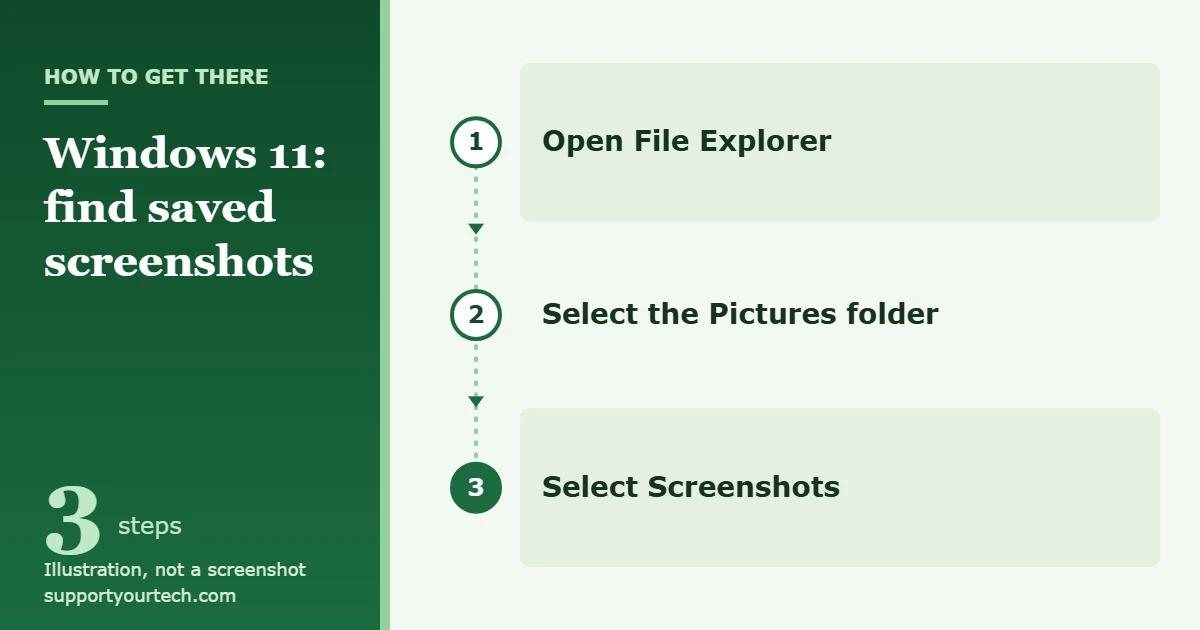
To find screenshots on Windows 11, open File Explorer, select Pictures in the side navigation pane, and then open the Screenshots folder. Captures made with Windows logo key + PrtScn and with Snipping Tool are saved there as files. If the folder is empty, the capture was probably only copied to the clipboard, so paste it into an app with Ctrl + V.
Applies to: Windows 11. Checked against Microsoft Support on October 6, 2026.
Where each Windows 11 screenshot method puts the picture
Windows 11 has several ways to capture the screen, and they do not all store the result in the same place. Some create a file, and some only copy the picture to the clipboard, which is the temporary holding area Windows uses for copy and paste. Knowing which shortcut you pressed tells you where to look.
| How you captured it | What gets captured | Where it goes |
|---|---|---|
| Windows logo key + PrtScn | The full screen | A file in the Screenshots subfolder of the Pictures folder |
| Windows logo key + Shift + S (Snipping Tool) | A region, window, or full screen that you choose | The clipboard, and Snipping Tool automatically saves the snip to your Screenshots folder |
| PrtScn by itself | By default, a region that you select | The clipboard |
| Alt + PrtScn | The active window | The clipboard only |
| Windows logo key + Alt + Print Screen (Game Bar) | The game or app you are using | A PNG file in the Captures folder under Videos |
On keyboards without a PrtScn key, Microsoft lists Fn + Windows logo key + Space Bar as the replacement for the full-screen shortcut. Those captures land in the same Screenshots folder.
How to open the Screenshots folder in File Explorer
This is the place to check first, because it holds every screenshot that Windows saved as a file for you.
- Open File Explorer from the taskbar, or press Windows logo key + E. A File Explorer window opens.
- In the side navigation pane on the left, select the Pictures folder. The contents of your Pictures folder appear on the right.
- Select the Screenshots folder to open it. Your saved captures are listed as picture files.
- Sort the folder by date so that the newest files are grouped together, then open a picture to check that it is the one you want.
Microsoft documents this same path in its keyboard shortcut for print screen article. If you do not see a Screenshots folder, or it does not contain the picture you expected, work through the sections below in order.
How to get a screenshot that was only copied to the clipboard
A capture made with Alt + PrtScn, or with PrtScn alone, is not saved as a file. It sits on the clipboard until you copy something else, so retrieve it before you copy any other text or picture.
- Open an app that accepts pictures, such as Paint or a Microsoft 365 app like Word. A blank canvas or document is fine.
- Press Ctrl + V to paste. The screenshot appears in the app.
- Save the file from that app and choose a folder you will remember, such as Pictures.
If you already copied something else, check clipboard history. Press Windows logo key + V to open it and select the screenshot to paste it. If clipboard history has never been used on the PC, the same shortcut shows a Turn on button instead. You can also manage the feature under Start > Settings > System > Clipboard.
Clipboard history has limits that matter for screenshots. Microsoft’s clipboard documentation states that history holds up to 25 copied entries, that each item can be no larger than 4 MB, and that the history is cleared every time you restart the PC unless you pinned the item. A screenshot of a large or high-resolution display may be over the size limit, and a capture from before your last restart will be gone.
How to find screenshots taken with Snipping Tool
Snipping Tool is the app behind Windows logo key + Shift + S. According to Microsoft, after you capture a snip it is automatically saved to your Screenshots folder, so the File Explorer steps above normally find it. The snip is also copied to the clipboard, and it opens in the Snipping Tool window where you can mark it up.
If your snips are not showing up in the folder, check the app’s own settings:
- Select the Start button, type snipping tool, and select Snipping Tool from the results. The app window opens.
- Select See More, then select Settings. The settings page opens.
- Review the automatic save behavior and the default Screenshots folder shown there. If automatic saving is off, or the folder was changed, that explains why Pictures > Screenshots does not have your snips.
To keep a snip in a specific place, press Ctrl + S in the Snipping Tool window, or use the Save as button, and choose the folder and file name yourself. Microsoft’s guide to using Snipping Tool to capture screenshots lists the rest of the app’s shortcuts. For the capture side of the task, see our guide on how to take a screenshot in Windows 11.
How to find Game Bar screenshots
Game Bar is the Windows overlay for capturing games and apps, opened with Windows logo key + G. A screenshot taken through it with Windows logo key + Alt + Print Screen does not go to the Pictures folder.
- Open File Explorer.
- Open the Videos folder.
- Open the Captures folder. Game Bar screenshots are saved here as PNG files, next to any MP4 recordings you made.
The file name contains the name of the game or app along with the date and time of the capture, which makes it easy to pick out the right one. If you are looking for a video and not a still picture, our article on recording your screen with Snipping Tool in Windows 11 covers that process.
How to check OneDrive for your screenshots
If OneDrive is set to back up your Pictures folder, the Screenshots folder is synced to your OneDrive storage along with it. In that case, look for Pictures under your OneDrive folder in File Explorer, or sign in at onedrive.com and browse to Pictures there.
To see whether Pictures is being backed up:
- Select the OneDrive cloud icon in the notification area of the taskbar.
- Select the Help & Settings icon, then select Settings. The OneDrive settings window opens.
- Go to the Sync and backup tab and select Manage backup. Each folder is shown with a toggle, and a folder that is not protected is labeled Not backed up.
- Check the state of Pictures. If you change a toggle, select Save changes.
Older instructions mention a OneDrive option named “Save screenshots to OneDrive.” Microsoft states that this feature is no longer available in OneDrive settings and directs people to folder backup instead, as described in Back up your folders with OneDrive. If you turn folder backup off, OneDrive asks whether to keep the files in OneDrive or on the PC, so note your answer because it decides where your existing screenshots end up.
How to confirm you found the right file
Open the picture and compare it with what you captured. To verify that new screenshots will be easy to find from now on, press Windows logo key + PrtScn once, then return to Pictures > Screenshots. A new file should appear at the end of the list when the folder is sorted by date. If it does, your save location is working, and the earlier missing capture was most likely taken with a clipboard-only shortcut.
Troubleshooting missing screenshots
The Print Screen key opens a selection overlay instead of capturing the whole screen
That is the default behavior in current versions of Windows 11: pressing PrtScn lets you select a region, and the result is copied to the clipboard. To change it, select Start > Settings > Accessibility > Keyboard and set Use the Print Screen button to open screen snipping to Off. When you want a file every time, use Windows logo key + PrtScn.
Nothing new appears in Pictures > Screenshots
Confirm which shortcut you used against the table at the top of this article. If you used a clipboard-only shortcut, paste the capture into an app. If you used Snipping Tool, open its settings through See More > Settings and check the automatic save behavior and folder. If Pictures is backed up by OneDrive, look in the OneDrive copy of the folder.
You cannot remember where you saved a screenshot
Use Windows search. Select the Search icon on the taskbar and type the file name or a word from it. Results come from across your PC and OneDrive. In File Explorer, you can search inside one folder, such as Pictures or Downloads, by opening it first. To search everything, Microsoft recommends searching from This PC instead of Home.
The screenshot was deleted
Open the Recycle Bin on your PC and look for the file there first. If the picture was in a folder synced with OneDrive, also check the recycle bin on the OneDrive website: select the file, then select Restore. Microsoft says deleted files stay recoverable there for up to 30 days with a personal Microsoft account, and for up to 93 days with a work or school account.
The PC belongs to your work or school
On a managed PC, your organization may control OneDrive folder backup and other settings, so toggles can be locked or missing. If the options described here are unavailable, ask your IT administrator where captures are stored on your device.
Frequently asked questions
Where are screenshots saved on Windows 11 by default?
In the Screenshots subfolder of your Pictures folder. That applies to captures made with Windows logo key + PrtScn and to snips that Snipping Tool saves automatically.
Why didn’t my Print Screen screenshot save anywhere?
Because PrtScn on its own, and Alt + PrtScn, copy the capture to the clipboard and do not create a file. Paste it with Ctrl + V into Paint or a document and save it from there.
Where do Windows logo key + Shift + S screenshots go?
They are copied to the clipboard, and Snipping Tool also saves them automatically to your Screenshots folder unless that behavior was changed in the app’s settings.
Can I change where Snipping Tool saves screenshots?
Yes. In Snipping Tool, select See More, then Settings, where Microsoft says you can change the automatic save behavior or the default Screenshots folder.
Where does Game Bar save screenshots?
In the Captures folder inside your Videos folder, as PNG files named after the game or app with the date and time.
Can I get back a screenshot I copied but never pasted?
Only if clipboard history was turned on when you took it and you have not restarted the PC since. Press Windows logo key + V and look for the picture in the list.
What if my keyboard has no Print Screen key?
Microsoft lists Fn + Windows logo key + Space Bar as the alternative for taking a screenshot on devices without a PrtScn key. Windows logo key + Shift + S also works on any keyboard.
Now that you know where each method stores its captures, pick one shortcut that saves a file, such as Windows logo key + PrtScn, and use it whenever you need to keep the picture.

Matt Jacobs has been working as an IT consultant for small businesses since receiving his Master’s degree in 2003. While he still does some consulting work, his primary focus now is on creating technology support content for SupportYourTech.com.
His work can be found on many websites and focuses on topics such as Microsoft Office, Apple devices, Android devices, Photoshop, and more.