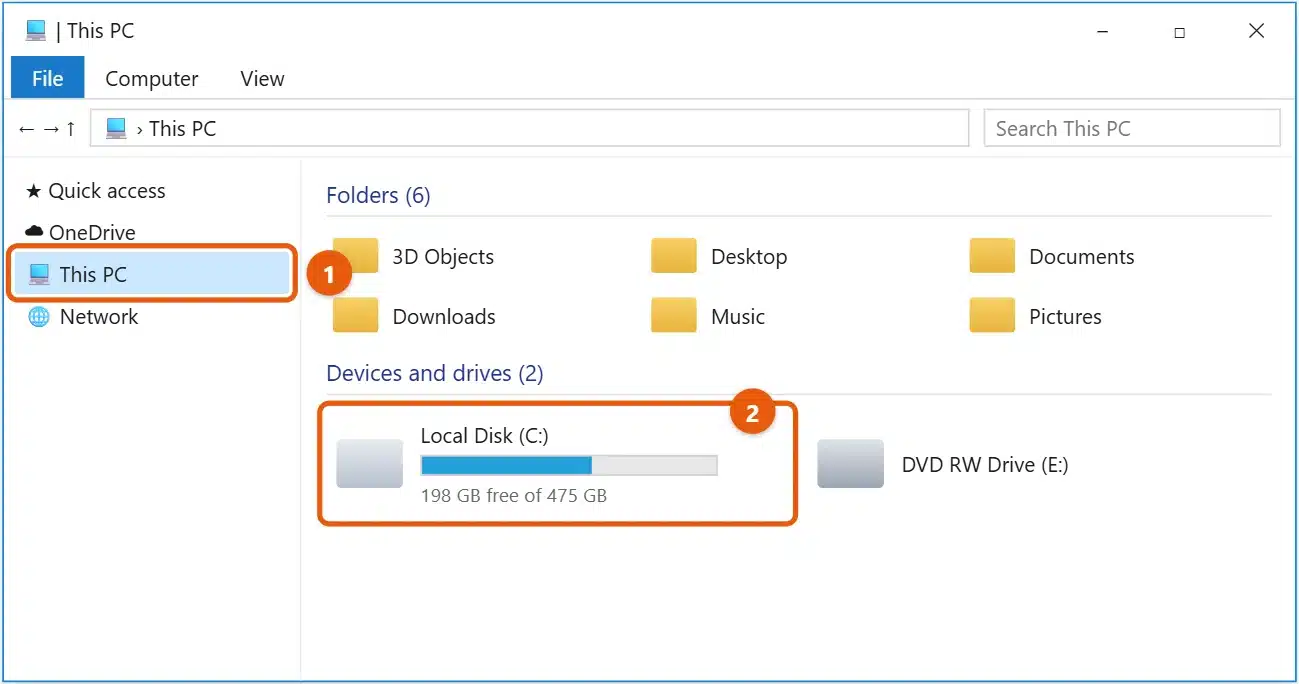
To access the C drive in Windows 10, press Windows + E to open File Explorer, select This PC in the left pane, and double-click Local Disk (C:) under Devices and drives. The C drive is where Windows, your installed programs, and usually your personal folders are stored.
Applies to: Windows 10. The same steps work in Windows 11. Checked on September 24, 2026.
Open the C drive in File Explorer
- Press Windows + E, or select the folder icon on the taskbar.
- Select This PC in the left pane.
- Double-click Local Disk (C:). It may have a different name, such as Windows (C:) or OS (C:).
Other quick ways
- Address bar: in File Explorer, click the address bar, type
C:\, and press Enter. - Run box: press Windows + R, type
C:\, and press Enter. - Command Prompt: type
cd /d C:\and press Enter. See how to go to the C drive in CMD. - Pin it: right-click Local Disk (C:) and select Pin to Quick access, so it’s always in the left pane.
What’s in the C drive
- Users: each person’s folders, such as Desktop, Documents, Downloads, and Pictures. Yours is in
C:\Users\followed by your user name. - Program Files and Program Files (x86): installed apps. 64-bit apps go in the first, 32-bit apps in the second.
- Windows: the files Windows needs to run. Don’t move, rename, or delete anything here.
- ProgramData: settings and data shared by apps. It’s hidden by default.
To show hidden folders, select the View tab in File Explorer and check Hidden items. Leave files like pagefile.sys and hiberfil.sys alone. Windows uses them, and deleting them can cause problems.
If you see “You don’t currently have permission”
Some folders, such as another user’s folder, are protected.
- If you’re an administrator and need to open it, select Continue. Windows gives your account access to that folder.
- If you’re not an administrator, ask the PC’s owner.
- Don’t change permissions on the Windows or Program Files folders. That can stop Windows or apps from working.
If the whole C drive says access is denied, restart the PC and sign in with an administrator account. On a work or school PC, your IT team may restrict it.
If the C drive is almost full
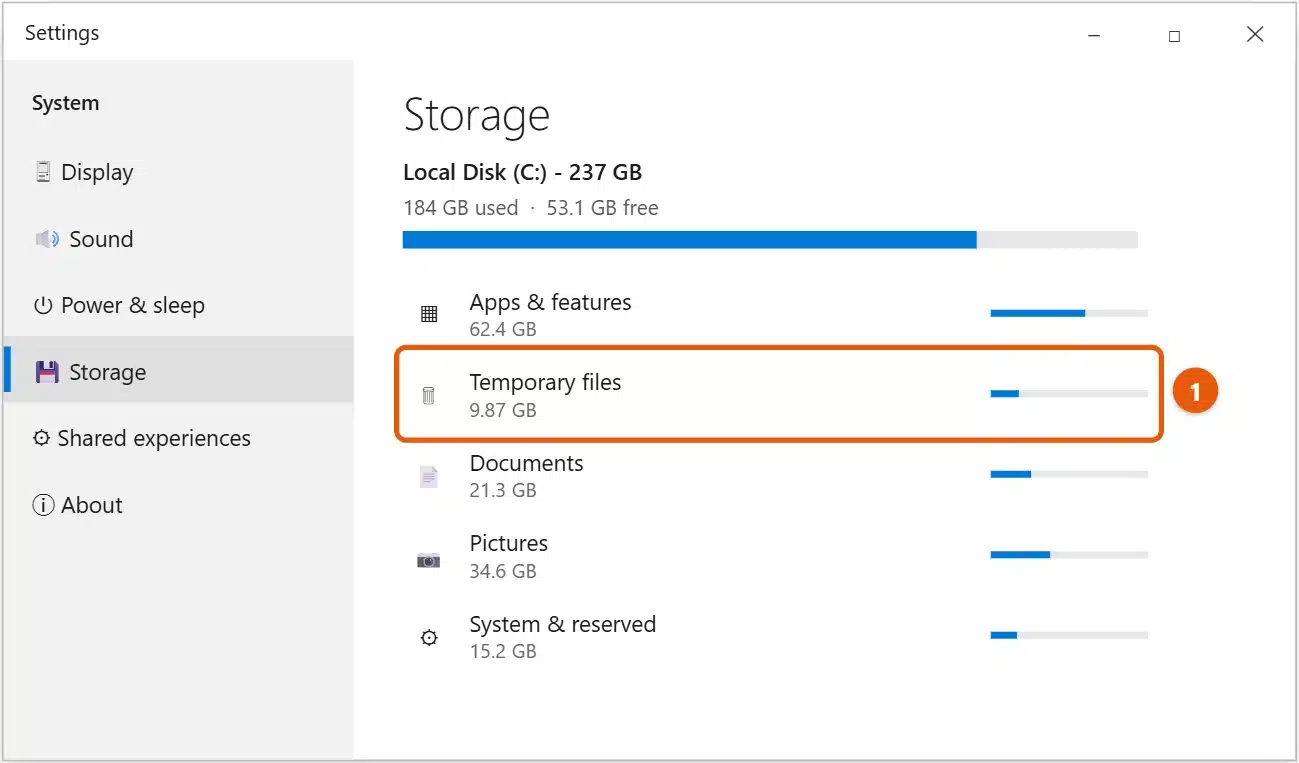
The bar under Local Disk (C:) turns red when space is low, and Windows can slow down. To see what’s using space, go to Settings > System > Storage.
To free up space safely:
- Remove temporary files: select Temporary files, check the items you don’t need, and select Remove files. Check Downloads carefully before removing it, because it deletes your downloaded files.
- Empty the Recycle Bin. Deleted files still use space until you empty it.
- Uninstall apps you don’t use in Settings > Apps > Apps & features.
- Move large photos and videos to another drive or to OneDrive. See how to move files from the C drive to the D drive.
- Turn on Storage Sense on the Storage page to clean up automatically.
Don’t delete files from the Windows folder to save space. For more ideas, see how to clean the C drive in Windows 10.
Frequently asked questions
Why is it called the C drive?
Early PCs used A and B for floppy disk drives, so the first hard drive got C. Windows still keeps that tradition.
Can I make the C drive bigger?
Sometimes, if there’s unallocated space next to it on the same disk. See how to extend the C drive in Windows 10. Back up your files first.
What if I don’t see a C drive at all?
Windows always runs from a drive, but it may be named differently. Look for the drive with the Windows logo on its icon in This PC.
Looking for My Computer? See how to find This PC on Windows 10. Looking for a second drive? See how to find the D drive. To split a drive in two, see how to partition a hard drive in Windows 10. More help is on our Windows Help & Guides page.

Matt Jacobs has been working as an IT consultant for small businesses since receiving his Master’s degree in 2003. While he still does some consulting work, his primary focus now is on creating technology support content for SupportYourTech.com.
His work can be found on many websites and focuses on topics such as Microsoft Office, Apple devices, Android devices, Photoshop, and more.