In Windows 10, My Computer is called This PC. To open it, press Windows + E to open File Explorer, then select This PC in the left pane. It shows your drives, such as Local Disk (C:), and folders like Documents, Downloads, and Pictures.
Looking for a lost or stolen laptop instead? Skip to Find a lost laptop with Find my device below.
Applies to: Windows 10. Checked against Microsoft Support on September 24, 2026.
Open This PC
- File Explorer: press Windows + E, then select This PC in the left pane.
- Search: select the search box on the taskbar, type
This PC, and press Enter. - Desktop: if the This PC icon is on your desktop, double-click it.
- Run box: press Windows + R, type
shell:MyComputerFolder, and press Enter.
What you’ll find in This PC
- Folders: Desktop, Documents, Downloads, Music, Pictures, and Videos.
- Devices and drives: your main drive, usually Local Disk (C:), plus other drives, USB sticks, memory cards, and DVD drives. A bar under each drive shows how full it is.
- Network locations: shared network drives you’ve connected to.
To see how much space a drive has, right-click it and select Properties.
Make File Explorer open to This PC
By default, File Explorer opens to Quick access. To have it open straight to This PC instead:
- Open File Explorer and select the View tab.
- Select Options on the right side of the ribbon.
- On the General tab, set Open File Explorer to to This PC.
- Select OK.
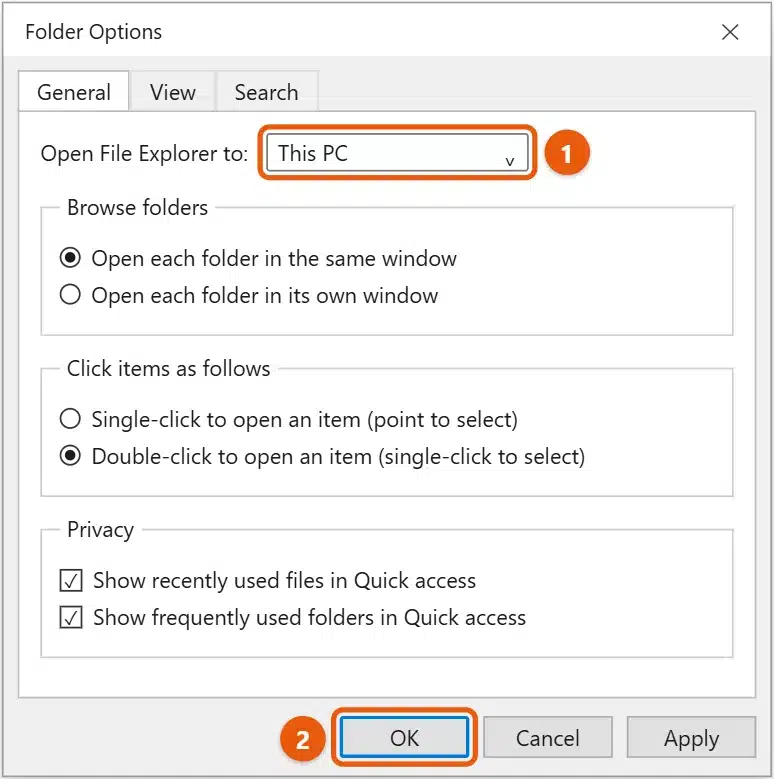
Put This PC on your desktop
- Right-click an empty area of the desktop and select Personalize.
- Select Themes, then Desktop icon settings under Related Settings.
- Check Computer and select OK.
To call it My Computer again, right-click the new icon, select Rename, and type My Computer. This changes only the label.
Pin This PC to Start or the taskbar
Search for This PC, then select Pin to Start. To add it to the taskbar, pin File Explorer, which you can set to open to This PC as shown above.
Find a lost laptop with Find my device
If you’re trying to find where your laptop is, not the This PC folder, use Find my device. It has to be turned on before the laptop goes missing.
Turn it on
- Sign in to Windows with a Microsoft account that’s an administrator on the PC.
- Select Start > Settings > Update & Security > Find my device.
- Select Change and turn on Save my device’s location periodically.
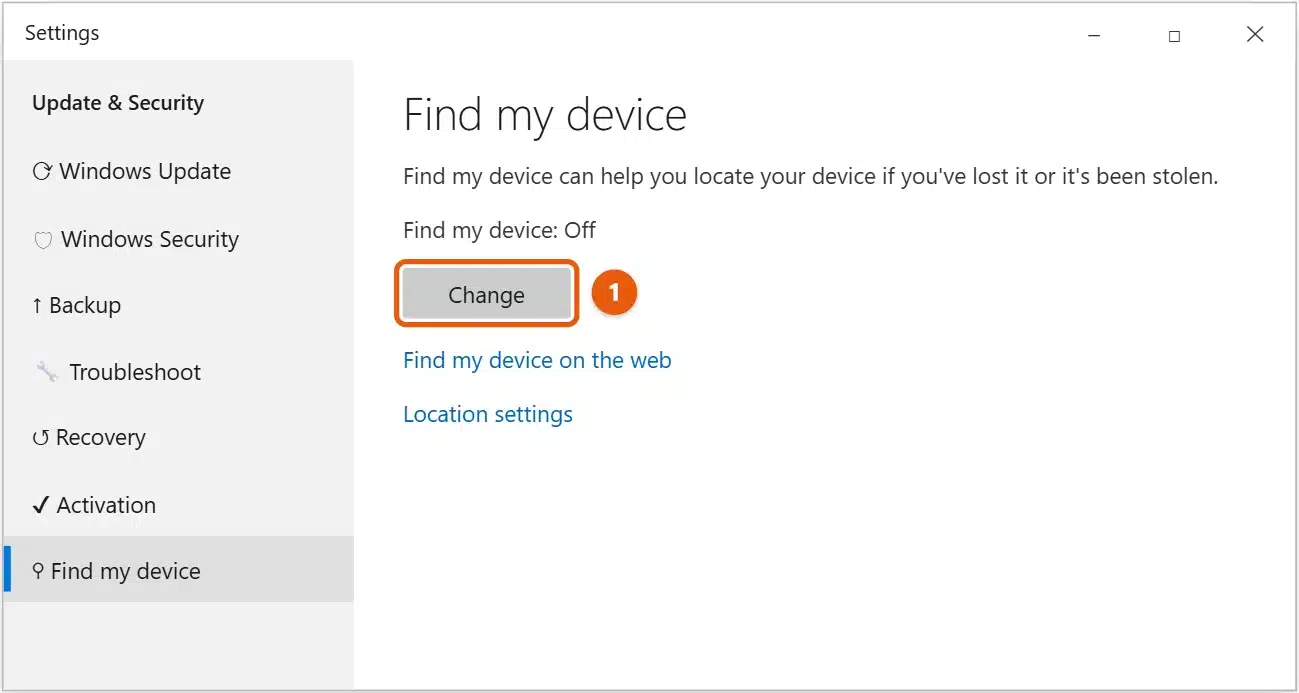
Location must also be on. Check it in Settings > Privacy > Location.
Find the laptop
- On another device, go to account.microsoft.com/devices and sign in with the same Microsoft account.
- Select the Find My Device tab and choose your laptop to see its last known location on a map.
- To protect your data, select Lock, then Next. Changing your Microsoft account password is also a good idea.
Anyone using the laptop sees a notification when you locate it. If you think it was stolen, contact the police rather than trying to recover it yourself.
If This PC doesn’t show your drive
- External drive or USB stick: it appears under Devices and drives only while it’s connected. Try another port or cable.
- New internal drive: it may need to be set up first. Right-click Start and select Disk Management to check.
- Drive is hidden or has no letter: in Disk Management, right-click the drive and select Change Drive Letter and Paths to add one.
Frequently asked questions
Why did My Computer change to This PC?
On Windows 11, see how to get to This PC in Windows 11.
Microsoft renamed it in Windows 8.1. It’s the same place, with the same drives and folders.
How do I find my computer’s name?
Go to Settings > System > About and look at Device name.
Is Find my device on by default?
Not always. Check Settings > Update & Security > Find my device now, so it’s ready if you ever need it.
If your desktop icons are missing, see how to show, hide, or restore desktop icons in Windows 10.
Need the main drive? See how to access the C drive in Windows 10. On Windows 11, see how to find My Computer in Windows 11 and how to show This PC on the desktop. To see hidden folders, see how to show hidden files and folders in Windows 10. Microsoft’s guide is Find and lock a lost Windows device. More help is on our Windows Help & Guides page.

Matt Jacobs has been working as an IT consultant for small businesses since receiving his Master’s degree in 2003. While he still does some consulting work, his primary focus now is on creating technology support content for SupportYourTech.com.
His work can be found on many websites and focuses on topics such as Microsoft Office, Apple devices, Android devices, Photoshop, and more.