To open a game’s files on Windows 11, press Windows logo key + E to open File Explorer, then go to the folder your game launcher installs into. For a Steam game, open the folder where Steam is installed, then steamapps, then common, then the folder named after the game. Saved games and settings are usually kept somewhere else, such as Documents, Saved Games or the hidden AppData folder.
Applies to: Windows 11, with games installed through Steam, the Epic Games Launcher, the EA app or the Xbox app. Checked against Microsoft Support on October 7, 2026. Launcher details were checked the same day against Valve’s Steamworks documentation, Epic Games Support and EA Help.
What “game files” means
Windows 11 does not keep everything that belongs to a game in one place. Before you start looking, decide which kind of file you need, because each kind lives in a different folder.
| Type of file | What it is | Where to look |
|---|---|---|
| Install files | The game program and its artwork, sound and levels | The launcher’s install folder, for example Steam’s steamapps > common folder |
| Saved games | Your progress | Documents, Saved Games, AppData, or the launcher’s cloud storage |
| Settings files | Graphics, sound and control choices | Usually next to the saved games, sometimes in the install folder |
| Screenshots | Pictures you captured while playing | The Screenshots folder inside Pictures, or a folder chosen by the launcher or game |
Before you start
- Know which launcher installed the game (Steam, Epic Games Launcher, EA app or Xbox app). The launcher decides where the install files go.
- Close the game first. Files that are in use can be locked, and changes made while the game is running may be overwritten when it exits.
- Sign in to Windows with the same account you play on. Saved games and settings are stored inside that account’s own user folder, so another account will not show them.
- Looking at files is harmless. Changing, moving or deleting them is not, so copy anything you plan to change to a safe place first.
Open a Steam game’s files in File Explorer
Valve’s documentation gives the install location of a Steam game as the Steam install folder, then steamapps, then common, then the game’s own folder. You can walk to it in File Explorer without opening Steam.
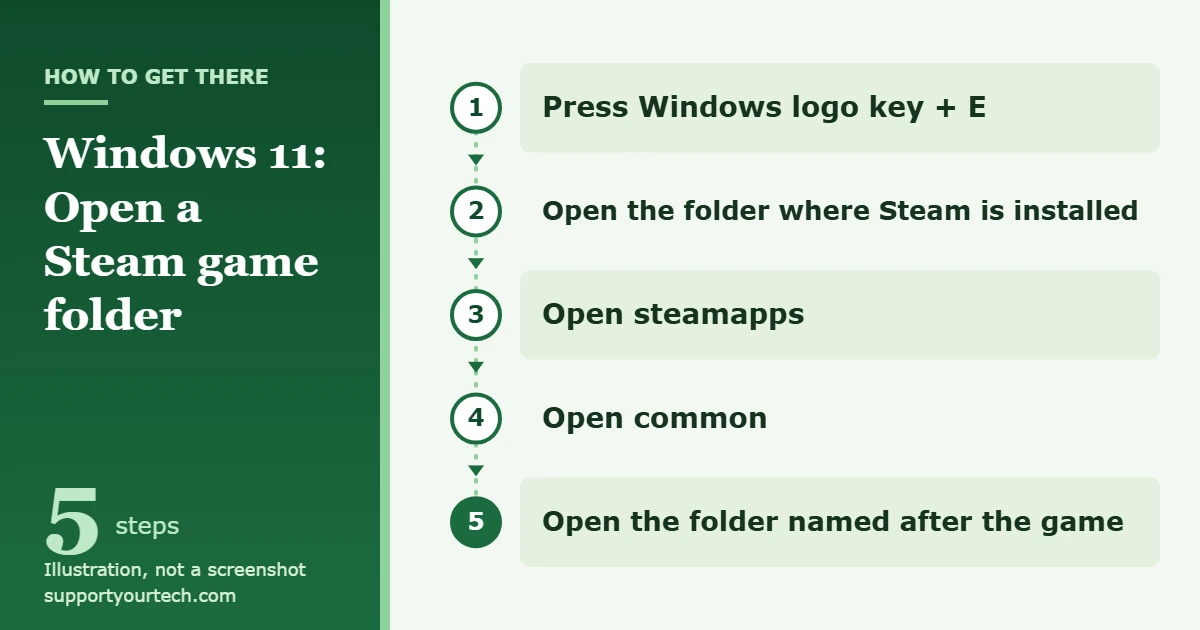
- Press Windows logo key + E, or select File Explorer on the taskbar. A File Explorer window opens.
- Open the folder where Steam is installed. This is the location you chose, or accepted, when you ran the Steam installer. If you are not sure, start by looking in the two Program Files folders on your Windows drive. You should see a folder named steamapps inside the Steam folder.
- Double-click steamapps. This folder holds the game content Steam has downloaded.
- Double-click common. You should see one folder for each installed game.
- Double-click the folder named after your game. The game’s program file and its data folders are listed here.
If the game’s folder is not in common, the game was probably installed to a different drive or folder. In that case, open the game’s properties from your Steam Library and use the option there that opens the installed files. The wording of that option has changed between Steam versions, so follow what your copy of Steam shows.
Open files for games from other launchers
Each launcher has its own install folder and its own management screen. Start in the launcher, because it knows where the game was installed.
Epic Games Launcher
- Open the Epic Games Launcher.
- Find the game in your Library.
- Click the three dots next to the game.
- Select Manage. The game’s management options open, including the Verify button that checks the game’s files for damage.
Use this screen to manage the installation instead of moving the game folder by hand. Epic warns that manually moving or changing game files can make the launcher report that the game is not installed (error LS-0009).
EA app
In the EA app, the install folder is the one shown as Install location when you download a game from your Library. For a game that is already installed, select the three-dot menu on the game’s tile and choose View Properties to reach its advanced settings. EA describes both in its guide to downloading and playing games in the EA app.
Xbox app and Microsoft Store games
In the Xbox app, right-click the game and select Manage. Microsoft’s Xbox team says this is where you can reach a game’s local files and move or repair the game. Microsoft also notes that the files for some games do not appear in the install folder, and that mods made for another store’s version of a game may not work with the Xbox app version. If a game’s files are not offered there, they are not meant to be edited by hand.
Find saved games and settings
Saved games are tied to your Windows account, so they sit in your user folder and not with the install files. Windows provides several standard folders that games use: Documents, Saved Games, and three folders inside AppData named Roaming, Local and LocalLow. Valve’s Steam Cloud documentation lists these same Windows locations as the places games save to.
- Press Windows logo key + E to open File Explorer.
- Open Documents and look for a folder named after the game or its publisher.
- If it is not there, open your user folder (the folder with your account name inside Users on the Windows drive) and open Saved Games.
- Still nothing? Stay in your user folder and select View > Show > Hidden items. A folder named AppData appears.
- Open AppData, then check Roaming, Local and LocalLow for a folder named after the game or its publisher.
Microsoft documents the Hidden items option on its File Explorer in Windows support page.
Some games keep saves in the cloud as well. For games that support Steam Cloud, Steam syncs the save files when the game starts and again when it exits, and downloads them to a new computer before the game launches. That means a local copy you edit or delete can be replaced by the cloud copy, or the other way around, the next time you play.
See what kind of file you are looking at
By default, File Explorer may hide the ending of each file name, which makes it hard to tell a program from a settings file. To show it, select View > Show > File name extensions.
- A file ending in .exe is a program. In a game folder, the one named after the game usually starts it.
- Files ending in .ini or .cfg are usually plain-text settings files that open in a text editor.
- Large files with unfamiliar endings are normally packed game data. They are not meant to be opened directly.
Keep the folder handy, or put things back
Once you have found the right folder, you do not need to search for it again. Right-click the folder and select Pin to Quick access. It then appears in the list on the left side of every File Explorer window.
To hide AppData and other hidden folders again when you are done, select View > Show > Hidden items a second time.
Back up before you change anything
Copy the file or folder you plan to change to another location, such as a folder on your desktop, before you edit it. If the game stops working, copy the original back over the changed one.
If you no longer have a backup of the install files, let the launcher repair them. In the Epic Games Launcher, Manage > Verify compares the files on your PC with the correct ones and repairs any that differ. Epic states that your saved data is not affected. Steam has a matching feature called Verify Integrity of Game Files. Using the launcher’s repair tool is safer than downloading replacement files from an unknown website.
Troubleshooting
The AppData folder is not there
AppData is hidden by default. Open your user folder and select View > Show > Hidden items.
There is no steamapps folder
You are probably not in the folder where Steam is installed. Steam can be installed to any folder you picked in its installer, so check other drives, or open the game’s properties in your Steam Library and use the option that opens its installed files. Our guide on how to find the Steam folder on Windows 11 walks through each way to locate it.
The game folder is in common but looks almost empty
The game may have been uninstalled, or the download may not have finished. Check the game’s status in the launcher before you assume files are missing.
The game will not start after you changed a file
Copy your backup over the changed file. If you have no backup, run the launcher’s verify or repair tool, which replaces damaged or changed install files.
The Epic Games Launcher says the game is not installed
Error LS-0009 can appear after game files were moved or changed by hand. Epic’s fix is to remove the files that were changed manually and download the game again through the launcher.
Windows says you do not have permission
Make sure you are signed in with the account that installed the game. On a work or school PC, the organization may block access to program folders; ask its IT support instead of trying to get around the restriction.
Frequently asked questions
Where are game files stored on Windows 11?
There is no single folder. Install files go wherever the launcher puts them, such as Steam’s steamapps > common folder. Saved games and settings go in your user folder, most often under Documents, Saved Games or AppData.
Are saved games kept in the same folder as the game?
Usually not. Saves belong to your Windows account, so most games write them to your user folder. Some also keep a copy in the launcher’s cloud storage.
Is it safe to edit or delete game files?
Opening and reading them is safe. Editing or deleting them can stop the game from starting, so back up first and only change files when the game’s developer or a guide you trust tells you which ones. Do not delete folders in AppData just to free up space.
Will verifying game files delete my saves?
Epic states that verifying does not affect saved data. Verification checks the install files, which are separate from your saves. If your progress matters to you, copy the save folder somewhere safe first anyway.
How do I see hidden game folders?
In File Explorer, select View > Show > Hidden items. Hidden folders such as AppData then appear alongside the normal ones.
What happens to my game files if I uninstall the launcher?
Games installed inside the launcher’s folder can be removed along with it. Our guide on uninstalling Steam on Windows 10 explains how to copy the steamapps folder first so you can keep your games.
Now that you can find a game’s folders, copy your save folder to another drive or a USB stick so you have a backup of your progress. If you are clearing space instead, see how to uninstall games on Windows 10 for the removal steps.
Related: how to run a game as administrator in Windows 11.

Matt Jacobs has been working as an IT consultant for small businesses since receiving his Master’s degree in 2003. While he still does some consulting work, his primary focus now is on creating technology support content for SupportYourTech.com.
His work can be found on many websites and focuses on topics such as Microsoft Office, Apple devices, Android devices, Photoshop, and more.