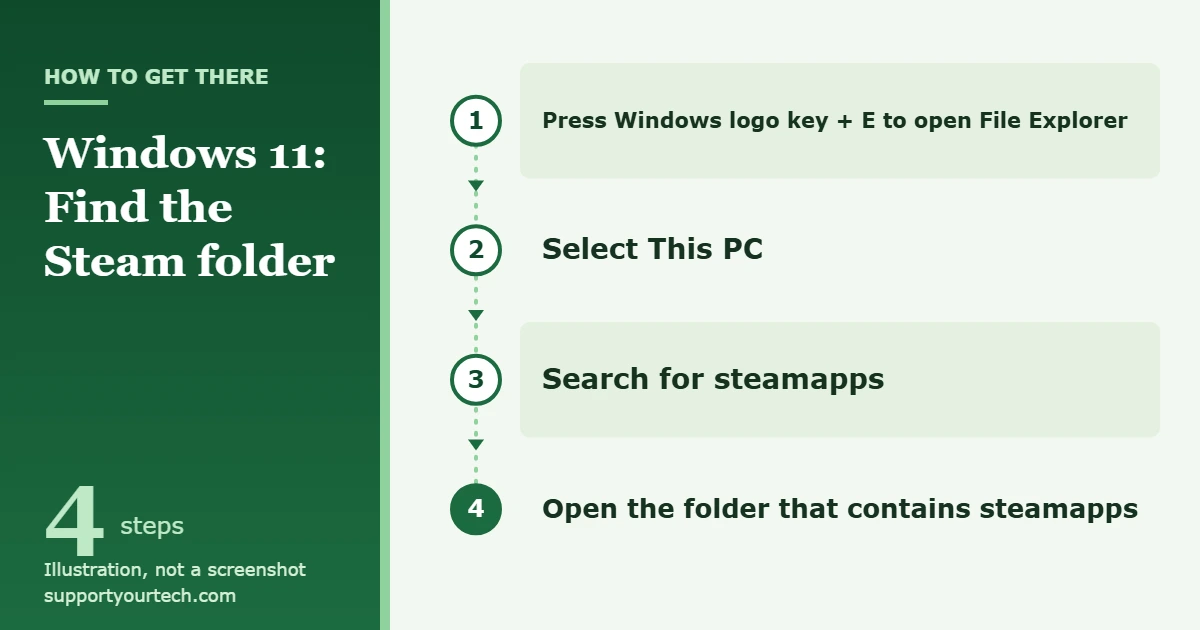
To find the Steam folder on Windows 11, press Windows logo key + E to open File Explorer, select This PC, and search for steamapps. The folder that contains steamapps is your Steam folder, and your installed games are inside steamapps > common.
Applies to: Windows 11 with the Steam desktop app installed. Checked against Microsoft Support and Valve’s Steamworks documentation on October 7, 2026.
What the Steam folder is
The Steam folder is the folder you chose, or accepted, when you ran the Steam installer. Valve’s documentation calls it the Steam install directory. There is no single location that is right for every PC, because the installer lets you pick the folder, so the reliable approach is to look for the folders Steam always creates inside it.
| Item inside the Steam folder | What it holds |
|---|---|
| steamapps | The game content Steam has downloaded |
| steamapps > common | One folder for each installed game. Valve gives a game’s install location as the Steam install folder, then steamapps, then common, then the game’s folder. |
| appmanifest files in steamapps | Small files named appmanifest, followed by a number and ending in .acf. Each one records the install state of one game. |
| logs | Log files that the Steam app writes about its own activity |
Valve’s documentation spells the first folder both as steamapps and as SteamApps. Both spellings refer to the same folder.
A Steam library folder is a second place where Steam keeps games, often on another drive. A library folder also has a steamapps folder with common inside it, so the steps below find those as well.
Before you start
- You need a Windows 11 PC that has Steam installed. If it is not installed yet, follow our guide on how to install Steam on Windows 11, or get the installer from Valve’s Steam download page.
- Steam does not need to be open for the File Explorer methods.
- Looking at the folder changes nothing. Do not move, rename or delete anything in it while you are searching.
Find the Steam folder with a File Explorer search
This method works wherever Steam is installed, including on a second drive.
- Press Windows logo key + E, or select File Explorer on the taskbar. File Explorer opens to its Home view.
- Select This PC in the list on the left side of the window. Searching from This PC covers every drive. Microsoft notes that this search is slower than searching a single folder, but more thorough.
- Click the search box, type steamapps, and press Enter. Wait while Windows looks through your drives. The results list fills in as it goes.
- Find a folder named steamapps in the results and double-click it. You should see a common folder and, if any games are installed, the appmanifest files.
- Look at the address bar at the top of the File Explorer window. It shows the chain of folders that leads to where you are now. The name directly before steamapps is your Steam folder. Click that name to open it.
- Check that the folder you are now in contains both steamapps and logs. If it does, this is the main Steam folder. Write down the drive and folder names from the address bar so you can return without searching.
Check the Program Files folders by hand
If you accepted the folder the Steam installer suggested, a quick look in the two Program Files folders is often faster than a full search. Windows keeps two of these folders: Program Files (x86), which is where 32-bit programs are directed, and Program Files.
- Open File Explorer and select This PC.
- Open the drive Windows is installed on. On most PCs this is drive C.
- Open Program Files (x86) and look for a folder named Steam.
- If it is not there, go back one level, open Program Files, and look again.
- Open the Steam folder and confirm that it contains steamapps.
If neither folder has a Steam folder, Steam was installed somewhere else. Use the search method above.
Find the folder from inside Steam
When Steam is open and at least one game is installed, Steam can take you to that game’s folder, and the Steam folder is a few levels above it. This is the best choice when a game is on a different drive from Steam.
- Open Steam and go to your library.
- Right-click an installed game and select Properties. A properties window opens with a list of sections on the left.
- Open the section that deals with the game’s installed files and use the option there that opens them in File Explorer. Valve has changed the wording of this section between Steam versions, so follow what your copy of Steam shows.
- File Explorer opens in the game’s own folder. In the address bar, read the folder names from right to left: the game’s folder, then common, then steamapps. The name before steamapps is the Steam folder, or the library folder that holds this game.
If your goal is a game’s files and not Steam itself, our guide on how to open game files on Windows 11 covers Steam along with other game launchers.
If your games are on more than one drive
Each Steam library folder has its own steamapps folder, so a search from This PC can return more than one result. That is normal. Use these two checks to tell the folders apart:
- The main Steam folder is the one that also contains the logs folder. Valve’s documentation places Steam’s log files in the Steam install directory.
- A folder that has steamapps but no logs folder next to it is a library folder.
A game is stored in only one of these places. If a game’s folder is missing from common in the main Steam folder, look in common in each of the other results, or use the method from inside Steam, which opens the correct folder directly.
What is not in the Steam folder
Saved games and settings are often kept outside the Steam folder, in your Windows user folder. Valve’s Steam Cloud documentation lists the Windows locations games commonly save to: Documents, Saved Games, and three folders inside AppData named Local, LocalLow and Roaming. Some games do save inside their own install folder, so check both places.
AppData is hidden by default. To show it, open File Explorer and select View > Show, then select Hidden items. Microsoft documents this option in its File Explorer in Windows article.
Confirm you found the right folder
- The folder contains steamapps, and steamapps contains common.
- The folders inside common are named after games you have installed.
- For the main Steam folder, a logs folder sits next to steamapps.
Finding the folder makes no changes, so there is nothing to undo. If you turned on Hidden items and want to hide those folders again, select View > Show > Hidden items a second time.
Treat the folder as read-only unless you have a specific reason to change it. Steam tracks each game through the appmanifest files, so moving or renaming game folders by hand can leave Steam’s records out of step with what is on the drive. To make a backup, copy the folder to another drive and leave the original where it is.
Troubleshooting
The search finds nothing
Give the search time to finish, because a search from This PC goes through every drive. Check that you typed steamapps as one word. If there are still no results, Steam may not be installed for this copy of Windows, or its drive may not be connected. Plug in any external drive you use for games and search again.
There are several steamapps folders
You have more than one Steam library. The folder that sits next to logs belongs to the main Steam folder. The others are library folders that hold games only.
The Steam folder is there but a game is missing from common
That game is in a different library folder. Open the game’s properties in Steam and use the option that opens its installed files.
You cannot see AppData or other folders
Turn on View > Show > Hidden items in File Explorer.
You are on a work or school computer
Your organization may limit which programs you can install and which folders you can open. If Steam is not on the PC, or File Explorer will not let you into a folder, ask your IT administrator. Do not try to get around the restriction.
Frequently asked questions
Where is the Steam folder on Windows 11?
It is wherever Steam was installed, which is chosen in the Steam installer. Check the two Program Files folders on your Windows drive first. If it is not there, search This PC for steamapps and open the folder that contains it.
Where are Steam games stored?
Each game has its own folder inside steamapps > common, either in the main Steam folder or in a Steam library folder on another drive.
Is steamapps the same as the Steam folder?
No. steamapps is a folder inside the Steam folder. The Steam folder is one level above it and also holds other items, such as logs.
What are the appmanifest files in steamapps?
Valve’s SteamPipe documentation describes each appmanifest file as showing the current install state of one app. Leave these files alone. Steam maintains them.
Are my saved games in the Steam folder?
Sometimes, but many games save to Documents, Saved Games or AppData in your user folder. Games that support Steam Cloud also keep a copy of their saves online.
Can I delete the Steam folder to remove Steam?
Uninstall Steam through Windows, not by deleting its folder. Our guide on uninstalling Steam on Windows 10 explains how to keep a copy of your games first.
Now that you know where the Steam folder is, open steamapps > common to see how much room each game takes, and copy the folder to another drive if you want a backup before making changes.
Related: how to run a Steam game as administrator.
Related: install Steam on Windows 10.

Matt Jacobs has been working as an IT consultant for small businesses since receiving his Master’s degree in 2003. While he still does some consulting work, his primary focus now is on creating technology support content for SupportYourTech.com.
His work can be found on many websites and focuses on topics such as Microsoft Office, Apple devices, Android devices, Photoshop, and more.