Create a folder, rename it by holding Alt and typing 0160 on the number pad so it has no name, then right-click it, select Properties > Customize > Change Icon, and pick a blank icon. The folder is still there, but you won’t see it on the desktop.
Applies to: Windows 11. Checked against Microsoft Support on September 29, 2026.
Before you start
An invisible folder only hides things from a quick look. Anyone who knows it’s there, or who selects everything on the desktop, can find it. It doesn’t protect your files. You need a keyboard with a number pad, or turn on Num Lock on a laptop that has one built in.
Give the folder a blank name
- Right-click the desktop and select New > Folder.
- Right-click the folder and select Rename (or press F2).
- Hold Alt and type 0160 on the number pad, then let go of Alt and press Enter.
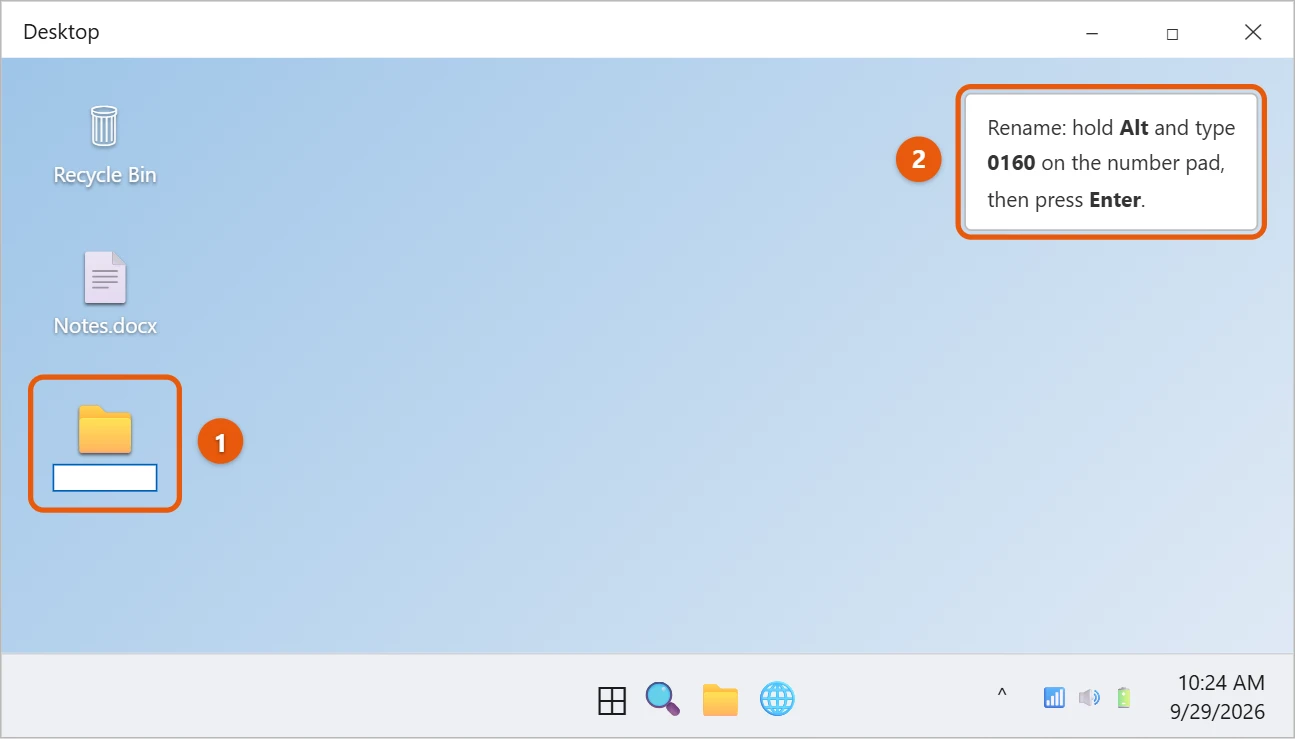
If Windows says the name is already in use, you already have a folder with a blank name. Type 0160 twice for the second one.
Give the folder a blank icon
- Right-click the folder and select Properties.
- Select the Customize tab, then Change Icon.
- Select one of the blank spaces in the list of icons.
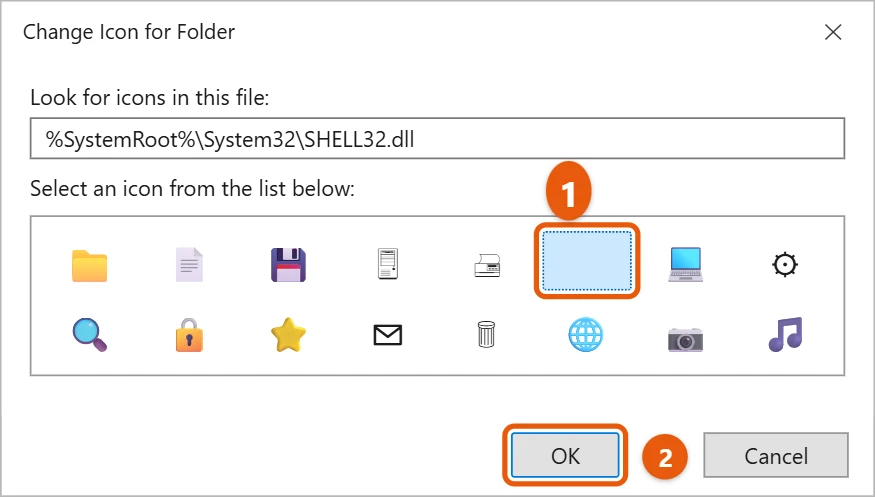
- Select OK, then OK again. The folder disappears from view.
To find it again, press Ctrl + A on the desktop to highlight everything, or remember where you left it. For more icon choices, see how to change a folder icon in Windows 11.
- Right-click the folder, select Properties, and check Hidden on the General tab.
- Select OK.
To see it again, open File Explorer and select View > Show > Hidden items.
Frequently asked questions
How do I make it visible again?
Open Properties > Customize > Change Icon, select Restore Defaults, and rename the folder.
Does this keep my files private?
Windows doesn’t have a simple lock for single folders, so an invisible or hidden folder is only for keeping things out of sight. On Windows 10, see how to hide and show hidden files and folders.
To find a hidden folder again later, see how to show hidden folders in Windows 11.
Microsoft’s reference for showing hidden items is File Explorer in Windows. More help is on our Windows Help & Guides page.

Matt Jacobs has been working as an IT consultant for small businesses since receiving his Master’s degree in 2003. While he still does some consulting work, his primary focus now is on creating technology support content for SupportYourTech.com.
His work can be found on many websites and focuses on topics such as Microsoft Office, Apple devices, Android devices, Photoshop, and more.