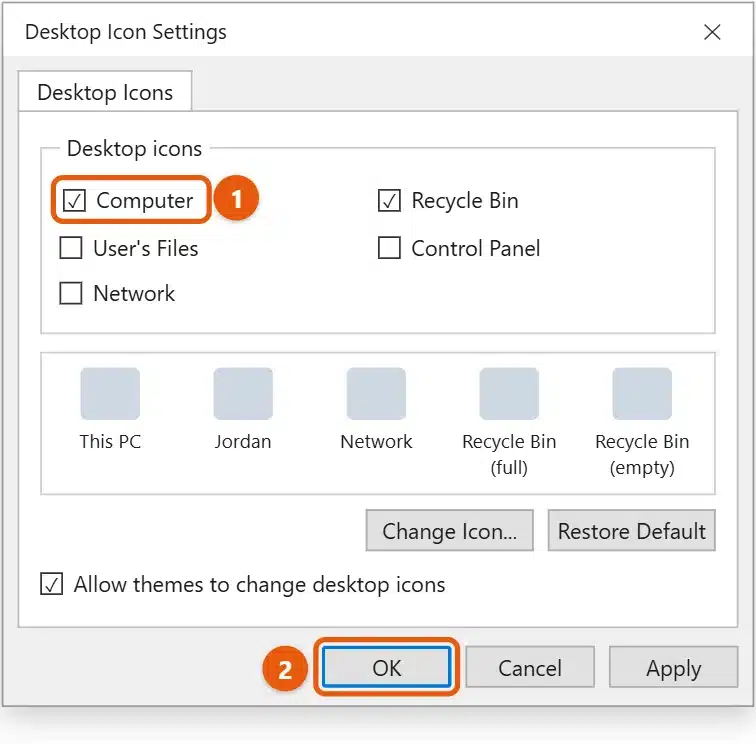
To show My Computer on the desktop in Windows 11, go to Settings > Personalization > Themes > Desktop icon settings. Check Computer and select OK. The icon appears on the desktop as This PC, which is Windows 11’s name for My Computer. Double-click it to see your drives and folders.
Applies to: Windows 11. Checked against Microsoft Support on September 24, 2026.
Add This PC to the desktop
- Right-click an empty area of the desktop and select Personalize. Or press Windows + I and select Personalization.
- Select Themes.
- Scroll to Related settings and select Desktop icon settings.
- Check Computer. You can also check Recycle Bin, Network, User’s Files, or Control Panel if you want those.
- Select OK.
If the icon still doesn’t appear
Right-click an empty area of the desktop, select View, and make sure Show desktop icons is checked. If your desktop icons have vanished more broadly, see where did my desktop icons go in Windows 11.
Rename it to My Computer
The icon is called This PC by default. To use the old name:
- Right-click This PC on the desktop and select Rename (or select it and press F2).
- Type
My Computerand press Enter.
This only changes the desktop label. File Explorer still shows This PC.
Other ways to get to This PC
- File Explorer: press Windows + E and select This PC in the left pane.
- Make File Explorer open to This PC: in File Explorer, select See more (…) > Options. On the General tab, set Open File Explorer to to This PC and select OK.
- Pin it to Start: right-click This PC on the desktop and select Pin to Start.
Make the icon bigger or smaller
Right-click the desktop, select View, and choose Large icons, Medium icons, or Small icons. Or hold Ctrl and scroll the mouse wheel. See how to change desktop icon size in Windows 11.
Frequently asked questions
What’s the difference between This PC and My Computer?
Nothing, apart from the name. Microsoft renamed My Computer to Computer, and later to This PC. It still shows your drives, such as Local Disk (C:), and devices like USB drives.
Why is Desktop icon settings grayed out or missing?
On a work or school PC, your organization may control desktop icons. Ask your IT support team.
How do I remove This PC from the desktop?
Go back to Desktop icon settings, clear Computer, and select OK. Removing the icon doesn’t delete any files or drives.
To remove the Recycle Bin from the desktop instead, see how to hide the Recycle Bin in Windows 11.
Looking for your drives rather than the icon? See how to find My Computer on Windows 11. To bring back the Recycle Bin the same way, see where is the Recycle Bin in Windows 11. Microsoft’s guide is Customize the desktop icons in Windows. More help is on our Windows 11 Help & Guides page.
To hide the list of recently opened files, see how to clear recent files in Windows 11.
To change the picture behind your desktop icons, see how to change the wallpaper in Windows 11.
To pick a different icon for This PC or the Recycle Bin, see how to change desktop icons in Windows 11.
To open it without a desktop icon, see how to get to This PC in Windows 11.
You can add Control Panel in the same window. See how to put a Control Panel icon on the desktop in Windows 11.

Matt Jacobs has been working as an IT consultant for small businesses since receiving his Master’s degree in 2003. While he still does some consulting work, his primary focus now is on creating technology support content for SupportYourTech.com.
His work can be found on many websites and focuses on topics such as Microsoft Office, Apple devices, Android devices, Photoshop, and more.