To find the AppData folder in Windows 11, press Windows + R, type %appdata%, and press Enter. File Explorer opens the Roaming folder inside AppData. Select AppData in the address bar to see all three folders: Local, LocalLow, and Roaming.
The full path is C:\Users\<your user name>\AppData. It’s hidden by default, which is why you don’t see it in your user folder.
Applies to: Windows 11. Checked on September 24, 2026.
Open AppData with the Run box
- Press Windows + R.
- Type one of these and press Enter:
%appdata%opens AppData\Roaming.%localappdata%opens AppData\Local.
- To go up to the main AppData folder, select AppData in the address bar.
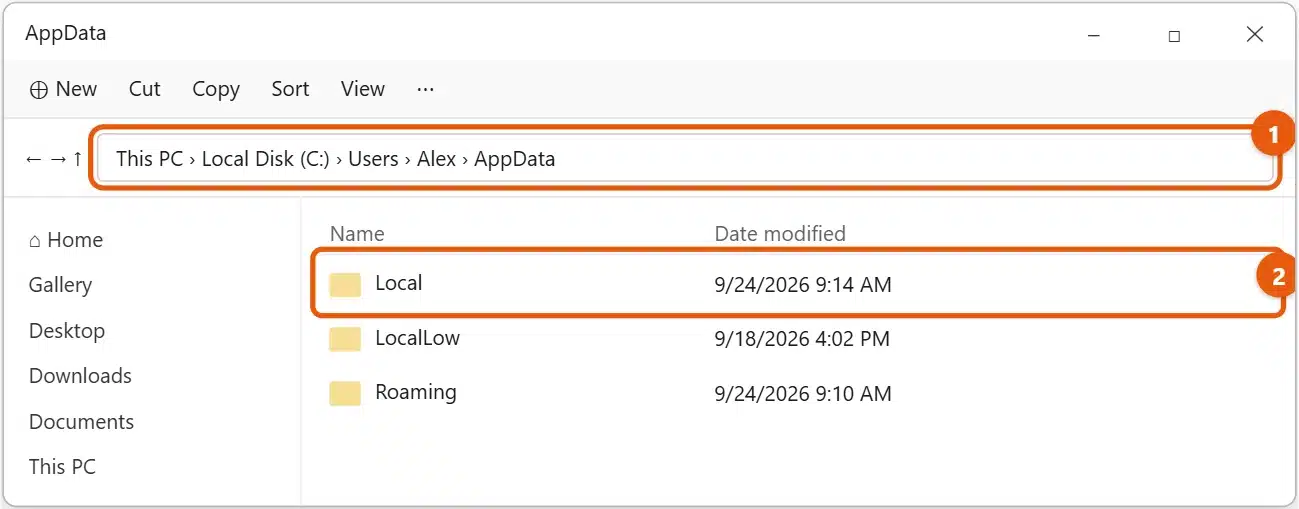
You can also type %appdata% in the File Explorer address bar or the Start search box.
Show AppData in File Explorer
If you’d rather browse to it:
- Press Windows + E to open File Explorer.
- Select View > Show > Hidden items.
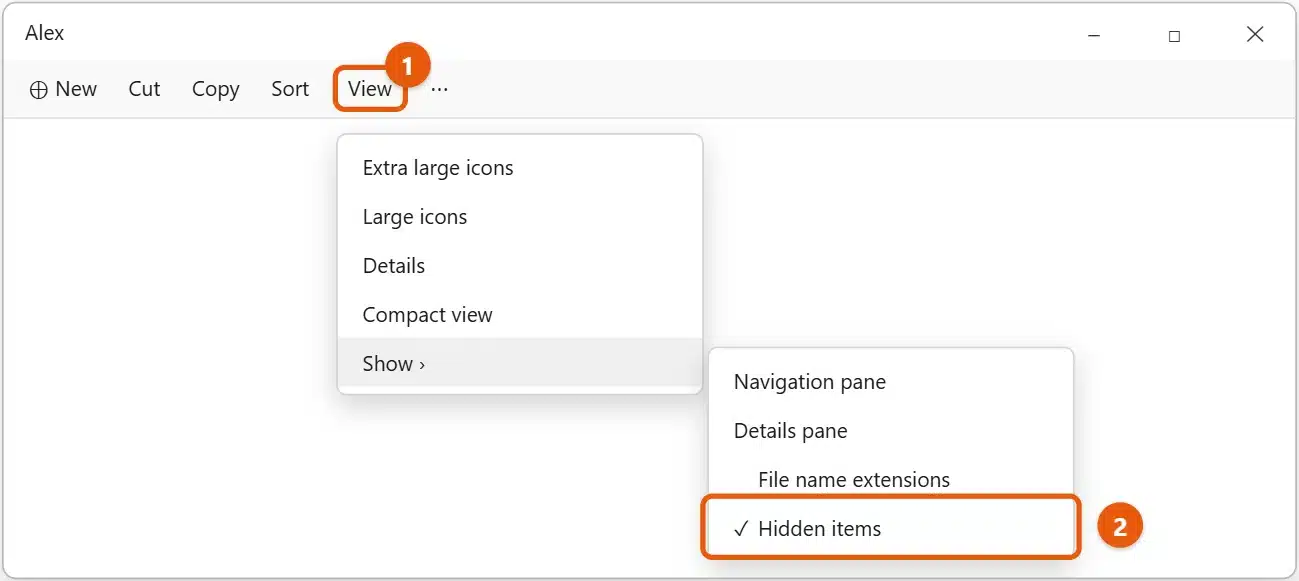
- Go to This PC > Local Disk (C:) > Users > your user name. AppData now appears, slightly faded because it’s hidden.
To hide it again, repeat step 2. See how to show hidden folders in Windows 11.
What’s in Local, LocalLow, and Roaming
- Roaming holds settings that can follow your account to another PC on some work networks, such as app preferences and browser profiles for some apps. It also holds the Recent folder of shortcuts that Windows keeps for recently opened files; to empty it, see how to clear recent files in Windows 11.
- Local holds data that stays on this PC, such as caches, temporary files, and larger app data.
AppData\Local\Tempis where many apps put temporary files. - LocalLow is for apps that run with extra security limits, such as some browser plug-ins and games.
Each user on the PC has their own AppData folder.
Common reasons to open AppData
- Back up or move game saves and app settings.
- Clear an app’s cache when it misbehaves. Close the app first.
- Follow a support guide that asks for a log file.
Be careful what you delete
- Don’t delete the AppData folder or whole folders inside it. Apps can lose their settings, and some may stop working.
- Close the app first before deleting its files.
- To free up space safely, use Settings > System > Storage > Temporary files instead of deleting files by hand.
If %appdata% doesn’t open
- Check the spelling. It needs the percent signs on both sides.
- Type the full path in the File Explorer address bar:
C:\Users\<your user name>\AppData. - On a work or school PC, your organization may block access. Ask your IT team.
Frequently asked questions
Is it safe to delete files in AppData\Local\Temp?
Mostly, yes. Close your apps first. Windows skips files that are in use. Storage Sense can clear it automatically.
Why is my AppData folder so big?
Browsers, games, chat apps, and cloud sync tools often keep large caches there. Check which folders are largest before deleting anything.
Is AppData the same in Windows 10?
Yes. The location and folders are the same. See how to open the AppData folder in Windows 10.
Can I move AppData to another drive?
No. Windows and apps expect it in your user folder, and moving it breaks things. To free space on C:, uninstall apps you don’t use or clear their caches from inside the apps instead.
Where is ProgramData?
It’s a separate hidden folder at C:\ProgramData that holds settings shared by all users. Type %programdata% in the Run box to open it.
Does every user have their own AppData?
Yes. Each account has its own AppData folder inside its user folder, so one person’s app settings don’t affect another’s.
Looking for your cloud files instead? See how to find the OneDrive folder in Windows 11. More help is on our Windows 11 Help & Guides page.
To clear temporary files and other cache the safe way, see how to clear cache in Windows 11.
To see the full names of files, such as .ini or .log, see how to show file extensions in Windows 11.
Some apps leave a folder in AppData\Local after you uninstall them. For an example, see how to uninstall Roblox on Windows 11.
Related: find Minecraft world files on Windows.

Matt Jacobs has been working as an IT consultant for small businesses since receiving his Master’s degree in 2003. While he still does some consulting work, his primary focus now is on creating technology support content for SupportYourTech.com.
His work can be found on many websites and focuses on topics such as Microsoft Office, Apple devices, Android devices, Photoshop, and more.