Select Start > Settings > Personalization > Start and turn off Show recommended files in Start, recent files in File Explorer, and items in Jump Lists, Show recommendations for tips, shortcuts, new apps, and more, Show recently added apps and Show most used apps. With everything off, the Recommended section is left empty or disappears.
Applies to: Windows 11. Checked against Microsoft Support on September 29, 2026.
Turn off Recommended in Settings
- Select Start > Settings > Personalization > Start. You can also right-click the bottom of the Start menu and select Start settings.
- Turn off Show recommended files in Start, recent files in File Explorer, and items in Jump Lists.
- Turn off Show recommendations for tips, shortcuts, new apps, and more.
- Turn off Show recently added apps and Show most used apps too if you don’t want any suggestions.
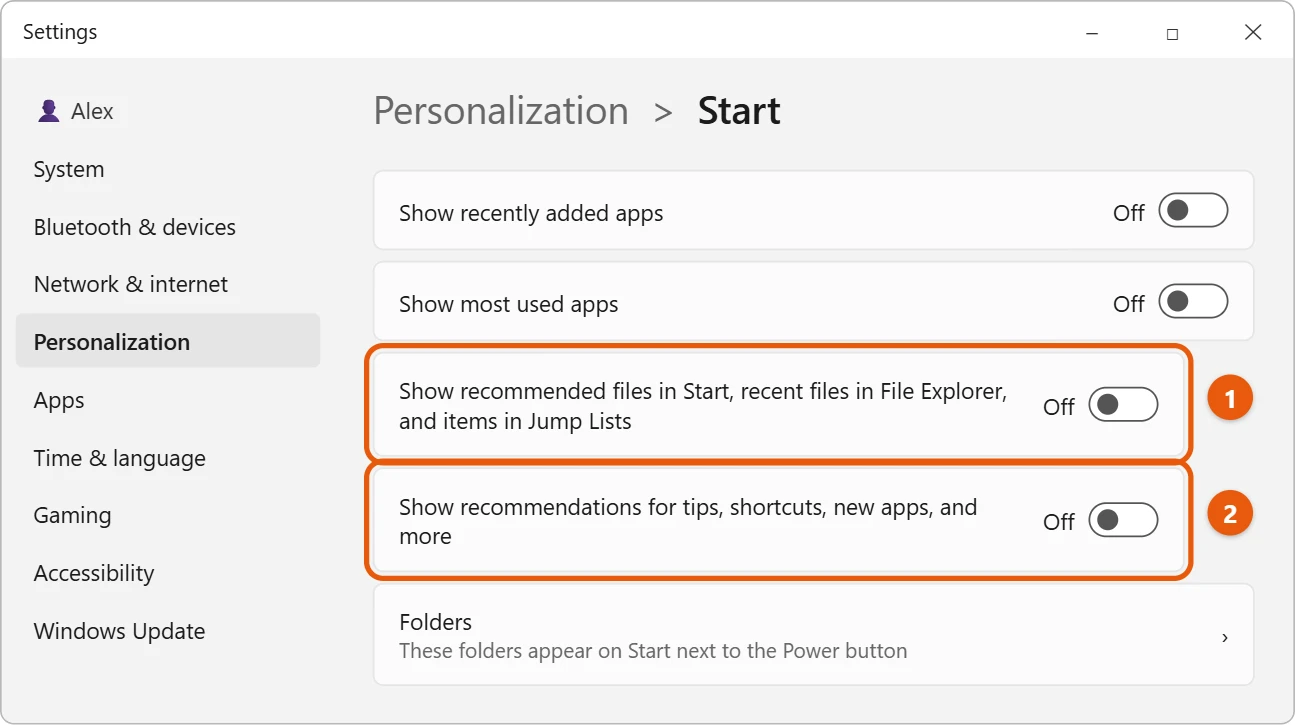
Open Start to check. On current versions of Windows 11, the section collapses when every source is turned off.
Remove one item
- Open Start.
- Right-click the item under Recommended.
- Select Remove from list.
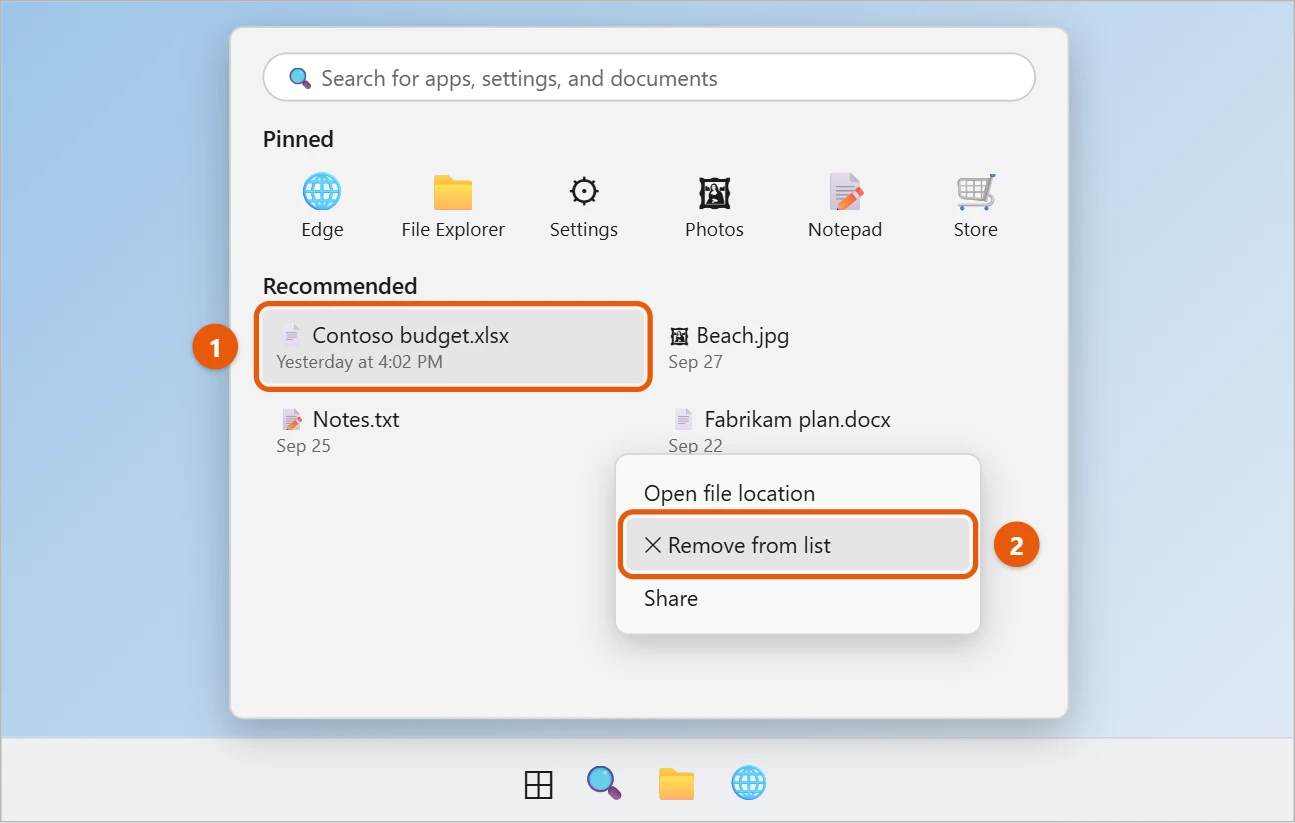
This only removes it from Start. The file stays where it is.
Things to know
- Turning off recent files also clears the recent list in File Explorer and in app Jump Lists (the menu you see when you right-click an app on the taskbar).
- On work or school PCs, your organization might control these settings.
Frequently asked questions
Can I move Start to the left?
Yes. Right-click the taskbar, select Taskbar settings > Taskbar behaviors and set Taskbar alignment to Left. See how to move the taskbar in Windows 11.
How do I change Start in Windows 10?
See how to change the Start menu in Windows 10.
To keep individual apps out of Start and the taskbar, see how to hide apps on Windows 11.
For a cleaner taskbar too, see how to get rid of the search bar in Windows 11.
Microsoft’s reference is Customize the Windows Start Menu. More help is on our Windows Help & Guides page.

Matt Jacobs has been working as an IT consultant for small businesses since receiving his Master’s degree in 2003. While he still does some consulting work, his primary focus now is on creating technology support content for SupportYourTech.com.
His work can be found on many websites and focuses on topics such as Microsoft Office, Apple devices, Android devices, Photoshop, and more.