Go to Start > Settings > System > Storage > Cleanup recommendations and open Large or unused files. Or open File Explorer, select This PC, and search for size:gigantic to list files over 4 GB.
Applies to: Windows 11. Checked against Microsoft Support on September 29, 2026.
Use Cleanup recommendations
- Select Start > Settings > System > Storage.
- Select Cleanup recommendations.
- Open Large or unused files to see the biggest files you haven’t opened in a while.
- Check only the files you’re sure you don’t need, then select Clean up.
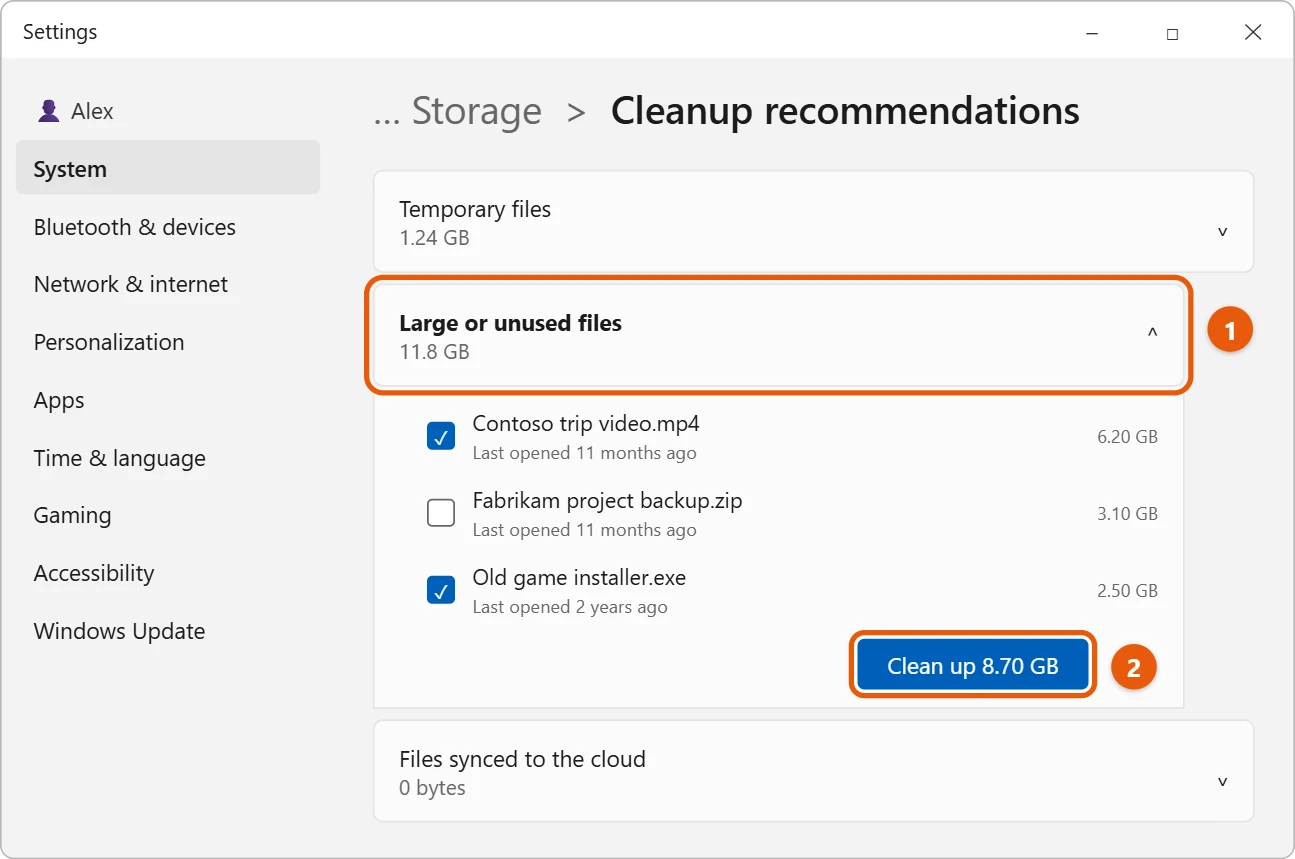
Check each file before you clean up. Copy anything you want to keep to another drive first.
Search in File Explorer
- Press Windows logo key + E to open File Explorer, then select This PC.
- In the search box, type
size:giganticand press Enter. - Select Sort > Size to put the biggest files first.
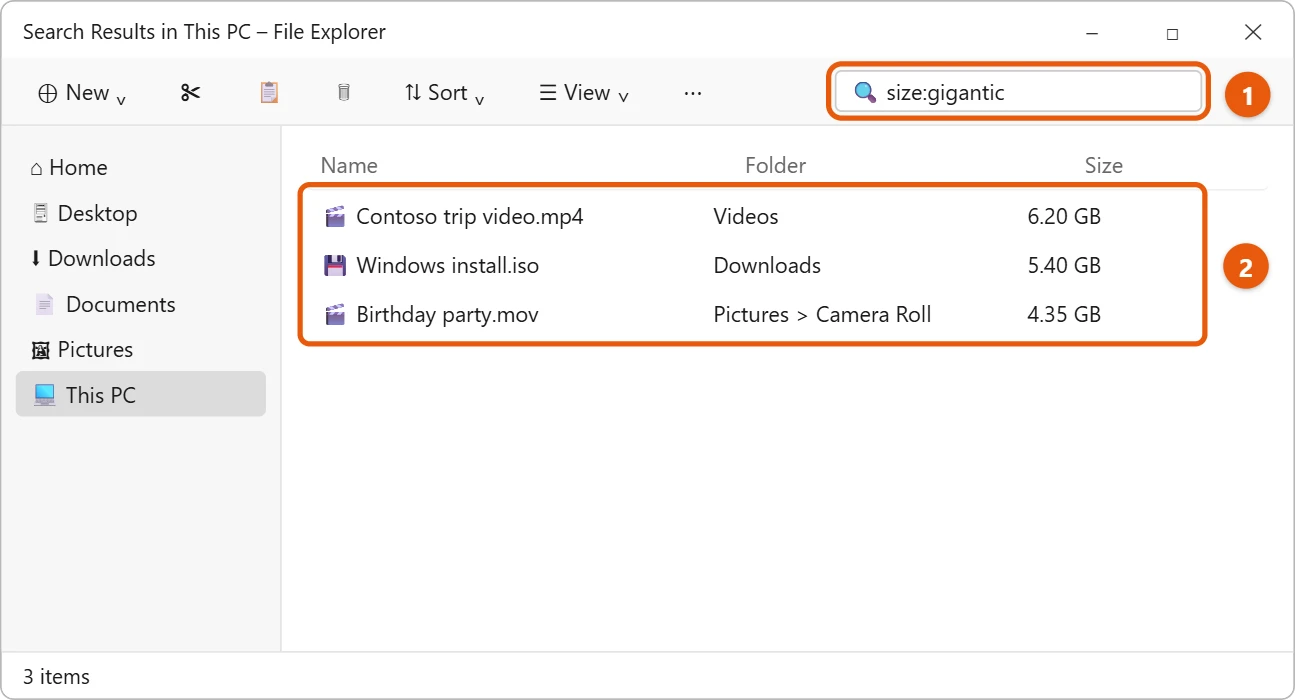
Use other sizes to widen the search:
size:hugefinds files from 1 to 4 GB.size:largefinds files from 128 MB to 1 GB.size:>500MBfinds files over a size you choose.
Searching all of This PC can take a while. Search one folder, such as Downloads or Videos, to go faster.
Frequently asked questions
Where do deleted files go?
Files you delete in File Explorer go to the Recycle Bin, so they still use space until you empty it.
How do I see how full my drives are?
See how to check total hard disk space in Windows 11 and how to find your hard drive on a Windows 11 PC.
For more ways to get space back, see how to free up disk space in Windows 11.
Microsoft’s reference is Free up drive space in Windows. More help is on our Windows Help & Guides page.

Matt Jacobs has been working as an IT consultant for small businesses since receiving his Master’s degree in 2003. While he still does some consulting work, his primary focus now is on creating technology support content for SupportYourTech.com.
His work can be found on many websites and focuses on topics such as Microsoft Office, Apple devices, Android devices, Photoshop, and more.