Microsoft requires at least 64 GB of storage to install Windows 11. After a clean install, Windows itself usually takes about 20 to 30 GB, plus some space held back for updates. That grows over time as updates, apps and temporary files add up, so plan on keeping at least 20 GB free on a drive that has Windows on it. To see how much space Windows uses on your PC, select Start > Settings > System > Storage and look at System & reserved.
Applies to: Windows 11. Checked against Microsoft on September 30, 2026.
The numbers at a glance
- Minimum to install: 64 GB of storage, according to Microsoft’s Windows 11 requirements. Microsoft also notes that updates and some features can need more.
- After a clean install: about 20 to 30 GB for Windows and its built-in apps. Independent tests land around 18 to 30 GB depending on the edition and version.
- After an upgrade from Windows 10: more, often a lot more for the first few days, because Windows keeps your old version in a Windows.old folder so you can go back.
- Over time: Windows grows by several gigabytes as updates, caches and apps build up.
The difference between the 64 GB minimum and the 20 to 30 GB Windows actually uses is working room. Windows needs free space to download and install updates, and a drive that’s nearly full slows down and can stop updates from installing.
What takes up the space
Windows groups its own files under System & reserved. Select Show more categories on the Storage page if you don’t see it.
- Windows: the operating system files themselves.
- Reserved storage: space Windows sets aside so updates, apps and temporary files have room to work. It’s managed automatically.
- Virtual memory: a paging file Windows uses when your PC runs low on memory. Its size depends on how much memory you have.
- Hibernation file: used to save your work when the PC hibernates.
- System Restore: restore points, if System Protection is turned on.
Apps, your files, temporary files and other items are counted separately.
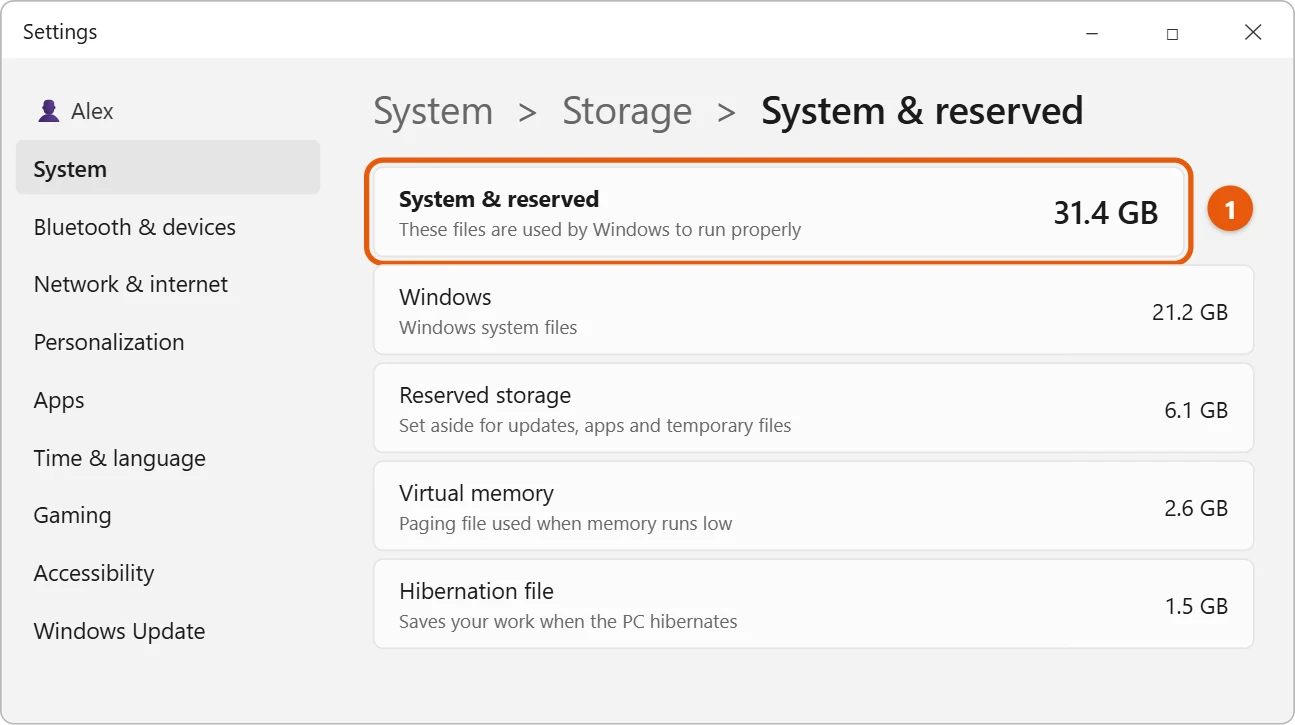
How to check how much space Windows uses on your PC
- Select Start > Settings > System > Storage.
- At the top, see how much of your C: drive is used and how much is free.
- Select System & reserved to see the breakdown. If it’s not listed, select Show more categories first.
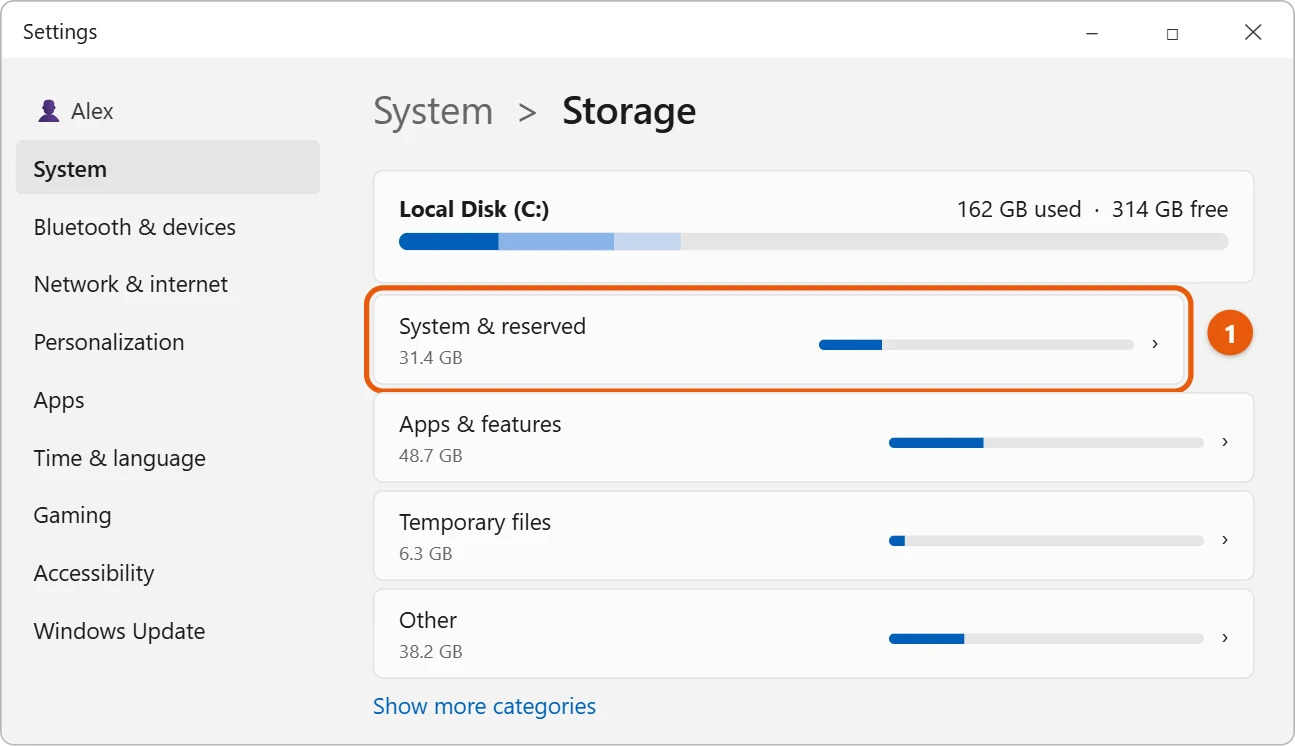
For a quick look at free space, open File Explorer and select This PC. Each drive shows a bar with free space underneath. See how to check hard drive space in Windows 11.
How big a drive do you need?
- 64 GB: the minimum, but tight. After Windows, updates and a few apps, there’s little room for your files. It’s mostly found on low-cost laptops.
- 128 GB: workable for browsing, email and documents if you keep photos and videos in the cloud or on an external drive.
- 256 GB: comfortable for most people, with room for apps and a reasonable number of files.
- 512 GB or more: best if you install games, edit video or keep large photo libraries on the PC.
Games are often the biggest users of space, and some large games need more than 100 GB each.
Why Windows seems to take more space over time
- Updates: each monthly and yearly update adds files. Windows removes some old ones automatically, but not all.
- Windows.old: after an upgrade, your previous version stays for about 10 days so you can go back. Windows removes it later, or you can remove it yourself in Cleanup recommendations.
- Temporary files and caches: apps and browsers store files to work faster.
- Apps: built-in and installed apps grow as they update.
To get space back, see how to free up disk space in Windows 11. Turning on Storage Sense lets Windows clean up temporary files automatically.
Some guides suggest shrinking Windows by turning off hibernation, compressing the operating system or deleting restore points. Those changes need administrator rights and trade away useful features, so they aren’t covered here.
Frequently asked questions
Is 64 GB enough for Windows 11?
It’s enough to install and run it, but you’ll run short of space quickly once you add updates, apps and files.
How big is the Windows 11 download?
The download to upgrade or install is usually a few gigabytes, and Windows needs extra free space while it unpacks and installs.
Does Windows 11 take more space than Windows 10?
It’s similar. Both need room to grow, and the minimum for Windows 11 is 64 GB.
Can I install Windows 11 on a small separate drive?
Yes, as long as it has at least 64 GB. Keep your large files on a second drive if you can.
Next steps
To see what’s filling your drive, see how to find large files in Windows 11. Microsoft lists the full requirements in Windows 11 requirements.

Matt Jacobs has been working as an IT consultant for small businesses since receiving his Master’s degree in 2003. While he still does some consulting work, his primary focus now is on creating technology support content for SupportYourTech.com.
His work can be found on many websites and focuses on topics such as Microsoft Office, Apple devices, Android devices, Photoshop, and more.