Most Windows 11 updates take between a few minutes and an hour. A monthly security update usually installs in 5 to 20 minutes plus one restart. The yearly feature update, such as version 26H2, installs almost as fast on PCs that already have version 24H2 or 25H2, because it comes as a small “enablement package.” A full upgrade from Windows 10, or from an older Windows 11 version, often takes 1 to 2 hours, and longer on older PCs.
Applies to: Windows 11. Times are typical ranges from Microsoft and independent tests, not guarantees. Checked on September 30, 2026.
Typical update times at a glance
- Monthly security and quality updates: about 5 to 20 minutes, plus a restart. They arrive on the second Tuesday of each month.
- Optional preview updates: about 10 to 30 minutes, plus a restart.
- Driver and app updates: usually a few minutes, often without a restart.
- Yearly feature update (enablement package): about as long as a monthly update, with one restart. Microsoft says moving from version 24H2 or 25H2 to 26H2 is a small download with a quick installation.
- Full feature update or upgrade: about 1 to 2 hours, sometimes more. This applies when Windows has to be replaced, such as upgrading from Windows 10, or when the 2024 update (version 24H2) installed as a “full OS swap.” PCWorld’s tests of that update took an hour or more on each of four laptops.
Most of the download and preparation happens in the background while you work. The part where you can’t use your PC is the restart, when you see “Working on updates” and a percentage.
Why some updates take longer
- The type of update. A full upgrade replaces Windows and moves your apps and files across, which takes much longer than a monthly update.
- Your drive. PCs with an SSD install updates much faster than PCs with an older hard disk drive.
- Free space. Windows needs room to download and unpack updates. A nearly full drive slows things down or stops the update. Aim for at least 20 GB free before a big update.
- Your internet connection. A slow or unreliable connection makes the download take longer. Setting your connection as metered can also pause downloads.
- Several updates at once. If your PC has been off or unplugged for weeks, it may need to catch up on more than one update.
- Older hardware. Older processors and less memory make every step slower.
How to see what’s installing
- Select Start > Settings > Windows Update.
- The page shows each update with its status, such as Downloading, Installing or Pending restart, and a percentage.
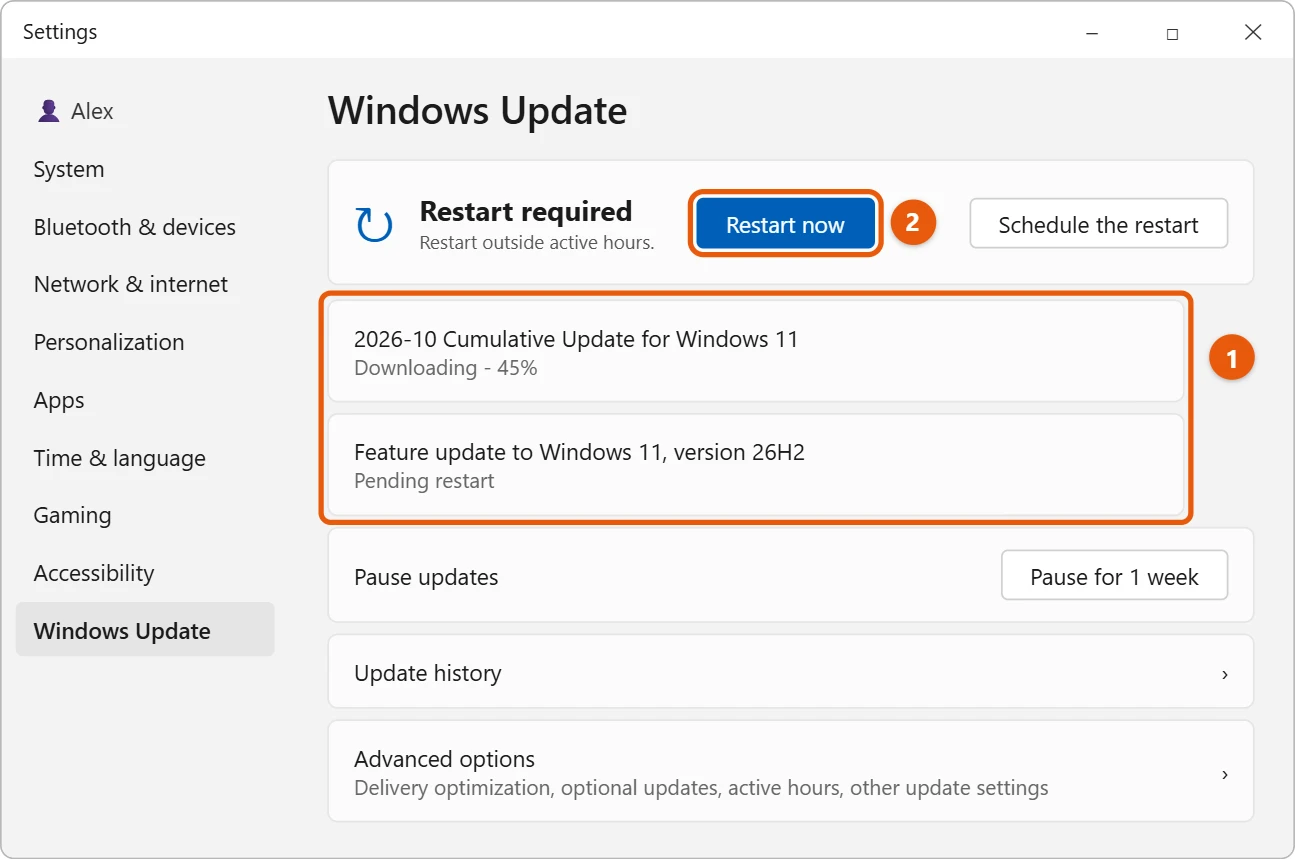
While updates are downloading or installing, you can keep using your PC. Only restart when you’re ready. The restart is the part that takes your PC out of action.
To see how long past updates took and what installed, select Update history on the same page.
How to make updates less disruptive
You can’t make an update install instantly, but you can make sure it happens when it suits you:
- Set your active hours. Go to Settings > Windows Update > Advanced options > Active hours. Windows won’t restart for updates during these hours.
- Schedule the restart. When an update says Pending restart, select Schedule the restart and pick a time, such as overnight.
- Keep your laptop plugged in. Updates may wait until you’re on power, and a battery that runs out mid-update can cause problems.
- Free up space before a big update. See how to clear cache in Windows 11.
- Use a wired connection for a big download if your Wi-Fi is slow.
- Install updates regularly. Catching up on months of updates at once takes longer than installing them as they arrive.
If you need a few days without updates, select Pause updates on the Windows Update page. Don’t pause for too long, because monthly updates include security fixes.
If an update seems stuck
It’s normal for the percentage to sit still for a while, especially during a big update or on an older PC. Before you do anything:
- Wait. Give a big update at least 2 to 3 hours, and a monthly update at least an hour, before you assume it’s stuck. If your drive light is still flashing, Windows is still working.
- Don’t turn off your PC during “Working on updates.” Cutting the power mid-update is the most common way to damage Windows. Microsoft’s screen says “Don’t turn off your PC” for a reason.
- If it’s truly stuck for several hours, hold the power button to turn off the PC, then turn it on again. Windows usually either finishes the update or undoes it and starts normally.
- Once Windows starts, go to Settings > Windows Update and select Check for updates to try again.
- If it keeps failing, select Start, type Get Help, open it, and search for Windows Update troubleshooter. It checks for common problems automatically.
If Windows won’t start properly after a failed update, see how to restore Windows 11 to a previous date.
Some guides tell you to delete Windows Update folders or reset update services with commands. Those steps need administrator rights and can cause new problems, so try the steps above first, and ask an IT professional if the update still won’t install.
Upgrading from Windows 10
Upgrading from Windows 10 to Windows 11 is a full upgrade, so it takes the longest, usually 1 to 2 hours on a modern PC with an SSD, and longer on older PCs. Your files and most apps come across. Back up important files first, just in case. See how to upgrade Windows 10 to Windows 11 and how to back up files in Windows 11.
Windows 10 support ended on October 14, 2025. If your PC can’t run Windows 11, see how to enroll in Windows 10 Extended Security Updates.
Frequently asked questions
Can I use my PC while Windows 11 updates?
Yes, while it downloads and installs in the background. You can’t use it during the restart, when you see “Working on updates.”
Why does my PC restart more than once during an update?
Big updates often restart two or three times while they finish setting up. That’s normal. Wait until you see your sign-in screen.
How often does Windows 11 update?
Security updates arrive every month, on the second Tuesday. Optional preview updates come later in the month, and a feature update arrives once a year, usually in the second half of the year.
How big are Windows 11 updates?
Monthly updates are usually a few hundred megabytes. An enablement package is smaller. A full upgrade downloads several gigabytes.
Does restarting help an update install faster?
Only if the update is waiting for a restart. Restarting in the middle of “Working on updates” can damage Windows. See how to restart Windows 11 for the safe ways to restart.
Next steps
Microsoft explains what’s in each release in Windows 11, version 26H2 update history.

Matt Jacobs has been working as an IT consultant for small businesses since receiving his Master’s degree in 2003. While he still does some consulting work, his primary focus now is on creating technology support content for SupportYourTech.com.
His work can be found on many websites and focuses on topics such as Microsoft Office, Apple devices, Android devices, Photoshop, and more.