Open Windows Backup from the Start menu, expand Folders, turn on the folders you want to protect, and select Back up. Your files are copied to OneDrive. To back up to an external drive instead, turn on File History in Control Panel.
Applies to: Windows 11. Checked against Microsoft Support on September 29, 2026.
Which backup should I use?
- Windows Backup copies your Desktop, Documents, Pictures and other folders to OneDrive, plus many settings. You need to be signed in with a personal Microsoft account. The free account includes 5 GB of OneDrive storage.
- File History saves copies of your files to an external drive every hour and keeps older versions. It doesn’t need the internet.
Many people use both.
Back up with Windows Backup
- Select Start, type backup, and select Windows Backup.
- Expand Folders and turn on the folders you want to back up, such as Desktop, Documents and Pictures.
- Turn on any settings you want to keep, then select Back up.
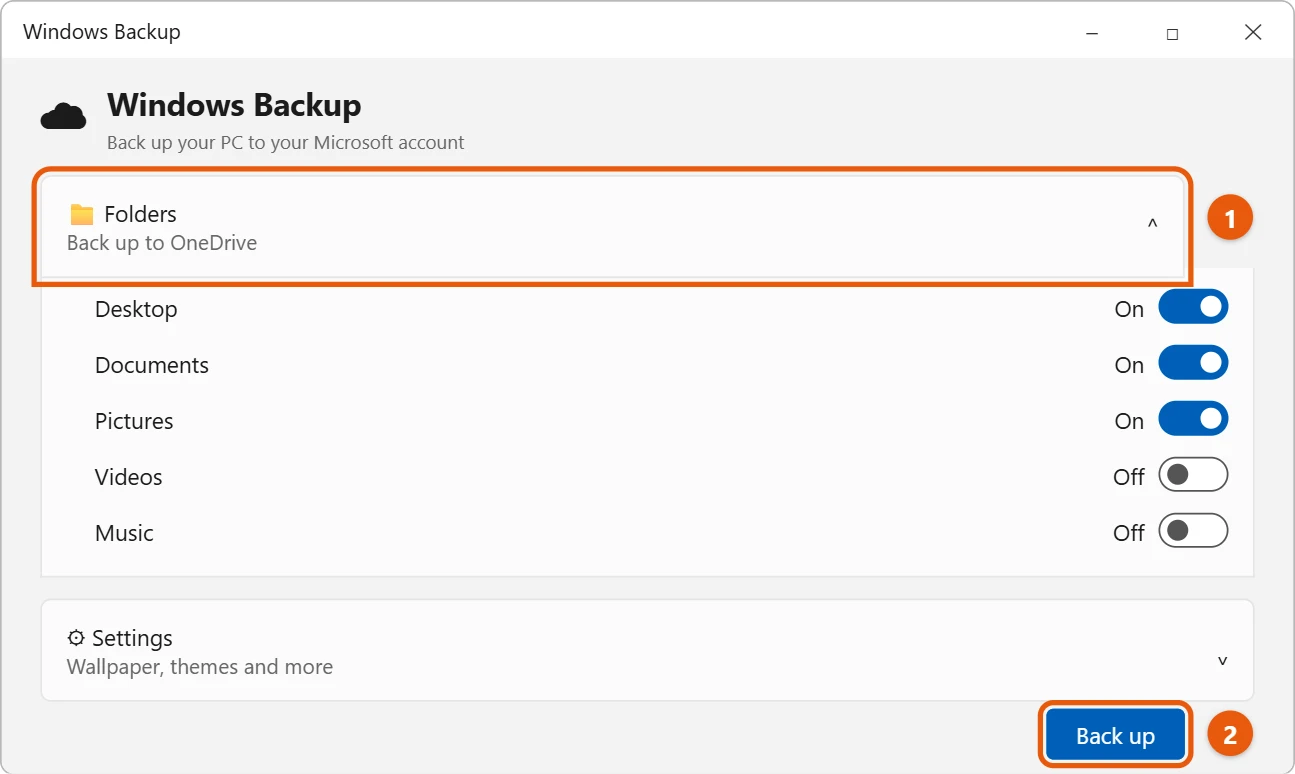
You can also manage it from Settings > Accounts > Windows backup.
Back up to an external drive with File History
- Plug in the external drive.
- Select Start, type File History, and open it.
- Check that your drive is shown under Copy files to, then select Turn on.
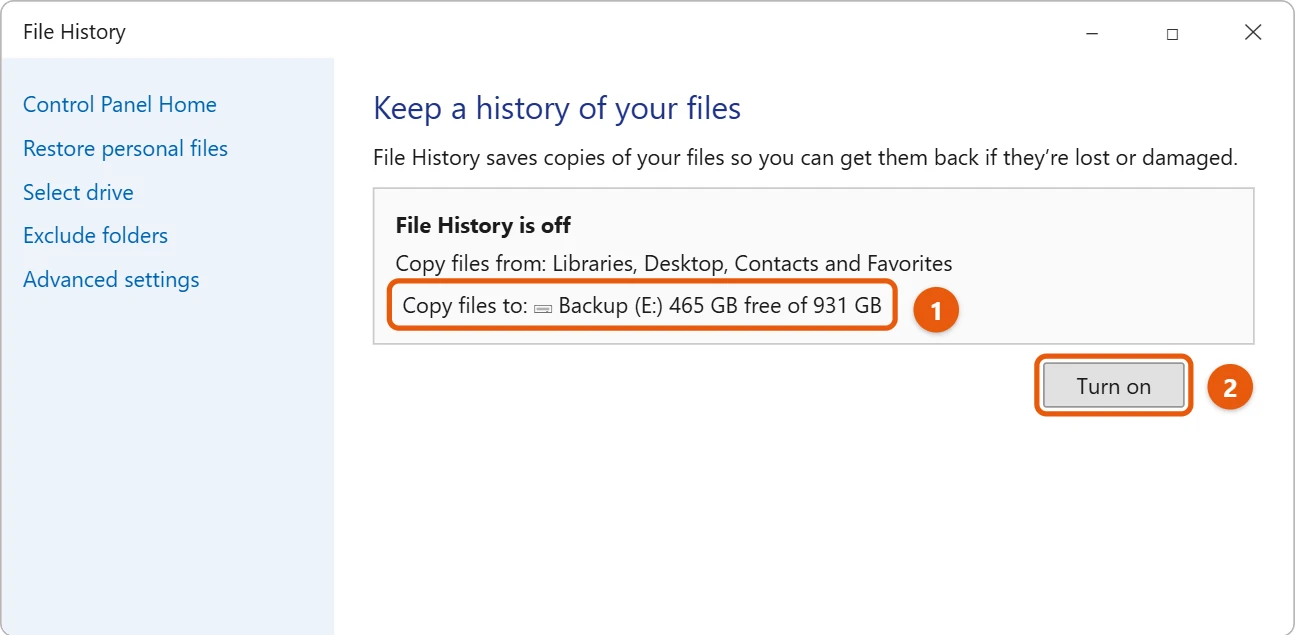
Keep the drive plugged in, or plug it in often, so File History can keep copies up to date. For backing up everything, see how to back up Windows 11 to an external hard drive.
Restore your files
- From OneDrive: sign in on any PC and open your OneDrive folder. See how to find the OneDrive folder in Windows 11.
- From File History: open File History, select Restore personal files, pick the version, and select the green Restore button.
Frequently asked questions
What if my OneDrive is full?
Turn off folders you don’t need to back up, or back up to an external drive with File History instead.
How do I get back a file I deleted?
See how to recover deleted files in Windows 11.
If you back up to an external drive instead and don’t want OneDrive syncing, see how to turn off OneDrive in Windows 11.
For a walkthrough with a specific portable drive, see how to use a WD My Passport drive on Windows 11.
Microsoft’s references are Back up and restore with Windows Backup and Backup and restore with File History. More help is on our Windows Help & Guides page.

Matt Jacobs has been working as an IT consultant for small businesses since receiving his Master’s degree in 2003. While he still does some consulting work, his primary focus now is on creating technology support content for SupportYourTech.com.
His work can be found on many websites and focuses on topics such as Microsoft Office, Apple devices, Android devices, Photoshop, and more.