Open the Recycle Bin on the desktop, select the file, and select Restore the selected items. If it’s not there, right-click the folder it was in, select Properties > Previous Versions, and restore an earlier copy. That works if you had File History or another backup turned on.
Applies to: Windows 11. Checked against Microsoft Support on September 29, 2026.
Step 1: Check the Recycle Bin
- Open Recycle Bin from the desktop.
- Select the file you want.
- Select Restore the selected items. The file goes back to its original folder.
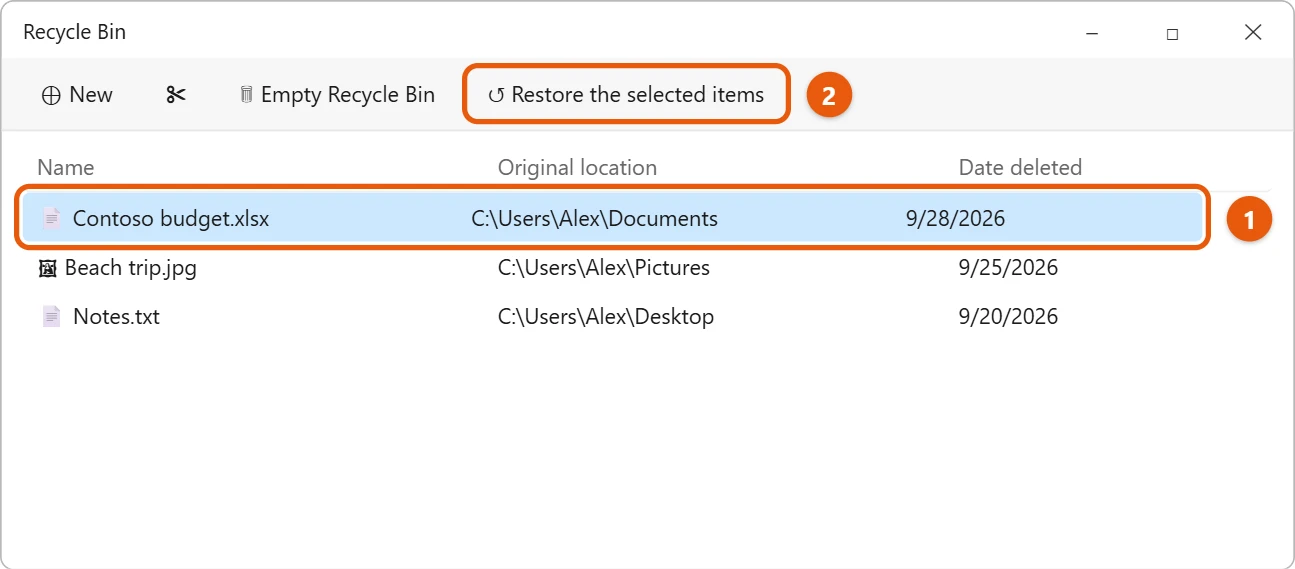
Can’t find the Recycle Bin? See where the Recycle Bin is in Windows 11.
Step 2: Restore a previous version
If you emptied the Recycle Bin or pressed Shift + Delete, the file skipped the bin. You can get it back only if it was backed up.
- Open File Explorer and go to the folder the file was in.
- Right-click the folder and select Properties.
- Open the Previous Versions tab, pick a date from before you deleted the file, and select Restore.
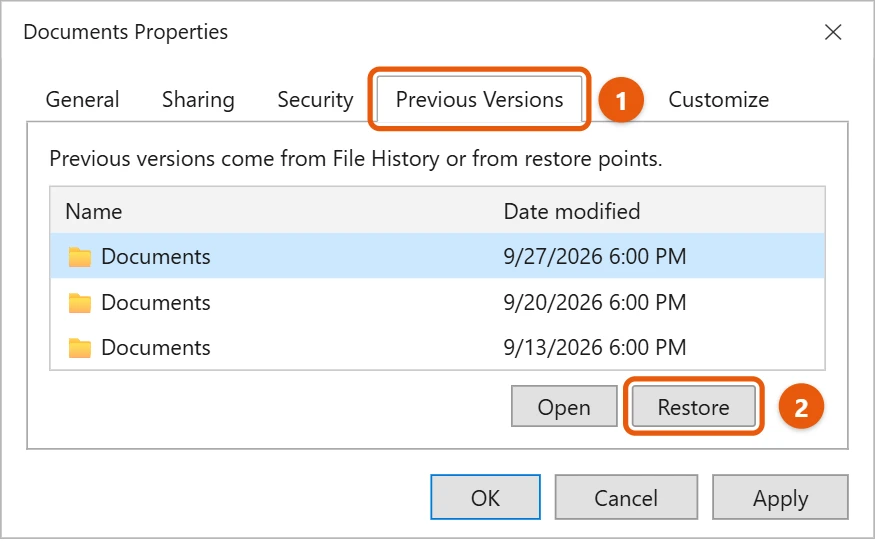
You can also open File History from the Start menu and select Restore personal files.
Step 3: Check OneDrive
If the file was in a OneDrive folder, go to onedrive.com and open the Recycle bin there. OneDrive keeps deleted files for up to 30 days for personal accounts.
If nothing works
Windows can’t bring back a file that was deleted with no backup. Stop saving new files to that drive, because they can write over it. Microsoft’s Windows File Recovery app may help, but it’s a command-line tool and results aren’t guaranteed.
To avoid this next time, see how to back up files in Windows 11.
Frequently asked questions
Does System Restore bring back files?
No. System Restore changes system settings and apps, not your personal files. See how to restore Windows 11 to a previous date.
How long do files stay in the Recycle Bin?
Until you empty it, or until it gets full and Windows removes the oldest files. Storage Sense can also empty it on a schedule.
If the file is still in the bin, see how to restore items from the Recycle Bin in Windows 11. To clear it out for good, see how to empty the Recycle Bin in Windows 11.
Microsoft’s reference is Backup and restore with File History. More help is on our Windows Help & Guides page.

Matt Jacobs has been working as an IT consultant for small businesses since receiving his Master’s degree in 2003. While he still does some consulting work, his primary focus now is on creating technology support content for SupportYourTech.com.
His work can be found on many websites and focuses on topics such as Microsoft Office, Apple devices, Android devices, Photoshop, and more.