To recover a permanently deleted file in Windows 10, first check the Recycle Bin. If it isn’t there, right-click the folder that held it and select Restore previous versions. That works only if File History was on. With no backup, Microsoft’s free Windows File Recovery app can often get the file back from the drive.
Applies to: Windows 10. Checked against Microsoft Support on September 27, 2026.
Stop using the PC as much as you can until you’re done. A deleted file’s space is marked as free, so new files can overwrite it at any time. That’s especially true on an SSD.
Check the Recycle Bin first
Files deleted with the Delete key usually go to the Recycle Bin. Files deleted with Shift + Delete, emptied from the bin, or too big for it skip this step.
- Open Recycle Bin from the desktop, or type it in the File Explorer address bar.
- Select the file or folder. To find it faster, sort by Date Deleted.
- On the Manage tab, select Restore the selected items. The file goes back to its original folder.
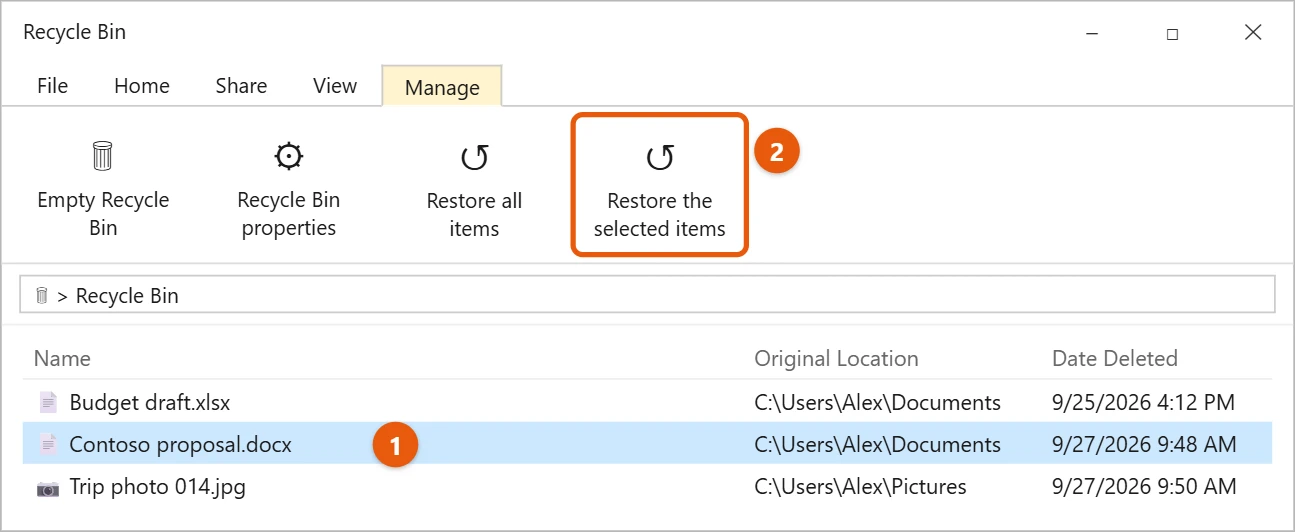
If you only just deleted it and haven’t done anything else in that folder, press Ctrl + Z in File Explorer to undo the delete.
Restore a previous version (File History)
If File History was backing up to a drive, you can get older copies back, including whole deleted folders.
- Open File Explorer and go to the folder that held the file.
- Right-click the folder and select Restore previous versions. For a folder at the top of a drive, right-click the drive instead.
- Pick a version from before the file was deleted. To look inside it first, select Open.
- Select Restore, or open the arrow next to it and choose Restore to to save it somewhere else. Restoring over the current folder can’t be undone.
If the list says there are no previous versions, File History wasn’t on for that folder. Try the next section.
Use Windows File Recovery
Windows File Recovery is a free command-line app from Microsoft. It can recover files deleted from internal drives, external drives, USB flash drives, and SD cards. It can’t recover files from network shares or cloud storage.
You’ll need a second drive, such as a USB flash drive, to save the recovered files. The source and destination must be different drives.
- Install Windows File Recovery from the Microsoft Store.
- Select Start, type Windows File Recovery, and open it. Select Yes when Windows asks for permission.
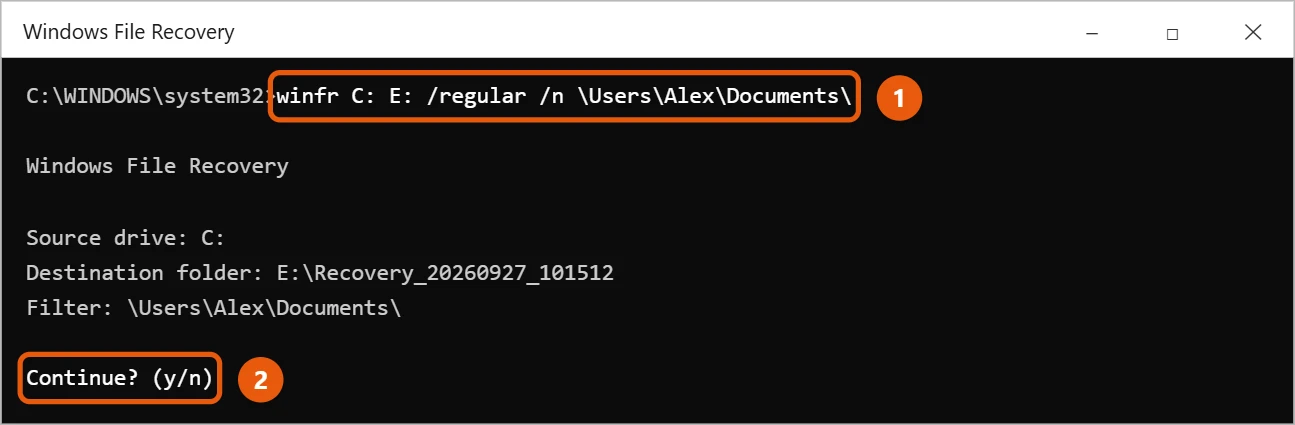
- Type a command in this format:
winfr source-drive: destination-drive: /mode /n filter. For example, to recover your Documents folder from C: to a USB drive at E:, typewinfr C: E: /regular /n \Users\YourName\Documents\. - Type y to start. The recovered files go into a folder named Recovery_ plus the date and time on the destination drive.
Pick the right mode
- Regular: for files deleted recently from a healthy NTFS drive, which is what most PC drives use.
- Extensive: for files deleted a while ago, a formatted or damaged drive, or FAT and exFAT drives such as most SD cards and small USB drives.
Start with Regular. If it doesn’t find the file, run the same command again with /extensive.
Useful filters
- One file type:
winfr C: E: /regular /n *.docx - A file name:
winfr C: E: /extensive /n *budget* - A deleted folder:
winfr C: E: /regular /n \Users\YourName\Documents\Taxes\
End a folder path with a backslash. If a name has spaces, put it in quotes. To find your user name, type C:\Users in the File Explorer address bar.
If you still can’t get it back
- Check OneDrive. Files deleted from a synced folder go to the OneDrive recycle bin online.
- Look for another copy in email attachments, a USB drive, or a phone.
- For a failing drive or very important files, stop using the drive and contact a professional data recovery service.
To keep this from happening again, turn on File History or another backup. See how to back up Windows 10.
Frequently asked questions
Where do permanently deleted files go?
Nowhere you can open. Windows marks the space as free, and the data stays until something overwrites it. That’s why recovery tools can sometimes find it.
Can I find a file I deleted but don’t remember the name of?
Sort the Recycle Bin by Date Deleted, or see how to find recently deleted files on Windows 10.
Why did Windows File Recovery find nothing?
The space may already be overwritten, which happens faster on SSDs. Try extensive mode once. If that also fails, the file likely can’t be recovered with software.
For a Word document you never saved, see how to recover unsaved Word documents in Windows 10.
On Windows 11? See how to restore items from the Recycle Bin in Windows 11.
Microsoft’s guides are Windows File Recovery and Backup and restore with File History. More help is on our Windows Help & Guides page.

Matt Jacobs has been working as an IT consultant for small businesses since receiving his Master’s degree in 2003. While he still does some consulting work, his primary focus now is on creating technology support content for SupportYourTech.com.
His work can be found on many websites and focuses on topics such as Microsoft Office, Apple devices, Android devices, Photoshop, and more.