To access the Recycle Bin in Windows 10, double-click the Recycle Bin icon on your desktop. If the icon is missing, press Windows + R, type shell:RecycleBinFolder, and press Enter, or turn the icon back on in Settings > Personalization > Themes > Desktop icon settings.
The Recycle Bin holds files you’ve deleted from your PC’s drives until you empty it, so you can restore them if you change your mind.
Applies to: Windows 10. Checked against Microsoft Support on September 24, 2026.
Open the Recycle Bin from the desktop
- Press Windows + D to show the desktop.
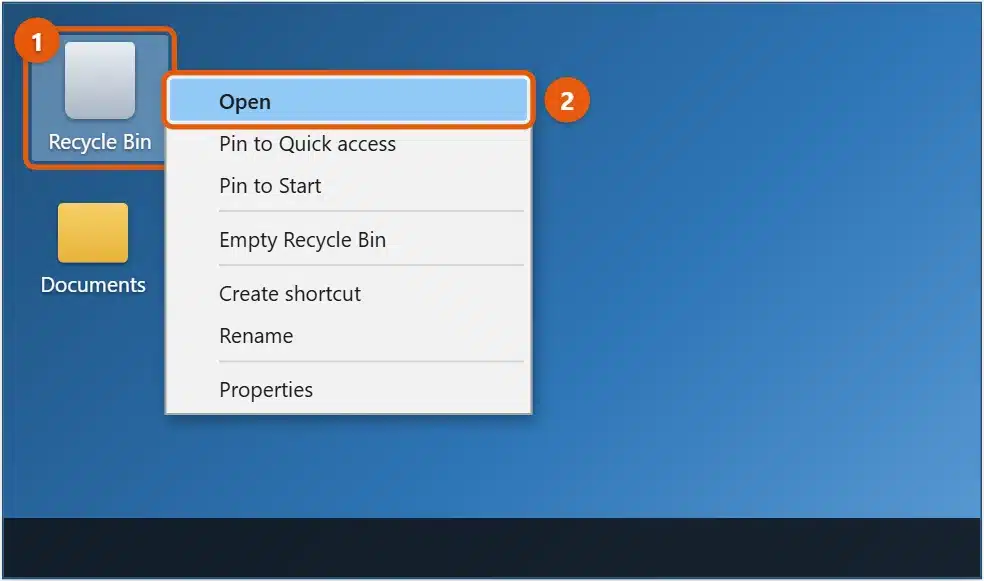
- Double-click Recycle Bin. Or right-click it and select Open.
Other ways to open it
- File Explorer: press Windows + E, click in the address bar, type
Recycle Bin, and press Enter. - Run box: press Windows + R, type
shell:RecycleBinFolder, and press Enter. This works even when the desktop icon is hidden. - Search: type
Recycle Binin the search box on the taskbar and select it. - Start menu: right-click the Recycle Bin on the desktop and select Pin to Start. It then appears as a tile in Start.
If the Recycle Bin icon is missing
- Right-click an empty area of the desktop and select Personalize. Or go to Settings > Personalization.
- Select Themes, then Desktop icon settings under Related Settings.
- Check Recycle Bin and select OK.
If no desktop icons appear at all, right-click the desktop, select View, and make sure Show desktop icons is checked. If you’re using a tablet mode layout, turn it off in action center first, because tablet mode hides the desktop.
Restore deleted files
- Open the Recycle Bin.
- Select the files you want back. Hold Ctrl to select more than one.
- On the Manage tab, under Recycle Bin Tools, select Restore the selected items. Or right-click a file and select Restore.
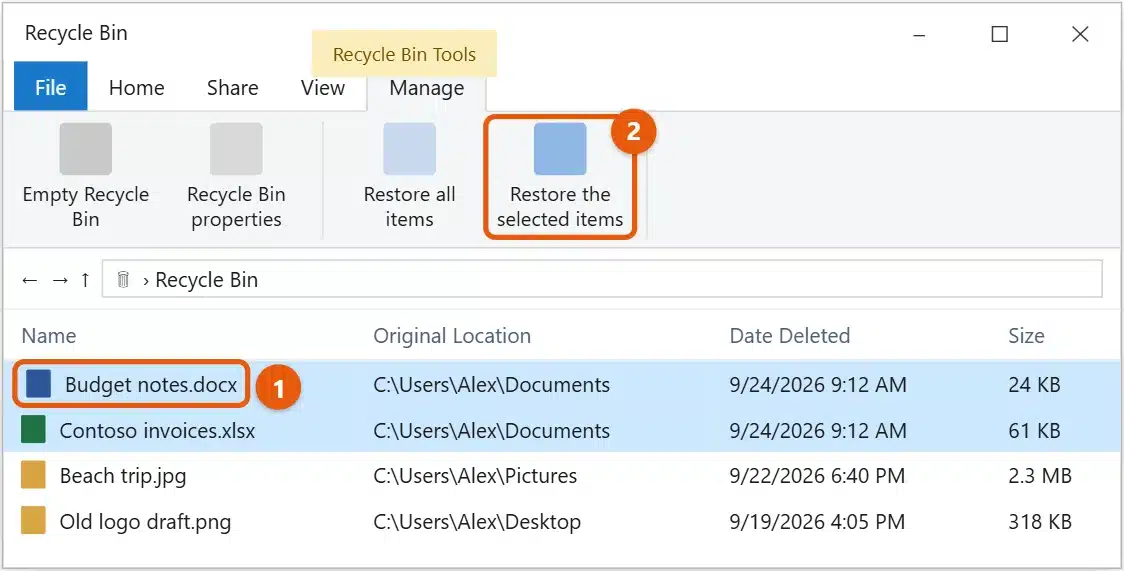
Each file goes back to the folder listed under Original Location. To find a file quickly, sort by Date Deleted or type its name in the search box at the top right.
Avoid Restore all items unless you want everything back, because it restores every file in the bin.
Empty the Recycle Bin
- Open the Recycle Bin.
- On the Manage tab, select Empty Recycle Bin, then Yes.
You can also right-click the Recycle Bin icon on the desktop and select Empty Recycle Bin. Emptying frees up space, but the files can’t be restored from the Recycle Bin afterward, so check it first.
To have Windows empty it for you, go to Settings > System > Storage, select Configure Storage Sense or run it now, and choose how long files stay under Delete files in my recycle bin if they have been there for over.
Change how the Recycle Bin works
Right-click the Recycle Bin and select Properties. There you can:
- Change its size with Custom size. When the bin is full, Windows permanently deletes the oldest files to make room.
- Turn on the delete prompt with Display delete confirmation dialog, so Windows asks before moving files to the bin.
- Skip the bin, with Don’t move files to the Recycle Bin. We don’t recommend it, because deleted files can’t be restored from the bin.
What doesn’t go to the Recycle Bin
- Files deleted with Shift + Delete.
- Files deleted from most USB flash drives, memory cards, and network drives.
- Files too large for the Recycle Bin. Windows warns you and asks to delete them permanently.
- Files deleted from OneDrive’s website. Those go to the OneDrive recycle bin online.
Frequently asked questions
Where is the Recycle Bin stored?
Each drive has a hidden, protected $Recycle.Bin folder. Always open the Recycle Bin with the steps above instead of browsing to that folder.
How long do files stay in the Recycle Bin?
Until you empty it, the bin gets full, or Storage Sense removes them, if you’ve turned that on.
Can I get back files after emptying the Recycle Bin?
Sometimes, from a backup such as File History or OneDrive. See how to recover files deleted from the Recycle Bin in Windows 10.
To free up more space, see how to delete temporary files in Windows 10. On Windows 11, see how to hide the Recycle Bin from the desktop.
If the Recycle Bin icon is missing from your desktop, see how to show, hide, or restore desktop icons in Windows 10.
If a file won’t delete at all, see how to force delete a file in Windows 10.
Looking for a file you just deleted? See how to find recently deleted files on Windows 10. To keep a clean desktop, see how to hide the Recycle Bin in Windows 10 or how to change the Recycle Bin icon. Using Windows 11? See where the Recycle Bin is in Windows 11. Microsoft’s guide is Find the Recycle Bin in Windows. More help is on our Windows Help & Guides page.
If a file isn’t in the Recycle Bin, see how to recover permanently deleted files in Windows 10.
Using Windows 11? See how to empty the Recycle Bin in Windows 11 and how to restore items from the Recycle Bin in Windows 11.
Related: how to empty the trash on Windows 10.

Matt Jacobs has been working as an IT consultant for small businesses since receiving his Master’s degree in 2003. While he still does some consulting work, his primary focus now is on creating technology support content for SupportYourTech.com.
His work can be found on many websites and focuses on topics such as Microsoft Office, Apple devices, Android devices, Photoshop, and more.