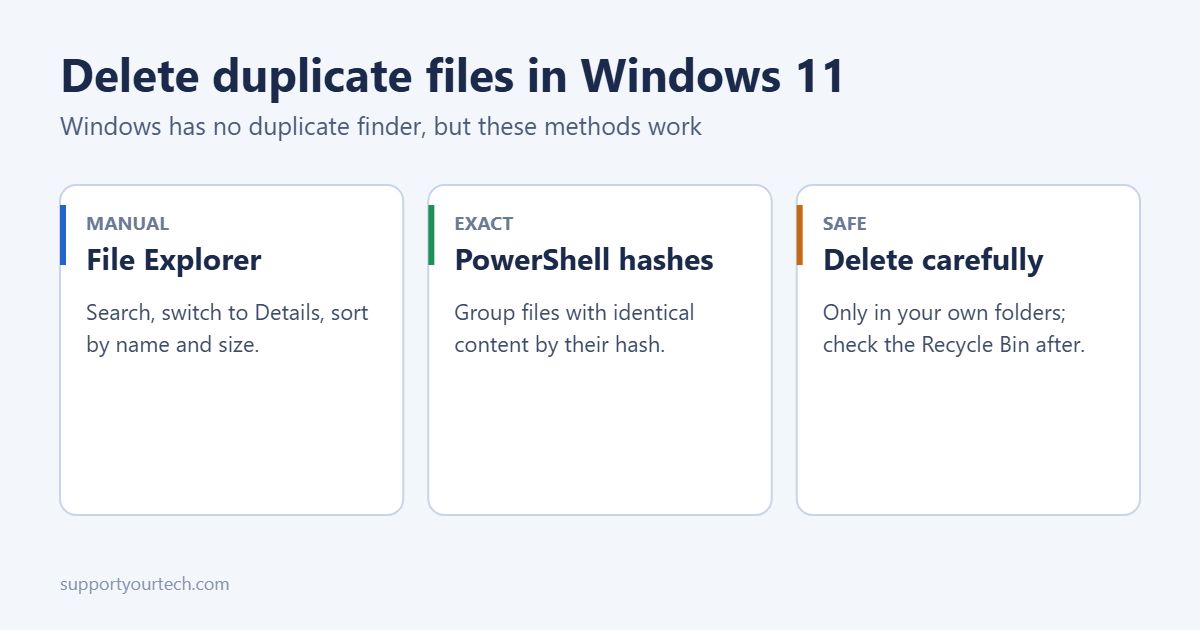
Windows 11 doesn’t have a built-in duplicate file finder, so you find duplicates by sorting files in File Explorer or by matching their contents with a PowerShell command, then delete the extra copies yourself. Stick to your own folders, such as Downloads, Documents, Pictures and Music, and never delete duplicates inside Windows or Program Files, where identical files are normal and needed. Both methods are below, along with safer ways to free space.
Before you start
- Back up anything important, or make sure OneDrive or File History is on.
- Only check personal folders. System folders contain many files with the same name or content on purpose.
- Check what’s using space first. Go to Settings > System > Storage. Duplicates are often in Downloads and Pictures, but temporary files and old updates may be a bigger win, and deleting temporary files takes care of those.
Method 1: Find duplicates in File Explorer
Good for spotting copies like “Report (1).docx” or “IMG_1234 – Copy.jpg”.
- Open File Explorer with Windows key + E and go to the folder, such as Pictures.
- Click View > Details.
- To include subfolders, type
*in the search box and press Enter. Files from all subfolders appear in one list. - Click the Name column to sort, so copies sit next to each other. Sorting by Size also groups identical files.
- Look for names ending in “- Copy”, “(1)” or “(2)”, and files with the same size and date.
- Select the extras (hold Ctrl to pick several) and press Delete.
Search tricks: *copy* finds files with “copy” in the name, and *(1)* finds browser download duplicates.
Method 2: Find exact duplicates with PowerShell
This compares the actual contents of files using a hash, so it finds true duplicates even when the names are different. It only lists them; it doesn’t delete anything.
- Right-click Start and choose Terminal.
- Paste the command below, changing Pictures to the folder you want to check, and press Enter.
Get-ChildItem "$env:USERPROFILE\Pictures" -Recurse -File | Get-FileHash | Group-Object Hash | Where-Object Count -gt 1 | ForEach-Object { $_.Group.Path; "" }Each group of paths, separated by a blank line, is a set of identical files. Large folders can take a few minutes. Open the folders, keep the copy in the best location, and delete the rest by hand.
Method 3: Third-party duplicate finders
If you have thousands of photos or music files, a dedicated duplicate finder saves time. Several free and paid tools can compare files by content and show previews before deleting. Download one only from the developer’s own website, avoid tools bundled with other software, and check what it plans to delete before confirming. Never let a tool scan the Windows or Program Files folders.
Photos, music and OneDrive
- Photos: duplicates often come from importing the same phone twice. Import into a single folder and turn on the option to skip files already imported.
- Music: sort by Size and Length in Details view to catch the same song in different folders.
- OneDrive: files named with your PC name added (for example “Budget-DESKTOP-ABC.xlsx”) are sync conflict copies. Open both, keep the newer one, and delete the other.
After deleting
Deleted files go to the Recycle Bin and still use space until you empty it. Check the Bin for anything you need, then right-click it on the desktop and choose Empty Recycle Bin. For automatic cleanup, turn on Storage Sense in Settings > System > Storage, and review Cleanup recommendations on the same page for large and unused files.
Troubleshooting
“You need permission to perform this action”
The file is in a protected location or owned by another user. If it’s outside your personal folders, leave it alone.
PowerShell shows red errors
Some files are in use or locked. The command skips them and still lists the rest. Close open programs and run it again if needed.
Frequently asked questions
Will deleting duplicates speed up my PC?
Only if the drive was nearly full. It mainly frees space.
How do I do this on Windows 10?
The steps are the same. The Windows 10 screens are shown in finding and deleting duplicate files in Windows 10.
Summary
- Windows 11 has no built-in duplicate finder.
- File Explorer: Details view, search *, sort by name or size.
- PowerShell: Get-FileHash to list exact duplicates.
- Delete only in your own folders, then empty the Recycle Bin.

Matt Jacobs has been working as an IT consultant for small businesses since receiving his Master’s degree in 2003. While he still does some consulting work, his primary focus now is on creating technology support content for SupportYourTech.com.
His work can be found on many websites and focuses on topics such as Microsoft Office, Apple devices, Android devices, Photoshop, and more.