To enable running scripts in Windows 11, open Windows PowerShell, run Set-ExecutionPolicy -ExecutionPolicy RemoteSigned -Scope CurrentUser, and type Y to confirm. This lets scripts you create on your own PC run for your account, while scripts downloaded from the internet still need a trusted digital signature or a deliberate unblock.
Applies to: Windows 11 with Windows PowerShell 5.1 and PowerShell 7. Checked against Microsoft Learn documentation on October 6, 2026.
Why Windows 11 blocks scripts by default
PowerShell script files end in .ps1. Whether PowerShell will run them is decided by a setting called the execution policy. On Windows 11 and other Windows client editions the default policy is Restricted, which lets you type individual commands but does not run script files. That is why a first attempt to run a script usually ends with this message:
File C:\path\script.ps1 cannot be loaded because running scripts is disabled on this system.
Microsoft describes the execution policy as a safety feature that helps you avoid running scripts by accident. It is not a security boundary, so it is not a substitute for knowing where a script came from. Before changing anything, open the script in a text editor and make sure you understand what it does, or that it comes from a source you trust.
What you need before you start
- A standard account is enough for the main method. Changing the policy for the CurrentUser scope does not require administrator rights. Changing it for every user of the PC (the LocalMachine scope) does.
- Know which PowerShell you use. Windows PowerShell 5.1 (powershell.exe) comes with Windows 11. PowerShell 7 (pwsh.exe) is a separate install. Microsoft notes that the two store their execution policy separately, so a change made in one does not affect the other.
- A personal PC, or permission from your administrator. On a work or school computer the policy can be enforced centrally, and your own change will not take effect.
Enable scripts for your account with RemoteSigned
Microsoft’s PowerShell tutorial recommends the RemoteSigned policy. Applying it to your user account only means you do not need administrator rights and other accounts on the PC are left alone.
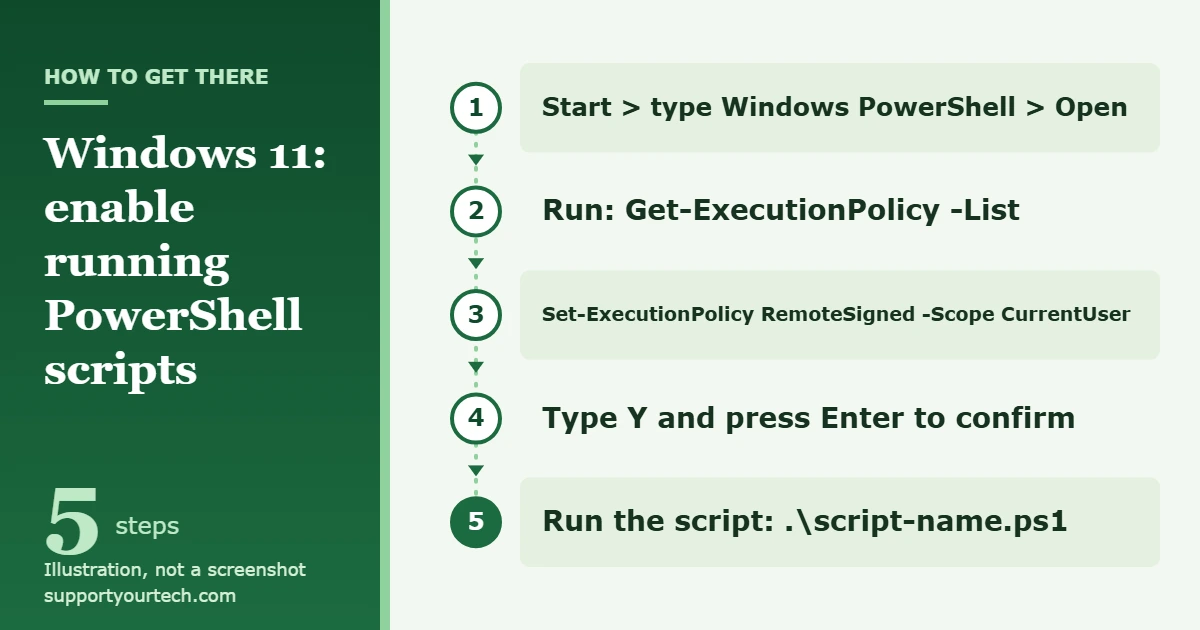
- Open the Start menu, type Windows PowerShell, select Windows PowerShell, and then select Open. A window titled Windows PowerShell opens with a prompt that starts with PS.
- Type Get-ExecutionPolicy -List and press Enter. PowerShell lists five scopes (MachinePolicy, UserPolicy, Process, CurrentUser and LocalMachine) with the policy set at each one. On a PC that has never been changed, every line says Undefined, which means the Restricted default applies.
- Type Set-ExecutionPolicy -ExecutionPolicy RemoteSigned -Scope CurrentUser and press Enter. PowerShell shows an Execution Policy Change warning that asks whether you want to change the execution policy.
- Type Y and press Enter. The default answer is N, so pressing Enter on its own cancels the change.
- Run your script again. If the script is in the current folder, type .\ followed by its name, for example .\Get-ServiceLog.ps1. You can also type the full path, such as C:\Scripts\Get-ServiceLog.ps1.
The change takes effect right away and is saved for your account, so you only need to make it once. Microsoft documents this command in its Set-ExecutionPolicy reference.
What each execution policy allows
RemoteSigned is the usual choice for a home PC, but it helps to know what the other names mean when you see them in the list.
| Policy | What it does |
|---|---|
| Restricted | Default on Windows 11. Individual commands work, but no script files run, including PowerShell profiles. |
| RemoteSigned | Scripts written on your PC run. Scripts downloaded from the internet need a digital signature from a trusted publisher, or must be unblocked first. This is the default on Windows Server. |
| AllSigned | Every script, including ones you write yourself, must be signed by a trusted publisher. |
| Unrestricted | Unsigned scripts run. PowerShell warns you before running scripts that do not come from the local intranet zone. |
| Bypass | Nothing is blocked and there are no warnings. Microsoft intends it for cases where PowerShell is built into a larger application that has its own security model. |
| Undefined | No policy is set at that scope. If every scope is Undefined, Windows 11 uses Restricted. |
Unrestricted and Bypass make the error go away, but they also remove the check that stops an unknown downloaded script from running. For everyday use, RemoteSigned solves the same problem with less risk.
How scopes decide which policy wins
A policy can be set in several places at once, and PowerShell uses the first one it finds in this order: MachinePolicy and UserPolicy (both set by Group Policy), then Process (the current PowerShell window only), then CurrentUser (your account), then LocalMachine (all users of the PC).
This order explains a common surprise: a command can succeed without changing what actually happens. If you set LocalMachine to RemoteSigned but CurrentUser is still Restricted, the CurrentUser setting wins for your account. Running Get-ExecutionPolicy with no parameters shows the single policy that is in effect for the current session.
Allow scripts in one PowerShell window only
If you need to run a script once and would rather not save any change, set the policy for the Process scope. It applies to the current PowerShell window and is discarded when you close it.
- Open Windows PowerShell from the Start menu.
- Type Set-ExecutionPolicy -ExecutionPolicy RemoteSigned -Scope Process and press Enter, then confirm with Y.
- Run the script in the same window. When you close the window, the temporary setting is gone and the saved policy applies again.
The same thing can be done when starting PowerShell from Command Prompt or a shortcut, using the -ExecutionPolicy parameter of powershell.exe, for example powershell.exe -ExecutionPolicy RemoteSigned -File .\Get-ServiceLog.ps1. Microsoft’s documentation notes that this parameter sets the policy for that session only and does not change the saved setting, and that -File must be the last parameter. A session-level policy does not override one enforced by Group Policy.
Enable scripts for every user on the PC
To change the policy for all accounts on the computer, you set the LocalMachine scope, which requires an elevated PowerShell window.
- Open the Start menu, type Windows PowerShell, select Windows PowerShell, and then select Run as administrator. Approve the administrator prompt. The window title changes to Administrator: Windows PowerShell.
- Type Set-ExecutionPolicy -ExecutionPolicy RemoteSigned -Scope LocalMachine and press Enter.
- Type Y and press Enter to confirm.
- Type Get-ExecutionPolicy -List and check that the LocalMachine line now says RemoteSigned.
LocalMachine is also the scope PowerShell uses when you leave out -Scope, which is why the shorter command Set-ExecutionPolicy RemoteSigned fails in a normal window. If you need help opening elevated tools, see our guide on running Command Prompt as an administrator in Windows 11; the same Start menu approach works for PowerShell.
Use the PowerShell setting in Windows 11 Settings
Windows 11 also has a switch for this in the Settings app. Microsoft’s documentation for the Advanced settings page lists a PowerShell item in the Terminal group, described as “Turn on these settings to execute PowerShell scripts.”
- Open Settings and select System.
- Select Advanced. Microsoft states that in Windows 11, version 25H2 and later, the settings that used to be on the For developers page appear here.
- Find the Terminal group and turn on the PowerShell setting.
- Open Windows PowerShell and run Get-ExecutionPolicy -List to see which scope and policy changed.
The Settings switch is convenient, but the commands above give you more control, because you choose the exact policy and the exact scope.
Run a downloaded script that is still blocked
With RemoteSigned in place, a script you downloaded can still be refused with a message that the file is not digitally signed. Windows marks files downloaded by browsers such as Microsoft Edge as coming from the internet, and RemoteSigned requires those files to be signed.
If you have reviewed the script and trust its source, you can remove that mark from the one file instead of loosening the policy for everything:
- Open Windows PowerShell and go to the folder that holds the script.
- Type Unblock-File -Path .\ followed by the script’s file name, for example Unblock-File -Path .\Start-ActivityTracker.ps1, and press Enter.
- Run the script again.
Microsoft’s Unblock-File documentation says the command does the same thing as selecting Unblock in the file’s Properties dialog box, and it advises reviewing the file and its source before you unblock it. To see which files in a folder carry the internet mark, run Get-Item * -Stream “Zone.Identifier” -ErrorAction SilentlyContinue.
Confirm the change or undo it
Run Get-ExecutionPolicy -List at any time. After the main method, the CurrentUser line should read RemoteSigned. Run Get-ExecutionPolicy without parameters to see the policy that is actually in effect.
To put things back the way they were, remove the policy you set by changing it to Undefined at the same scope:
- For your account: Set-ExecutionPolicy -ExecutionPolicy Undefined -Scope CurrentUser
- For all users, in a window opened with Run as administrator: Set-ExecutionPolicy -ExecutionPolicy Undefined -Scope LocalMachine
When no scope has a policy, Windows 11 goes back to Restricted and script files stop running again. A file you unblocked stays unblocked; that change belongs to the file, not to the policy.
Troubleshooting
“Access to the registry key … is denied”
This appears when you run Set-ExecutionPolicy without -Scope in a normal window, because the default scope is LocalMachine. The message itself gives both fixes: start Windows PowerShell with the Run as administrator option, or change only your own account by adding -Scope CurrentUser.
The setting is “overridden by the Group Policy applied to your system”
PowerShell saved your preference, but a Group Policy set by an organization takes priority, so the effective policy does not change. You can confirm this with Get-ExecutionPolicy -List: the MachinePolicy or UserPolicy line shows a value other than Undefined. The Group Policy setting involved is called Turn on Script Execution. On a work or school PC, ask your IT administrator to allow the script or to sign it. Do not try to work around a policy your organization has set.
The command succeeded but scripts are still blocked
Check the list for a more specific scope that is still restrictive. A Restricted value at CurrentUser outranks RemoteSigned at LocalMachine. Also check that you changed the right program: a policy set in Windows PowerShell 5.1 does not carry over to PowerShell 7, so repeat the command in the one you actually use.
Double-clicking the .ps1 file does not run it
That is by design. As a security feature, PowerShell does not run a script when you double-click its icon in File Explorer. Run it from a PowerShell window, or right-click the file and select Run with PowerShell, which Microsoft describes as meant for scripts that need no parameters and return no output to the prompt.
Typing the script name does nothing useful
PowerShell does not run a script from the current folder by name alone. Put .\ in front of the file name or type the full path.
The script is not signed even though you never downloaded it in a browser
Files that arrive by email or messaging apps can also be treated as coming from the internet. Review the file, then use Unblock-File on it as described above.
Frequently asked questions
Is it safe to enable running scripts in Windows 11?
RemoteSigned for your own account is a reasonable setting for a personal PC: your own scripts run, and unsigned downloads are still stopped until you choose to unblock them. The risk comes from running scripts you have not read or from sources you cannot verify, whichever policy is set.
Do I need to be an administrator?
Not for the CurrentUser or Process scopes. You need a window opened with Run as administrator only to change the LocalMachine scope, which affects every user.
What is the difference between RemoteSigned and Unrestricted?
RemoteSigned refuses unsigned scripts that were downloaded from the internet. Unrestricted runs them after showing a warning. Both run scripts you write yourself.
Do I have to restart the PC or PowerShell?
No. A change to the CurrentUser or LocalMachine scope is effective immediately, so you can run the script in the same window.
How do I turn script blocking back on?
Run Set-ExecutionPolicy -ExecutionPolicy Undefined -Scope CurrentUser to remove your setting, or set the policy to Restricted explicitly. Check the result with Get-ExecutionPolicy -List.
Why does my work laptop ignore the change?
Organizations can enforce the execution policy through Group Policy, and that setting overrides anything you set locally. Your administrator is the only one who can change it.
Does this affect Command Prompt batch files?
No. The execution policy applies to PowerShell script files such as .ps1 files. It is a PowerShell setting and is described in Microsoft’s about_Execution_Policies topic.
Once your script runs, leave the policy at RemoteSigned for your account and unblock downloaded scripts one at a time after you have read them. If you only needed scripts for a single job, set the scope back to Undefined when you are done.

Matt Jacobs has been working as an IT consultant for small businesses since receiving his Master’s degree in 2003. While he still does some consulting work, his primary focus now is on creating technology support content for SupportYourTech.com.
His work can be found on many websites and focuses on topics such as Microsoft Office, Apple devices, Android devices, Photoshop, and more.