How to Move Taskbar Windows 10 Back to Bottom

Finding your Windows 10 taskbar suddenly sitting on the side or top of your screen can feel a bit disorienting, like your furniture got rearranged overnight. Luckily, getting it back to its familiar spot at the bottom is super easy, and you don’t need to be a tech wizard to do it. You just need to unlock the taskbar, click and drag it to the bottom of your screen, then lock it back in place to prevent accidental moves. If dragging doesn’t feel right, there is also a quick option in the Taskbar Settings to pick its location. We will walk through both methods.

Tutorial – How to Move Taskbar Windows 10 Back to Bottom

Sometimes, your Windows 10 taskbar decides to go on an adventure to the top or sides of your screen, making things feel all wrong. This section will walk you through the simple steps to bring it back to the bottom, where most of us prefer it.

Step 1: Unlock your taskbar.

Before you can move your taskbar, make sure it is unlocked; a locked taskbar won’t budge.

Imagine trying to push a car with the parking brake on, it is not going to go anywhere, right? Unlocking the taskbar is just like releasing that brake, giving you the freedom to reposition it wherever you like. To do this, simply right-click on any empty space on your taskbar, and if you see a checkmark next to “Lock the taskbar,” click it to uncheck it.

Step 2: Drag the taskbar to the bottom.

Now that it is unlocked, you can physically move your taskbar to the bottom of your screen.

This is often the quickest way to get things back to normal. Just click and hold down your mouse button on an empty part of the taskbar, then drag your mouse pointer all the way down to the bottom edge of your screen. You will see the taskbar follow your cursor and snap into place at the bottom.

Step 3: Use Taskbar Settings to choose its location.

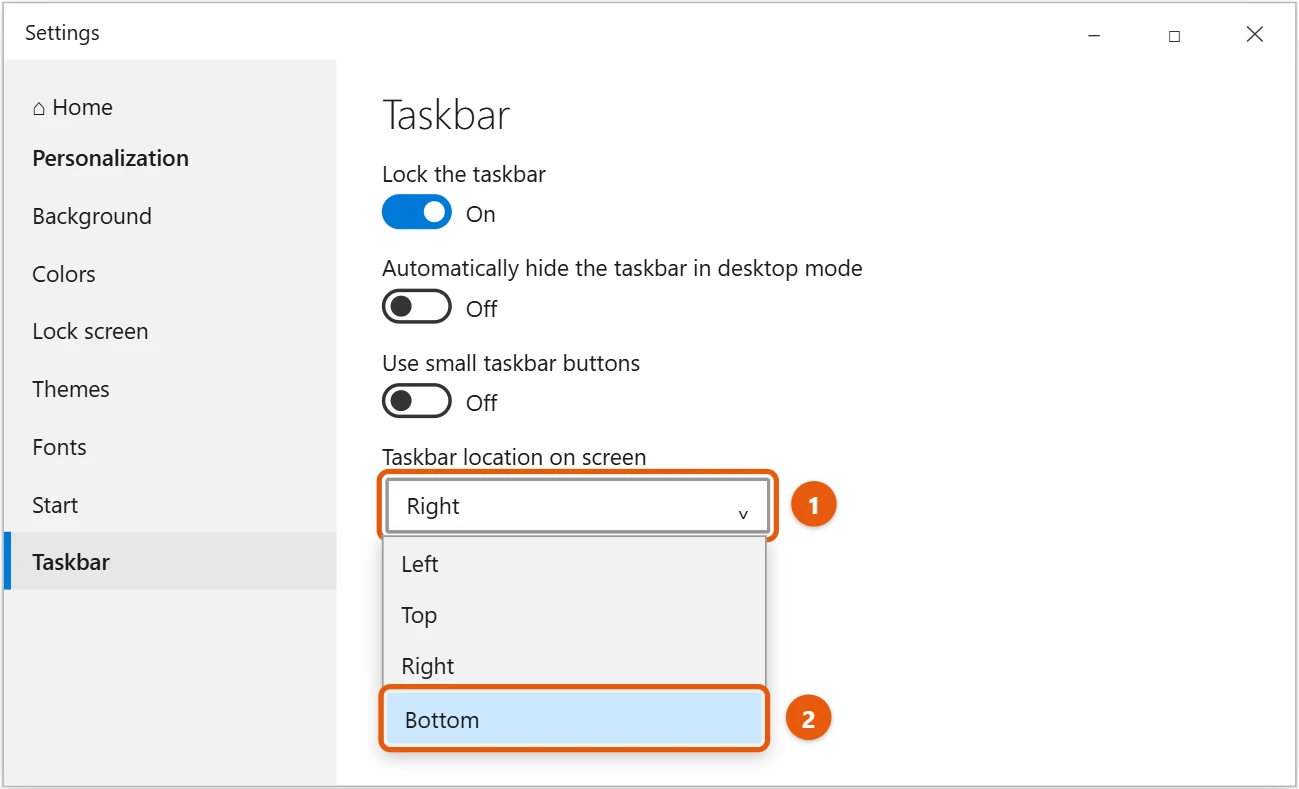
If dragging feels a bit tricky, or if your taskbar is being stubborn, you can use the Taskbar Settings to precisely control its position.

This method gives you a clear dropdown menu to select where you want your taskbar to live. Right-click on an empty spot on the taskbar and select “Taskbar settings,” which will open a new window. Scroll down a little until you find the option labeled “Taskbar location on screen,” then click the dropdown menu next to it and choose “Bottom.”

Once you complete these steps, your taskbar will immediately snap back to the bottom of your screen, looking exactly how it should. You can then right-click on the taskbar again and select “Lock the taskbar” to keep it from moving accidentally in the future.

Tips for Your Windows 10 Taskbar

  • Always remember to unlock your taskbar before attempting to move it, otherwise, you will just be frustrated when it doesn’t budge.
  • If your taskbar seems stuck or unresponsive after you move it, a quick restart of your computer can often fix lingering glitches and get everything back in sync.
  • Beyond just location, explore the other Taskbar Settings like “Automatically hide the taskbar in desktop mode” for a cleaner screen or customizing its color to match your desktop theme.
  • Locking your taskbar after positioning it is a great habit, as it prevents accidental dragging or resizing when you are working quickly or clicking around.
  • If you use multiple monitors, you can actually set the taskbar to show on all displays or just the main one, giving you more control over your multi-screen setup.

Frequently Asked Questions About Your Windows 10 Taskbar

Why did my taskbar move in the first place?

Often, the taskbar moves because it was accidentally unlocked, and then you might have clicked and dragged it without realizing it. Sometimes, a software update or a minor system glitch can also cause it to shift, but it is rarely a sign of a serious problem.

Can I move it to the sides or top?

Absolutely, you can! Just like you moved it to the bottom, you can drag your unlocked taskbar to the top, left, or right edges of your screen. It will snap into place on whichever edge you position your mouse.

What if I can’t unlock the taskbar?

If you right-click and “Lock the taskbar” is grayed out or you cannot uncheck it, there might be a minor system hiccup. Try restarting your computer, as this often resolves temporary issues. If it persists, you might look into user account permissions, but that is rarely the case for this specific issue.

Will moving the taskbar affect my open programs?

No, moving your taskbar will not affect any of your currently open programs or files. Everything will stay exactly where it is, just your taskbar will be in a new location on the screen. It is purely a visual and navigational change.

Is this process permanent?

Yes, once you move your taskbar and lock it, it will stay in that position permanently, even after you restart your computer. You would need to manually unlock and move it again if you ever decide to change its location in the future.

Quick Summary

  1. Unlock taskbar.
  2. Drag taskbar to bottom or use settings.
  3. Lock taskbar (optional, but recommended).

Wrapping Things Up

Well, there you have it, folks! Getting your Windows 10 taskbar back to its rightful place at the bottom of your screen is truly one of those quick wins that makes a big difference in your daily computer use. It is a small thing, but having your digital workspace organized just the way you like it can really boost your productivity and overall comfort. Think of your taskbar as the foundation of your desktop, the place where all your essential tools and open applications reside. When it is out of place, it is like trying to work in a room where the door keeps moving, a bit frustrating and inefficient.

We have walked through the simple steps, whether you prefer the direct drag-and-drop method or the more precise settings option. You now have the power to control where your taskbar lives, and you can even experiment with other locations if you feel adventurous. Remember, the key is knowing you are in charge of your operating system, and these little tweaks make your computer truly yours. Don’t be afraid to poke around in the settings, because Windows 10 offers a surprising amount of customization if you know where to look. Mastering basic tasks like how to move the taskbar back to the bottom of Windows 10 empowers you to feel more confident and in control of your tech. So, go forth, enjoy your perfectly positioned taskbar, and keep exploring the amazing things your Windows 10 computer can do for you!

Get Our Free Newsletter

How-to guides and tech deals

You may opt out at any time.
Read our Privacy Policy