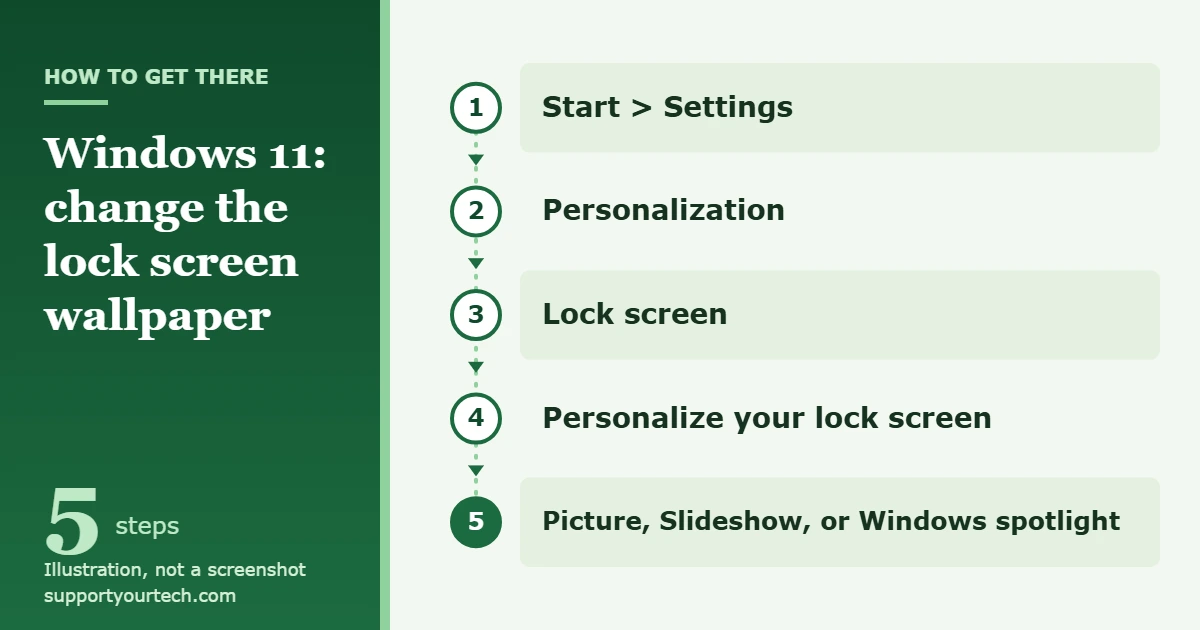
To change the lock screen wallpaper in Windows 11, select Start > Settings > Personalization > Lock screen, then open the Personalize your lock screen menu and choose Picture, Slideshow, or Windows spotlight. Then press the Windows logo key + L to lock the PC and see the result.
Applies to: Windows 11. Checked against Microsoft Support on October 6, 2026.
What the lock screen is, and what this setting changes
The lock screen is the first thing Windows shows when you start the PC or wake it from sleep. It sits in front of the sign-in screen, where you enter a PIN or password or use a fingerprint or face scan. The lock screen wallpaper is the picture behind the clock on that first screen. The name shown there comes from your account, and a separate guide explains how to change the name on the Windows 11 lock screen.
Three things are easy to mix up, and each has its own setting:
- Lock screen background: the picture shown while the PC is locked. This article covers it.
- Sign-in screen background: the picture behind the PIN or password box. It can follow the lock screen picture, using a switch on the same settings page.
- Desktop background: the wallpaper you see after you sign in. It is set on a different page, Settings > Personalization > Background.
Before you start
- If you want your own photo, save it on the PC first, in a folder you can find again, such as Pictures.
- For a slideshow, put the pictures you want in one or more folders on the PC. Windows uses whatever is in those folders.
- On a computer managed by an employer or school, the lock screen picture may be fixed by the organization. See the troubleshooting section if the setting will not change.
Change the lock screen wallpaper in Settings
- Select Start, then select Settings. You can also press the Windows logo key + I to open Settings directly.
- Select Personalization. The Personalization page lists its sections, such as Background and Lock screen.
- Select Lock screen. The lock screen options open, starting with Personalize your lock screen.
- Next to Personalize your lock screen, open the drop-down menu. It lists three choices: Windows spotlight, Picture, and Slideshow.
- Select the one you want:
- Picture uses a single image. Pick one of the default images that Windows offers, or browse your device for a picture of your own.
- Slideshow rotates through the images in a folder on your device. You can add more than one folder and customize the slideshow settings.
- Windows spotlight shows a rotating set of images from Microsoft, along with tips, tricks, and notifications.
- Press the Windows logo key + L to lock the computer and look at the result. Microsoft’s steps end with the selection, with no separate save step.
Which option should you choose?
| Option | What you get | Best for |
|---|---|---|
| Picture | One image that stays until you change it | A family photo, a logo, or a plain, low-distraction screen |
| Slideshow | Images from one or more folders, shown in rotation | A photo collection you want to see without picking a single favorite |
| Windows spotlight | A rotating set of images from Microsoft, with tips and notifications | Fresh photos without supplying your own |
With Windows spotlight, Microsoft chooses the images, so you cannot hold on to one of them from this menu. If you want a specific picture to stay put, use Picture instead.
With Picture or Slideshow, Windows can still add its own text to the lock screen. Microsoft describes an option to get fun facts, tips, tricks, and more on your lock screen. Turn that option on if you like the extra content, or leave it off for a clean image.
Use the same picture on the sign-in screen
After you dismiss the lock screen, Windows shows the sign-in screen. To keep the two consistent:
- Go to Start > Settings > Personalization > Lock screen.
- Find Show the lock screen background picture on the sign-in screen.
- Turn the switch On to use the same background image on both screens, or Off if you do not want your picture behind the sign-in box.
The same page may also show Make the lock screen image react when I move my PC. When it is on, the image pans slightly as the device moves. Turn it Off if you prefer a still picture.
Match the desktop wallpaper (optional)
Changing the lock screen does not change the wallpaper behind your windows and icons. To use the same photo in both places, set it a second time on the Background page. The steps are in our guide on how to change the desktop background in Windows 11.
One difference is worth knowing. The Background page has a fit setting with choices such as Fill, Fit, Stretch, Tile, and Center. Microsoft’s lock screen instructions do not list a matching fit control, so the simplest way to get a clean result is to pick a photo with the same shape as your screen, for example a wide landscape photo for a widescreen monitor.
Confirm the change, or undo it
Press the Windows logo key + L. That shortcut locks the computer, so the lock screen appears immediately and you can see the new wallpaper. Sign in again as usual to get back to your desktop.
To undo the change, return to Settings > Personalization > Lock screen and make a different choice in the Personalize your lock screen menu. Selecting Picture lets you go back to one of the default images, and selecting Windows spotlight hands the choice of image back to Microsoft.
Troubleshooting
The setting will not change, or keeps showing the same image
On a work or school PC, this is usually deliberate. Microsoft documents several policies that an administrator can apply to a computer:
- Prevent changing lock screen and logon image: users cannot change the lock screen picture and see the default image instead.
- Force a specific default lock screen and logon image: the organization sets one image for both the lock screen and the sign-in screen.
- Prevent enabling lock screen slide show: the slideshow settings are disabled and no slideshow starts.
Organizations can also configure Windows spotlight by policy or replace its images with their own. If any of these apply, the fix is to ask your IT department. Do not try to work around a policy on a computer you do not own.
The slideshow shows nothing, or the wrong pictures
The slideshow reads from the folders you added on the Lock screen page. Check that each folder still exists in the same place and still contains pictures. If you renamed, moved, or emptied a folder, add the current folder again on the same page.
The sign-in screen does not match the lock screen
Turn on Show the lock screen background picture on the sign-in screen on the Lock screen page, then lock the PC again to check. To change the account picture, name, or sign-in method on that screen as well, see how to change the login screen in Windows 11.
You changed the picture, but the desktop looks the same
That is expected. The desktop wallpaper has its own setting under Settings > Personalization > Background.
Weather or other information covers part of the picture
Those are lock screen widgets. On the Lock screen page, look under Widgets. You can remove individual widgets with the more options button beside each one, or switch Widgets to Off to hide them all.
Frequently asked questions
Does changing the lock screen wallpaper change my desktop background?
No. They are separate settings. The lock screen is set under Personalization > Lock screen, and the desktop is set under Personalization > Background.
Can I use my own photo on the Windows 11 lock screen?
Yes. Choose Picture in the Personalize your lock screen menu, then browse your device for the photo. For several photos, choose Slideshow and add the folder that holds them.
Can I pick which Windows spotlight image is shown?
No. Windows spotlight is a rotating set of images chosen by Microsoft. To keep one specific image on the lock screen, switch to Picture.
How do I see the lock screen without restarting?
Press the Windows logo key + L. Windows locks the computer and shows the lock screen right away.
Can I add or remove the weather on the lock screen?
Yes. Lock screen widgets are managed under Widgets on the Lock screen page. Use Add widget to add one, or turn Widgets off to hide them.
Are the steps the same in Windows 10?
Windows 10 also has a Lock screen page under Personalization, and Microsoft documents it separately from Windows 11. Use our guide on changing the lock screen in Windows 10.
Next step
Once the wallpaper looks right, review the widgets and sign-in screen switch on the same page so the whole lock screen matches. Microsoft’s full reference for these options is Customize the Lock Screen in Windows.
Related: how to set a live wallpaper in Windows 11.

Matt Jacobs has been working as an IT consultant for small businesses since receiving his Master’s degree in 2003. While he still does some consulting work, his primary focus now is on creating technology support content for SupportYourTech.com.
His work can be found on many websites and focuses on topics such as Microsoft Office, Apple devices, Android devices, Photoshop, and more.