To change the lock screen in Windows 10, go to Start > Settings > Personalization > Lock screen. Under Background, choose Windows spotlight, Picture, or Slideshow. For Picture, select Browse to use your own image.
Press Windows + L to see the new lock screen. If your PC runs Windows 11, follow our guide on changing the lock screen wallpaper in Windows 11 instead.
Applies to: Windows 10. Checked against Microsoft Support on September 25, 2026.
Use your own picture
- Right-click the desktop and select Personalize, then select Lock screen.
- Under Background, select Picture.
- Pick a recent picture, or select Browse and choose an image.
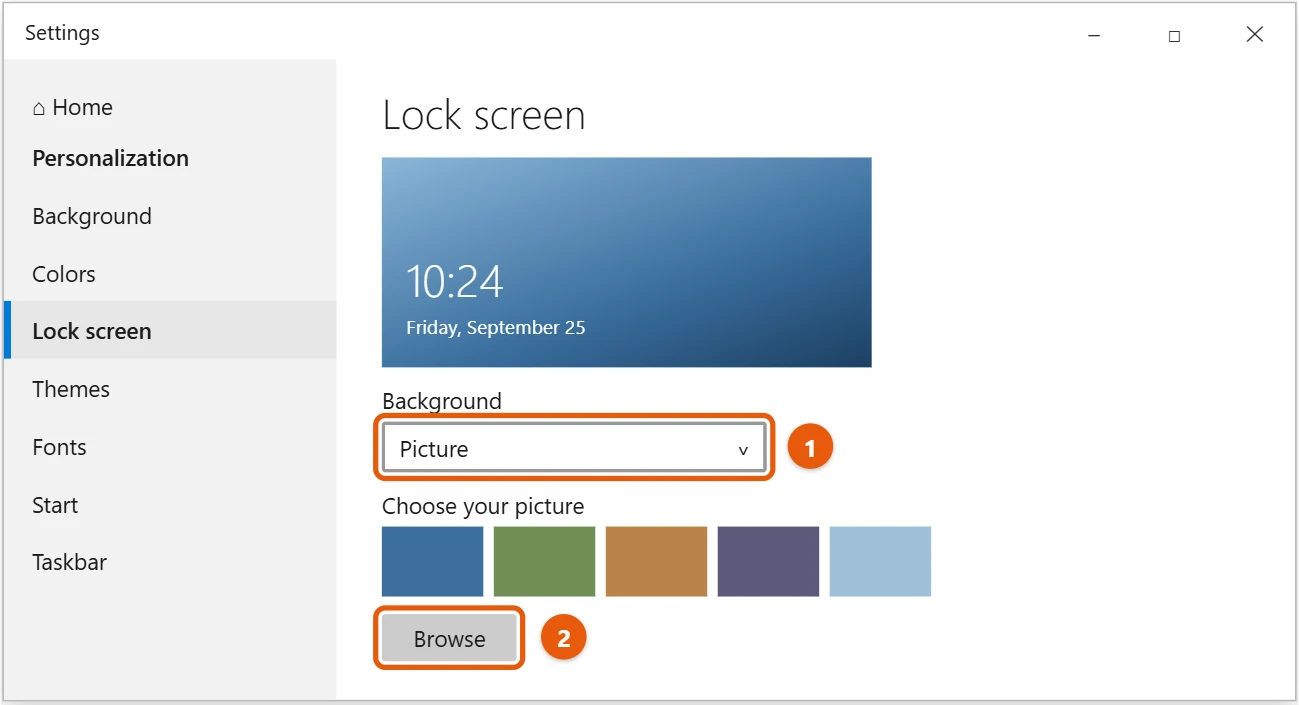
Use an image at least as large as your screen, such as 1920 × 1080, so it isn’t blurry.
Use a slideshow
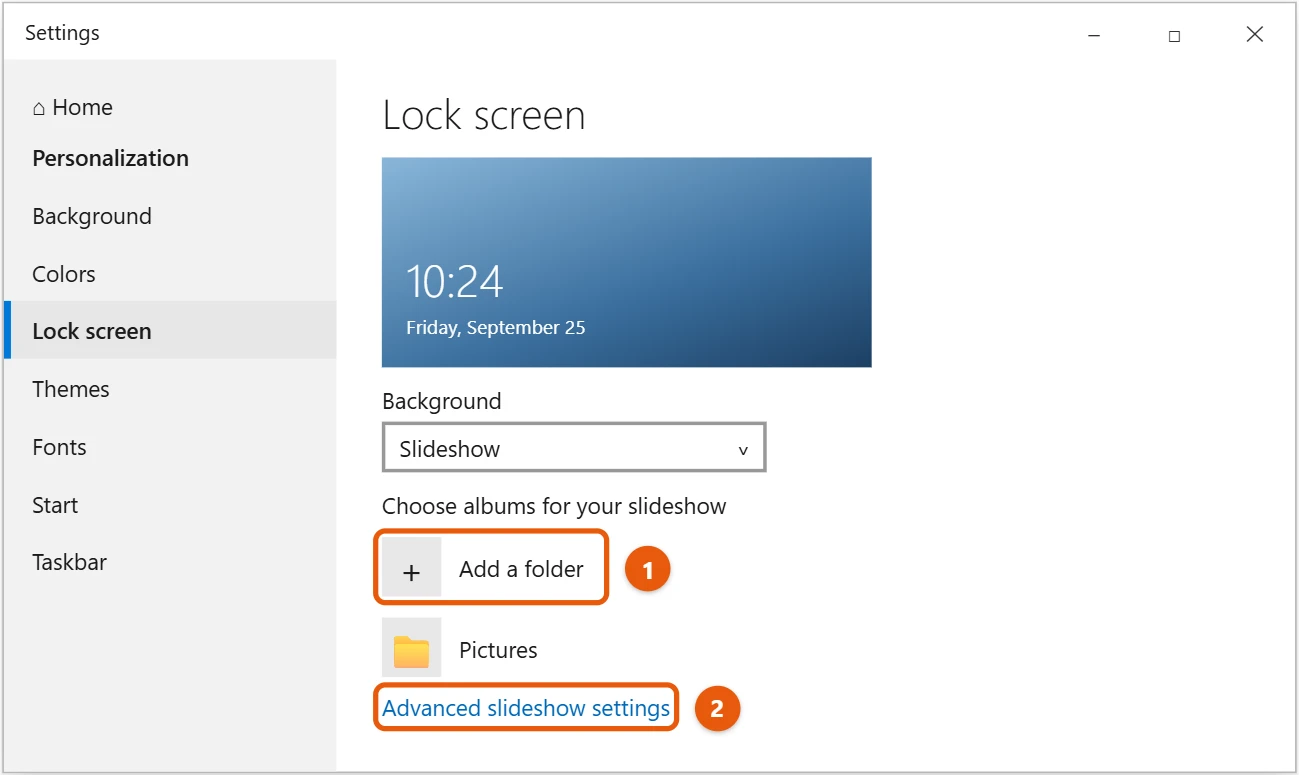
- Under Background, select Slideshow.
- Select Add a folder and choose a folder of pictures. Remove the Pictures folder if you don’t want it.
- Select Advanced slideshow settings to choose options such as using only pictures that fit your screen.
Use Windows spotlight
Choose Windows spotlight to get a new photo from Microsoft most days. To like or skip a picture, select Like what you see? on the lock screen.
Show the picture on the sign-in screen too
On the Lock screen page, turn on Show lock screen background picture on the sign-in screen. When it’s off, the sign-in screen is a plain color.
Choose what the lock screen shows
- Choose one app to show detailed status: for example, Calendar for your next event or Weather.
- Choose which apps show quick status: small icons, such as unread mail.
- Get fun facts, tips, and more: turn this off if you only want your picture. It only shows with Picture or Slideshow.
Save a Windows spotlight picture
Spotlight pictures are stored with no file extension:
- Press Windows + R, paste
%LocalAppData%\Packages\Microsoft.Windows.ContentDeliveryManager_cw5n1h2txyewy\LocalState\Assets, and press Enter. - Copy the largest files to another folder.
- Rename each copy to end in
.jpg, and open it.
If the lock screen won’t change
- Spotlight shows the same picture: switch Background to Picture, restart, then switch back to Windows spotlight.
- Settings are grayed out: on a work or school PC, your organization may set the lock screen.
- You never see the lock screen: your PC may be set to skip it. Press Windows + L to check.
Frequently asked questions
Is the lock screen the same as the desktop background?
No. They’re set separately. See how to change the wallpaper in Windows 10.
Can I use a video on the lock screen?
Not with built-in settings.
How do I lock my PC to see it?
Press Windows + L. See how to lock your screen in Windows 10.
To show pictures while your PC is idle, see how to set a screen saver in Windows 10.
Microsoft’s guide is Customize the lock screen in Windows. More help is on our Windows Help & Guides page.
Related: how to unlock your computer screen in Windows 10.

Matt Jacobs has been working as an IT consultant for small businesses since receiving his Master’s degree in 2003. While he still does some consulting work, his primary focus now is on creating technology support content for SupportYourTech.com.
His work can be found on many websites and focuses on topics such as Microsoft Office, Apple devices, Android devices, Photoshop, and more.