Right-click an empty spot on the desktop and select Personalize, then select Background. Under Personalize your background, choose Picture and pick one of the images, or select Browse photos to use your own.
Applies to: Windows 11. Checked against Microsoft Support on September 29, 2026.
Change your desktop background
- Right-click the desktop and select Personalize. Or go to Start > Settings > Personalization.
- Select Background.
- Next to Personalize your background, choose Picture.
- Select a recent image, or select Browse photos and choose a picture on your PC.
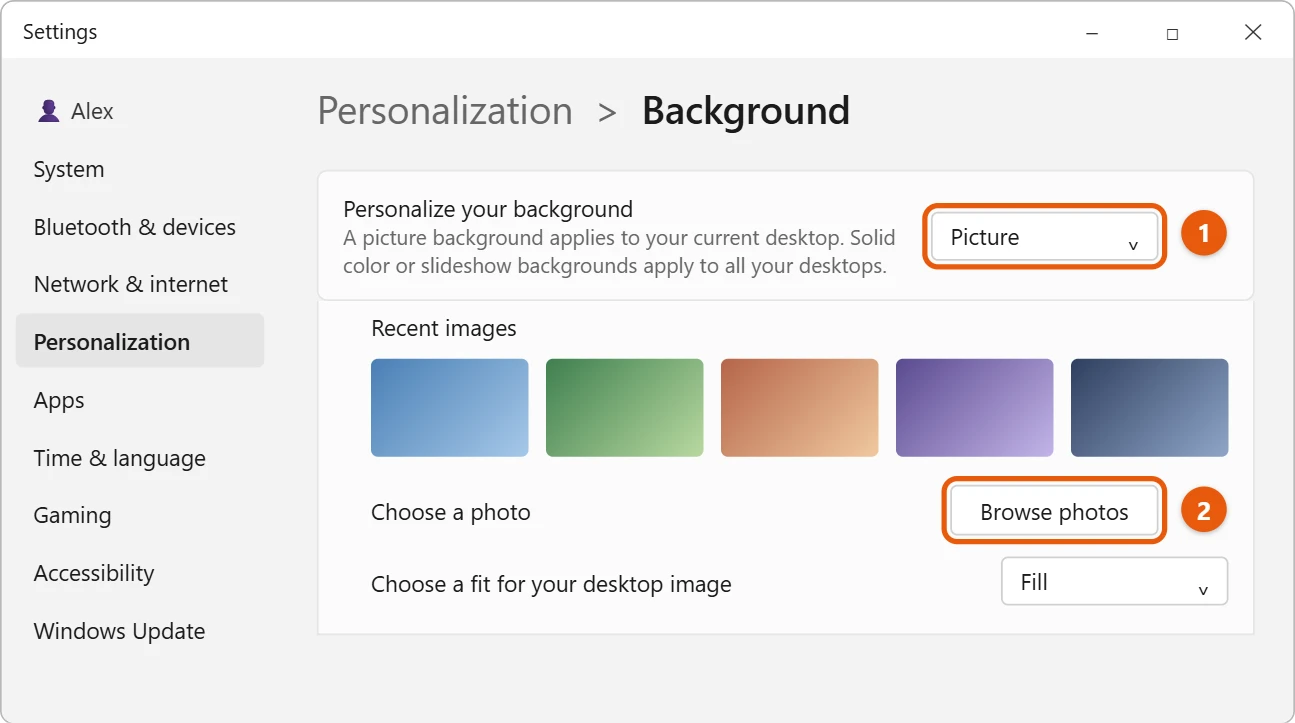
The new wallpaper shows right away.
You can also right-click a picture in File Explorer and select Set as desktop background.
Other kinds of background
- Solid color: one plain color.
- Slideshow: pictures from a folder, changing as often as you choose. Right-click the desktop and select Next desktop background to skip ahead.
- Windows spotlight: a new photo from around the world every day.
Make the picture fit the screen
If the picture looks stretched or has bars, change Choose a fit for your desktop image. Fill covers the whole screen and may crop the edges. Fit shows the whole picture and may leave bars.
Use a different wallpaper on each monitor
In Background, right-click one of the recent images and choose Set for monitor 1 or Set for monitor 2.
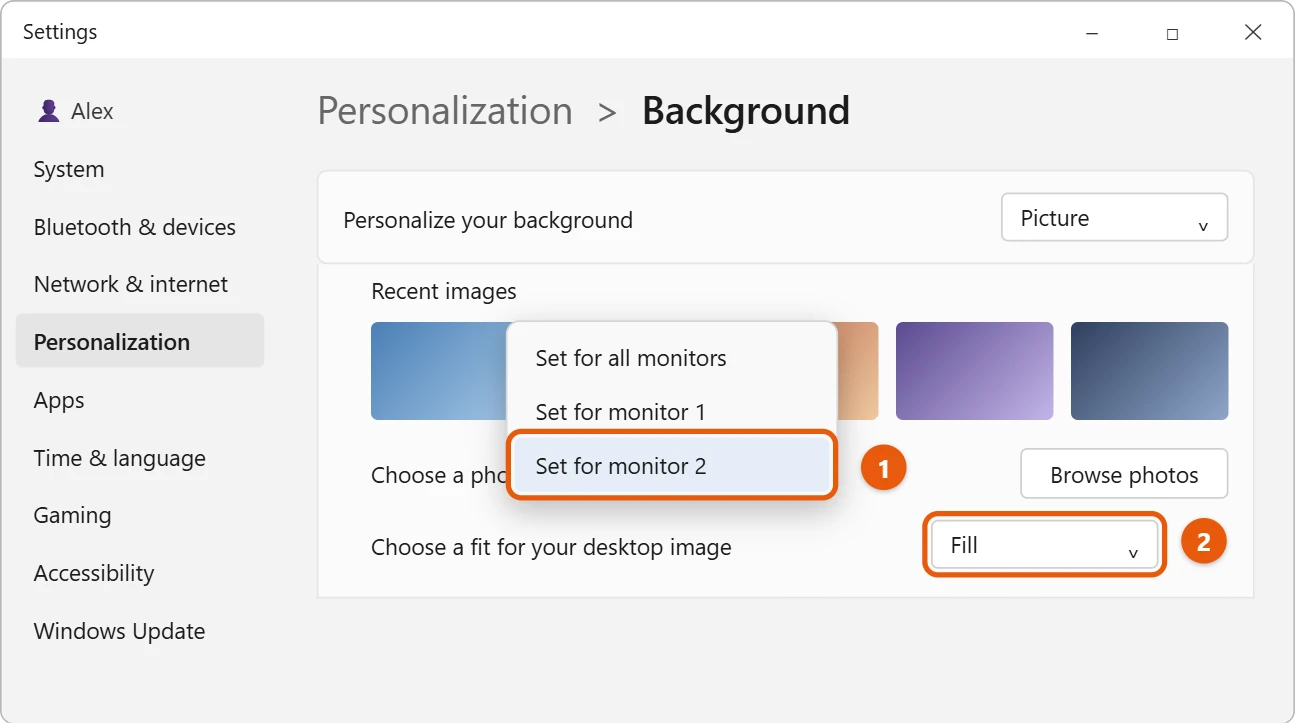
For more about two screens, see how to set up multiple monitors in Windows 11.
Frequently asked questions
Can each desktop have its own wallpaper?
Yes. Right-click a desktop in Task view and select Choose background. See how to switch desktops in Windows 11.
Why can’t I change my wallpaper?
If you see Some of these settings are managed by your organization, your work or school controls it. You’ll need to ask them.
To match the taskbar to your new wallpaper, see how to change the taskbar color in Windows 11.
To show pictures full screen one after another, see how to view pictures as a slideshow in Windows 11.
Microsoft’s reference is Change the desktop background in Windows. More help is on our Windows Help & Guides page.

Matt Jacobs has been working as an IT consultant for small businesses since receiving his Master’s degree in 2003. While he still does some consulting work, his primary focus now is on creating technology support content for SupportYourTech.com.
His work can be found on many websites and focuses on topics such as Microsoft Office, Apple devices, Android devices, Photoshop, and more.