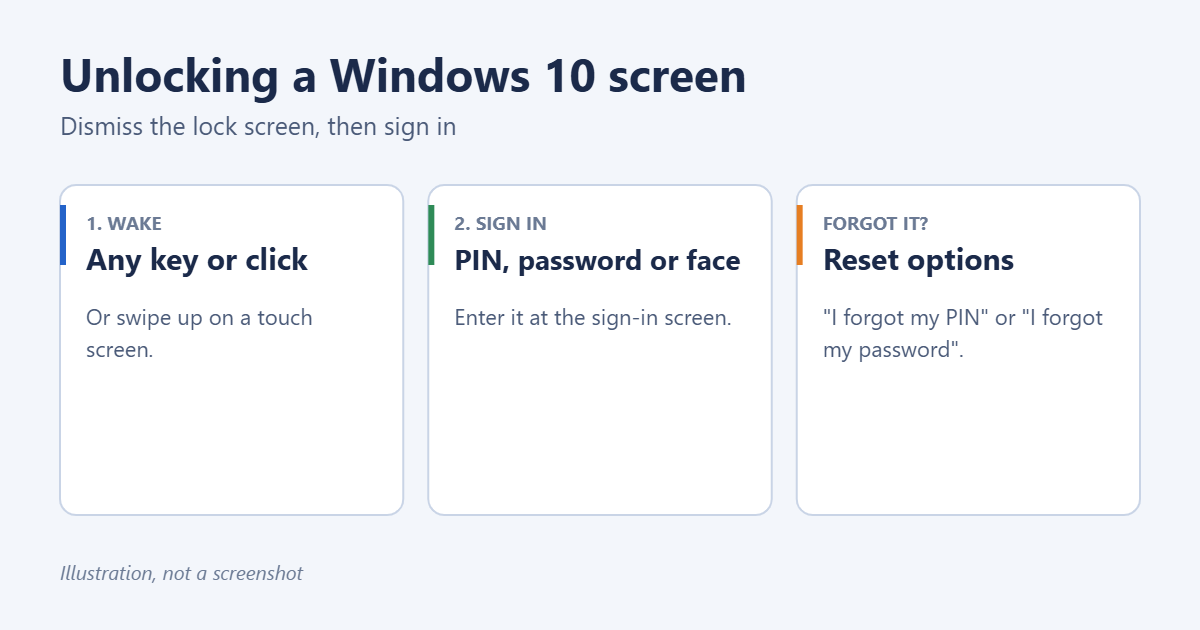
To unlock your computer screen in Windows 10, press any key, click the mouse, or swipe up on a touch screen to dismiss the lock screen picture. Then enter your PIN or password, or look at the camera if you use Windows Hello face sign-in. If you’ve forgotten your PIN or password, the sign-in screen has reset links. Below are the steps, how to lock the screen again, and what to do when the screen won’t respond.
Unlock the screen
- Wake the screen. Press any key, move or click the mouse, or press the power button briefly if the PC is asleep.
- Dismiss the lock screen. Press a key, click, or swipe up from the bottom on a touch screen. You’ll see your account picture and a sign-in box.
- Sign in. Type your PIN or password and press Enter. With Windows Hello, look at the camera or touch the fingerprint reader.
If more than one account is listed in the bottom-left corner, click yours before signing in.
Different ways to sign in
Click Sign-in options under the box to switch between methods, such as PIN, password, picture password, or security key. To set up a faster method, go to Settings > Accounts > Sign-in options once you’re in.
If you forgot your PIN
- Click I forgot my PIN under the PIN box.
- Enter your Microsoft account password and verify your identity.
- Set a new PIN.
If you forgot your password
For a Microsoft account, click I forgot my password and follow the prompts to reset it with a code. For a local account, enter a wrong password once, click Reset password, and answer your security questions. For more options, see how to unlock your laptop when you forgot the password.
Lock the screen again
- Press Windows + L.
- Press Ctrl + Alt + Delete and choose Lock.
- Click Start, then your account picture, then Lock.
Locking is a good habit whenever you step away. Your apps stay open, and nobody can use the PC without signing in. See how to lock your computer with a password in Windows 10.
Stop it locking so often
- Screen timeout: go to Settings > System > Power & sleep and set a longer time before the screen turns off or the PC sleeps.
- Sign-in after sleep: under Settings > Accounts > Sign-in options > Require sign-in, choose Never if you’re on a private home PC.
- Screen saver lock: search for Change screen saver and untick On resume, display logon screen.
See how to remove the lock screen password in Windows 10 for the trade-offs.
Troubleshooting
The keyboard doesn’t type on the sign-in screen
Check that Num Lock or Caps Lock isn’t changing what you type, try a different USB port, or click the accessibility icon at the bottom-right and choose On-Screen Keyboard. See how to unlock the keyboard in Windows 10.
The screen stays black
Press Windows + Ctrl + Shift + B to restart the graphics driver. If nothing happens, hold the power button for 10 seconds to shut down, then start the PC again. Unsaved work may be lost.
“The PIN is incorrect” but you’re sure it’s right
Check that Num Lock is on if you use the number pad, and try your full password via Sign-in options.
Frequently asked questions
Can I unlock the screen without a password?
Only if the account has no password, or with Windows Hello face or fingerprint. There’s no safe way to skip the sign-in on an account that has one.
How do I change the lock screen picture?
See how to change the lock screen in Windows 10.
Summary
Press a key or click to dismiss the lock screen, then sign in with your PIN, password, or Windows Hello. Use the “I forgot” links if needed, lock again with Windows + L, and adjust sleep and sign-in settings if it locks too often.

Matt Jacobs has been working as an IT consultant for small businesses since receiving his Master’s degree in 2003. While he still does some consulting work, his primary focus now is on creating technology support content for SupportYourTech.com.
His work can be found on many websites and focuses on topics such as Microsoft Office, Apple devices, Android devices, Photoshop, and more.