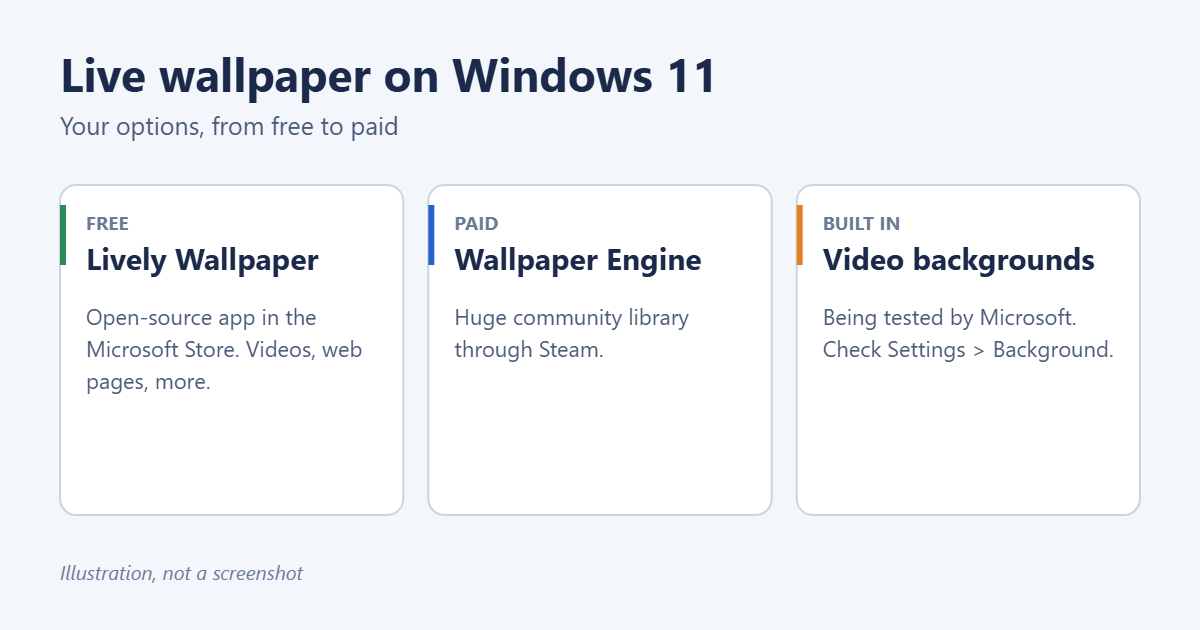
Windows 11 doesn’t include live (animated) wallpapers in its standard settings yet, so the usual way to get one is a wallpaper app. Lively Wallpaper is free and open source and is available in the Microsoft Store. Wallpaper Engine is a paid app on Steam with a huge library. Microsoft has also been testing built-in video backgrounds in Windows Insider builds, so it’s worth checking whether your PC already supports them. This guide covers all three, plus how to keep animated wallpaper from draining your battery.
Option 1: Check for built-in video wallpaper
Microsoft began testing video wallpaper support, a revival of Windows Vista’s DreamScene, in Windows 11 Insider builds in 2025. To see whether your version has it:
- Open Settings > Personalization > Background.
- Set Personalize your background to Picture.
- Click Browse photos and see whether you can select an MP4 video file.
If videos can’t be selected, the feature hasn’t reached your PC, and an app is the way to go.
Option 2: Lively Wallpaper (free)
- Open the Microsoft Store and search for Lively Wallpaper.
- Click Get to install it, then open it.
- Pick one of the included wallpapers and click it to apply it to your desktop.
- To use your own video or GIF, click the + button and choose a file, or drag the file into the window.
Lively can also use web pages and YouTube links as backgrounds. Click the gear icon to open its settings, where you can set it to start with Windows and pause when other apps are in focus.
Option 3: Wallpaper Engine (paid)
Wallpaper Engine is sold on Steam for a small one-time price. After installing it, browse the Steam Workshop for thousands of free community wallpapers, including interactive and audio-reactive ones, and subscribe to apply them. It has detailed performance settings, including pausing when an app is maximized or when the laptop is on battery.
Set a video as your wallpaper
Both apps accept your own videos:
- Lively: click + and choose the video file.
- Wallpaper Engine: click Create Wallpaper, choose the video, and publish it to your own library.
Short, looping videos at your screen’s resolution look best. Avoid very high bitrates, which use more resources.
Keep performance and battery in check
- Set the app to pause when a full-screen app or game is running.
- On laptops, set it to pause on battery.
- Use lower frame rates (30 fps is plenty for a background).
- If your PC slows down, choose simpler wallpapers or go back to a still image.
Built-in alternatives that change automatically
If you want variety without animation, Windows 11 can rotate images on its own. In Settings > Personalization > Background, choose Windows spotlight for daily photos from Microsoft, or Slideshow to cycle through your own pictures. See how to change the desktop background in Windows 11.
Troubleshooting
The wallpaper is black or frozen
Restart the app. If it’s still stuck, update your graphics driver and check the app’s pause settings.
Icons disappear or flicker
Restart Windows Explorer from Task Manager, or toggle the app off and on.
The wallpaper doesn’t start after a restart
Turn on the app’s Start with Windows option, and check Settings > Apps > Startup.
Frequently asked questions
Can I use a live wallpaper on the lock screen?
Not with these apps; they only change the desktop. See how to change the lock screen wallpaper in Windows 11 for still images.
Are wallpaper apps safe?
Lively from the Microsoft Store and Wallpaper Engine from Steam are well established. Avoid “live wallpaper” downloads from unknown sites.
Summary
Install Lively Wallpaper from the Microsoft Store for free, or Wallpaper Engine from Steam, and choose an animated wallpaper or your own video. Check Settings > Personalization > Background to see whether your Windows 11 build supports video backgrounds natively.
Related: How to Set a Live Wallpaper on Windows 10.
Related: How to Set Different Wallpapers on Dual Monitors Windows 11.

Matt Jacobs has been working as an IT consultant for small businesses since receiving his Master’s degree in 2003. While he still does some consulting work, his primary focus now is on creating technology support content for SupportYourTech.com.
His work can be found on many websites and focuses on topics such as Microsoft Office, Apple devices, Android devices, Photoshop, and more.