Windows 11 does have an Activity history page: select Start, then Settings > Privacy & security > Activity history. Microsoft documents two controls there, a switch that decides whether activity is stored and a button that clears it. The Timeline screen that used to list past activities was removed from Windows 11, so to look back at what was actually done you use Microsoft Edge history, File Explorer, the Microsoft privacy dashboard or Event Viewer.
Applies to: Windows 11. Checked against Microsoft Support on October 7, 2026.
What activity history means in Windows 11
Microsoft describes activity history as a record of the things you do on your device, such as the apps and services you use, the files you open and the websites you browse. It is stored locally on the device. Windows collects it separately for each account on the PC, whether that is a local account, a Microsoft account or a work or school account.
Two things have changed since older guides were written:
- Timeline is gone. Timeline was the Windows 10 view that showed past activities and let you jump back into them. Microsoft’s Windows 11 specifications page lists Timeline as removed, and Microsoft’s Timeline help page says the experience was retired in Windows 11 although it remains in Windows 10.
- Activity history is no longer sent to Microsoft. Microsoft deprecated that option in Windows 11 versions 23H2 and 22H2 with the January 23, 2024 update, KB5034204.
The result is that the Activity history page still exists, but it is a place to manage the record, not a feed you scroll through. The sections below show where to manage it and where to find each kind of history you can still read.
Open the Activity history page in Settings
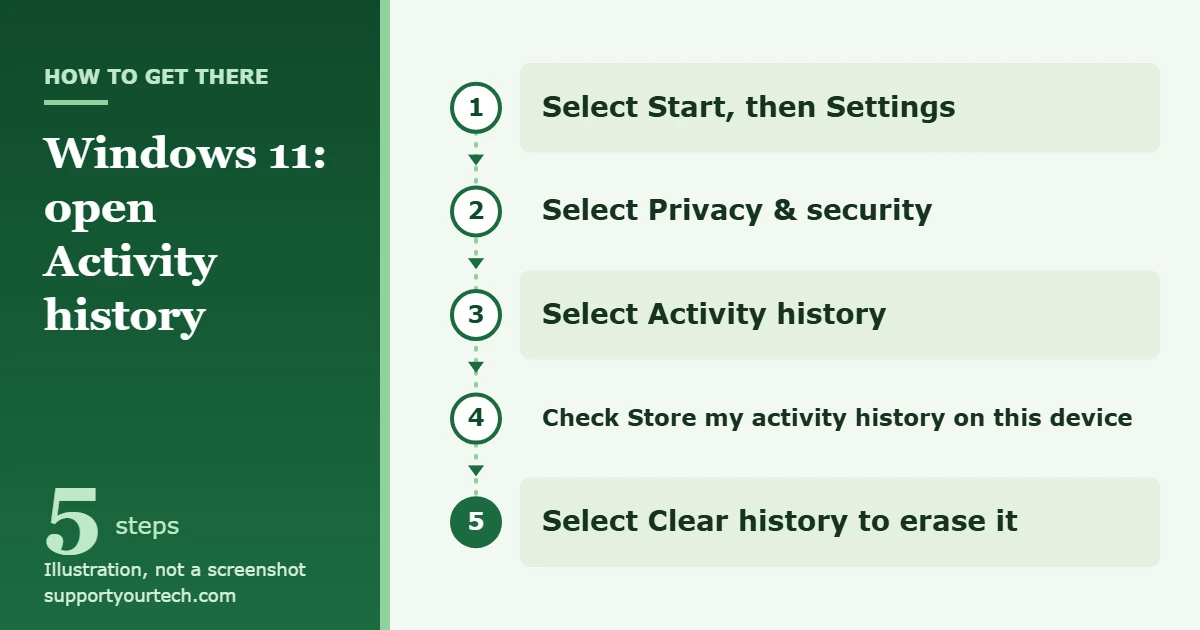
- Select Start, then select Settings. The Settings app opens.
- Select Privacy & security. The privacy settings for Windows and for apps appear.
- Select Activity history. This page holds the activity history controls for the account you are signed in with.
- Check the Store my activity history on this device switch. When it is on, Windows keeps activity history on this PC. Switch it to Off if you want Windows to stop saving it.
- To erase what is already stored, find Clear activity history for this account and select Clear history next to it.
Microsoft’s article Windows activity history and your privacy covers these same settings. If you mainly want to remove traces instead of reviewing them, our guide on how to clear history on Windows 11 goes through each place to clear.
See websites you visited in Microsoft Edge
The Windows 11 specifications page says that some functionality similar to Timeline is available in Microsoft Edge, and browser history is the closest thing to a readable activity list for web browsing.
- Open Microsoft Edge.
- Press Ctrl+H. Microsoft lists this shortcut as Open History, and Edge shows the pages visited in the current profile.
- Press Ctrl+J if you want to see downloads. Microsoft lists this shortcut as Open Downloads.
To remove entries, Microsoft’s steps are Settings and more > Settings > Privacy, search, and services, then Clear browsing data and Choose what to clear. Pick a time range, choose the types of data and select Clear now. Microsoft notes that this clears data only for the profile you are using. See View and delete browser history in Microsoft Edge for the full procedure.
Other browsers keep their own history. Microsoft’s guidance for a browser from another company is to check that company’s website for instructions.
See recently opened files in File Explorer
- Press the Windows logo key+E to open File Explorer. You can also open it from the taskbar or the Start menu.
- Stay on Home, the page File Explorer opens to. Microsoft describes Home as including sections such as Recommended, Favorites and Recent.
- Look through the Recent section to see files that were opened lately, then open one to pick up where you left off.
This is the replacement Microsoft points to for Timeline: its Timeline help page tells Windows 11 users to use recent files, OneDrive or app-based history instead. If the Recent section shows more than you would like, see how to clear recent files in Windows 11.
See activity saved to your Microsoft account
Some activity is tied to your Microsoft account instead of the PC. Microsoft shows it on the privacy dashboard, which is a website, not a Windows setting.
- In a browser, go to account.microsoft.com/privacy.
- Sign in with the Microsoft account you use on the PC. The privacy dashboard home page opens, which is where Microsoft says you manage the activity history for your account.
- Review the kinds of activity shown. Microsoft lists Bing searches, Microsoft Edge browsing, location, voice, media, and apps and services activity.
- Clear anything you do not want kept. Microsoft says that once you clear data, it is deleted from the dashboard and Microsoft begins removing it from its systems.
Two limits matter here. First, Microsoft Edge browsing appears on the dashboard only when you have turned on syncing for browsing history in Edge and have turned on personalized advertising and experiences for Microsoft services. Second, Microsoft states that the browsing history on the dashboard is separate from the browsing history stored on your device, so clearing one does not clear the other. Microsoft explains the dashboard in View your data on the privacy dashboard.
Check system events in Event Viewer
Event Viewer is the Windows tool that lists events recorded by Windows and by apps. It does not show which documents or websites someone opened, but it is useful when you want to know what the system itself was doing at a certain time.
- In the search bar, type Event Viewer, then select the Event Viewer app.
- In Event Viewer, expand the Windows Logs folder.
- Select a log, such as Application. The events in that log appear in a list.
- Double-click an event to see more information about it.
Our walkthrough on how to check event logs in Windows 11 explains the other logs and how to filter them.
Recall on Copilot+ PCs
Recall is a separate Windows 11 feature that Microsoft offers only on Copilot+ PCs. It saves snapshots of what has been on your screen so you can search for something you saw earlier. Microsoft says saving snapshots is not enabled by default and that you need to opt in. Snapshots are encrypted and stored locally.
If your PC has Recall and you opted in, press the Windows logo key+J to open it. Its settings are in Settings > Privacy & security > Recall & snapshots. Microsoft’s article Retrace your steps with Recall lists the hardware requirements. On a PC that is not a Copilot+ PC, this feature is not available.
Which place to check
| What you want to see | Where to look |
|---|---|
| Whether Windows is storing activity history, or to clear it | Settings > Privacy & security > Activity history |
| Websites visited in Microsoft Edge on this PC | Edge history (Ctrl+H) |
| Files opened recently | File Explorer > Home > Recent |
| Searches, synced browsing, location and app activity saved to a Microsoft account | Privacy dashboard at account.microsoft.com/privacy |
| Events recorded by Windows and apps | Event Viewer > Windows Logs |
| Things previously shown on screen (Copilot+ PCs, opt-in) | Recall |
Confirm your settings and undo a change
Go back to Settings > Privacy & security > Activity history and look at the Store my activity history on this device switch. Its position tells you whether Windows is saving activity for the account you are signed in with. Turning the switch back on reverses a change you made to it. Clearing is different: plan on Clear history being permanent, and use it only when you are sure you no longer want the stored activity.
Troubleshooting
There is no Timeline in Task view
That is expected. Microsoft removed Timeline from Windows 11, and no setting brings it back. Use Edge history and the Recent section in File Explorer instead.
The option to send activity history to Microsoft is missing
Microsoft deprecated that option in Windows 11 versions 23H2 and 22H2 with the January 23, 2024 update, KB5034204. If an older PC still shows it, Microsoft says you can turn it off or update Windows.
The Activity history page looks different or a control cannot be changed
Install pending Windows updates first, since Microsoft’s instructions describe the current release. On a computer that belongs to an employer or school, the organization can manage privacy settings, so ask its IT support before assuming something is broken.
The privacy dashboard shows no browsing history
Microsoft shows Edge browsing there only when browsing history sync is on in Edge and personalized advertising and experiences are turned on for Microsoft services. Without both, your browsing history is only in Edge on the device, where Ctrl+H opens it.
You see activity from a different account
Activity history is collected for each account on the device. Sign in to Windows with the account you want to check, then open the Activity history page again.
Frequently asked questions
Does Windows 11 have an Activity history page?
Yes. It is at Settings > Privacy & security > Activity history. Microsoft documents a switch for storing activity history on the device and a Clear history button. What Windows 11 does not have is Timeline, the Windows 10 screen that displayed past activities.
Is my activity history sent to Microsoft?
Microsoft says activity history is stored locally on your device and that the option to send it to Microsoft has been deprecated in Windows 11. Activity history that was synced to the cloud before that change is deleted automatically within 30 days of the last sync, according to Microsoft, and the Clear history button removes it too.
Does InPrivate browsing show up in activity history?
No. Microsoft states that browsing in InPrivate windows is not saved to activity history.
Can I see what another person did on my PC?
Not from one screen. Activity history, browser history and recent files are kept per account and per browser profile, and any of them can be cleared or switched off, so they are not a complete record. If you manage a family PC, give each person a separate Windows account so each history stays with its owner.
Where can I see when my Microsoft account was signed in to?
Microsoft keeps that on the Recent activity page of your Microsoft account, which is separate from the privacy dashboard and from the Activity history page in Settings.
What is the difference between Activity history and the privacy dashboard?
Activity history is a Windows setting about activity stored on the PC. The privacy dashboard is a website that shows data associated with your Microsoft account, such as Bing searches and synced Edge browsing. They are managed separately.
Start with the Activity history page to decide whether Windows should keep storing activity, then use Edge history and File Explorer’s Recent section whenever you need to find something you worked on.
Related: How to check computer activity history on Windows 10.

Matt Jacobs has been working as an IT consultant for small businesses since receiving his Master’s degree in 2003. While he still does some consulting work, his primary focus now is on creating technology support content for SupportYourTech.com.
His work can be found on many websites and focuses on topics such as Microsoft Office, Apple devices, Android devices, Photoshop, and more.