To clear history on Windows 11, select Start > Settings > Privacy & security > Activity history, then select Clear history. That removes the activity record Windows keeps for your account. Search history, clipboard history, location history, File Explorer history and browser history are stored separately, and each one has its own clear button, covered below.
Applies to: Windows 11, plus Microsoft Edge, Google Chrome and Mozilla Firefox on Windows 11. Checked against Microsoft Support, Google Chrome Help and Mozilla Support on October 7, 2026.
Which history do you want to clear?
Windows 11 has no single button that erases every record of what you did. “History” can mean several different lists, kept by different parts of Windows and by your apps. Pick the one that matches what you want to hide or remove.
| History | What it records | Where to clear it |
|---|---|---|
| Activity history | Apps and services you use, files you open and websites you browse | Settings > Privacy & security > Activity history |
| Search history | What you typed into Windows search on this device | Settings > Privacy & security > Search permissions |
| Clipboard history | Text, HTML and images you copied | Windows logo key + V, or Settings > System > Clipboard |
| Location history | Locations looked up by apps and services | Settings > Privacy & security > Location |
| File Explorer history | Recently used files and frequently used folders | File Explorer > See more > Options |
| Browser history | Sites you visited, downloads, cookies and cached files | Inside Edge, Chrome or Firefox |
None of these steps delete your documents, photos or apps. They remove the lists that point to what you did, not the files themselves.
Clear activity history in Settings
Activity history is the record Windows keeps on your device of the apps and services you use, the files you open and the websites you browse. It is stored for local accounts, Microsoft accounts and work or school accounts. If you want to review activity before removing it, see how to view activity history on Windows 11.
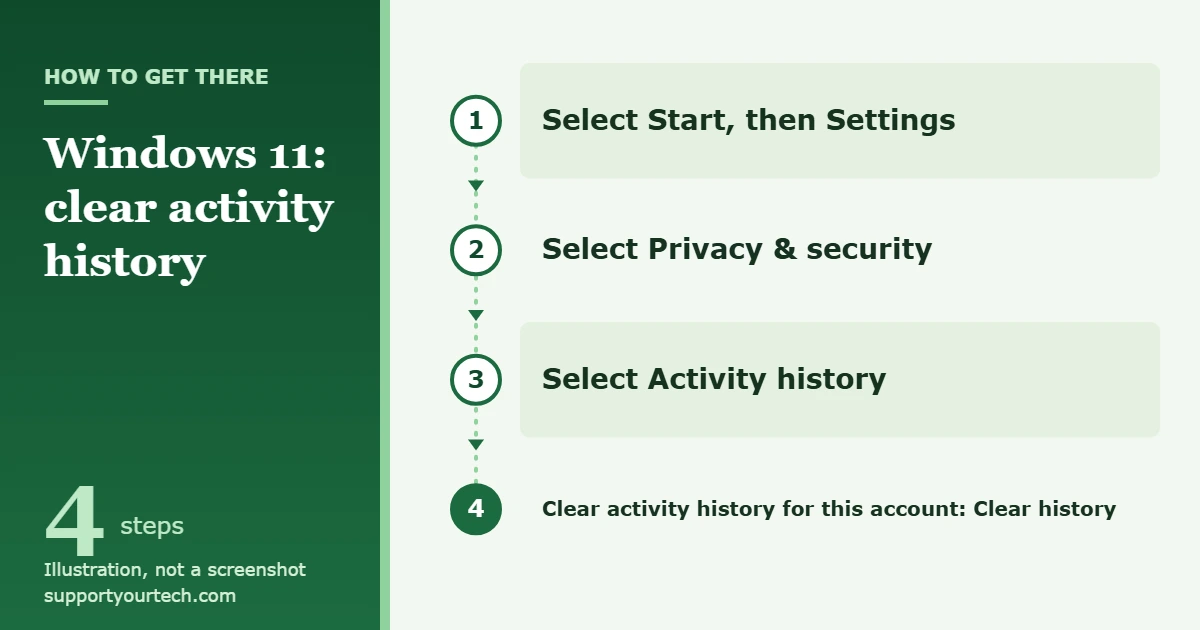
- Select Start, then select Settings. The Settings window opens.
- Select Privacy & security in the menu on the left.
- Select Activity history. The page shows a switch for storing history and a clear option below it.
- Next to Clear activity history for this account, select Clear history. Windows removes the stored activity for the account you are signed in with.
- To stop Windows from building the list again, turn Store my activity history on this device to Off on the same page.
The page has a clear option but no restore option, so treat clearing as permanent. If you turned the storing switch off and want the feature back, return to the same page and turn it On. Microsoft’s activity history and privacy page lists the current settings.
Clear Windows search history
Windows search remembers what you typed on this PC so that it can suggest it again. This list is separate from activity history.
- Select Start > Settings > Privacy & security.
- Select Search permissions.
- Under History, select Clear device search history. Your earlier searches stop appearing as suggestions on this device.
If you are signed in with a Microsoft account, searches can also be saved online. Microsoft’s Windows Search and privacy page explains that you view and delete that copy on the Microsoft privacy dashboard, and that search suggestions tied to Bing are managed on the Bing Search History page.
Clear clipboard history
Clipboard history keeps a list of things you copied, so a password or address you copied earlier can still be sitting there. It holds up to 25 entries of up to 4 MB each.
- Press Windows logo key + V. The clipboard panel opens.
- Select Clear all to remove every entry that is not pinned.
- To remove one entry only, select Delete next to that item instead.
You can do the same from Settings: select Start > Settings > System > Clipboard, then select Clear next to Clear clipboard data. Clipboard history is also emptied each time you restart your PC, except for pinned items. Our guide to using clipboard history in Windows 11 covers pinning and syncing.
Clear location history
When the location setting is on, locations looked up by apps and services are stored on the device for 24 hours and then deleted. You can remove them sooner.
- Select Start > Settings > Privacy & security > Location.
- Under Location history, select Clear.
Restarting the device clears this list too. Microsoft notes that clearing only affects the history on the device: an app that read your location before you cleared it may have stored it somewhere else. Location activity saved to your Microsoft account is cleared on the privacy dashboard with Clear location activity and then Clear.
Clear File Explorer history
File Explorer lists recently used files on its Home page. To wipe that list, open File Explorer, select See more on the toolbar and then Options. The clear control is in the Privacy section of the window that opens. The check boxes in the same section decide whether recent files and frequent folders are shown at all.
For the full walk-through, including removing a single file from the list and stopping recent files from appearing in Start, see how to clear recent files in Windows 11.
Clear browser history
Windows settings do not touch the history inside your web browser. Each browser has its own tool, and each one lets you pick a time range and the kinds of data to remove.
Microsoft Edge
- Select Settings and more, then Settings.
- Select Privacy, search, and services.
- Select Clear browsing data, then Choose what to clear.
- Pick a Time range and check the data types you want to remove, such as Browsing history and Download history.
- Select Clear now.
Removing download history deletes the list of downloads, not the downloaded files. Leave Passwords and Autofill form data unchecked unless you really want saved sign-ins and form entries gone. Microsoft’s Edge history page describes each data type.
Google Chrome
- At the top right, select More, then Delete browsing data.
- Choose a time range, such as Last hour or All time.
- Check the items you want to delete.
- Select Delete data.
Google documents the options on its Delete browsing data in Chrome page. If cookies are the real problem, see how to clear cookies in Chrome on Windows 11.
Mozilla Firefox
- Click the menu button to open the menu panel.
- Click History and select Clear Recent History…
- Choose a time range in the drop-down menu next to When: and check what you want to clear.
- Click Clear.
Mozilla’s steps are on its Firefox history page.
Warning about sync: in Edge, if sync is turned on, clearing data removes it across all synced devices. Turn sync off first if you only want to clear this PC. In Chrome, deleting data while signed in removes it from your other devices and your Google Account as well.
Clear history saved to your Microsoft account
The steps above clear what is stored on the PC. If you sign in with a Microsoft account, some search, browsing and location activity can also be kept online. Sign in to the Microsoft privacy dashboard to review and clear it.
How to confirm it worked
- Search: open Windows search. Your earlier searches should no longer be suggested.
- Clipboard: press Windows logo key + V. Only pinned items should remain.
- File Explorer: open File Explorer Home. The recent list should be empty until you open another file.
- Browser: open the browser’s history page and check that the time range you chose is empty.
Troubleshooting
History comes back after you clear it
Clearing removes what was stored up to that moment. Windows and your browser start recording again straight away. To stop activity history from refilling, turn off Store my activity history on this device. For browsing you do not want recorded, use a private window in your browser.
The Activity history page looks different from older guides
Older instructions mention sending activity history to Microsoft and a Timeline view. Microsoft retired the option to sync activity history to the cloud in Windows 11 versions 23H2 and 22H2 with the January 2024 update, so current PCs only show the on-device storing switch and the clear option.
A setting is greyed out or missing
On a work or school PC, your organization can manage privacy settings, and you may not be able to change them. Ask your IT administrator. On a personal PC, install pending updates in Windows Update and look again, because Settings pages change between versions.
History still shows on another device
That usually means the data was synced. Clear it again with sync considered, as described in the browser section, and check the Microsoft privacy dashboard for the online copy.
You only wanted to free up space
Clearing history lists frees almost no storage. Temporary files and caches are what take up room; see how to clear cache in Windows 11.
Frequently asked questions
Does clearing history delete my files?
No. Clearing activity, search, clipboard, location or File Explorer history removes records and lists. Your documents, pictures and installed apps stay where they are. In a browser, clearing download history removes the list only.
Is there one button that clears all history in Windows 11?
No. Each type of history has its own control, and browsers keep theirs separately. The table near the top of this article shows where each one lives.
Can I get history back after clearing it?
The clear options described here do not come with a restore option, so treat clearing as permanent. Clear only what you are sure you no longer need, and choose a short time range in your browser if you only want to remove recent activity.
Will clearing browser history sign me out of websites?
Not if you only clear browsing history. Sign-ins are stored in cookies, so you are signed out when you also check the cookies option. Saved passwords are a separate check box.
Does clearing history make Windows 11 faster?
Not noticeably. These lists are small. Clear them for privacy, for example on a shared PC, not for speed.
Do I need to edit the registry or use a cleaner app?
No. Every history covered here has a built-in clear option in Settings, File Explorer or the browser. Registry edits and third-party cleanup tools add risk without removing anything the built-in options cannot.
Start with Settings > Privacy & security > Activity history, then work down the table for any other history you want gone. If you share the PC, turn off activity storing so the list does not build up again.

Matt Jacobs has been working as an IT consultant for small businesses since receiving his Master’s degree in 2003. While he still does some consulting work, his primary focus now is on creating technology support content for SupportYourTech.com.
His work can be found on many websites and focuses on topics such as Microsoft Office, Apple devices, Android devices, Photoshop, and more.