Ever felt like your Windows 10 computer takes forever to wake up in the morning, much like a sleepy teenager? You are not alone, and there is a very common culprit: too many programs trying to launch themselves as soon as your computer turns on. Luckily, fixing this is surprisingly simple and can make a big difference in how quickly your PC starts and how it feels overall. You just need to open Task Manager, find the programs set to start with Windows, and tell the ones you do not need to take a nap instead. This quick adjustment will help your computer breathe easier and sprint to readiness.
Tutorial – How to Disable Startup Programs in Windows 10
Let us get right down to business and slim down your computer’s startup routine. These next steps will walk you through accessing the Task Manager, identifying the programs that launch when your computer starts, and then disabling the ones you do not need. It is a straightforward process that anyone can do to improve their PC’s performance.
Step 1: Open Task Manager
The very first thing you need to do is open Task Manager, your go-to hub for managing processes and applications. You can do this by pressing Ctrl + Shift + Esc on your keyboard all at the same time. Alternatively, you can right-click an empty space on your taskbar and select “Task Manager” from the menu that appears.
If your Task Manager opens in a simple, compact view, do not worry at all. Just click on “More details” at the bottom left of the window. This expands the Task Manager to show you all its powerful tabs, including the one we need for startup programs.
Step 2: Go to the “Startup” tab
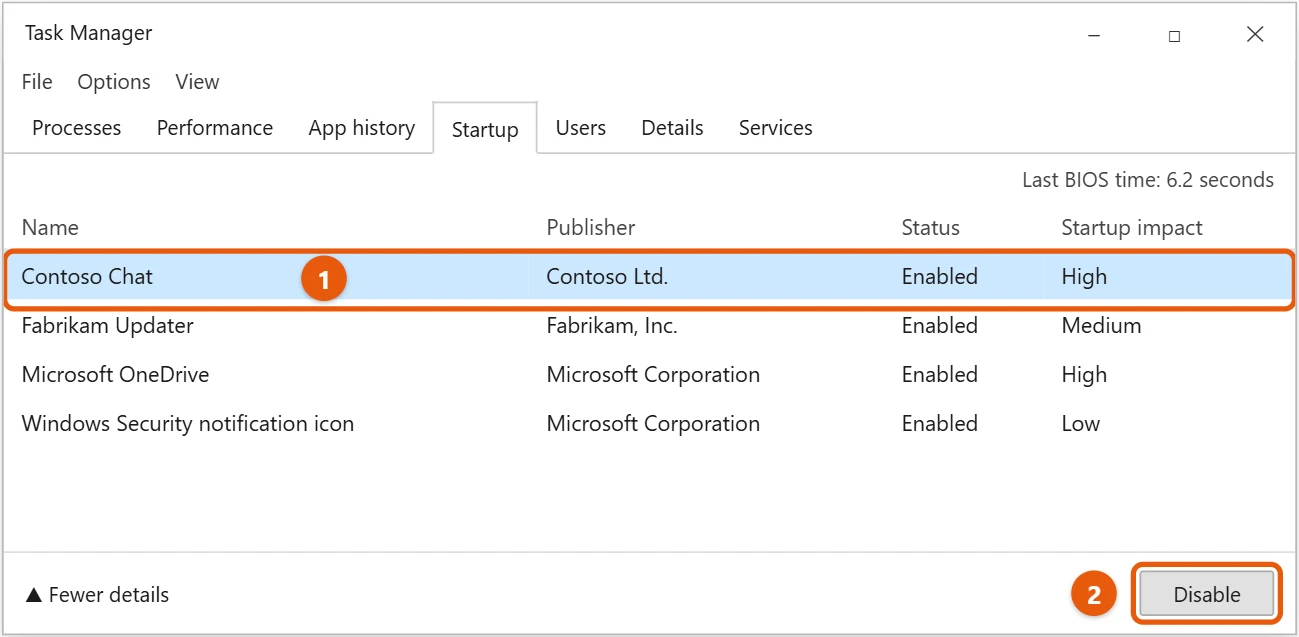
Once you have the full Task Manager window open, you will see several tabs across the top, such as Processes, Performance, and App History. Your mission, should you choose to accept it, is to click on the “Startup” tab.
This tab is like a backstage pass to all the applications that automatically try to join the party when your computer boots up. It is where we will find all the programs vying for a spot in your computer’s initial resource allocation.
Step 3: Identify programs to disable
Now that you are on the “Startup” tab, take a good look at the list of programs. You will see columns such as “Name,” “Publisher,” and, most importantly, “Startup impact.” This “Startup impact” column is your best friend here.
It tells you how much each program affects your computer’s startup speed, usually categorized as High, Medium, Low, or None. Look for programs with High or Medium impact that you do not absolutely need running the moment your computer turns on. Think about apps you rarely use or those that can easily be opened manually later.
Step 4: Disable the program
Once you have found a program you want to disable, simply click on its name in the list to select it. With the program highlighted, you have two easy ways to disable it.
You can click the “Disable” button in the bottom-right corner of the Task Manager window. Or, you can right-click on the program name itself and select “Disable” from the context menu that appears. It is as simple as flipping a switch.
Step 5: Restart your computer
After you have disabled all the unnecessary startup programs, the final and crucial step is to restart your computer. Closing Task Manager will not make the changes happen immediately.
A fresh restart allows Windows to apply your new settings and prevent disabled programs from launching when the operating system starts. You should notice a snappier startup experience the next time your computer boots up.
After you complete these steps, the programs you disabled will no longer automatically launch when your Windows 10 computer starts. This means your PC will have fewer tasks to juggle right out of the gate, leading to a quicker boot time and potentially smoother performance overall once you are up and running. It is like removing extra weight from a runner, allowing them to start their race much faster.
Tips for Disabling Startup Programs in Windows 10
- Always be cautious when disabling programs from well-known system or security software publishers. If you are unsure about a program, it is often best to leave it enabled or do a quick online search to understand its function before disabling it.
- Prioritize disabling programs with a “High” startup impact first, as these are the ones most likely to be slowing down your boot time significantly.
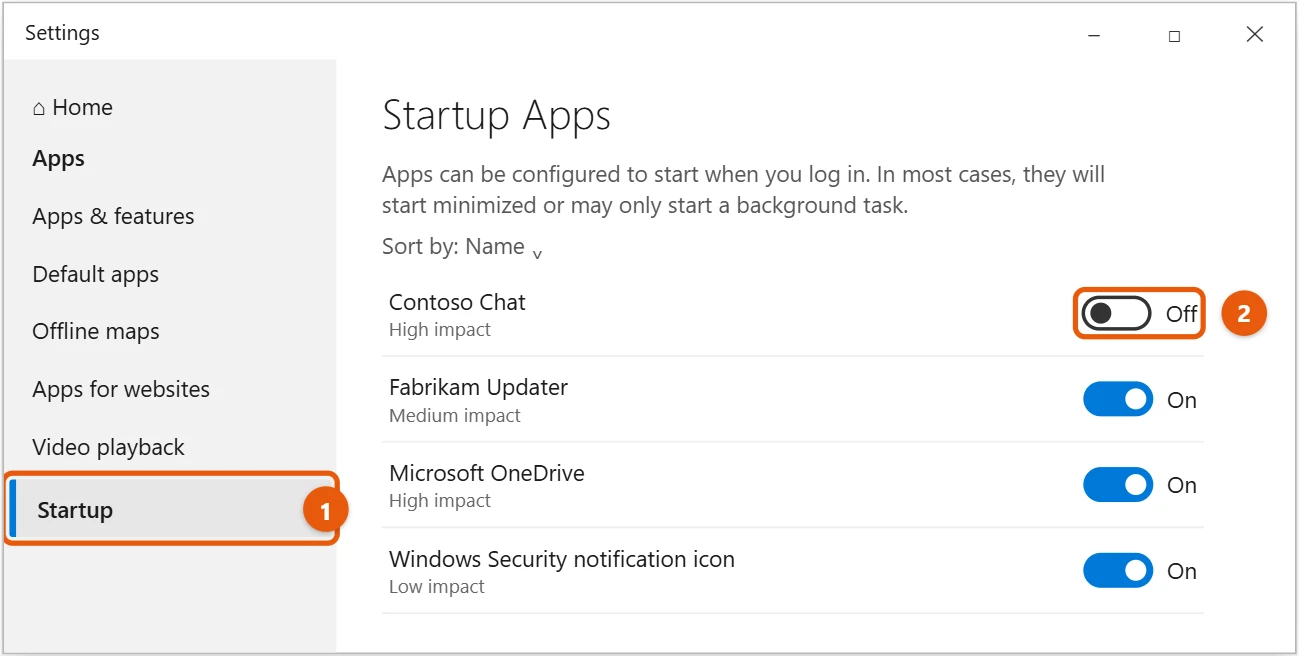
- Remember that disabling a program only stops it from launching at startup; it does not uninstall the program itself. You can still open it manually whenever you need it.
- If you accidentally disable something important, do not panic! You can always go back into the Task Manager’s “Startup” tab and re-enable it using the same steps.
- Consider regularly reviewing your startup programs, perhaps every few months, as new applications you install might automatically add themselves to your startup list.
Frequently Asked Questions
What exactly are startup programs?
Startup programs are applications or services that are configured to automatically launch and run in the background as soon as your Windows 10 computer starts up. They can range from essential system utilities to messaging apps, cloud storage services, or even games.
Why should I disable startup programs?
Disabling unnecessary startup programs can significantly improve your computer’s boot time, making it start up much faster. It also frees up valuable system resources like RAM and CPU, which can lead to better overall performance and responsiveness once your computer is running.
Will disabling a program break my computer?
No, disabling a program in Task Manager’s Startup tab will not break your computer. It simply prevents that specific program from launching automatically when Windows starts. You can still manually open and use the program whenever you wish.
How do I know which programs are safe to disable?
Generally, it is safe to disable programs you do not need running constantly in the background, such as game launchers, chat apps, or cloud storage clients you do not use all the time. Be careful with programs from Microsoft, your computer manufacturer, or antivirus software, unless you are certain what they do. When in doubt, search the program’s name online.
Can I re-enable a program later?
Absolutely! If you find that you miss a program launching automatically or if you disabled something by mistake, you can always go back to the Task Manager’s “Startup” tab. Simply select the program you want to re-enable and click the “Enable” button.
Does disabling a program uninstall it?
No, disabling a program from startup only prevents it from launching automatically. The program itself remains installed on your computer, and you can still open it manually anytime you want to use it. If you want to remove a program entirely, you need to uninstall it through Windows Settings or the Control Panel.
Will this make my computer run faster overall, not just at startup?
While the most noticeable improvement will be in startup speed, disabling unnecessary startup programs can also improve overall system performance. By reducing the number of applications running in the background, your computer has more resources available for the tasks you are actively working on, making everything feel a bit snappier.
Summary of Disabling Startup Programs
- Open Task Manager.
- Go to Startup tab.
- Select desired program.
- Click Disable button.
- Restart your PC.
Conclusion
Taking control of your startup programs in Windows 10 is one of the easiest and most effective ways to breathe new life into your computer. Think of your computer’s startup like a morning commute. If everyone tries to leave at the exact same time, you get a traffic jam, right? Too many programs launching at once create a similar bottleneck on your PC. By intelligently managing what starts with your system, you are essentially clearing the roads, allowing for a much smoother and faster journey from power-on to ready-to-work.
This simple process, which we have explored in detail, empowers you to tailor your computer’s performance to your specific needs. It is not about being a tech wizard; it is about making smart choices that directly impact your daily user experience. A faster boot time means less waiting around, more productivity, and frankly, a less frustrating interaction with your machine. We all crave efficiency, and this low-effort, high-reward tweak delivers just that.
Remember, this is not a one-time fix that you set and forget forever. As you install new software, some applications might slyly add themselves to your startup list without asking. Therefore, it is a good habit to revisit your Task Manager’s “Startup” tab every few months. A quick glance can help you catch any new additions and keep your system running optimally. This proactive approach ensures that your computer continues to boot swiftly and perform efficiently over time, much like regularly maintaining a car keeps it running smoothly.
So, do not hesitate any longer. If your computer has been feeling sluggish when it first wakes up, take these steps to disable startup programs in Windows 10 and reclaim some of that lost speed. You will be amazed at the difference a few clicks can make. Your faster, more responsive computer awaits, ready to tackle whatever you throw at it without the unnecessary baggage of unwanted startup tasks.

Matt Jacobs has been working as an IT consultant for small businesses since receiving his Master’s degree in 2003. While he still does some consulting work, his primary focus now is on creating technology support content for SupportYourTech.com.
His work can be found on many websites and focuses on topics such as Microsoft Office, Apple devices, Android devices, Photoshop, and more.