To turn off S mode in Windows 10, select Start > Settings > Update & Security > Activation. Under Switch to Windows 10 Home or Switch to Windows 10 Pro, select Go to the Store. On the Switch out of S mode page in the Microsoft Store, select Get and confirm. It’s free, but you can’t switch back.
Applies to: Windows 10 Home and Pro in S mode. Checked against Microsoft Support on September 26, 2026.
S mode only runs apps from the Microsoft Store and uses Microsoft Edge for browsing. Leaving it lets you install apps from anywhere.
Switch out of S mode
- Select Start > Settings > Update & Security > Activation.
- Find Switch to Windows 10 Home or Switch to Windows 10 Pro and select Go to the Store.
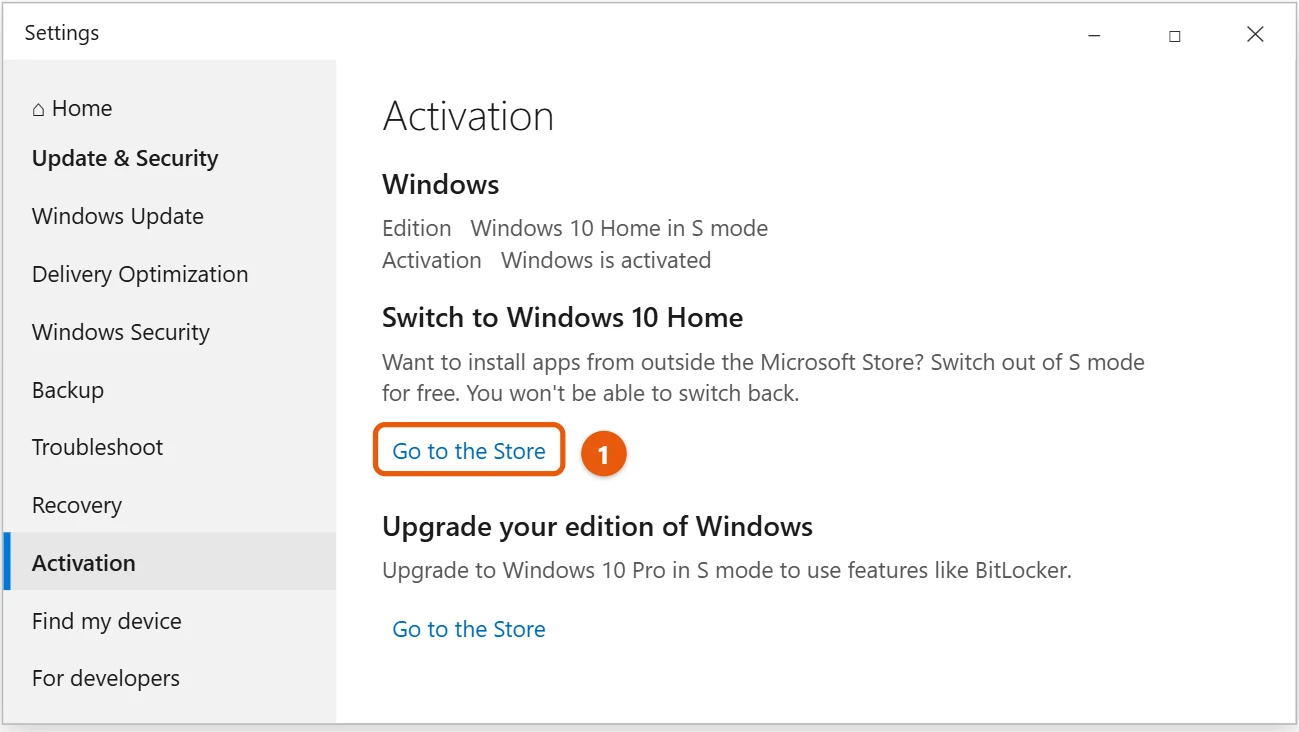
Don’t use the link under Upgrade your edition of Windows. That upgrades to Pro but keeps S mode on.
- On the Switch out of S mode page, select Get.
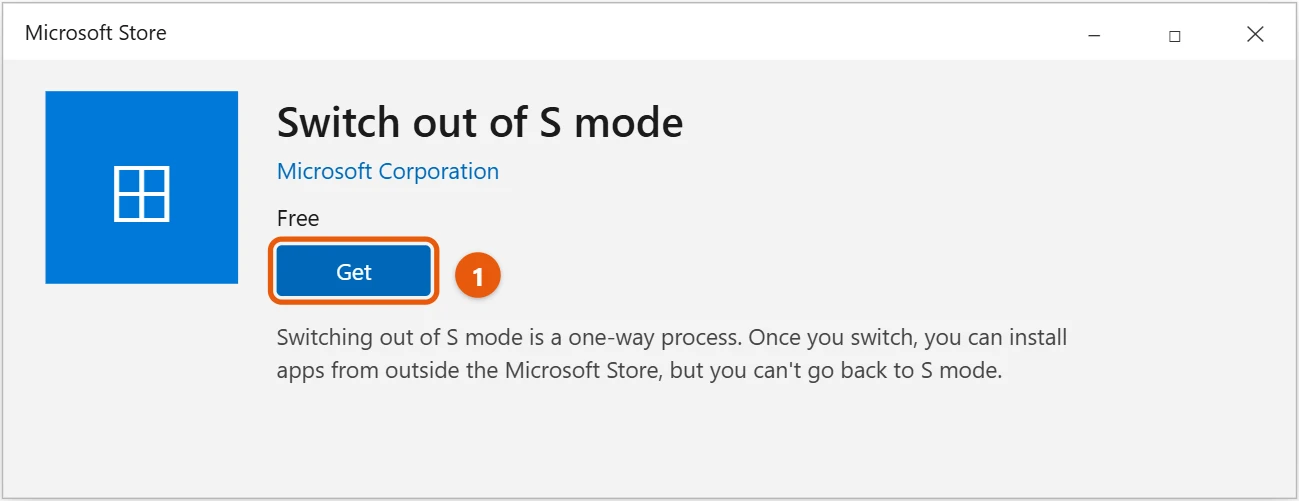
- When it finishes, you can install apps from outside the Store. No restart is needed.
Before you switch
- It’s permanent. You can’t turn S mode back on.
- It’s free. Switching to Windows 10 Home or Pro (the same edition you have) costs nothing.
- Security changes. Apps from outside the Store aren’t checked by Microsoft the same way, so download only from sites you trust. Windows Security keeps protecting the PC.
- Work or school PCs may block the switch. Ask your administrator.
What changes after you leave S mode
- You can install desktop apps from any site, such as Chrome, Firefox, Zoom or Steam, not just Store apps.
- You can change the default browser and search engine. In S mode, links always open in Microsoft Edge with Bing.
- Command-line tools work. S mode blocks Command Prompt, PowerShell and Registry Editor. These become available after the switch.
- Your files, apps and settings stay put. Nothing is removed and no reinstall is needed.
- Your edition stays the same. Windows 10 Home in S mode becomes Windows 10 Home, and Pro in S mode becomes Pro.
Windows Security stays on after the switch. Because you can now run any program, stick to official download pages and avoid installers from pop-up ads.
If you can’t switch out of S mode
- The Get button is missing or nothing happens. Sign in to the Microsoft Store with your Microsoft account using the profile icon at the top, then open the page again from Settings.
- The Store shows an error or won’t load. Press Windows + R, type
wsreset.exeand press Enter. This clears the Store cache. Then try again. - The page says the offer isn’t available. Check that the date, time and region are correct under Settings > Time & Language, and install any waiting updates.
- The switch is blocked by your organization. If you see a work or school account under Settings > Accounts > Access work or school, the device may be managed. Only the administrator can change it.
- You still see S mode after switching. Restart the PC and check Settings > Update & Security > Activation again.
Frequently asked questions
The Store page doesn’t work or shows an error. What should I do?
Make sure you’re signed in to the Microsoft Store, restart the PC, and install any waiting updates. See how to update Windows 10 and check for updates.
Do I need to leave S mode to upgrade to Windows 11?
Windows 10 Home in S mode can upgrade to Windows 11 Home in S mode. Pro, Enterprise, and Education in S mode must leave S mode first. See how to upgrade Windows 10 to Windows 11.
How do I check if I’m in S mode?
Go to Settings > System > About. The edition shows in S mode if it’s on. See how to check your Windows 10 version.
Will I lose my files or apps when I leave S mode?
No. Switching only removes the S mode restriction. Your files, Store apps and settings stay as they were.
Does leaving S mode make my PC slower?
Not by itself. A PC can feel slower later if you install many startup programs, so only install what you need.
Can I still use the Microsoft Store after switching?
Yes. The Store keeps working, and you can install apps from it as before.
Once you’re out of S mode, see how to install apps and software in Windows 10.
Microsoft’s guide is Windows 10 and Windows 11 in S mode FAQ. More help is on our Windows Help & Guides page.
Related: switch out of S mode in Windows 11.

Matt Jacobs has been working as an IT consultant for small businesses since receiving his Master’s degree in 2003. While he still does some consulting work, his primary focus now is on creating technology support content for SupportYourTech.com.
His work can be found on many websites and focuses on topics such as Microsoft Office, Apple devices, Android devices, Photoshop, and more.