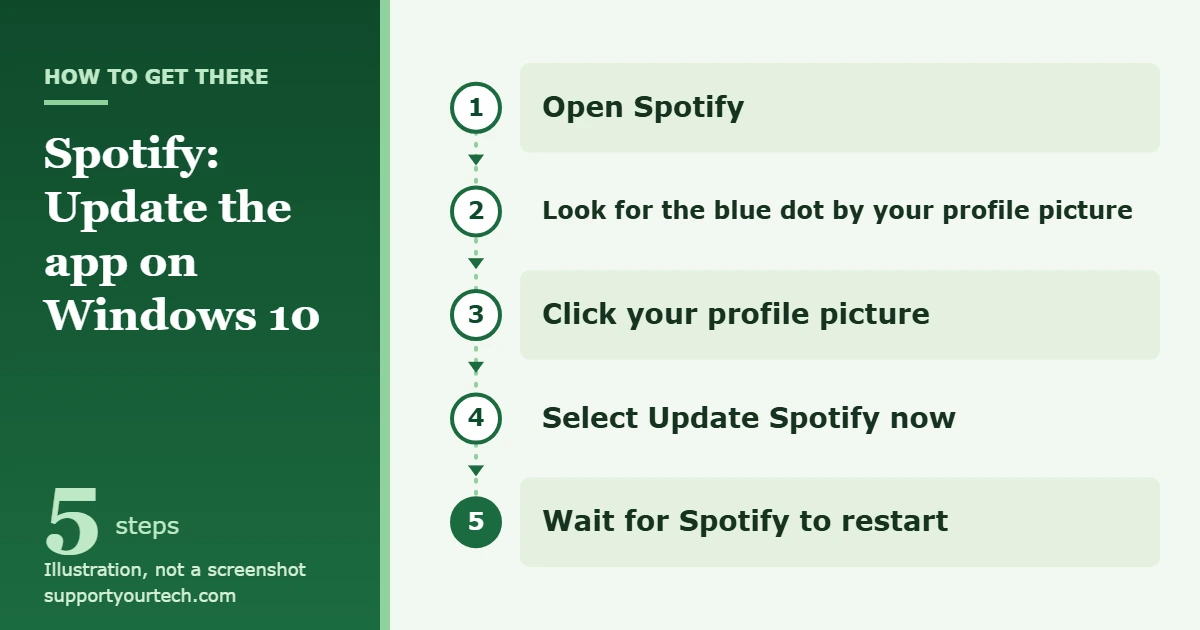
To update Spotify on Windows 10, open the app and look for a blue dot next to your profile picture in the top-right corner. If you see it, click your profile picture and select Update Spotify now. If you installed Spotify from the Microsoft Store, you can also update it from the Store: open Microsoft Store, select Library in the bottom-left corner, and update Spotify from the list.
Applies to: the Spotify desktop app on Windows 10 (64-bit), both the version downloaded from Spotify and the Microsoft Store version. Checked against Spotify Support and Microsoft Support on October 7, 2026.
Before you start: which Spotify do you have?
Spotify offers two ways to get its Windows app. Its download page has a Download directly from Spotify link, which gives you an installer file, and a Get it from Microsoft badge, which opens the Microsoft Store listing. Both are official, but they can be updated in slightly different ways:
- Downloaded from Spotify: use the update option inside the app (the main method below).
- Installed from Microsoft Store: the Store can update it for you, either automatically or when you check for updates yourself.
Not sure which one you have? Open Microsoft Store and select Library. If Spotify appears in your Library list, it came from the Store. If it doesn’t, you most likely installed it from Spotify’s website.
Two other things to check first:
- You need 64-bit Windows 10. Spotify lists its minimum Windows requirement as Windows 10 (64-bit) or Windows 11. To see which kind of Windows you have, open Settings, select System, then About, and look under Device specifications for whether the device runs a 32-bit or 64-bit version of Windows.
- Get Spotify only from official sources. Install and reinstall Spotify from Spotify’s own download page or from Microsoft Store.
How to update Spotify from inside the app
This is the method Spotify documents for its desktop app, and it works for the version downloaded from Spotify’s website.
- Open Spotify. Launch it from the Start menu or your desktop shortcut and let it finish loading.
- Look for the blue dot. Check the top-right corner of the window. A blue dot next to your profile picture means an update is ready to install. No dot means there’s nothing waiting for you right now.
- Click your profile picture. A menu drops down from your profile picture.
- Select Update Spotify now. Spotify downloads what it needs and restarts itself. On some older versions of the app, the same option is labeled Update Available. Restart Now.
- Wait for Spotify to reopen. When the app comes back, the blue dot should be gone. If Spotify closes but doesn’t reopen on its own, start it again from the Start menu.
Spotify notes in its guide to updating the Spotify app that reinstalling the app also gets you the latest version, which is useful if the update option never appears (see the reinstall section below).
How to update Spotify from Microsoft Store
Use this method if Spotify appears in your Microsoft Store Library.
- Open Microsoft Store. Select Start, then search for and select Microsoft Store.
- Open your Library. Select Library in the bottom-left corner of the Store window. You’ll see the apps and games you got from the Store.
- Check for updates. Select Get updates to have the Store look for new versions of your apps. Microsoft’s newer support pages call this button Check for updates, so your Store may use either label.
- Update Spotify. If Spotify shows an Update button, select it. If no update option appears next to Spotify, you already have the latest version.
- Restart Spotify. Close Spotify completely and open it again so the new version loads.
Microsoft explains this process in Get updates for apps and games in Microsoft Store.
How to turn on automatic updates for the Store version
If you’d rather not check by hand, let Microsoft Store update Spotify and your other Store apps on its own.
- Select Start, then search for and select Microsoft Store.
- Select Profile (your account photo) at the top of the Store window, then select Store settings. Some Store versions label this menu item App settings.
- Make sure App updates is turned On.
Microsoft’s Turn on automatic app updates page also points out that some app publishers manage their own updates through their app. That’s why the blue-dot update inside Spotify is still worth knowing even if Store updates are on.
How to check which Spotify version you have
Checking the version number is the easiest way to confirm an update worked, and Spotify support may ask for it if you contact them.
- Open Spotify.
- Click the three horizontal dots icon at the top of the window.
- Click Help, then click About Spotify.
- Read the version number shown under the Spotify logo in the pop-up. You can copy it from there.
Spotify’s Checking your Spotify app version page recommends updating first, so the number you see is the newest release.
How to reinstall Spotify to get the latest version
If the update option never shows up, the update fails, or the app won’t open after an update, a fresh install puts the current version on your PC. Before you start, know that you’ll need to re-download any music and podcasts you had downloaded for offline listening.
- Close Spotify. Make sure the app isn’t running.
- Open the Start menu and click Settings.
- Click Apps in the side column, then click Apps & Features.
- Select Spotify from the list and click Uninstall. Follow the instructions on the screen.
- Install Spotify again, either from Microsoft Store or from Spotify’s download page with Download directly from Spotify. Then sign in with the same Spotify account.
These steps follow Spotify’s Reinstalling your Spotify app guide. For more help removing programs, including ones that won’t uninstall normally, see our guide on how to uninstall programs on Windows 10.
If Spotify won’t update
There’s no blue dot and no update option
That usually means you’re already on the latest version. Check the number under Help > About Spotify. If you installed Spotify from the Store, check Library in Microsoft Store instead, because the Store may be the one delivering updates. If neither shows an update and you still think your version is old, reinstall the app.
The update starts but doesn’t finish
Close Spotify completely, restart your PC, and try again. If it still fails, use the reinstall steps above. A fresh install replaces the app files instead of patching them.
Your PC runs 32-bit Windows 10
Spotify’s desktop app requires 64-bit Windows 10 or Windows 11. If your PC runs a 32-bit version of Windows 10, the current desktop app isn’t supported. In that case you can still listen in a web browser: Spotify lists Chrome, Firefox, Edge, Opera, and Safari as supported for its web player. Spotify also says it will notify users before it stops supporting a device or operating system, as described on its system requirements page.
Microsoft Store won’t install the update
Restart the PC, open Microsoft Store again, and retry the update from Library. If Store apps keep failing to open or update, our guide to fixing apps that won’t open in Windows 10 walks through further fixes. You can also uninstall the Store version and install Spotify from Spotify’s website instead.
You’re on a work or school PC
Organizations can limit what you’re allowed to install or update on managed computers. If the Store or the Spotify installer is blocked, ask your IT administrator rather than trying to get around the restriction.
Frequently asked questions
Does Spotify update itself on Windows 10?
The Microsoft Store version can update automatically when App updates is turned on in the Store’s settings. For the version downloaded from Spotify, watch for the blue dot next to your profile picture and select Update Spotify now when it appears.
Will updating Spotify delete my playlists or downloads?
Spotify’s support pages don’t warn about losing anything during a normal update. The warning they do give applies to reinstalling: after a reinstall, you need to re-download any music and podcasts you had saved for offline listening. Sign in with the same account to get back to your library.
How do I know if an update worked?
The blue dot next to your profile picture disappears, and the version number under Help > About Spotify changes. For the Store version, Spotify no longer shows an Update button in your Store Library.
Can I go back to an older version of Spotify?
Spotify’s support pages don’t offer older versions of the desktop app, and installing old builds from unofficial websites is risky. If a new version gives you trouble, reinstall the current version from Spotify or Microsoft Store.
Does the Spotify web player need updating?
No. The web player runs in your browser, so there’s no app to update. Just keep your browser up to date.
Should I use the Microsoft Store version or the direct download?
Either works, and both come from Spotify. The Store version is convenient if you want Store automatic updates for all your apps in one place. The direct download suits you if you prefer to manage Spotify on its own. Our guide to installing apps and software in Windows 10 explains both routes.
Once Spotify is up to date, you might want quicker access to it. If you also use Windows 11, here’s how to put Spotify on the desktop in Windows 11.

Matt Jacobs has been working as an IT consultant for small businesses since receiving his Master’s degree in 2003. While he still does some consulting work, his primary focus now is on creating technology support content for SupportYourTech.com.
His work can be found on many websites and focuses on topics such as Microsoft Office, Apple devices, Android devices, Photoshop, and more.