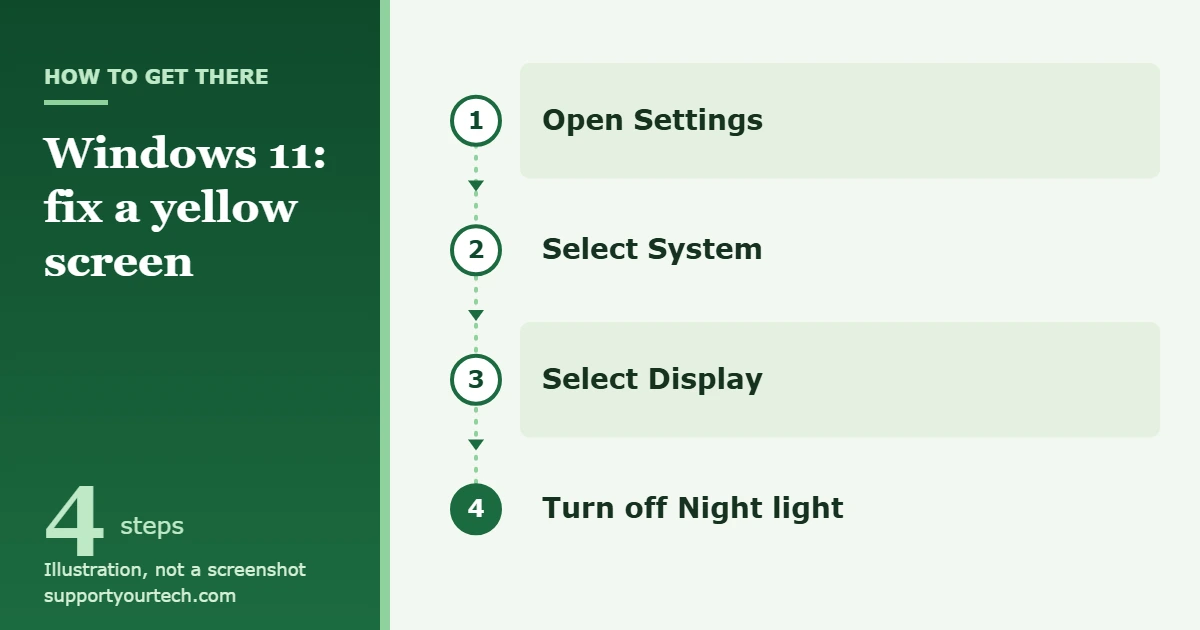
A yellow or orange tint on a Windows 11 screen is usually Night light doing its job. Open Settings > System > Display and turn off Night light. If the tint stays, work through the color filter, color profile, monitor and driver checks below, one at a time, so you can tell which change fixed it.
Applies to: Windows 11 (desktops, laptops and external monitors). Checked against Microsoft Support on October 7, 2026.
Why a Windows 11 screen turns yellow
Several different things can push a display toward yellow, and each has its own fix. Knowing the usual suspects saves time:
- Night light. A Windows feature that deliberately shows warmer colors in the evening to cut down on blue light. It can run on a schedule, which is why the tint often seems to appear “by itself” around sunset.
- Color filters or a contrast theme. Accessibility features that recolor everything on screen. They can be switched on by accident with a keyboard shortcut.
- A color profile. A small file that tells Windows how your display reproduces color. The wrong profile, or a calibration that went badly, can shift whites toward yellow.
- The monitor’s own settings. Many monitors and laptops have a warm, reading, eye-care or low-blue-light mode that works independently of Windows.
- The graphics driver. A faulty or freshly changed driver can alter color output.
- Hardware. A loose or damaged video cable, or an aging panel, can tint the picture no matter what Windows is set to.
Before you start: find out where the tint comes from
Two quick observations point you to the right section:
- Does the tint appear at a certain time of day? That points to a Night light schedule.
- Is the tint visible before Windows starts, or in the monitor’s own on-screen menu? If so, Windows settings are not the cause. Skip to the monitor and cable checks.
Change one thing at a time and look at a plain white page (a blank document works well) after each change. If you adjust several settings at once, you will not know which one mattered, or which one to undo.
Turn off Night light
This is the fix in most cases, and it takes a few seconds.
- Press Windows logo key + I to open Settings. You can also select the Start button and then Settings.
- Select System, then Display. The display options open, with brightness and color controls near the top.
- Find Night light and turn it off. The screen should lose its warm tint right away.
- If the tint keeps coming back in the evening, select Night light to open its options and turn off Schedule night light. With the schedule off, Night light only comes on when you switch it on yourself.
There is a faster route too: select the Network or Speakers icon on the right side of the taskbar to open quick settings, then find Night light and select it to switch it off. You may need to scroll down in the panel to see it.
Keep Night light but make it less yellow
If you like Night light in the evening and only find it too strong, you do not have to turn it off. Go to Settings > System > Display > Night light and move the Strength slider toward the lower end until whites look acceptable. To control when it runs, turn on Schedule night light and pick Sunset to sunrise or Set hours to choose your own times.
Check color filters and contrast themes
Color filters change the color of everything on screen to help people who have trouble telling certain colors apart. Microsoft’s keyboard shortcut list includes Windows logo key + Ctrl + C, which turns color filters on or off when that shortcut is enabled in Settings, so a filter can be switched on with a stray key press.
- Open Settings and select Accessibility.
- Select Color filters.
- Turn off the Color filters switch. If a filter was active, colors return to normal immediately.
While you are in Accessibility, also open Contrast themes. If the Contrast themes menu shows anything other than None, choose None and select Apply. Contrast themes replace the normal Windows colors with a small set of high-contrast ones, which changes the look of every window. They also have a shortcut that is easy to press by mistake: left Alt + left Shift + Print screen.
Check the color profile
If Night light and the accessibility features are off and whites still look yellow in Windows, look at the color profile assigned to the display. Windows 11 keeps these controls in Settings.
- Open Settings > System > Display.
- Select Color profile. The color management page opens.
- Select the affected display near the top of the page. This matters if you have more than one screen, because each display has its own profiles.
- Look at the profiles listed for that display. To switch to a different one already in the list, select Set profile for it. To install a profile supplied by your monitor’s manufacturer, select Add profile and browse to the file.
- Check a white page. If the new profile makes things worse, set the previous profile as the default again.
A few cautions. Use a profile made for your display model or one created by a calibration tool; a profile from a different monitor can make colors less accurate, not more. You can expand a profile and select Remove to delete it, but note its name first so you can add it back. On supported displays, the same page has an Automatically manage color for apps setting, which lets Windows handle color consistently across apps. If your display does not support it, the setting will not be there.
Recalibrate the display
If someone ran a calibration in the past and left the color balance too warm, run it again. On the same Color profile page, select Calibrate display and follow the steps on screen. Work in the lighting you normally use, and let the monitor warm up for a while first. On an external display with HDR turned on, Windows prompts you to use the Windows HDR Calibration app instead.
Check HDR and automatic brightness changes
Two other display features can change how colors look:
- HDR. Microsoft notes that on HDR-capable devices, colors can look oversaturated when Night light is on. If your PC has a Use HDR switch in Settings > System > Display, try turning either HDR or Night light off and compare.
- Content-based brightness. Some PCs adjust brightness and contrast depending on what is on screen, which can make the picture seem to shift as you move between windows. In Settings > System > Display > Brightness, set Change brightness based on content to Off to rule it out. Not every PC has this option.
If you have changed several display options while troubleshooting and want to get back to a clean starting point, our guide on how to reset display settings in Windows 11 lists the recommended defaults.
Check the monitor, laptop utility and cable
Windows cannot see or change the settings stored inside a monitor, so check those separately.
- Press the menu button or joystick on the monitor to open its on-screen menu. If the menu itself looks yellow, the cause is the monitor or its settings, not Windows.
- Look for a picture mode or color temperature setting. Modes described as warm, reading, paper, eye-care or low blue light all add yellow on purpose. Switch to a standard or sRGB mode, or use the menu’s reset option to return to factory settings. Write down the current values first if you have customized them.
- On a laptop, look for a display or eye-care utility installed by the manufacturer, and for a function key with a screen or eye symbol. These can apply a warm tint that Windows does not report. Turn the mode off there.
- For an external monitor, turn everything off, then unplug and firmly reconnect the video cable at both ends. Inspect the connector for bent pins or damage. If you have a spare cable, or a different port on the PC or monitor, try it.
- If possible, connect the PC to a different screen, or connect a different device to the monitor. A tint that follows the monitor means the monitor needs attention. A tint that follows the PC brings you back to Windows settings and drivers.
Also think about third-party apps. Screen-dimming or blue-light apps do the same job as Night light and keep working when Night light is off. If you installed one, or installed anything display-related just before the tint started, turn its filter off or uninstall it and check again.
Update, roll back or reinstall the graphics driver
Try this section if the tint began right after a driver or Windows update, or if nothing above has helped. Microsoft’s guidance is that Windows Update is the best way to get drivers, so start there.
- Open Settings > Windows Update and check for updates. If any are offered, select Download & install, then restart the PC when asked.
- To check the graphics driver directly, right-click the Start button and open Device Manager.
- Expand the display adapters category, right-click your graphics card and select Update driver. Choose the option to search automatically. Windows installs a newer driver if it finds one; select Close when it finishes.
- If the tint started after a driver update, go the other way: right-click the graphics card, select Properties, open the Driver tab and select Roll Back Driver. Pick a reason, select Yes, and restart if prompted.
- As a last driver step, save your work, right-click the graphics card and select Uninstall device, confirm, then restart. Windows tries to reinstall the driver automatically during startup.
Laptop and graphics card manufacturers also publish drivers on their own support sites. If you download one, make sure it matches your exact model and your version of Windows. Microsoft documents each of these routes in Update drivers manually in Windows.
How to confirm the fix and undo changes
Open a blank white document and compare it across two or three apps. White should look neutral, not cream or orange. Then check again after sunset, since a Night light schedule only shows itself in the evening. Taking a screenshot is not a reliable test: Night light and monitor settings affect what the panel shows, not the image Windows captures, so a screenshot usually looks normal on another device even while your screen looks yellow.
Everything in this guide is reversible. Night light, color filters and contrast themes are switches you can turn back on. A color profile you changed can be set as the default again from the Color profile page. A monitor returns to its earlier look if you re-enter the values you wrote down. For more ways to tune color once the tint is gone, see our guide on how to change monitor color in Windows 11.
Troubleshooting
- Night light is missing or greyed out. Microsoft states that Night light is not available when the device uses certain drivers, such as DisplayLink or Basic Display. A Basic Display driver usually means the proper graphics driver is not installed; use the driver section above. DisplayLink drivers are used by some USB docking stations and display adapters, so a screen connected that way may not offer Night light.
- The tint returns every evening. A schedule is still active. Turn off Schedule night light, or change its hours.
- Only one of two monitors is yellow. Check that monitor’s own menu first, then its color profile. Remember to select the right display at the top of the Color profile page before changing anything.
- There is no Color profile option in Settings. Install pending updates from Settings > Windows Update and look again.
- Settings are locked on a work or school PC. Your organization may manage display, accessibility or driver settings. Ask your IT support team before trying to change drivers on a managed device.
- The tint is uneven, patchy or only at the edges. Software settings tint the whole screen evenly. Patches, bands or yellow edges suggest a problem with the panel or its backlight, which needs the manufacturer or a repair shop.
- The screen is yellow before Windows loads. Windows is not involved. Check the monitor settings and cable, then contact the manufacturer.
Frequently asked questions
Why did my screen suddenly turn yellow?
The most common reason is Night light switching on, either from quick settings or because its schedule reached the start time. Less often, a color filter was toggled with a keyboard shortcut, a monitor was put into a warm picture mode, or a driver or color profile changed.
Is Night light bad for my screen?
No. Night light only changes the colors Windows sends to the display. It does not damage the panel, and turning it off restores normal color immediately.
Does a yellow screen mean my monitor is failing?
Usually not. Rule out Night light, color filters, the color profile and the monitor’s picture mode first. Hardware becomes the likely cause when the tint shows in the monitor’s own menu or before Windows starts, when it follows the monitor to another computer, or when it is uneven across the screen.
Can I fix a yellow tint by calibrating by eye?
The Calibrate display tool can improve an obviously warm picture, and it is fine for everyday use. For photo, video or print work where color accuracy matters, a hardware calibration device and the profile it creates give a more dependable result than adjusting sliders until one image looks right.
Will resetting Windows fix a yellow screen?
It is rarely necessary and it will not help if the cause is the monitor, the cable or a manufacturer setting. Work through the checks above first. They cover the causes a reset would address, without the time and risk of reinstalling Windows.
Start with the Night light switch, then move down the list only as far as you need to. If the tint is still there after the cable and second-screen tests, contact your PC or monitor manufacturer’s support, and mention which of these steps you have already tried.

Matt Jacobs has been working as an IT consultant for small businesses since receiving his Master’s degree in 2003. While he still does some consulting work, his primary focus now is on creating technology support content for SupportYourTech.com.
His work can be found on many websites and focuses on topics such as Microsoft Office, Apple devices, Android devices, Photoshop, and more.