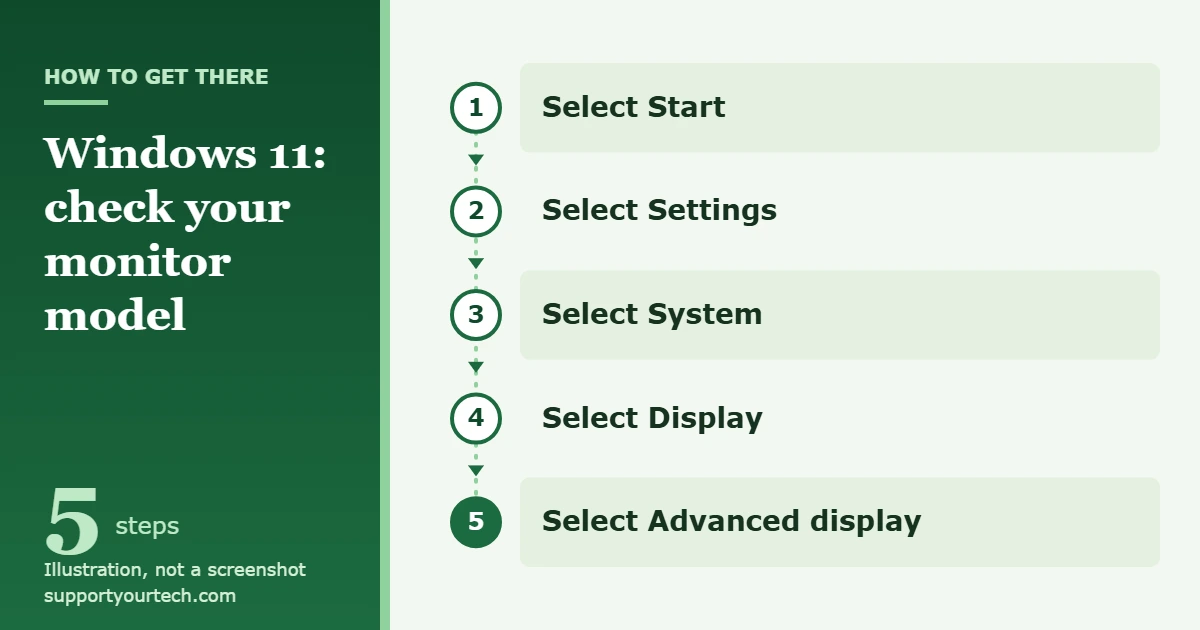
To check your monitor model in Windows 11, select Start > Settings > System > Display > Advanced display. That page shows the name Windows has read from the monitor, together with the Display information panel. If that name is generic or incomplete, the label on the monitor itself is the most dependable source.
Applies to: Windows 11. Checked against Microsoft Support on October 7, 2026.
Before you start
It helps to know what you are looking for, because a monitor carries several different identifiers:
- Model name or model number: identifies the product line, and is what you type into the manufacturer’s support site to find a manual, driver or specification sheet.
- Serial number: identifies your individual unit. Warranty claims usually ask for it, but it will not help you find a manual.
- Name reported to Windows: a short name stored inside the monitor. Microsoft’s hardware documentation explains that a monitor keeps its identity and capability details in a data structure called EDID (Extended Display Identification Data), which the PC reads over the display cable. Windows can only show what the monitor reports, so this name is sometimes shorter than the retail model number.
You do not need an administrator account for the Settings method. The monitor must be connected and switched on, because Windows reads the details from the live connection.
Check the monitor model in Settings
- Select Start, then select Settings. The Settings app opens.
- Select System, then select Display. You see the display options for your screens, such as scale and resolution.
- Scroll down and select Advanced display. A page opens with details for one display at a time.
- If you use more than one screen, pick the one you want from the display list on that page. The details below change to match your choice.
- Read the display name. The Display information panel shows the current resolution and refresh rate for the selected display, and whether the display supports variable refresh rate (VRR).
Write the name down exactly as shown, including any letters and digits after the brand. That string is usually enough to find the product page on the manufacturer’s website. Microsoft describes the Advanced display page in its guide to changing the refresh rate on your monitor in Windows.
Work out which screen is which
With two or more monitors, the hard part is often matching a name on the page to a physical screen. Windows numbers each display, and you can ask it to show those numbers:
- Select Start > Settings > System > Display.
- Select Identify. A number appears on each screen.
- Go back to Advanced display and pick the display with the number you noted.
If a connected monitor is missing from the page altogether, select Multiple displays on the Display page and then Detect. Microsoft covers both buttons in its guide to using multiple monitors in Windows.
Check the monitor in Device Manager
Device Manager lists every piece of hardware Windows has installed, including monitors. Use it as a second opinion when Settings shows a name you do not recognize.
- Select Start, type device manager, then select Device Manager from the search results.
- Expand the monitors category by selecting the arrow beside it. Each connected screen has its own entry.
- Right-click an entry and select Properties. The Details tab in that window shows the device identification strings Windows holds for the monitor.
The entry may show the model name, or only a generic plug-and-play monitor name. A generic entry is not a fault. Microsoft’s driver documentation notes that a monitor’s setup file installs no device drivers; it only records the features of that particular monitor for the graphics driver to use. The Microsoft-supplied monitor driver runs the screen either way.
Read the monitor name with PowerShell
If you prefer a command, or you need the serial number as well, Windows exposes the monitor’s identification data through a class named WmiMonitorID. Microsoft documents its properties, which include UserFriendlyName (the monitor’s friendly name), ManufacturerName, ProductCodeID, SerialNumberID and YearOfManufacture.
- Select Start, type powershell, and open PowerShell from the search results.
- Paste the following command and press Enter: Get-CimInstance -Namespace root\wmi -ClassName WmiMonitorID | ForEach-Object { ($_.UserFriendlyName -ne 0 | ForEach-Object { [char]$_ }) -join “” }
- Read the output. PowerShell prints one line per connected monitor, each containing that monitor’s friendly name.
The extra code after the pipe is needed because the name is stored as a list of character codes rather than plain text; the command turns the codes back into letters. To see the serial number instead, replace UserFriendlyName with SerialNumberID. A blank line means the monitor did not report that value. The property list is in Microsoft’s WmiMonitorID class reference.
Save a full display report with DxDiag
The DirectX Diagnostic Tool does not replace the methods above, but it is useful when a support technician asks for everything about your display setup in one file.
- Press the Windows logo key + R, type dxdiag, and then select OK.
- If you are asked whether to check that your drivers are digitally signed, Microsoft recommends selecting Yes.
- Select Save All Information… and choose where to save the text file.
Open the saved file in Notepad and look for the display devices section. It lists each graphics adapter together with details of the monitor attached to it, including the monitor capabilities that Windows uses to decide whether HDR is supported.
Check the label on the monitor
For warranty service, manuals or replacement parts, the sticker on the back or underside of the monitor is the most authoritative source, because it does not depend on what the monitor reports to the PC. Look for a field marked Model, Model No. or similar, and do not confuse it with the serial number, which is normally printed nearby. Many monitors also show the model in an information page of their own on-screen menu, opened with the buttons on the monitor.
On a laptop, the built-in screen is part of the computer, so the laptop’s model number is what the manufacturer’s support site will ask for.
Which method should you use?
| What you need | Best place to look |
|---|---|
| A quick look at the name, resolution and refresh rate | Settings > System > Display > Advanced display |
| A second opinion on how Windows installed the monitor | Device Manager |
| The serial number or year of manufacture without moving the monitor | PowerShell (WmiMonitorID) |
| One file to send to a support technician | DxDiag, Save All Information |
| The exact retail model for warranty or parts | The label on the monitor |
If Windows shows a generic or wrong name
- The name is generic. Windows shows what it reads from the monitor through the cable. Connect the monitor directly to the PC instead of through a dock, adapter or KVM switch, then check Advanced display again.
- The name is shorter than the model on the box. That is normal. The reported name is a short identifier chosen by the manufacturer, so use the label when you need the full retail model.
- A monitor is missing. Check that it is switched on and set to the correct input, then use Multiple displays > Detect on the Display page.
- You want a different driver for the entry in Device Manager. Right-click the device and select Update driver. Microsoft’s advice is that Windows Update is the best way to get driver updates, and that drivers you install by hand should come only from the manufacturer’s official website.
- The PowerShell command prints nothing. The monitor did not supply a friendly name over this connection. Use the label instead.
- You are on a work or school PC. Settings and PowerShell queries normally work with a standard account, but your organization may restrict some tools. Ask your IT team if a tool will not open.
Frequently asked questions
Is the monitor name in Windows the same as the model number?
Not always. Windows shows the name the monitor reports about itself, which is often a shortened form of the model. For warranty or parts, confirm it against the label on the monitor.
Can I find my monitor’s serial number in Windows 11?
Often, yes. Run the PowerShell command in this article with SerialNumberID in place of UserFriendlyName. If the result is blank, the monitor did not report one and you will need the label.
Do I need to install a monitor driver?
Usually not. Microsoft supplies the driver that runs the monitor, and a manufacturer’s setup file only describes that monitor’s features. Picture quality problems are far more often caused by the graphics driver, so it is worth knowing how to check your graphics card in Windows 11 as well.
How do I see what refresh rate my monitor is using?
The Display information panel on the Advanced display page shows the current resolution and refresh rate. To pick a different one, follow our guide to changing the refresh rate in Windows 11.
Why does my laptop screen not show a brand name?
Built-in panels often report only a short internal code rather than a consumer model name. Use the laptop’s own model number when you look for support.
Once you have the model, search for it on the manufacturer’s support site to find the manual and the supported resolutions and refresh rates, then compare those with what the Display information panel shows.

Matt Jacobs has been working as an IT consultant for small businesses since receiving his Master’s degree in 2003. While he still does some consulting work, his primary focus now is on creating technology support content for SupportYourTech.com.
His work can be found on many websites and focuses on topics such as Microsoft Office, Apple devices, Android devices, Photoshop, and more.