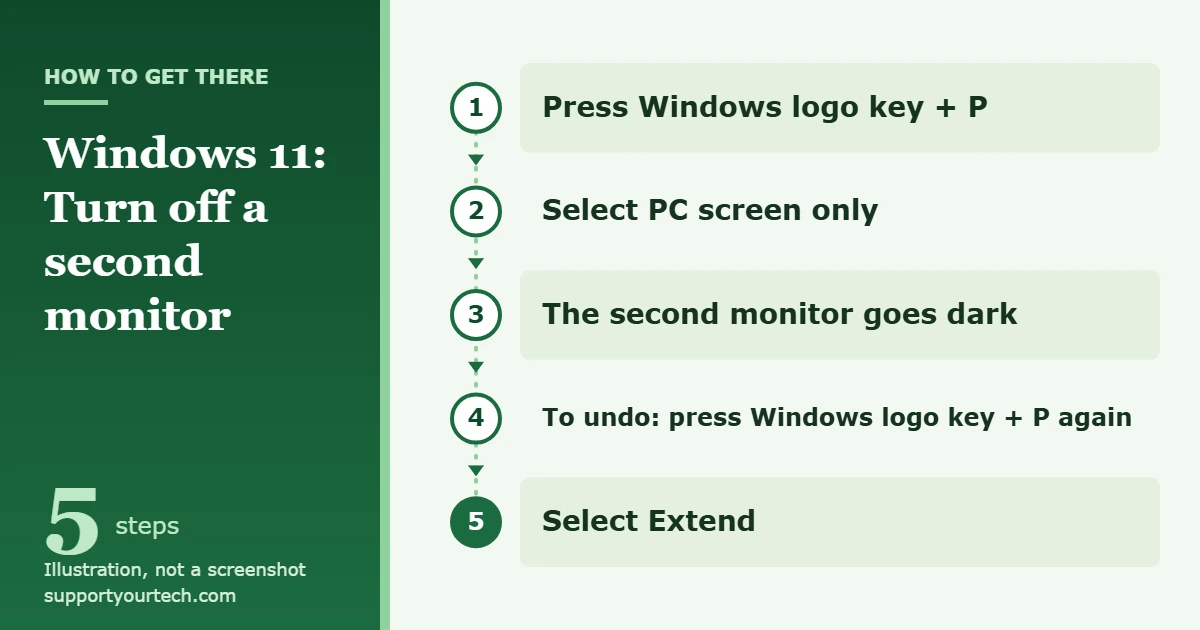
To disable a second monitor in Windows 11 without unplugging it, press Windows logo key + P and choose PC screen only. Windows stops sending a picture to the extra screen and moves everything to one display. To turn the monitor back on, press the same shortcut and choose Extend.
Applies to: Windows 11 desktops and laptops with two or more displays. Checked against Microsoft Support on October 6, 2026.
Before you start
You do not need an administrator account or any extra software for the methods below. A few things are worth knowing first:
- Nothing is deleted. Turning off a display in Windows only changes where the picture is sent. Your files, apps and open windows stay as they are, and open windows move to the screen that is still on.
- The monitor stays powered. Windows stops the video signal, but it does not switch the monitor off at the wall. Most monitors drop into standby when the signal stops. Use the monitor’s own power button if you want it fully off.
- Know which screen is which. Select Start, search for settings, then go to Settings > System > Display and select Identify. A number appears on each screen so you can match it to the numbered boxes in Settings.
- Save your work first. The screens may flicker or go black for a moment while Windows rearranges the desktop.
This is the quickest route, and every label in it is listed in Microsoft’s guide to using multiple monitors in Windows.
- Press Windows logo key + P on your keyboard. A short list of display options opens on the screen.
- Select PC screen only. Microsoft describes this option as showing things on one display only. On a laptop, that is the built-in screen.
- Wait a second or two. The other monitor goes dark and its windows move to the screen that is still on.
- If the picture stays on the wrong screen, press Windows logo key + P again and select Second screen only instead. That option shows everything on the second display and turns the first one off.
Pressing the key combination again moves through the available options, so you can also change modes without a mouse. If you have no keyboard attached, such as on a tablet, select the Network, Sound or Battery icons at the right end of the taskbar to open quick settings, then select Project to reach the same list.
What each Project option does
The list has four choices. Picking the right one depends on which screen you want to keep.
| Option | What you see | Use it when |
|---|---|---|
| PC screen only | One display only | You want the second monitor off |
| Duplicate | The same picture on all displays | You are presenting and want the audience to see your screen |
| Extend | One desktop spread across the screens | You want both monitors working again |
| Second screen only | Everything on the second display | You want the first screen off, such as a laptop’s built-in screen |
These four modes apply to the whole setup. They do not let you pick one particular monitor out of three or more, which is where the Settings method below helps.
Turn off one specific monitor in Settings
Use this method when you have three or more screens, or when you want to choose exactly which monitor goes dark.
- Select Start, search for settings, and open Settings.
- Select System, then Display. The top of the page shows a numbered box for each connected screen.
- Select Identify if you are not sure which number belongs to which monitor.
- Select the numbered box for the monitor you want to turn off. The settings below now apply to that display.
- On the same page, open the list of display modes and choose the option that disconnects the selected display. Microsoft’s Q&A moderators refer to it as Disconnect this display.
- Confirm the change if Windows asks. The selected monitor goes dark and the others keep working.
This option is not offered on every PC. According to a Microsoft Q&A moderator’s answer about the missing option, it depends on the monitor type and graphics driver, and it is typically shown for external monitors rather than the built-in or primary display. If you do not see it, see the troubleshooting section below.
How to confirm it worked and turn the monitor back on
The disabled monitor should be black or show its own “no signal” message, and your mouse pointer should stop at the edge of the remaining screen instead of sliding onto the other one. Windows still knows the monitor is connected, so you can turn it back on at any time without touching the cable.
To bring the monitor back:
- Press Windows logo key + P.
- Select Extend to spread your desktop across both screens, or Duplicate to show the same picture on both.
- If the screens are in the wrong order, go to Settings > System > Display, drag the numbered boxes to match how the monitors sit on your desk, and select Apply.
If you need to redo the whole layout, our guide on how to set up multiple monitors in Windows 11 covers arranging screens and choosing a main display.
Keep your windows tidy when a monitor turns off
Windows 11 has two settings that control what happens to open windows when a screen goes away and comes back. Go to Settings > System > Display > Multiple displays and check these boxes:
- Remember window locations based on monitor connection: when the second monitor comes back, windows return to the screen they were on before.
- Minimize windows when a monitor is disconnected: windows from the monitor that went away are minimized instead of piling up on the remaining screen.
Turn both on if you switch the second monitor off and on regularly, for example every evening. Turn the second one off if you would rather have those windows appear on the remaining screen straight away.
Troubleshooting
The option to disconnect a display is missing
This is normal on some PCs, because the option depends on the monitor type and graphics driver. Use Windows logo key + P and PC screen only instead. Then install pending updates in Settings > Windows Update > Check for updates, which is also where Microsoft says to look for graphics driver updates.
The second monitor turns itself back on
Windows can pick up a connected monitor again when the cable is reseated, when the monitor is powered off and on, or after a restart or driver update. Repeat the shortcut to switch it off again. If you want the monitor to stay off for a long time, switch it off with its own power button or unplug its video cable. Windows then treats it as disconnected.
A window or the mouse pointer is stuck on the screen that is off
Press Windows logo key + P and select Extend to bring the monitor back, drag the window to the screen you are keeping, then switch back to PC screen only. Turning on Minimize windows when a monitor is disconnected helps prevent this next time.
The screen you kept looks blurry or the wrong size
Go to Settings > System > Display, select the display, and in the Display resolution row choose the option marked as recommended.
Both screens went black, or the monitor will not come back
- Press Windows logo key + P and select Extend. If you cannot see the list, press the shortcut again to move to the next option and wait a few seconds each time.
- Press Windows logo key + Ctrl + Shift + B. Microsoft lists this shortcut as a way to reset the graphics driver.
- Check that the video cable is firmly connected at both ends and that the monitor is set to the correct input.
- In Settings > System > Display > Multiple displays, select Detect.
- Restart the PC from Start > Power > Restart.
If the monitor still does not appear, Microsoft’s page on troubleshooting external monitor connections walks through driver fixes in Device Manager: expand Display adapters, right-click the adapter, and use Update driver, or open Properties > Driver and select Roll Back Driver if the problem started after a driver update.
The settings are locked on a work or school PC
Organizations can manage display and docking behavior on the computers they own. If the options are unavailable or keep resetting on a managed PC, contact your IT help desk instead of trying to work around the restriction.
Frequently asked questions
Does disabling a second monitor delete anything?
No. It only changes where Windows sends the picture. Files, apps and settings are untouched, and open windows move to the screen that stays on.
Does the monitor still use power when it is disabled in Windows?
Yes, a little. Windows stops the video signal but cannot cut the monitor’s power. Most monitors go into standby when the signal stops. Press the monitor’s power button to switch it off completely.
How do I turn off my laptop screen and use only the external monitor?
Press Windows logo key + P and select Second screen only. If you also want to shut the lid, follow our guide on how to close your laptop and keep using a monitor in Windows 11.
Can I disable one monitor out of three?
The Project menu cannot do that, because its four modes apply to the whole setup. Use the Settings method above to select the specific display, if your PC offers the disconnect option. Otherwise, switch that monitor off with its power button or unplug its cable.
Is there a keyboard shortcut to turn the second monitor off?
Yes. Windows logo key + P opens the Project list, and PC screen only turns the second monitor off. Pressing the shortcut again moves through the options.
Can I disable the second monitor temporarily?
Yes. Both methods are fully reversible. Press Windows logo key + P and select Extend whenever you want the monitor back.
Next step: press Windows logo key + P now and try PC screen only, then Extend, so you know how to switch both ways before you need it.

Matt Jacobs has been working as an IT consultant for small businesses since receiving his Master’s degree in 2003. While he still does some consulting work, his primary focus now is on creating technology support content for SupportYourTech.com.
His work can be found on many websites and focuses on topics such as Microsoft Office, Apple devices, Android devices, Photoshop, and more.