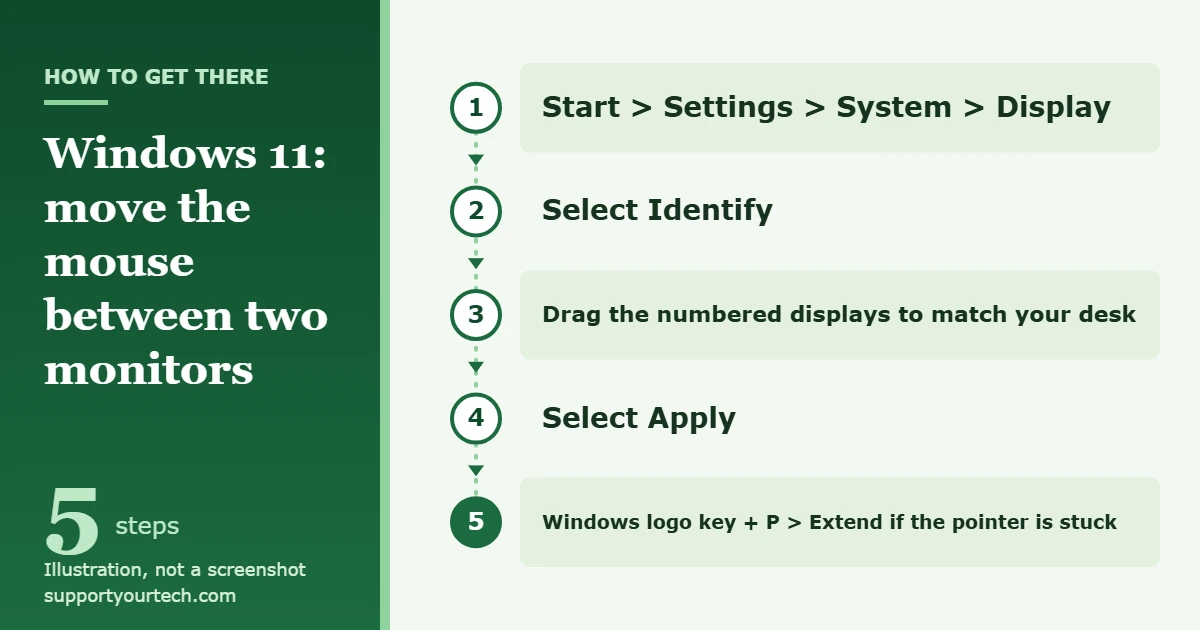
To move the mouse between two monitors in Windows 11, open Start > Settings > System > Display, drag the numbered displays so they sit the same way your monitors sit on your desk, and select Apply. If the pointer won’t leave the first screen at all, press Windows logo key + P and choose Extend.
Applies to: Windows 11 with two or more monitors. Checked against Microsoft Support on October 6, 2026.
How Windows decides where the pointer crosses
Windows doesn’t know where your monitors sit on your desk. It only knows the layout drawn on the Display page in Settings, where each screen appears as a numbered box. The pointer leaves one screen and enters the other along the edge where those two boxes meet.
That explains the most common problems:
- The pointer crosses on the wrong side. The boxes are in the opposite order to your real monitors, so you have to push the mouse left to reach the screen on your right.
- The pointer only crosses along part of the edge. One box sits higher or lower than the other, so the two edges only partly overlap.
- The pointer won’t cross at all. The second screen is duplicating the first, or Windows isn’t using it.
Before you start
- Both monitors are connected to the PC or dock, turned on, and showing a picture.
- The display mode is Extend. Press Windows logo key + P to check. With Duplicate, both screens show the same picture, so there is no second desktop for the pointer to move onto. With PC screen only or Second screen only, only one screen is in use.
If you haven’t connected the second screen yet, start with our guide on how to set up multiple monitors in Windows 11, then come back here to fix the pointer.
Arrange the displays so the mouse moves the right way
- Select Start, then open Settings. You can also press Windows logo key + I.
- Select System, then Display. A diagram at the top of the page shows a numbered box for each monitor. Windows only shows this diagram when it detects more than one display.
- Select Identify. A number appears on each physical screen, so you can tell which box is which monitor.
- Select a box and drag it to where that monitor really is. If monitor 2 is on your left, drag box 2 to the left of box 1. If one monitor sits above the other, drag its box above.
- Line up the boxes the way the screens line up on your desk. If the tops of your monitors are level, make the tops of the boxes level. If the smaller screen sits lower, slide its box down a little.
- Select Apply. The new layout takes effect right away.
- Move the mouse across the shared edge in both directions. The pointer should leave one screen and appear on the other at about the same height.
Microsoft’s own instructions for this are in How to use multiple monitors in Windows.
Set the monitors to Extend
Use this when the pointer stops at the edge of one screen no matter how the boxes are arranged.
- Press Windows logo key + P. A short list of display modes opens.
- Choose Extend. The second monitor now shows its own part of the desktop instead of a copy of the first.
- Move the mouse toward the second monitor. If it goes the wrong way, arrange the displays using the steps above.
Stop the pointer from sticking or jumping at the edge
When two monitors have different resolutions, their edges are different lengths, and the pointer can catch on the part of the longer edge that has nothing beside it. Windows 11 has a setting that lets the pointer jump past those spots.
- Open Start > Settings > System > Display.
- Expand Multiple displays.
- Find Ease cursor movement between displays. Turn it on if the pointer gets stuck in the corners. Turn it off if the pointer jumps to the other screen when you don’t want it to, for example when you aim for a button in the corner of a window.
Microsoft added this setting during Windows 11 preview testing in 2022 (Insider build 22557) and described it as letting the cursor jump over areas where it would previously get stuck. If you don’t see it, install the latest updates from Start > Settings > Windows Update > Check for updates.
Make the two screens feel the same
The pointer can seem to change size or shift up or down as it crosses when the monitors use different resolutions or scaling. On the Display page, select the box for one monitor, scroll to Scale & layout, and check these settings. Then select the other box and check them again.
- Display resolution: use the option marked (Recommended) for each monitor.
- Scale: the recommended value is usually best. If text is much larger on one screen than the other, try a different value on that screen.
- Display orientation: if one monitor is turned on its side, choose the matching orientation so its box in the diagram becomes tall and narrow like the real screen. Then line the boxes up again.
Microsoft covers these three settings in Change your screen resolution and layout in Windows. Changing which screen is the main one doesn’t change where the pointer crosses. If you want a different screen to be the main one, see how to set the primary monitor in Windows 11.
Move a window to the other monitor with the keyboard
You don’t have to drag a window across with the mouse. Select the window, then press Windows logo key + Shift + Right arrow to send it to the monitor on the right, or Windows logo key + Shift + Left arrow to send it to the monitor on the left. This also rescues a window that ended up on a screen you can’t see. Our guide on moving a window that’s off screen in Windows 11 has more ways to do that.
Optional: extra pointer tools in Microsoft PowerToys
PowerToys is a set of utilities from Microsoft. Its Mouse utilities include three tools that help on large or multiple screens:
- Mouse Jump shows a small preview of all your screens. Click a spot in the preview and the pointer moves straight there.
- CursorWrap makes the pointer wrap around: push it past one outer edge and it comes back on the opposite side.
- Find My Mouse puts a spotlight on the pointer when you lose track of it. Depending on the activation method you pick, you press the Ctrl key twice or shake the mouse.
Each tool has its own on/off switch and shortcut, described in Microsoft’s PowerToys Mouse utilities documentation. You don’t need PowerToys for normal movement between two monitors. The built-in settings above are enough.
Check that it worked, or undo it
Move the pointer slowly across the shared edge near the top, the middle, and the bottom. It should cross in each place and arrive on the side you expect. Then drag a window across to confirm it follows.
To undo a change, go back to Settings > System > Display, drag the boxes back to where they were, and select Apply. Nothing here is permanent, and none of it changes your files or apps.
Troubleshooting
There is only one box on the Display page
Windows isn’t detecting the second monitor. Check that the cable is firmly connected at both ends and that the monitor is set to the correct input. Then go to Start > Settings > System > Display > Multiple displays and select Detect.
The second screen shows the same thing as the first
The displays are duplicated. Press Windows logo key + P and choose Extend.
The pointer still goes the wrong way after selecting Apply
Select Identify again and compare the numbers on the screens with the boxes. The numbers don’t tell Windows which monitor is on which side, so monitor 2 can be the one on the left. Drag the boxes into the real order. You don’t need to swap cables. If you want a closer look at this exact problem, see how to fix a mouse that goes the wrong way between monitors.
The pointer only crosses near the top or the bottom
The boxes are offset. Drag one box up or down until the edges overlap along the full height of the smaller screen, then select Apply.
The second monitor went black or stopped responding
Press Windows logo key + Ctrl + Shift + B to reset the graphics driver, or restart the PC from Start > Power > Restart. If the problem began after a driver update, search for Device Manager from the taskbar, expand Display adapters, right-click your display adapter, select Properties, open the Driver tab, and select Roll Back Driver. To look for a newer driver instead, right-click the adapter and select Update driver. Microsoft lists more checks in Troubleshoot external monitor connections in Windows.
Display settings are missing or can’t be changed on a work or school PC
Your organization may manage some settings, or the PC may need a dock driver from your IT department. Ask your administrator before changing drivers on a managed computer.
Frequently asked questions
Why won’t my mouse go to my second monitor in Windows 11?
Usually the monitors are set to Duplicate instead of Extend, or the numbered boxes on the Display page don’t match where the monitors really sit. Press Windows logo key + P, choose Extend, then arrange the boxes and select Apply.
Why does my mouse move the wrong way between monitors?
The boxes in Settings are in the opposite order to your real monitors. Open Settings > System > Display, drag one box to the other side, and select Apply.
Is there a keyboard shortcut to move the mouse to the other monitor?
Windows 11 doesn’t list a built-in shortcut that moves only the pointer. Windows logo key + Shift + Left arrow or Right arrow moves the active window to the next monitor. To jump the pointer itself, use Mouse Jump in Microsoft PowerToys.
Can I put one monitor above the other?
Yes. Drag one box above the other on the Display page and select Apply. The pointer then crosses at the top and bottom edges instead of the sides.
Can I use two monitors with different sizes or resolutions?
Yes. The pointer may shift a little as it crosses, because the screens have a different number of pixels along the shared edge. Line the boxes up the way the screens sit on your desk, and turn on Ease cursor movement between displays if the pointer catches in the corners.
How do I keep the mouse from sliding onto the other monitor by accident?
Turn off Ease cursor movement between displays under Multiple displays, so the pointer stops at parts of an edge that have no screen beside them. To use only one screen for a while, press Windows logo key + P and choose PC screen only.
Once the pointer crosses where you expect, select Identify one more time and keep a note of which number is which monitor. If Windows ever resets the layout after a cable or dock change, you can drag the boxes back in a few seconds.

Matt Jacobs has been working as an IT consultant for small businesses since receiving his Master’s degree in 2003. While he still does some consulting work, his primary focus now is on creating technology support content for SupportYourTech.com.
His work can be found on many websites and focuses on topics such as Microsoft Office, Apple devices, Android devices, Photoshop, and more.