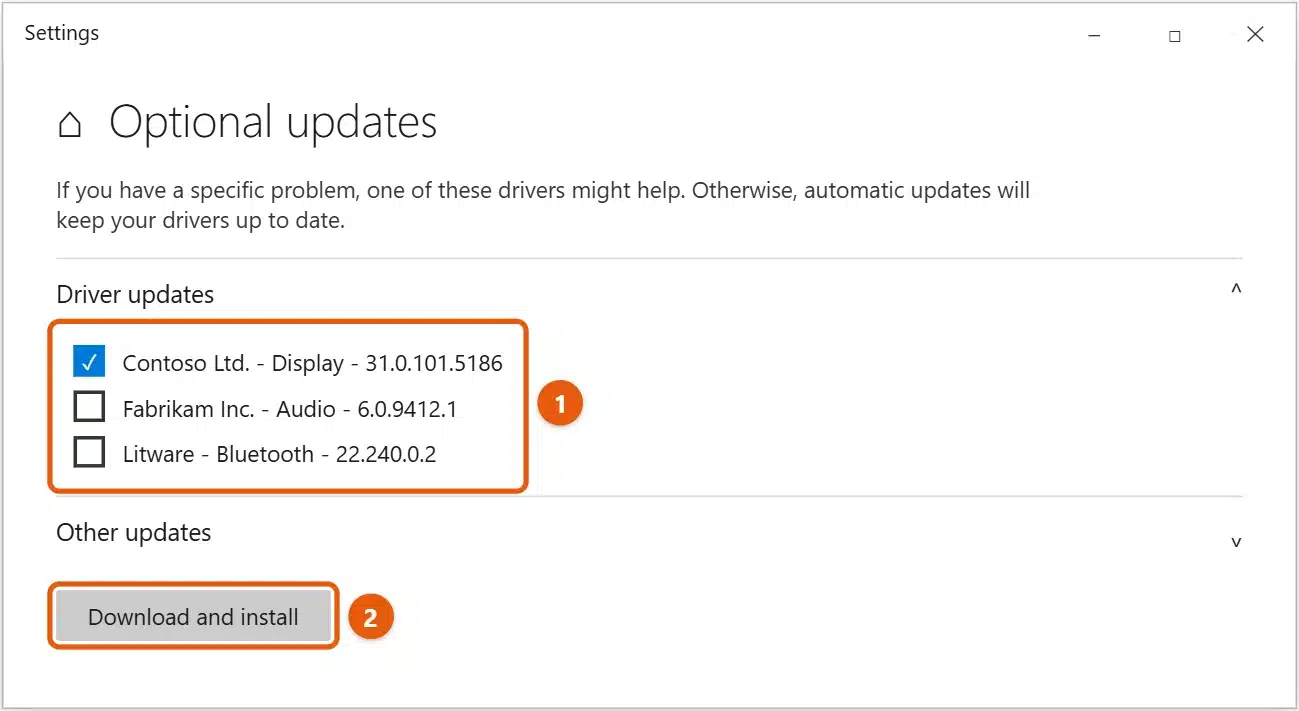
To update all drivers on Windows 10 at once, go to Settings > Update & Security > Windows Update. Select Check for updates, then View optional updates. Expand Driver updates, check the drivers you want, and select Download and install.
Windows Update installs most important drivers automatically, so the optional list only covers the rest. If everything on your PC works, you usually don’t need to install them.
Applies to: Windows 10. Checked against Microsoft Support on September 24, 2026.
Update drivers with Windows Update
- Select Start > Settings > Update & Security > Windows Update.
- Select Check for updates and install anything waiting.
- Select View optional updates. If you don’t see the link, there are no optional updates right now.
- Expand Driver updates, check the drivers you want to install, and select Download and install.
- Restart the PC if Windows asks you to.
Only install an optional driver if you have a problem with that device. A driver that works well is better than a newer one you don’t need.
Update one driver in Device Manager
- Right-click Start and select Device Manager.
- Expand the category, such as Display adapters or Network adapters.
- Right-click the device and select Update driver > Search automatically for drivers.
- If Windows says the best driver is already installed, select Search for updated drivers on Windows Update to check the optional list.
A yellow warning triangle marks a device with a driver problem. Start with those.
Install a driver you downloaded
If you downloaded a driver from the device maker:
- If it’s an installer (a
.exefile), run it and follow the prompts. Most drivers install this way. - If it’s a folder of files, open Device Manager, right-click the device, and select Update driver > Browse my computer for drivers.
- Select Browse, choose the folder, and select Next.
Get drivers from your PC or device maker
For the newest drivers, especially for graphics cards, use the maker’s own tools:
- PC makers such as Dell, HP, and Lenovo have support apps, such as Dell SupportAssist, HP Support Assistant, and Lenovo Vantage, plus download pages where you enter your model or serial number.
- Graphics cards: download drivers from Intel, AMD, or NVIDIA for your exact graphics card. Their apps can keep them up to date.
- Printers, webcams, and other devices: check the device maker’s support page for your model. For an HP printer example, see how to download the HP LaserJet M1136 MFP driver for Windows 10.
Always download drivers from the maker’s own website. Make sure the driver is for Windows 10 and matches your system type, usually 64-bit. Check under Settings > System > About > System type.
Avoid driver updater programs
Third-party “driver updater” or “driver booster” apps often install the wrong drivers, bundle unwanted software, or push paid upgrades. Microsoft recommends Windows Update as the best way to get drivers. Stick to Windows Update, Device Manager, and your hardware maker’s website. If you are not sure of the exact model, look up the device’s hardware ID before you search the maker’s site.
If a new driver causes problems
- Roll it back: in Device Manager, right-click the device and select Properties. On the Driver tab, select Roll Back Driver.
- Reinstall it: right-click the device, select Uninstall device, and restart. Windows installs a driver again.
- Use System Restore if the PC won’t work properly after a driver update. See how to restore Windows 10 to a previous date.
Frequently asked questions
How do I know which drivers need updating?
Windows doesn’t show a single “out of date” list. Check View optional updates, look for warning signs in Device Manager, and update drivers for devices that aren’t working properly.
Do I need to update drivers regularly?
No. Update a driver when a device has a problem, when a game or app asks for a newer graphics driver, or when the maker fixes a security issue.
Is Windows 10 still getting driver updates?
Windows 10 support ended on October 14, 2025, and device makers are gradually stopping new Windows 10 drivers. Check the maker’s site, and see how to enroll in Windows 10 Extended Security Updates if you plan to keep using Windows 10.
If your PC is still slow after updating drivers, see how to speed up a Windows 10 computer.
For Bluetooth specifically, see how to update the Bluetooth driver in Windows 10. If a driver seems to cause crashes, check the event logs in Windows 10 to find the device.
If a new driver stops Windows from starting, remove it from Safe Mode. See how to start Windows 10 in Safe Mode.
To check your webcam after a driver update, see how to test your camera on Windows 10.
If your keyboard stops working after a driver change, see how to unlock the keyboard in Windows 10.
If a touch screen stops responding or you want it off, see how to turn off the touch screen in Windows 10.
If sound stops working after a driver update, see how to fix no sound in Windows 10.
If your microphone gets quiet after a driver update, see how to turn up mic volume in Windows 10.
Not sure which graphics card you have? See how to check your GPU in Windows 10.
For printers specifically, see how to install or update printer drivers in Windows 10.
BIOS (firmware) updates need extra care. See how to update the BIOS in Windows 10 safely.
Not sure which drivers need attention? See how to check drivers in Windows 10.
For a specific device, see how to reinstall the Bluetooth driver in Windows 10 or how to get HDMI working on Windows 10. On Windows 11, see how to update all drivers in Windows 11. Microsoft’s guide is Update drivers through Device Manager in Windows. More help is on our Devices & Drivers Help & Guides page.
Before you update a driver, it’s a good idea to create a restore point in Windows 10 so you can undo the change.
For sound problems, see how to update audio drivers in Windows 10.
For all the ways to open Device Manager, see how to open Device Manager in Windows 10.
If your driver comes as a .cab file, see how to install a CAB file in Windows 10.
Before removing drivers, see whether you should uninstall all drivers in Windows 10.
On Windows 11, see how to check if drivers are up to date in Windows 11.
Related: install camera drivers in Windows 10.

Matt Jacobs has been working as an IT consultant for small businesses since receiving his Master’s degree in 2003. While he still does some consulting work, his primary focus now is on creating technology support content for SupportYourTech.com.
His work can be found on many websites and focuses on topics such as Microsoft Office, Apple devices, Android devices, Photoshop, and more.